
WhatsApp Conversation Window
- Profile of the selected chat user can be accessed from here.

- After clicking on this icon below the screen will be open Where details of the selected user can be found.
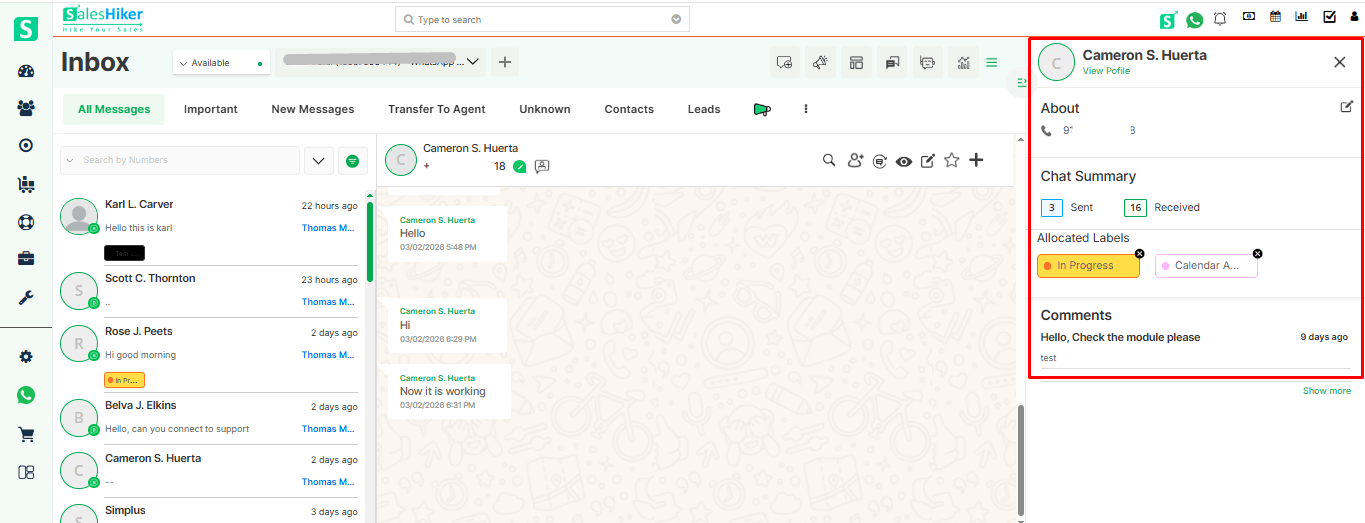
Chat Summary
- This section presents the number of sent and received messages.

Attachment , WhatsApp Template and Voice message
Attachment
- The Attachment feature allows users to send and receive different types of files within a conversation. This is useful for sharing important documents, media, and other resources efficiently.
Types of Attachments Supported:
- Images & Videos – Share photos and videos directly from the gallery or camera.
- Documents – Send PDFs, Word files, Excel sheets, and other documents.
WhatsApp Template
- Here one pop up will be open for users to select a WhatsApp template.
Internal Note 
- When the Internal Note icon is clicked, the message input section turns yellow, allowing agents to send internal notes visible only to team members without notifying the end user.
Voice Message
- Voice Message option allows the user to send any voice note or voice message .
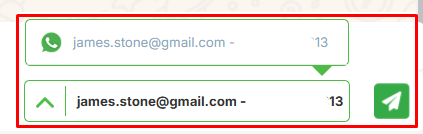
Number selection for sending WhatsApp Messages
This option is available in the chat of all users at the bottom right corner.
- If multiple numbers are registered, they will be displayed here.
- If only one number is registered, only that number will be visible.
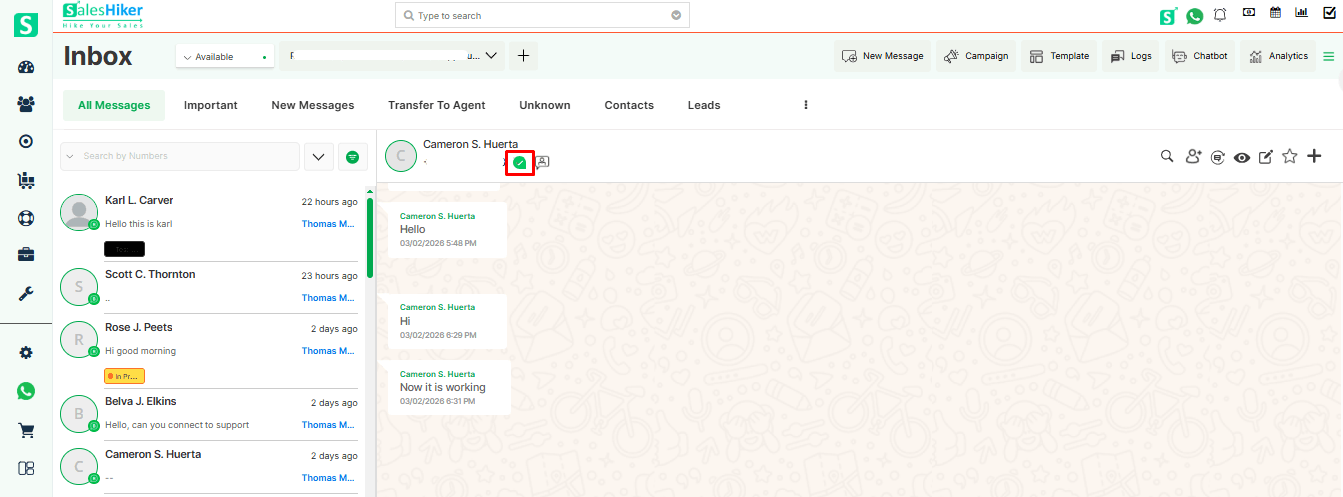
Close Conversation
- The highlighted icon in the image below is for closing a conversation.
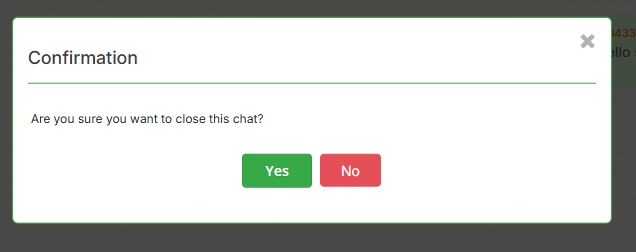
- By clicking on this icon one pop up will be visible like the below screen.
- After clicking on yes the icon will turn blue .
 like this.
 - To open the conversation again click on the same icon again one pop up will appear.
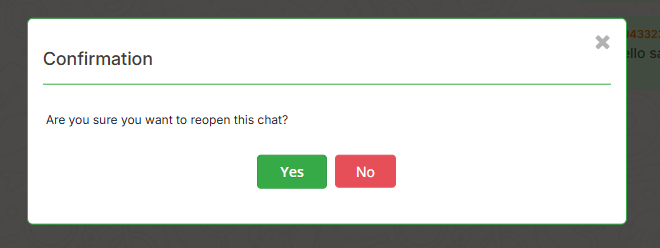
- After clicking on yes again the icon will turn to green color .
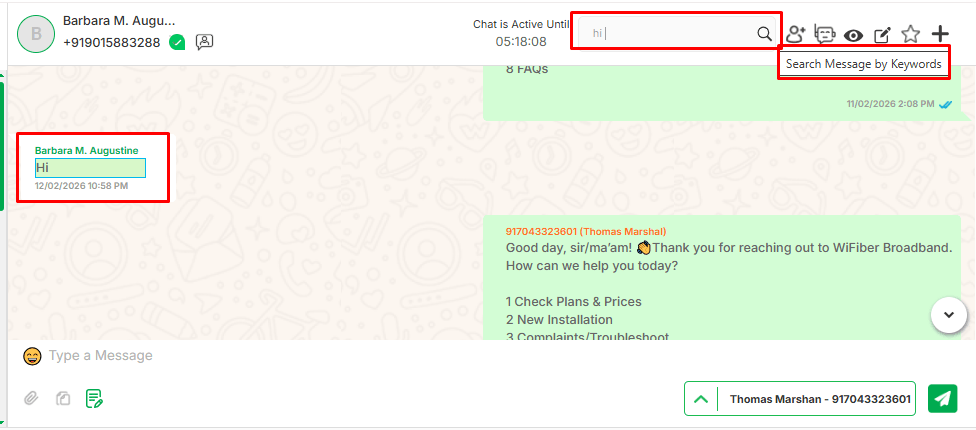
Search Message by Keywords
Allows users to quickly find specific messages within chats by entering relevant keywords, making it easier to locate important conversations and information.
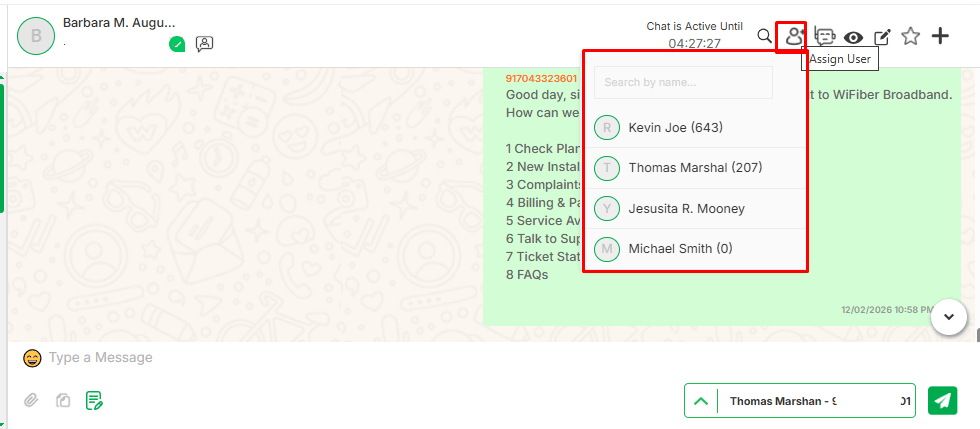
Assign User
- Allows you to change or reassign the conversation to another user for better task management and ownership control.
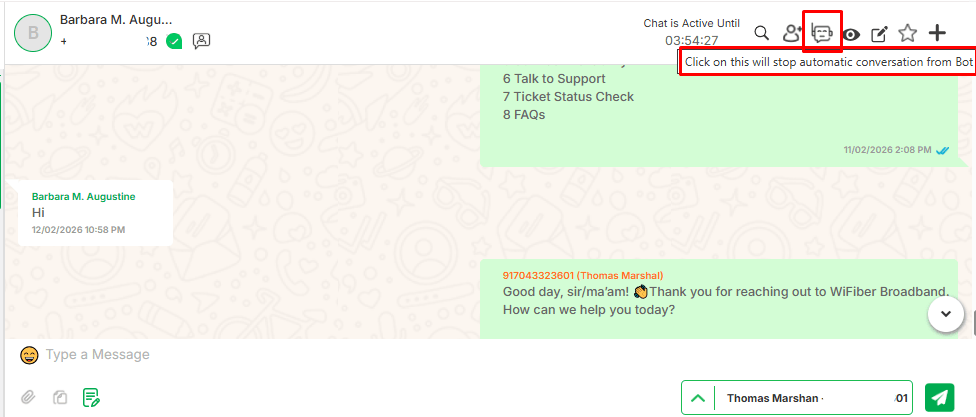
Chatbot
- Clicking on this chatbot icon will stop the automated conversation from the bot
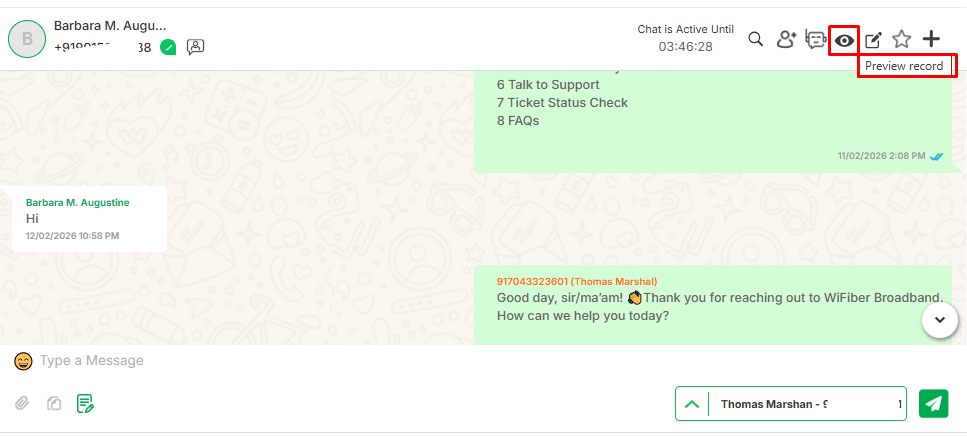
Preview Record
- Allows users to view a record before making any changes or taking further action
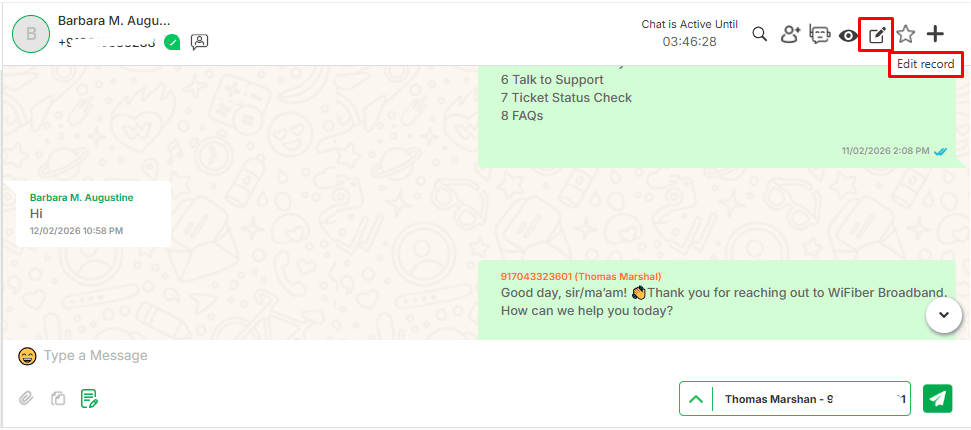
Edit Record
- Enables users to modify existing records, such as contact details, notes, or labels.
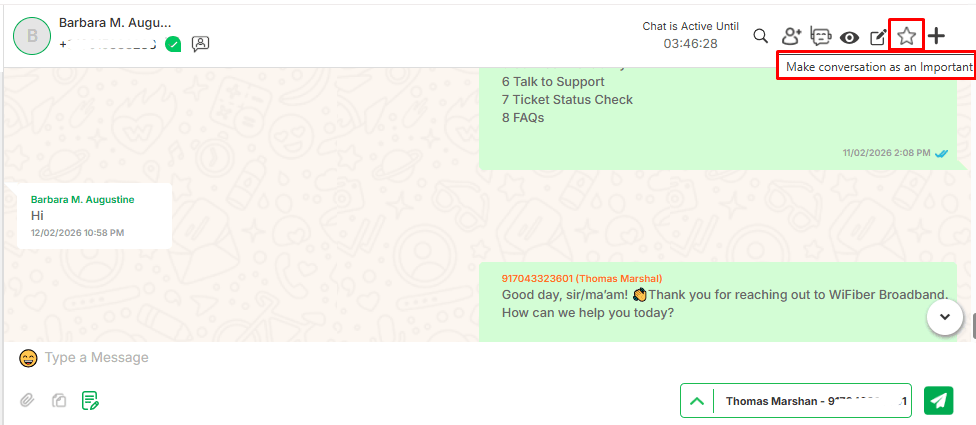
Mark As Important
- Allows users to highlight or prioritize specific messages or records.
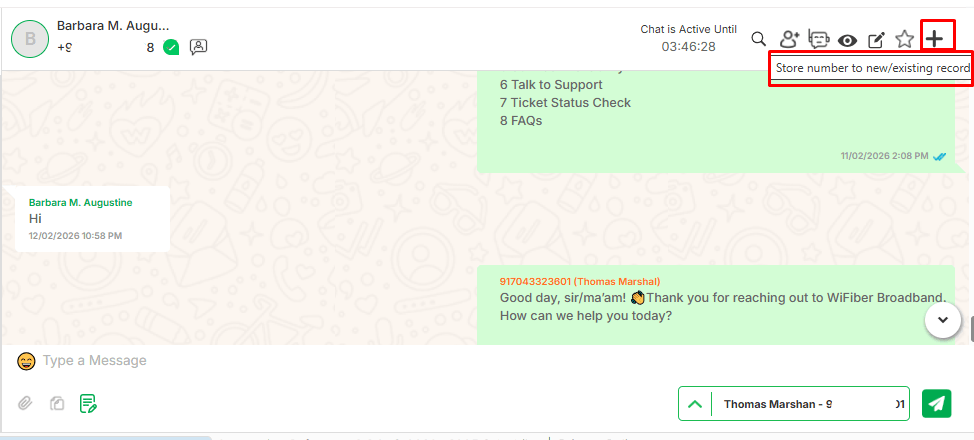
Add Related Records
- The ‘+’ icon is used to add related records for the user whose chat is currently open.
- By selecting any option from the dropdown record, the additional form for the selected option will be open.

 by
by