
Utility Template
How to Create a WhatsApp Business Template
Add the content of How to Create a WhatsApp Business Template
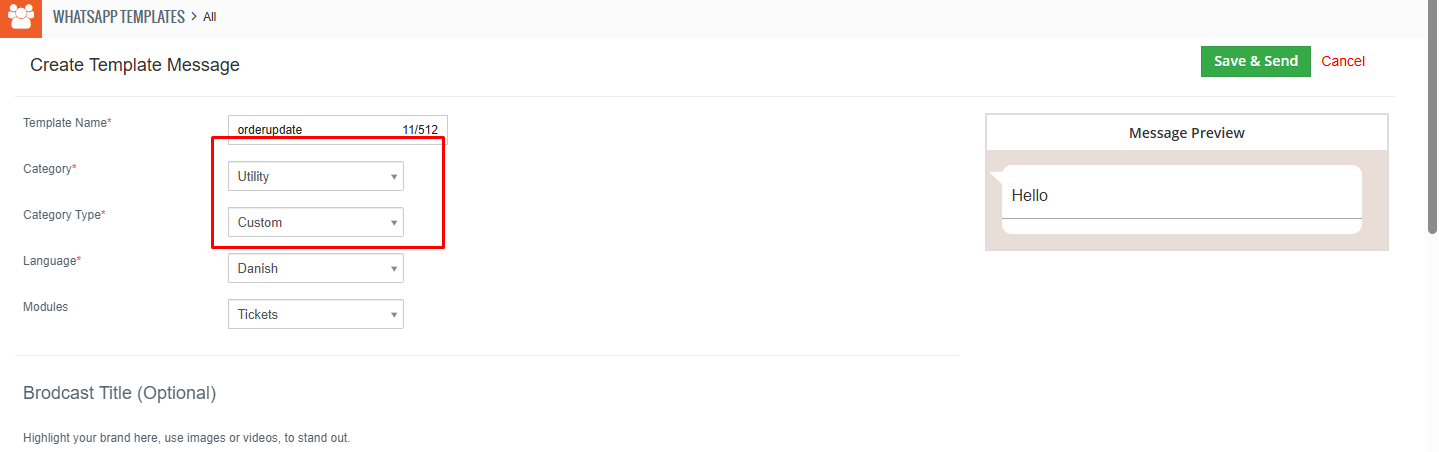
Here in the Utility category, there are two category types .
Custom
- Send messages about an existing order or account.
- This template is good for Order confirmations, account update, receipts, appointment reminders, billing
- Template areas that you can customize Header, body, footer, button
The highlighted message demonstrates the Utility category with a Custom message type.
Flow
- Flow Message is a new interactive message type introduced by WhatsApp that allows businesses to create multi-step, interactive forms inside WhatsApp chats.
- Send a form to collect feedback, send reminders or manage orders.
- This template is good for Customer support, surveys
- Template areas that you can customize Form, body, button It enables:
- Seamless two-way interaction
- Multiple question forms
- Dropdown selections
- Button-based navigation
- Payment collection
Note: The utility flow does not allow users to edit a template once it has been created and saved, in accordance with WhatsApp Business rules.
To create a custom WhatsApp message template in the Utility category, follow these steps:
Steps to Create a Utility Custom Template:
- Template Name: Enter a unique name (without spaces or capital letters).
- Template Category: Select Utility.
- Template Type: Choose Custom Template.
- Language Selection: Choose the preferred language.
- Template Structure:
- Header: Add a title (optional: include an image, video, or document).
- Body: Main content of the message (e.g., transaction details, appointment updates).
- Footer: Additional information or disclaimers (optional).
- Buttons:
- Quick Reply: (“Confirm,” “Need Help,” “Cancel Request”).
- Call-to-Action (CTA) Button:
- URL Button:(“View Order,” “Track Shipment”).
- Phone Button: (“Call Support”).
- Media Upload: Attach images, receipts, or documents if required.
- Click Save & Submit: Meta will review and approve the template.
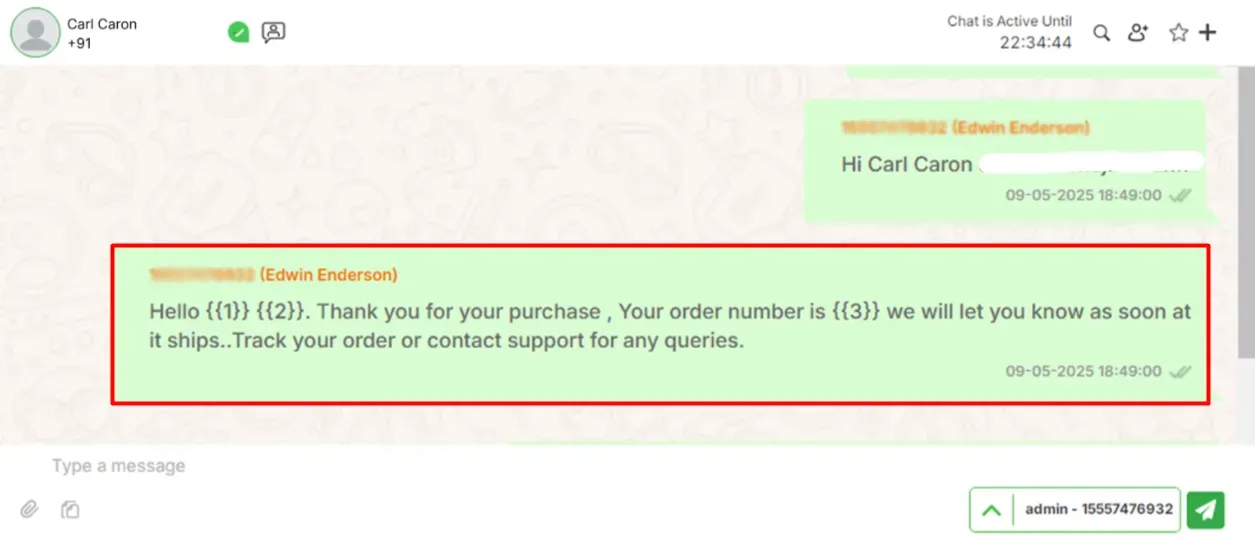
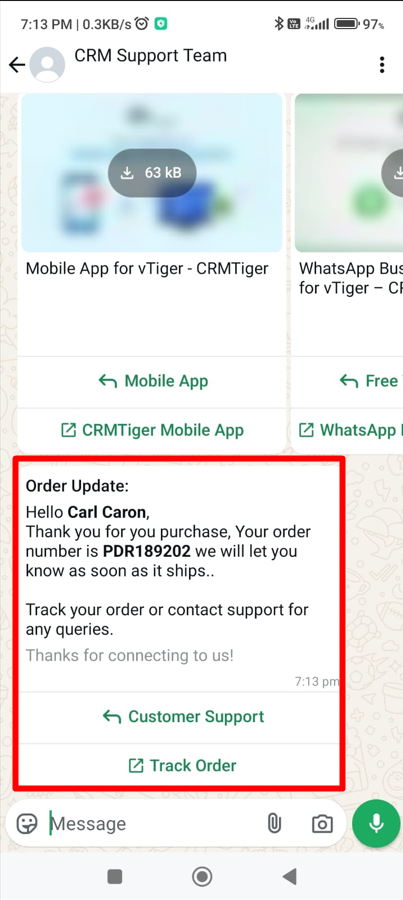
And the received message will be displayed as shown below.
To create an effective WhatsApp message template for the Utility category with a flow type, follow these steps:
Steps to Create a Utility Flow Template:
- Template Name: Enter a unique name (no spaces or capital letters).
- Template Category: Select Utility.
- Template Type: Choose Flow Template.
- Language Selection: Pick the preferred language.
- Flow Structure:
- Welcome Message: Acknowledge the user’s request (e.g., order tracking, appointment updates).
- Quick Reply Options: Allow users to select their required service.
- Media Cards (if needed): Additional information or disclaimers (optional).
- Call-to-Action (CTA) Buttons:
- Quick Reply: (“Track Order,” “Reschedule Appointment”).
- URL Button: (“View Details,” “Chat with Support”).
- Final Confirmation: Confirm completion of the process or provide further assistance.
- Media Upload: Attach receipts, tickets, or relevant documents if necessary.
- Click Save & Submit: Meta will review and approve the template.
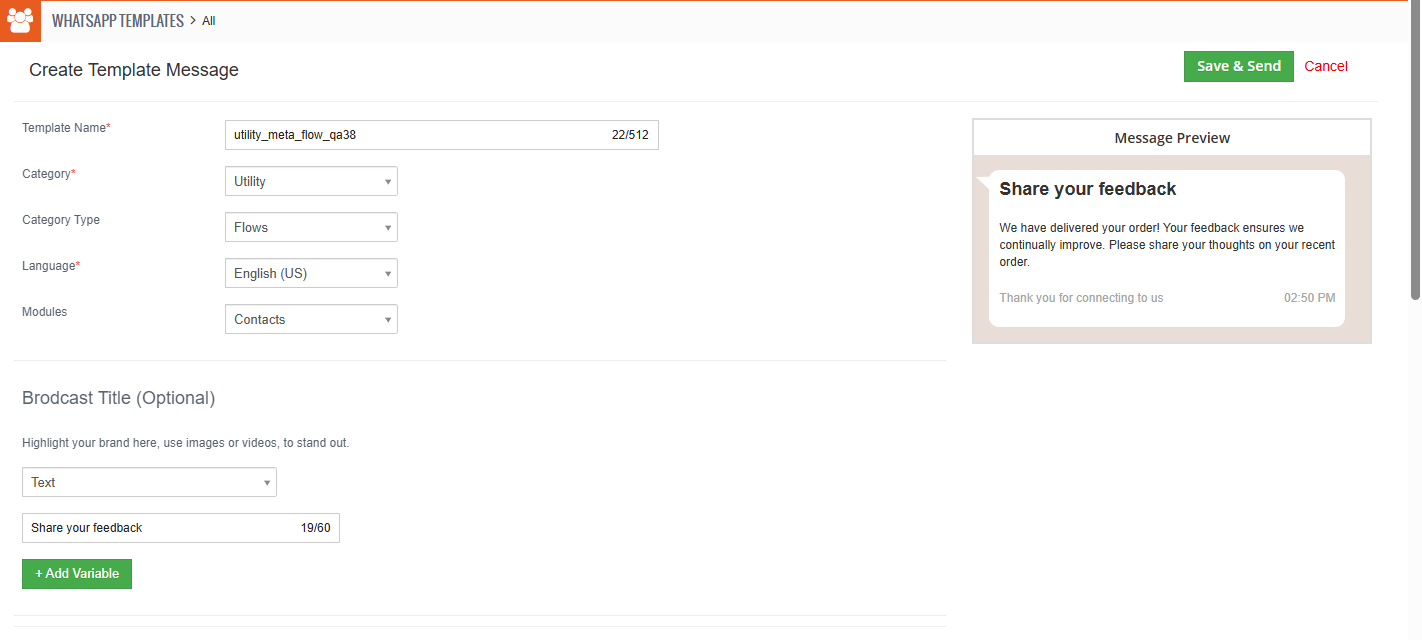
To create flow type utility template messages, users have to create flow in meta , once it is published from meta user can use existing flow.
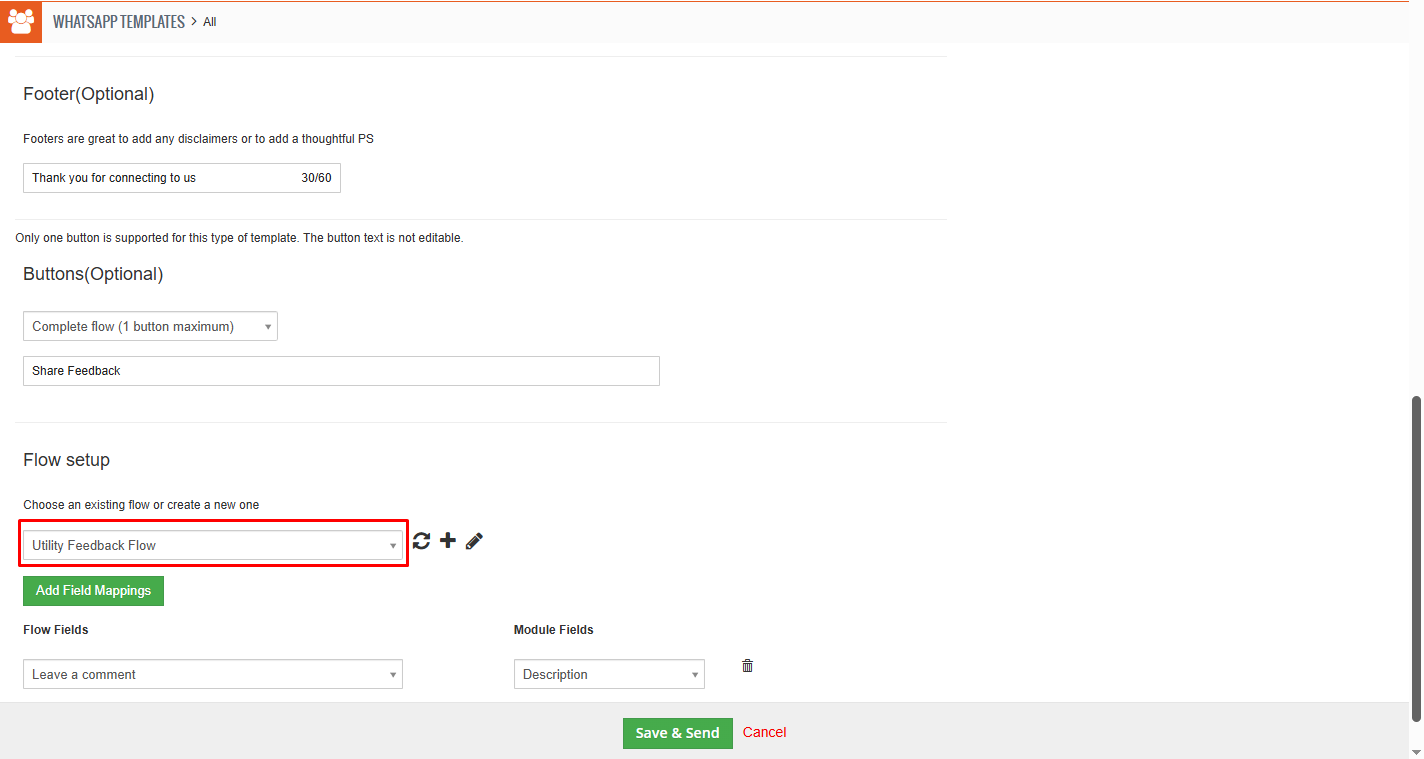
To Send Utility flow type message, the user has to click on template “WhatsApp Business Icon” to select template and send.
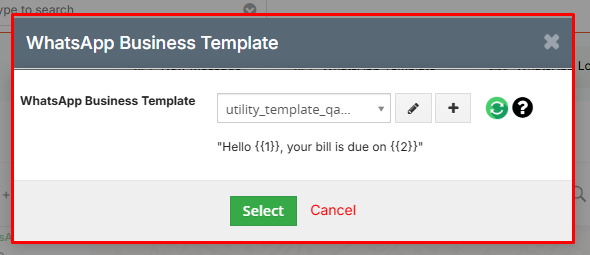
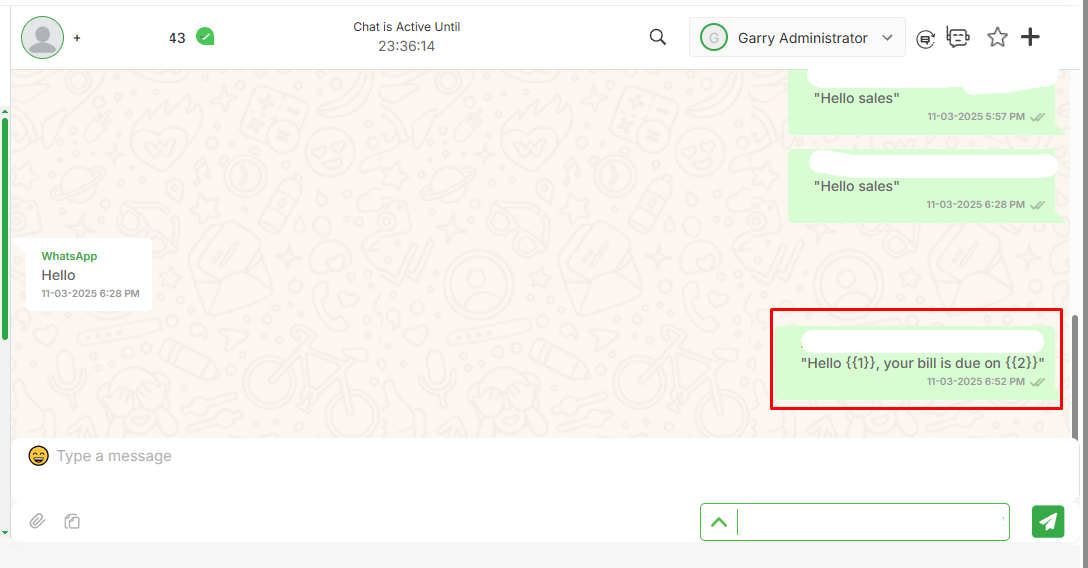
Sent Utility flow type will be displayed as mentioned in below screen.
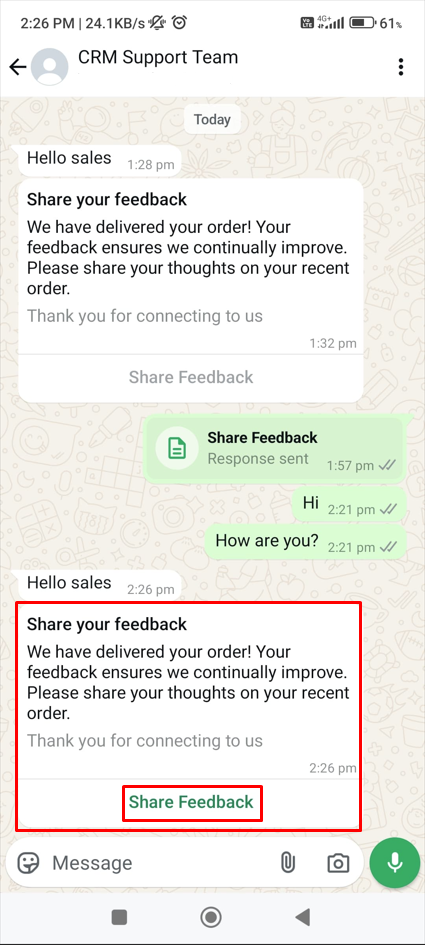
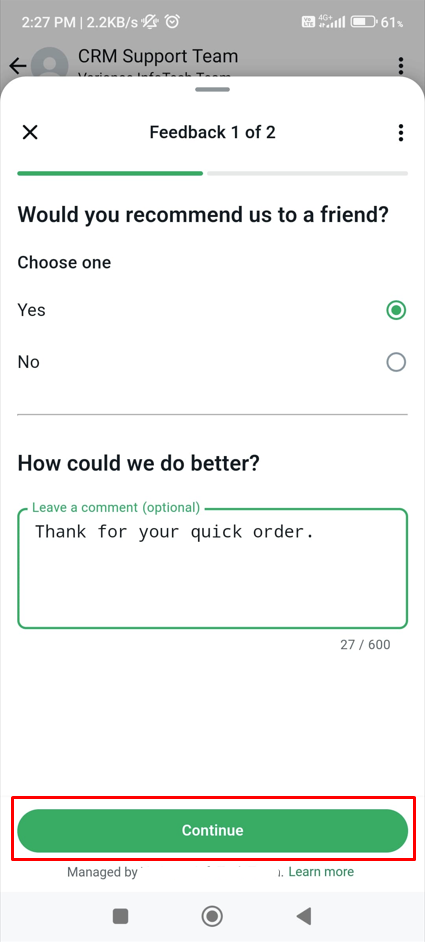
When a customer receives a utility flow type to share feedback, a message will be displayed as below screen.
Users can enter detail in feedback form and click on continue to next feedback for rating.
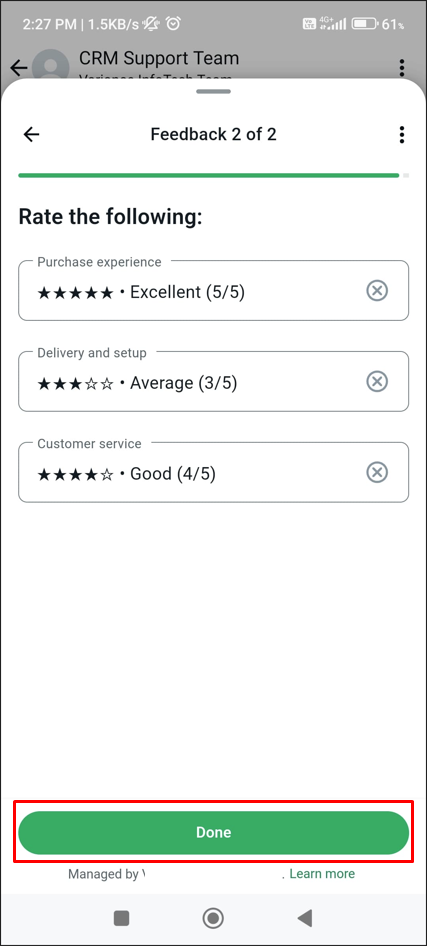
The following screen demonstrates the selection of ratings.
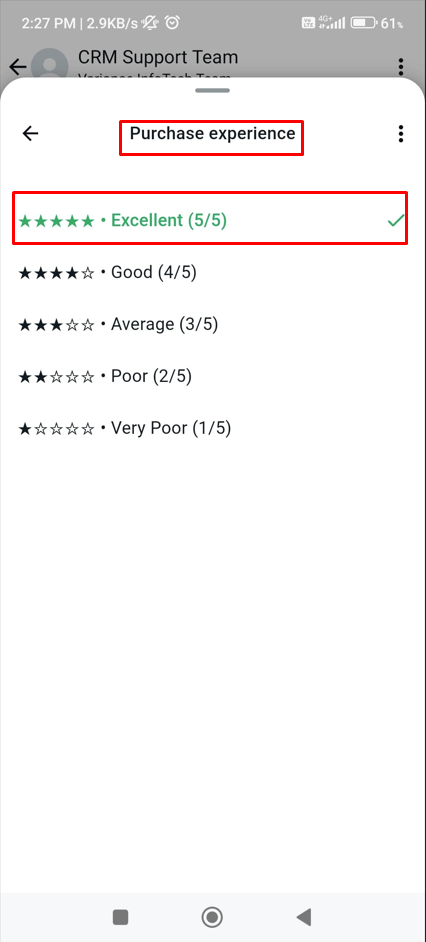
Selected ratings will be highlighted with green text.
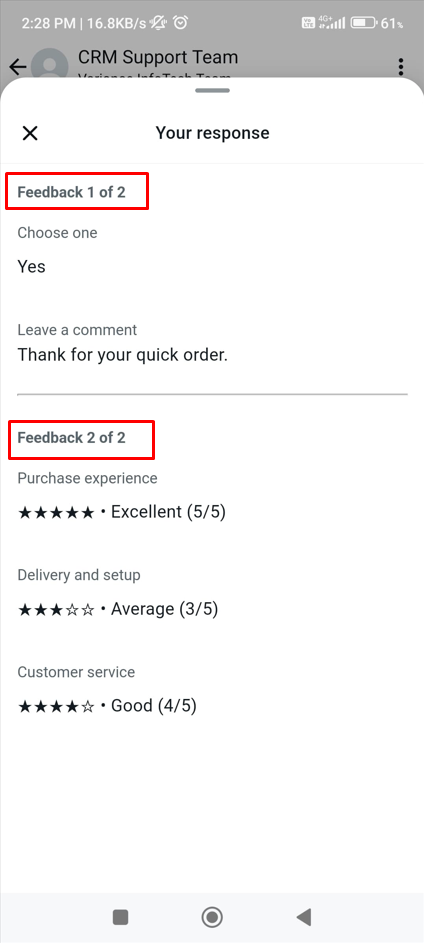
Once feedback is submitted, it will be displayed as below.
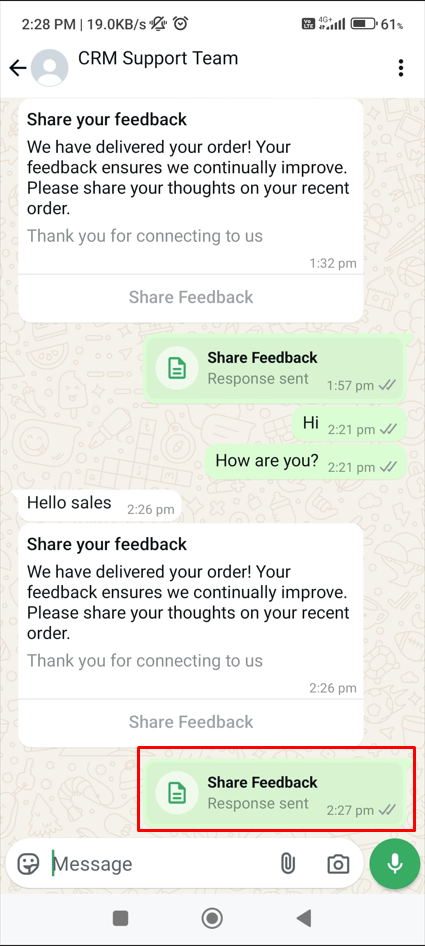
When the user clicks on the “Share Feedback“ button, it will show submitted feedback.

 by
by