
Location Type Template
The Location Template allows you to create a WhatsApp Business template that includes a specific location, such as a store, office, branch, service center, or any other business location. Customers can view the location details directly within the WhatsApp message. To create a location template, follow the steps below.
How to Create a Location Template
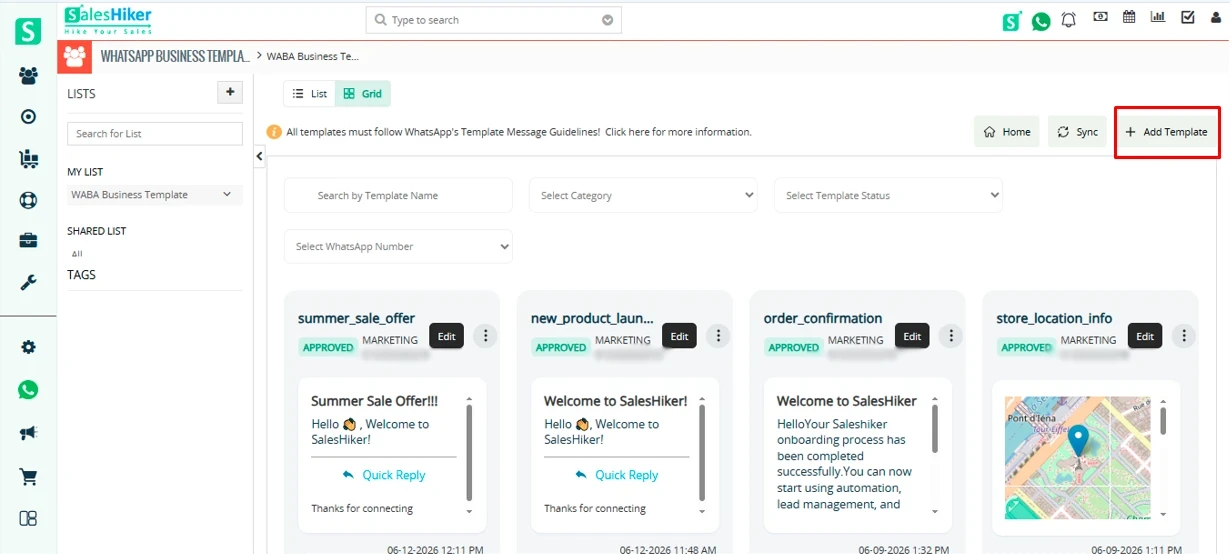
To create a location template, navigate to the WhatsApp Business Template section and click the Create Template option.
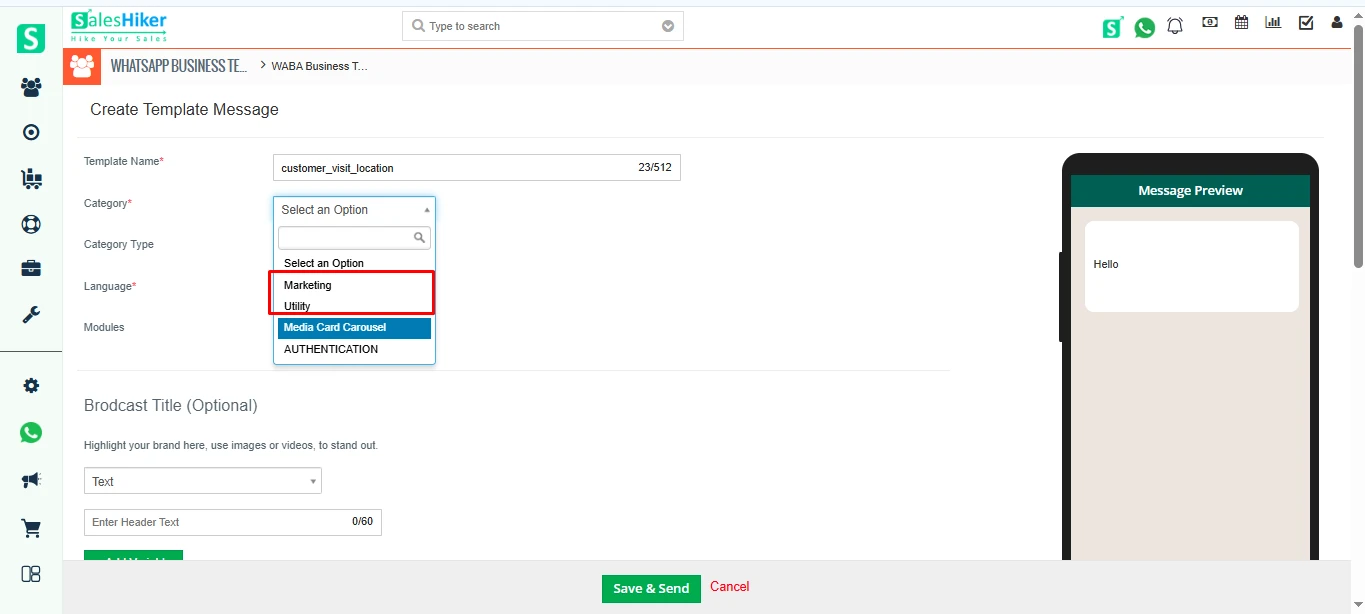
Select the appropriate template category based on the purpose of the message. For a location template, you can select either the Marketing or Utility template type. Once the template type is selected, continue with the template creation process.
After selecting the template type, go to the Media section of the template creation page. From the available media options, select Location. Selecting the Location option enables the location-specific fields that are required to display a location in the WhatsApp template.
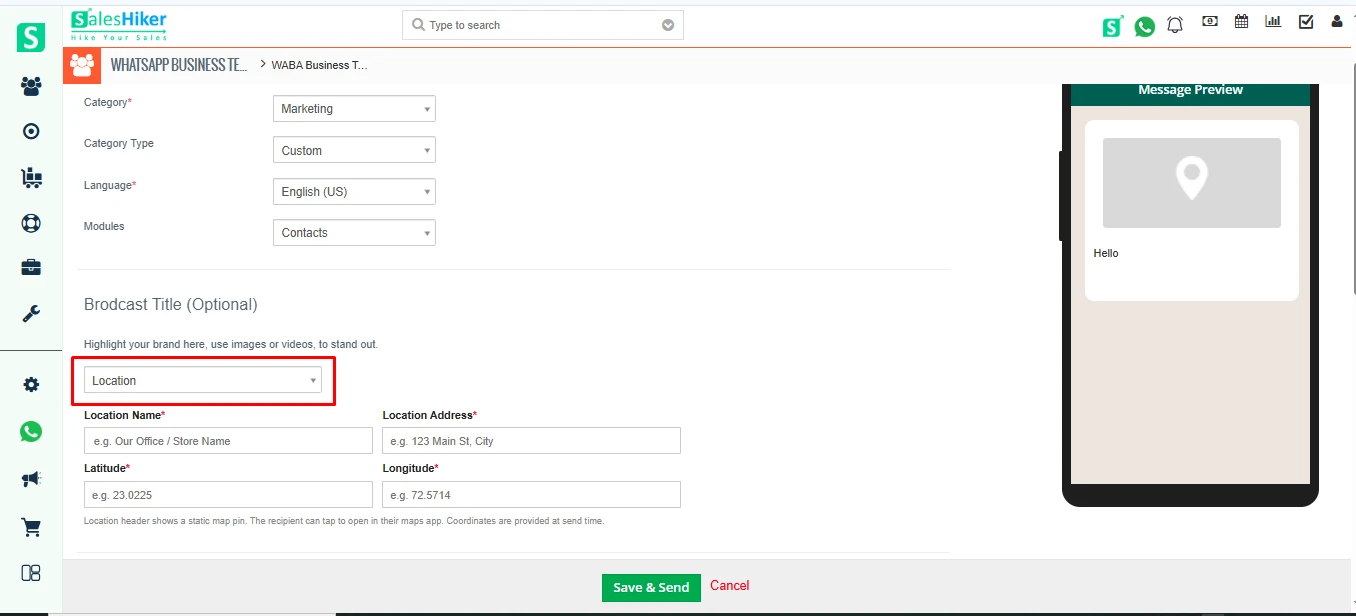
Once Location is selected from the Media options, additional fields will be displayed for entering the location information. Enter the required details carefully so that customers can correctly identify the location.
Enter the Location Name to specify the name of the business, branch, office, store, or other location that you want to display in the template. Then, enter the complete Location Address, which helps customers understand where the location is situated.
Next, enter the Longitude and Latitude values for the location. These coordinates define the exact geographical position of the location. All four fields—Location Name, Location Address, Longitude, and Latitude—are required to create the location information.
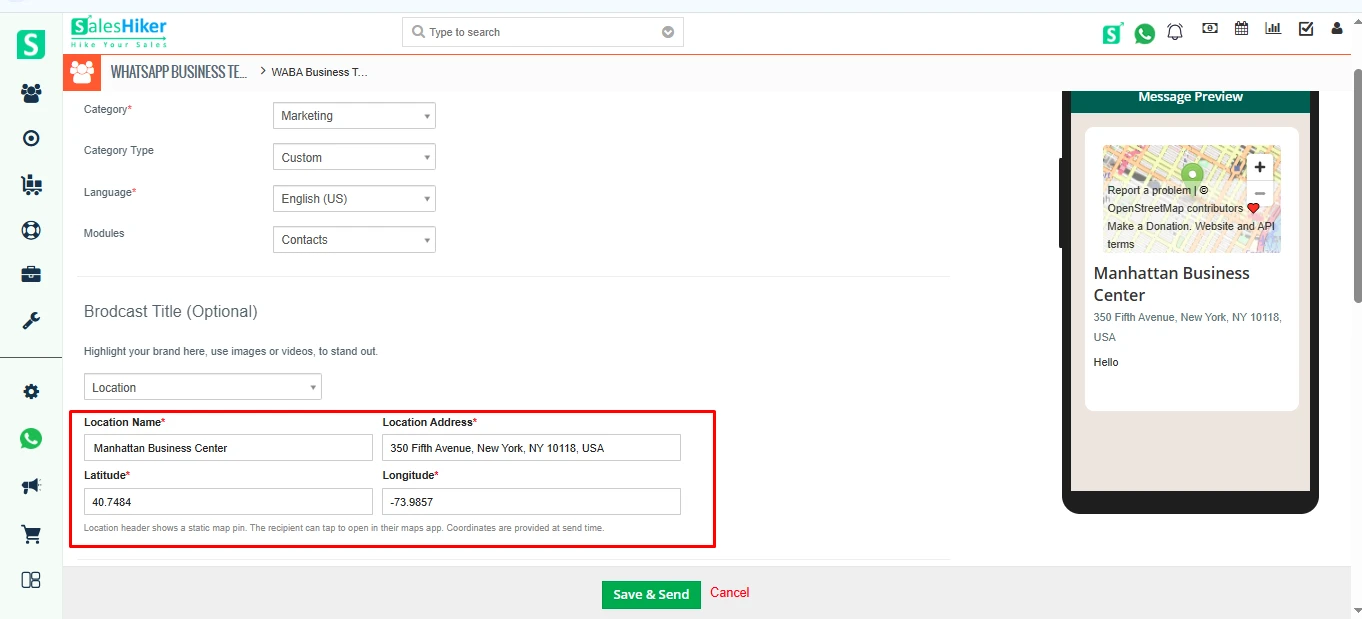
After entering all the required location details, the system will display the location in the Template Preview section. Review the preview to confirm that the location name, address, and other location information are displayed correctly. This preview helps you verify how the location information will appear before saving the template.
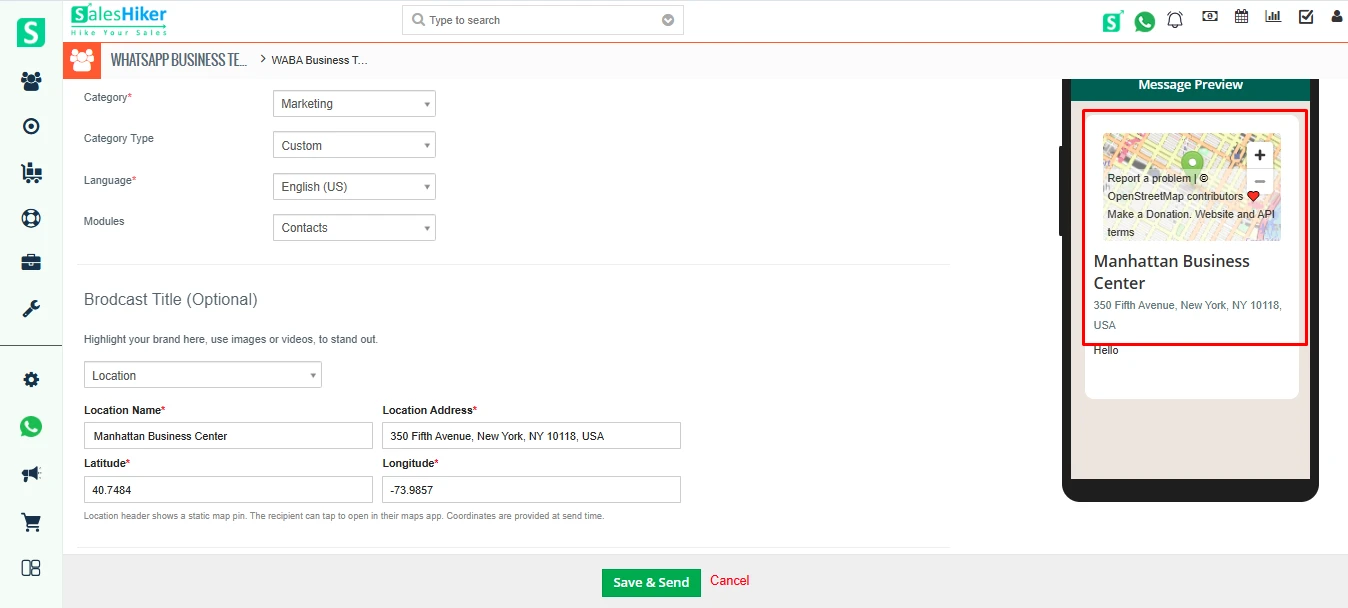
After adding the location details, complete the remaining template information in the same way as you would when creating other WhatsApp Business templates. Depending on the selected template configuration, add the required content such as the Header, Body, Footer, and Buttons.
Make sure that the content is relevant to the purpose of the location template and that all required fields are completed. Review the complete template using the preview section to ensure that the location and other template content are displayed correctly.
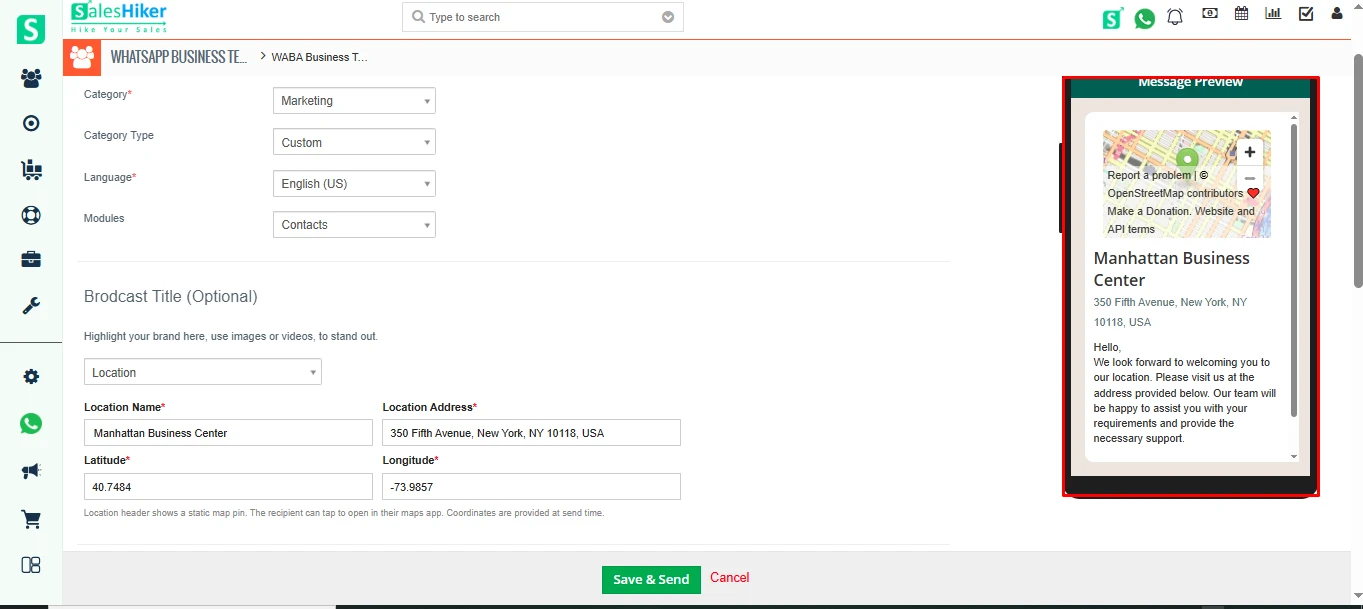
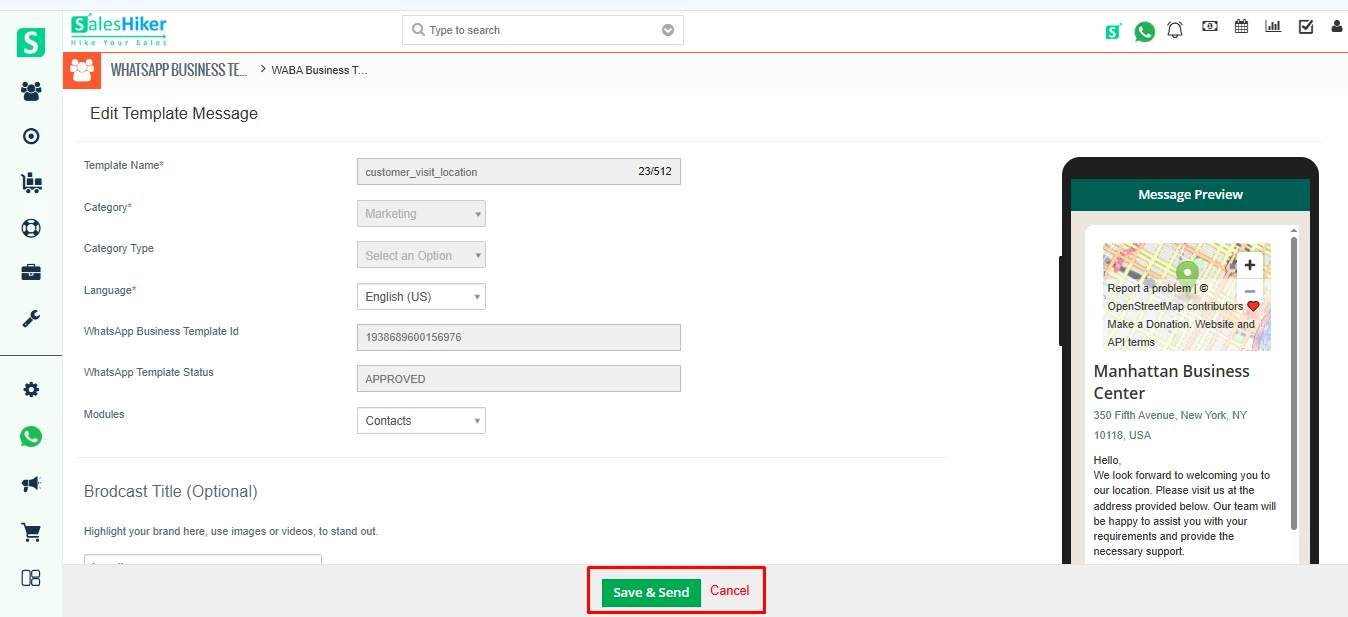
Once all the required information has been added and the template has been reviewed, click Send and Save to submit the template. The system will save the template and process it according to the WhatsApp Business template submission workflow.
Before clicking Send and Save, make sure that the location details, template content, and preview are correct, as these details will be used for the submitted template.
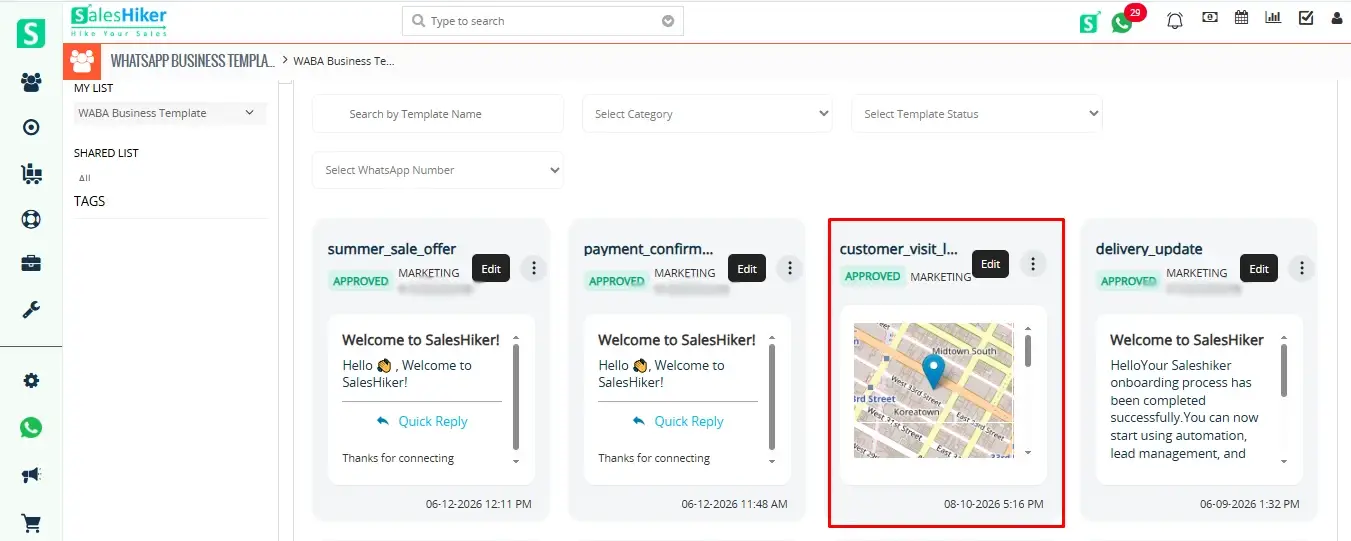
Once you save the template, you will be redirected to the Template Listing page, where the newly created template will be displayed successfully.
How to Use the Location Template in WhatsApp Business
The Location Template allows users to share a predefined location with the recipient directly through the WhatsApp chat. Once the location template has been created and approved, users can select it while sending a template message.
Select the Location Template
While sending a template message in the chat, enter the Location Template Name in the template search field. The system will display the matching location template in the search results. Select the required template to proceed with sending the message.
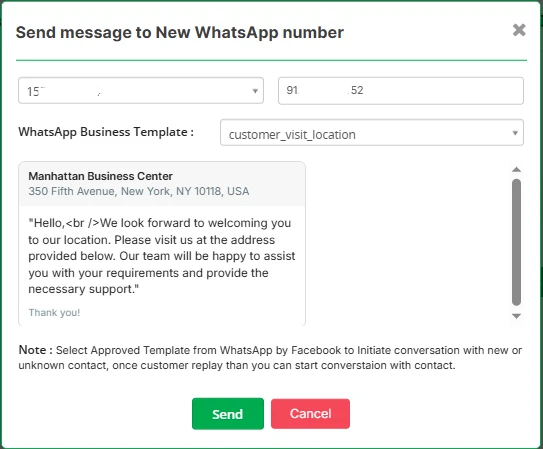
Send the Location Template
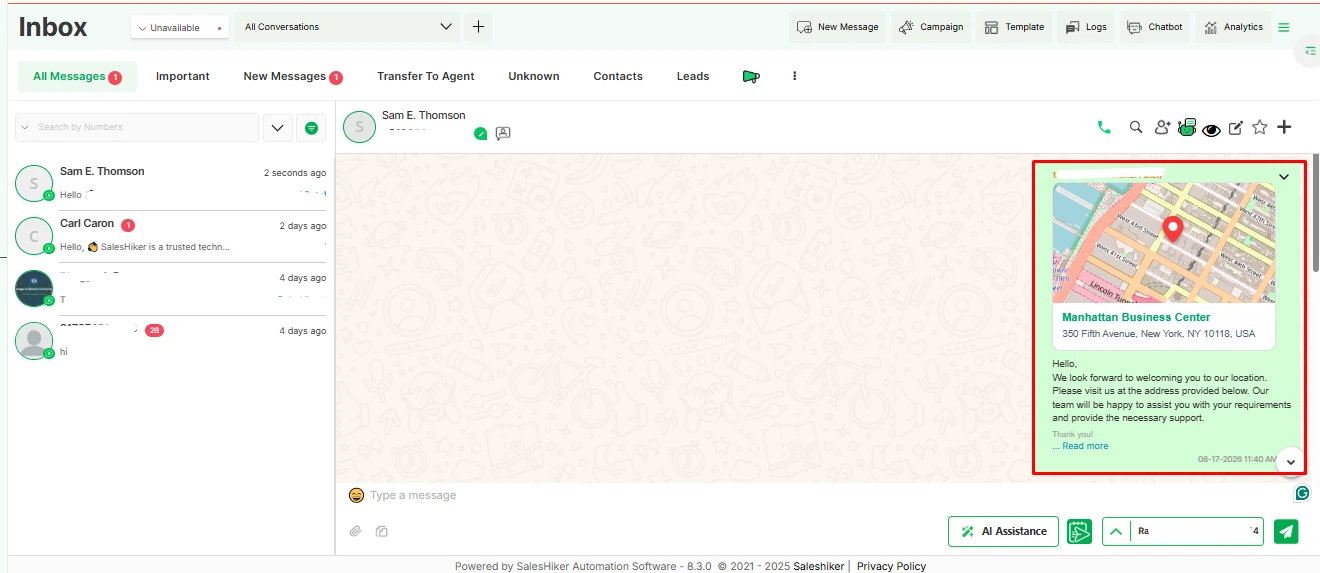
After selecting the required location template, send the template message from the chat. The selected location template will be sent to the recipient along with the configured location details.
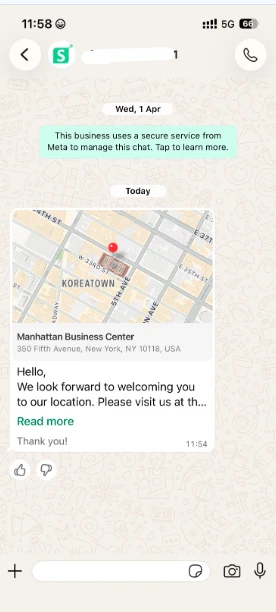
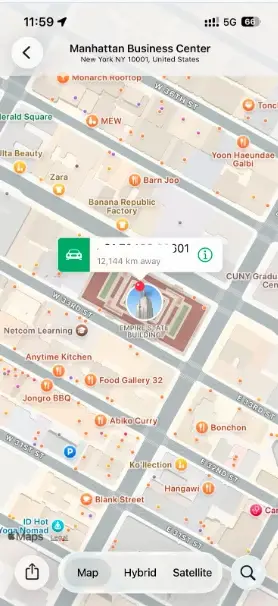
Once the template is sent successfully, the location template will be displayed in the chat with the configured location details. The location will be visible to both the sender and the end user, allowing the recipient to view the shared location directly within the chat.

 by
by