
Media Card Carousel Template
How to Create a WhatsApp Business Template
Add the content of How to Create a WhatsApp Business Template
A WhatsApp Carousel Template lets businesses showcase multiple products, offers, or services in a scrollable format. Each card includes an image, title, description, and call-to-action (CTA) buttons (e.g., “Buy Now” or “Visit Website”), making it easy for users to explore options and take action. It’s perfect for displaying different product angles, variations, or collections, creating an engaging and seamless shopping experience within WhatsApp.
The goal of this setup is to create a highly interactive and engaging experience for WhatsApp users, allowing them to click on buttons, view images, and interact with content dynamically.
Key features of this interaction include:
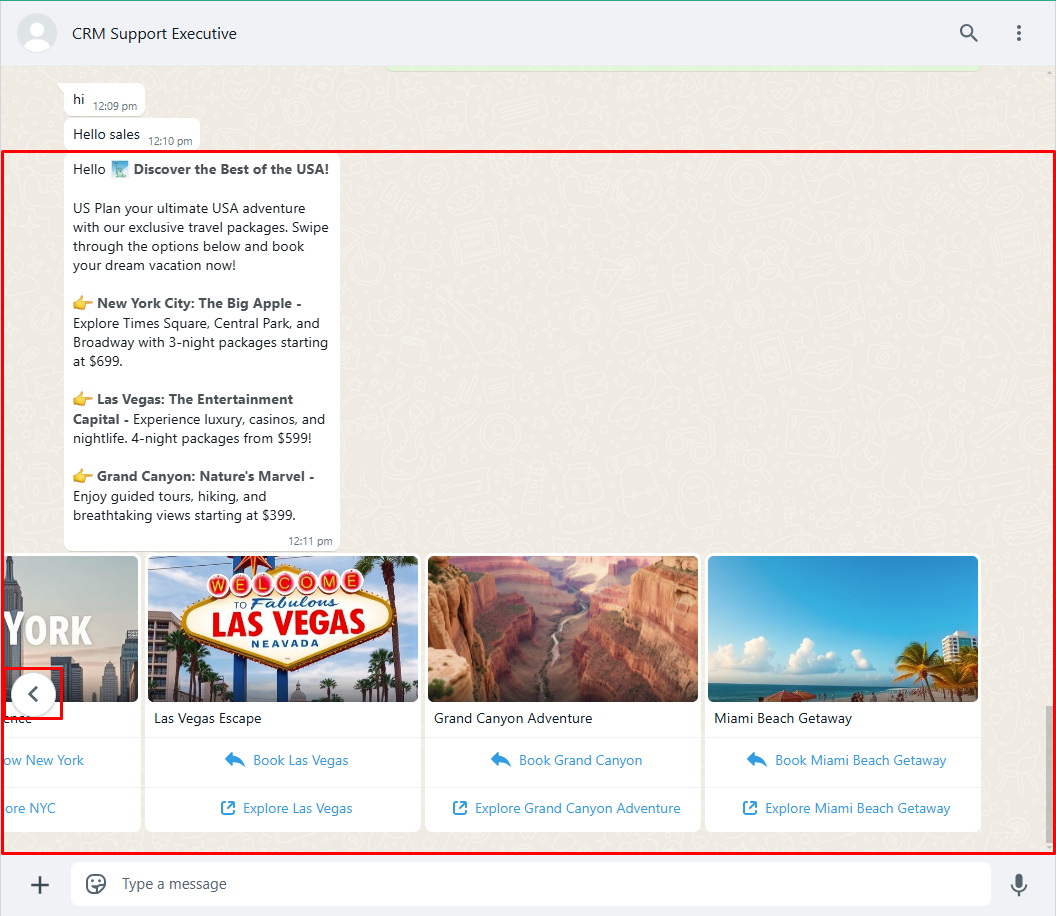
- Horizontal Scroll: A scrolling functionality is available within the chat.
- Navigation Between Offers: The user can click on the horizontal scroll buttons to view previous and next offers conveniently.
This design ensures an interactive and seamless browsing experience for users to explore multiple offers within the same chat interface.
This guide provides step-by-step instructions on how to create and submit a Carousel Template message. Once submitted, Meta will review and approve the template within a few seconds.
Steps to Create a New Media Card Carousel Template
- Template Name: Enter a unique name (without spaces or capital letters).
- Template Category: Choose Media Card Carousel.
- Language Selection: Choose the preferred language.
- Add Cards: Include multiple cards with text, images, and buttons.
- Buttons:
- Quick Reply: Predefined responses (e.g., “Book Now”).
- URL Button: Clickable links (e.g., “Explore More”).
- Textbox: Enter template text to guide users.
- Media Upload: Add images for each card.
- Click on Save & Send.
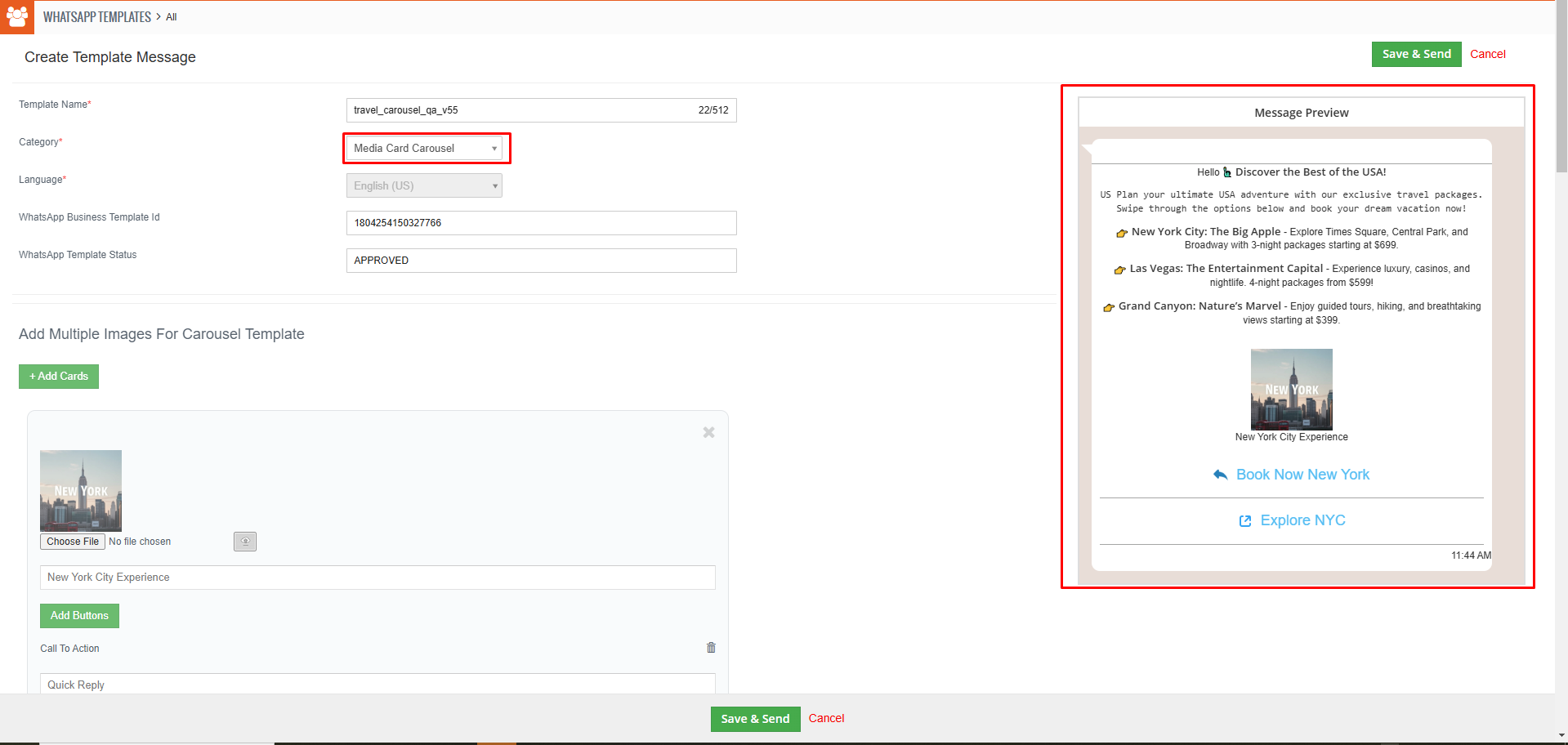
Send Media Card Carousel Template Message Preview as shown in the screen below.
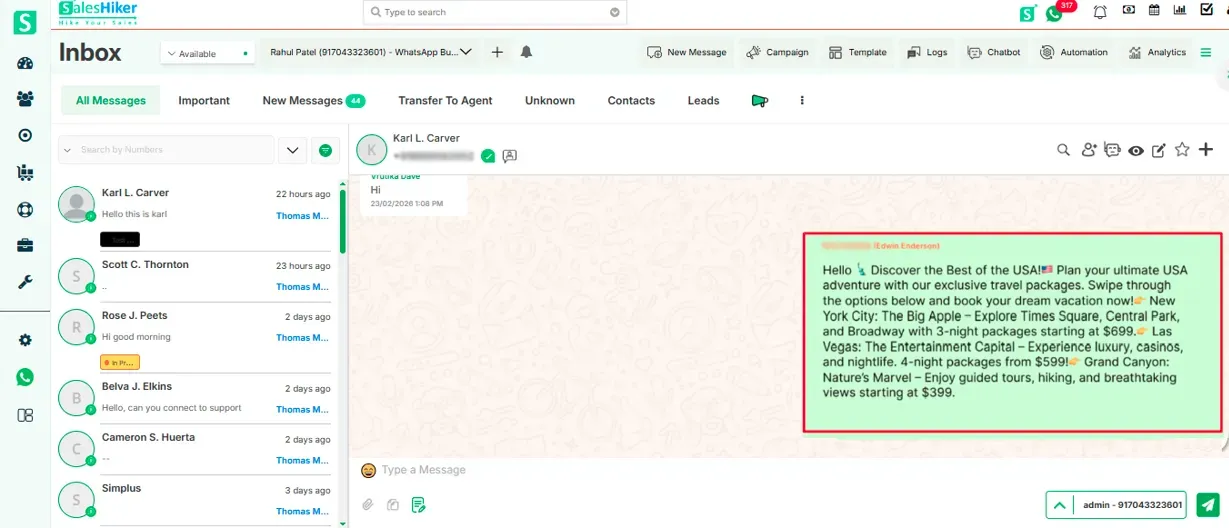
When a user receives the message, it will be displayed as shown in the screen below.

 by
by