
Marketing Template
The marketing category in WhatsApp Business templates is used for business-initiated interactions to promote products or services. These templates can help businesses increase awareness, drive sales, and more
Here in the marketing category there are two category types .
- Custom
- Send promotions or announcements to increase awareness and engagement.
- This template is good for Welcome messages, promotions, offers, coupons, newsletters, announcements
- Template areas that you can customize Header, body, footer, button
- Flows
- Send a form to capture customer interests, appointment requests or run surveys.
- This template is good for Sign-ups, promotions, surveys, appointments
- Template areas that you can customize Form, body, button
Custom
Create Custom Template :
During the creation of flow templates, certain fields must be completed to ensure proper configuration. These fields include:
- Language: Select the preferred language for the template to ensure it aligns with the audience’s linguistic needs.
- Modules: Specify the relevant modules associated with the flow template to categorize or streamline its functionality.
- Broadcast Title and Details: In a separate section, provide:
- Broadcast Title: A concise and clear name for the broadcast to identify its purpose.
- Details: Additional information or description to elaborate on the intent or context of the broadcast.
Steps to Create a New Marketing Template using custom template type.
- Template Name: Enter a unique name (no spaces or capital letters).
- Template Category: Select Marketing.
- Template Type: Choose Custom .
- Language Selection: Select the desired language.
- Select Module: Select Module for which you want to create this WhatsApp business template.
- Broadcast Title: This is optional if the user wants to Show their company’s name or anything that can be entered here.
- Media Upload: Add images for each card.
- Enter a message in the body which you want to send to any user through this template.
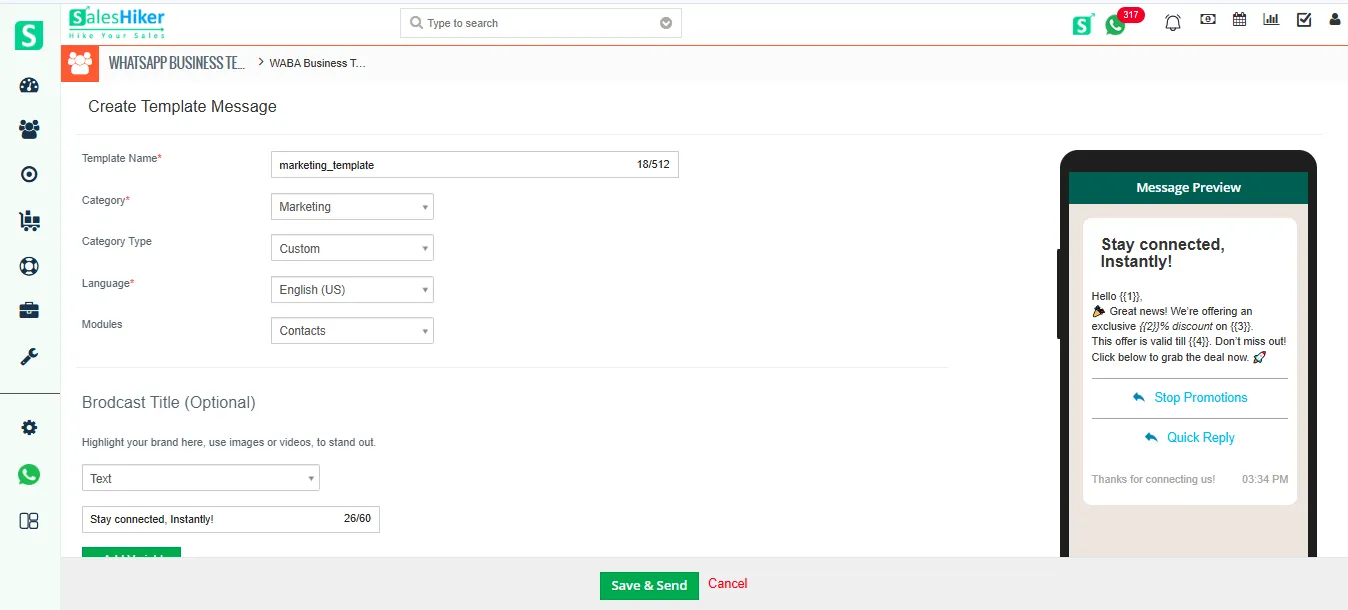
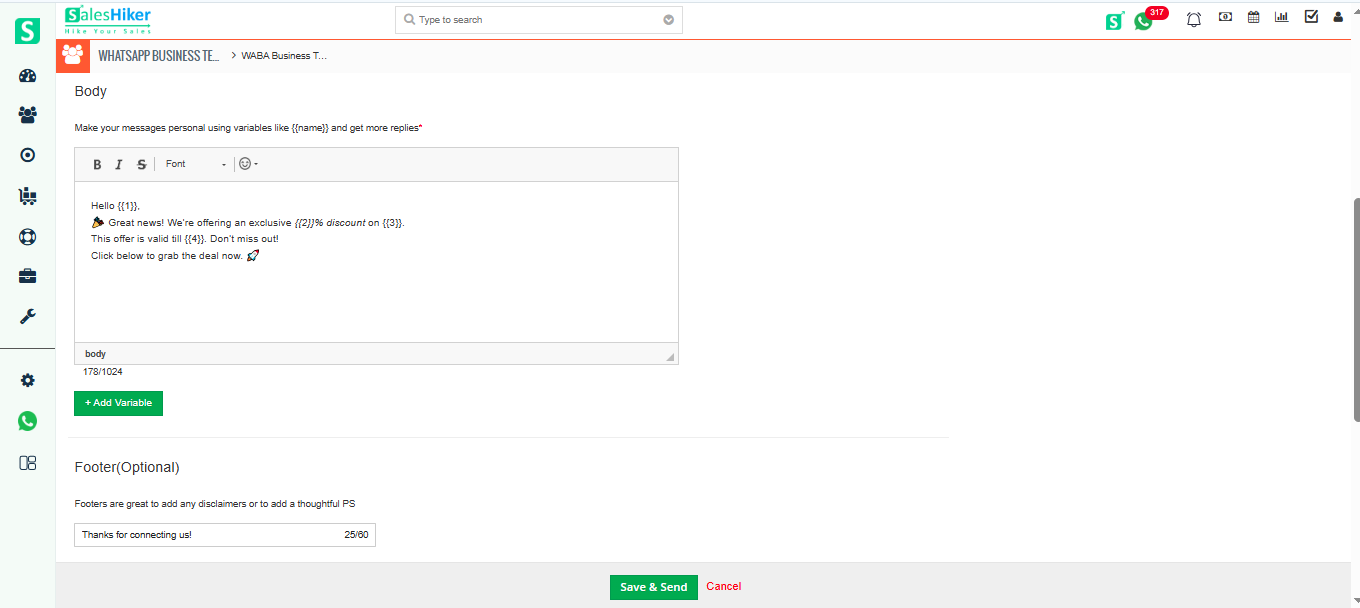
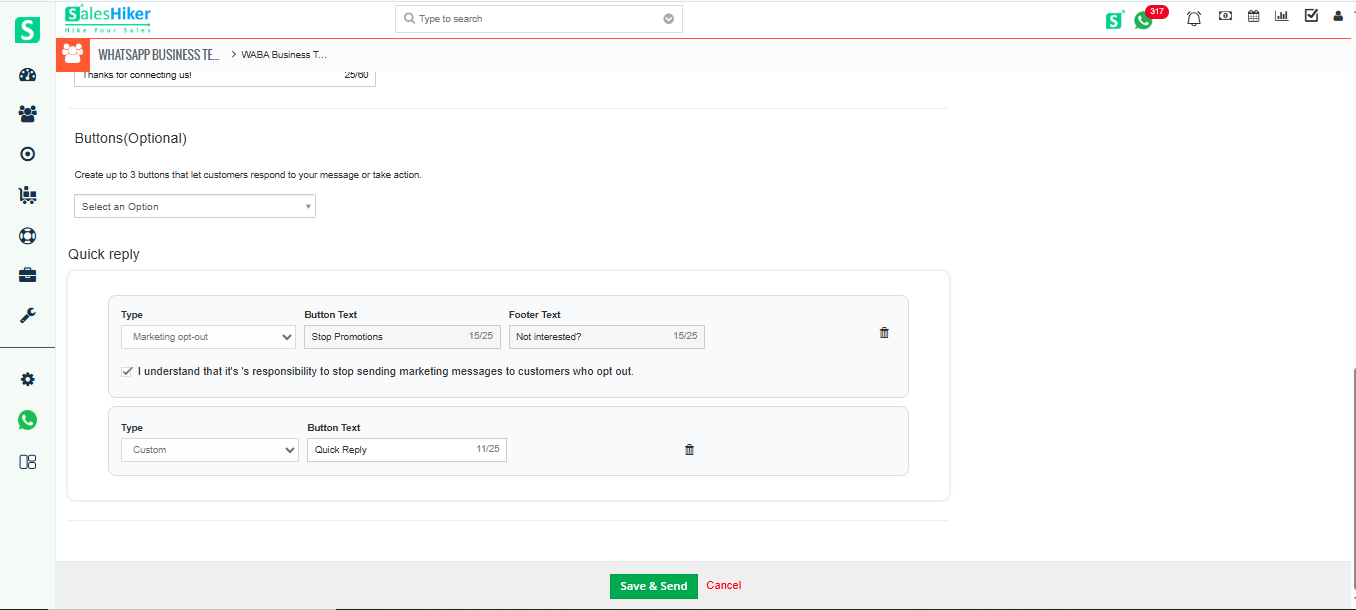
Message Preview will be displayed as mentioned in below screen.
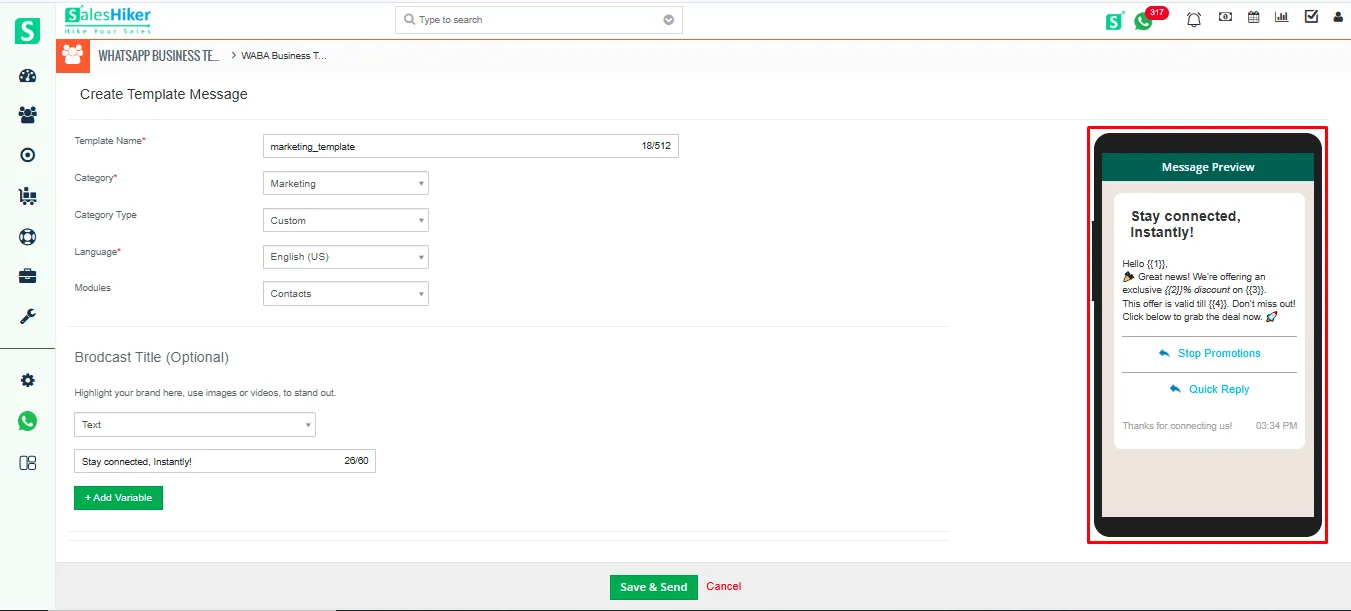
To send template create requests on Facebook side click on “Save & Send” button as shown in below screenshot.
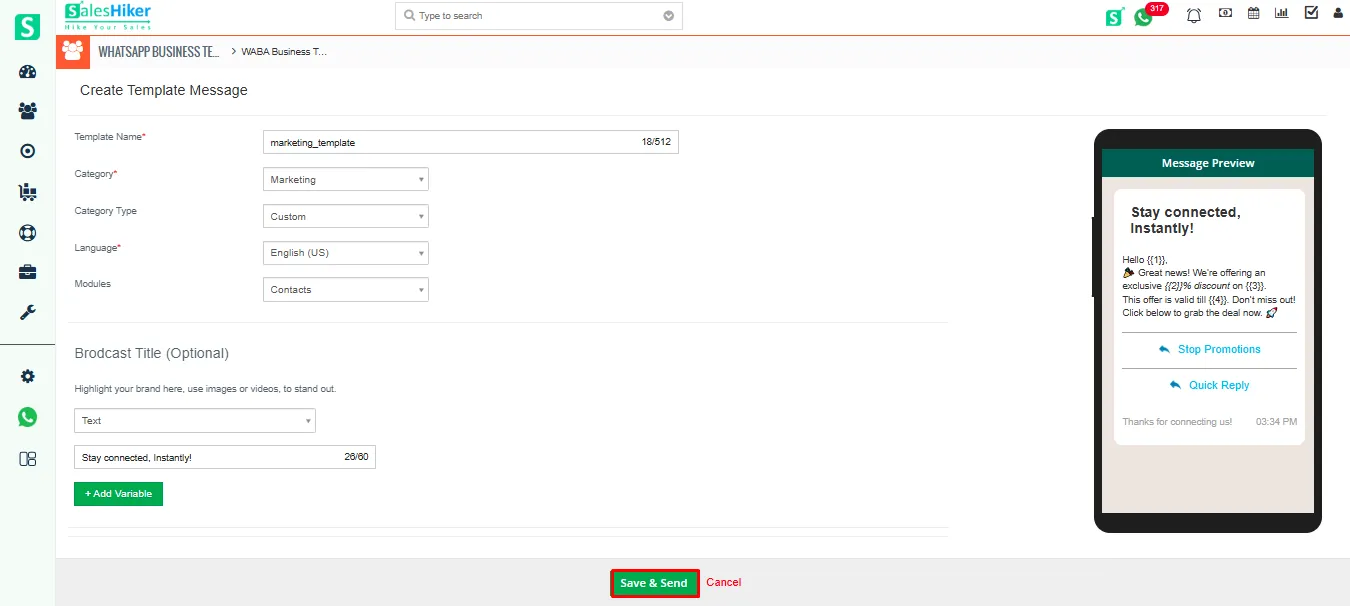
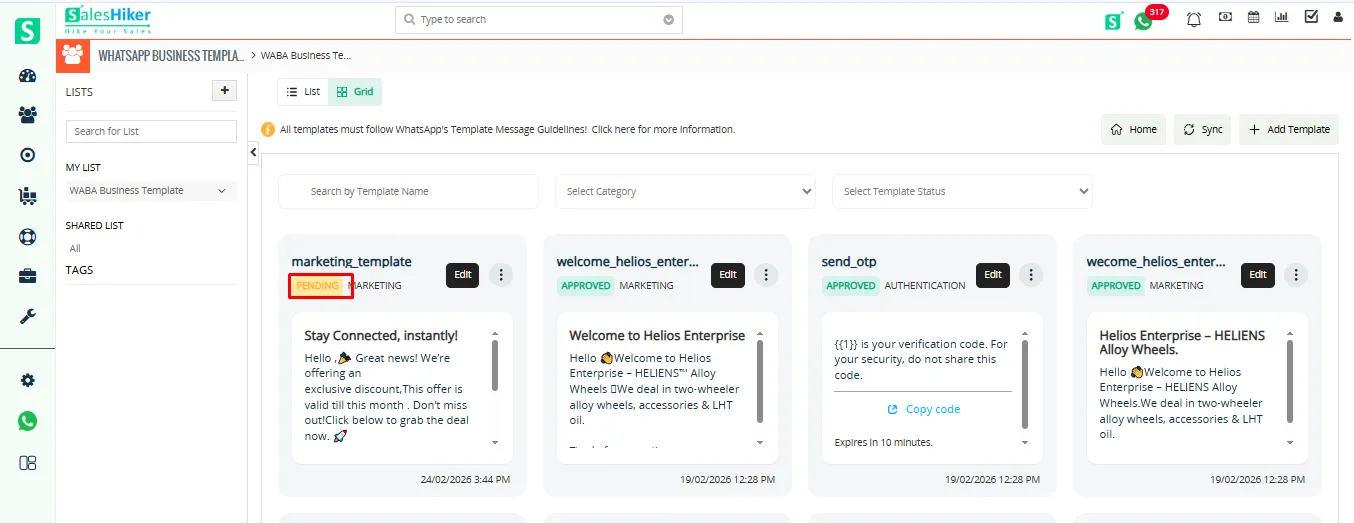
Once you click on ‘Save & Send,’ a request will be sent to meta for template approval. Until it is approved, the status will be shown as ‘Pending.
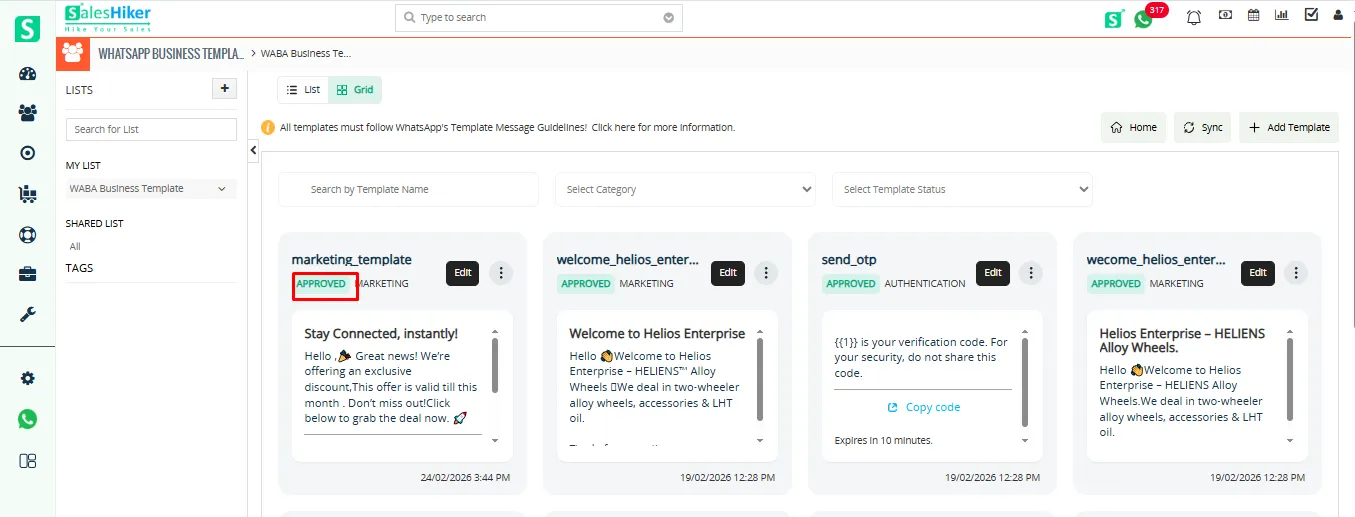
Once it is approved by Meta, the status will be updated to ‘Approved.’
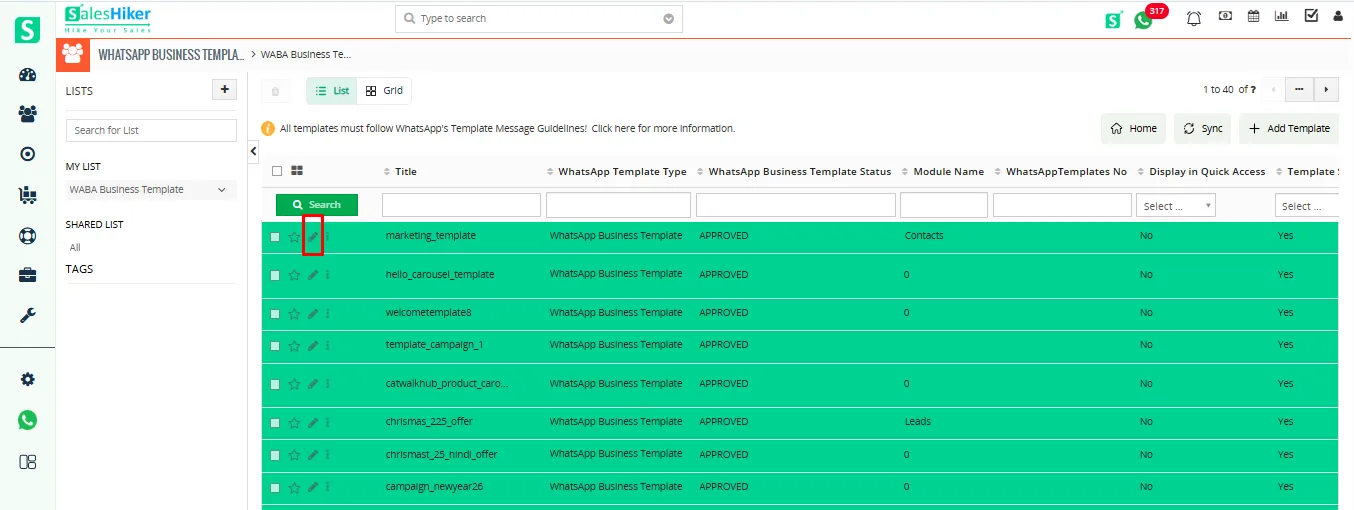
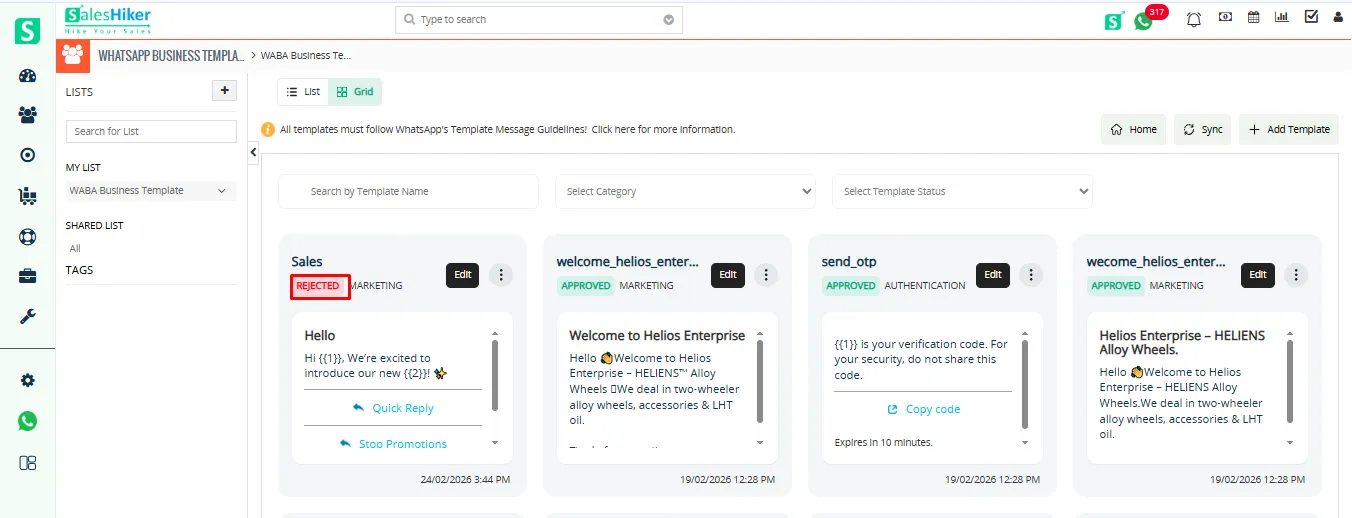
You can also edit the template from list view as shown in the screenshot below.
You can view the template if it has been rejected by Meta, as shown in the screenshot below.
Flow
Steps to Create a New Marketing Template using Flow template type.
- Template Name: Choose a unique name (no spaces or capital letters)..
- Template Category: Select Marketing.
- Template Type: Choose Flow Template .
- Language Selection: Pick the preferred language.
- Flow Structure:
- Welcome Message: Greet the user and introduce the offer or campaign.
- Media Cards: Display product images, descriptions, and pricing.
- Interactive Buttons:
- Quick Reply: (“Show More Offers,” “Book Now”).
- URL Button: (“Shop Now,” “View Website”).
- Follow-Up Message: Send a reminder or discount offer if no response.
- Media Upload: Add images, videos, or documents for a richer experience.
- Confirmation Message: Acknowledge the user’s choice and provide the next steps.
- Save & Submit: Meta will review the template for approval.
These fields are integral to structuring an effective and user-friendly flow template.
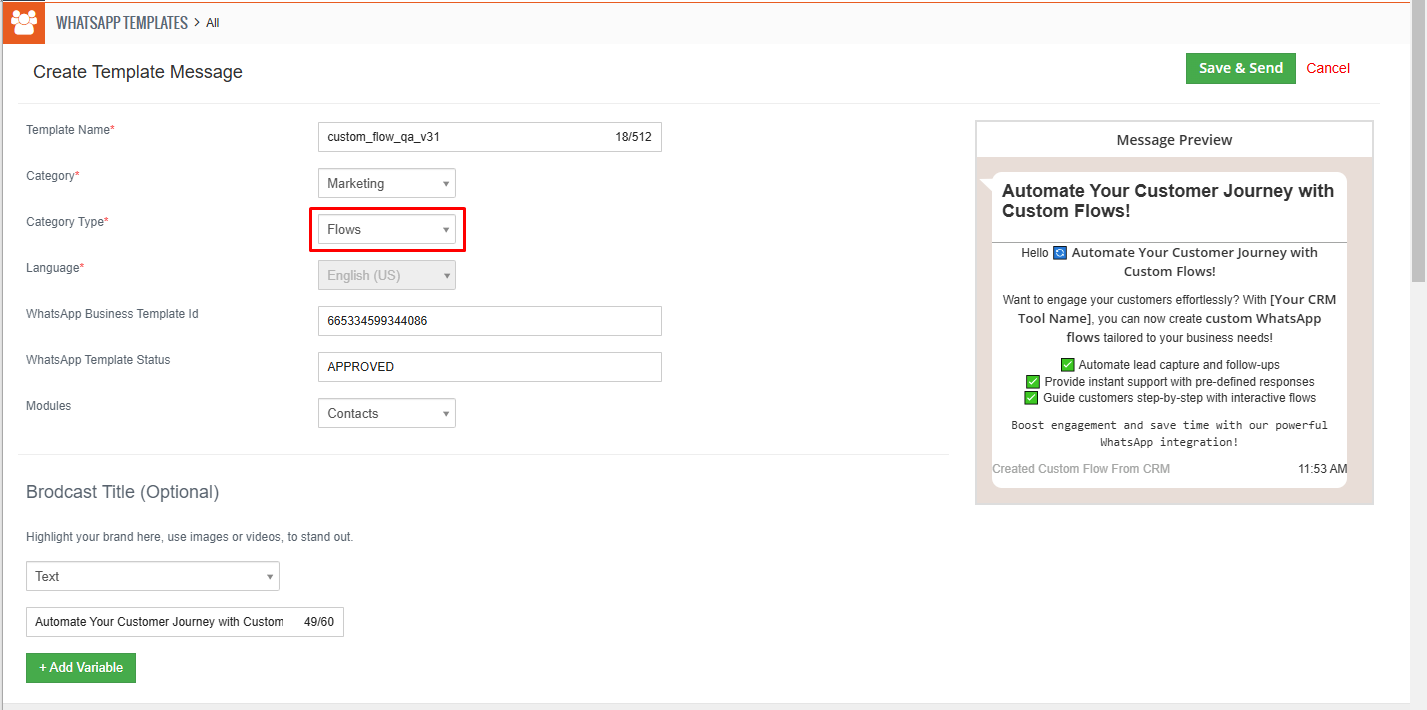
In the screenshot below, the detailed view of the flow is displayed.
This view showcases all the information entered by the user during the flow creation process. It includes key details such as the message body, recipient fields, and any specific parameters or customization added. This summary provides a comprehensive overview, ensuring that the flow setup aligns with the intended configuration.
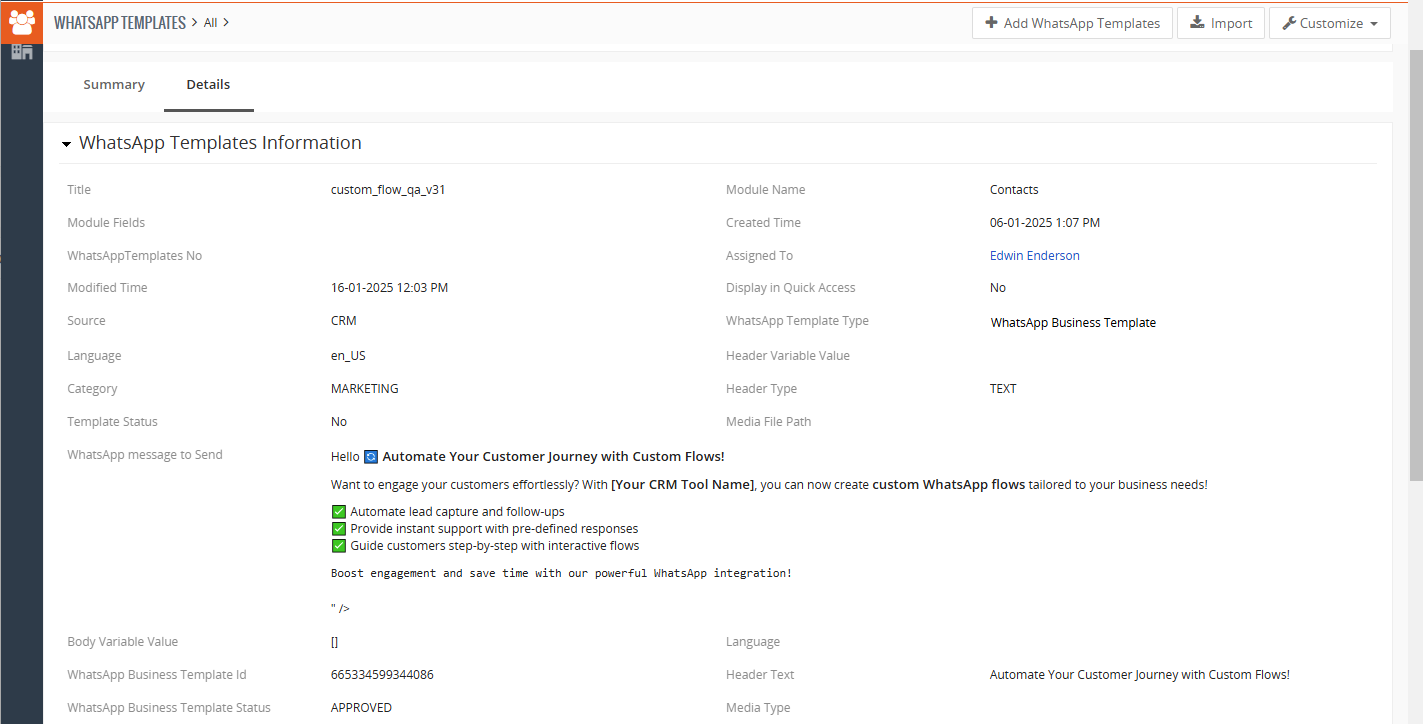
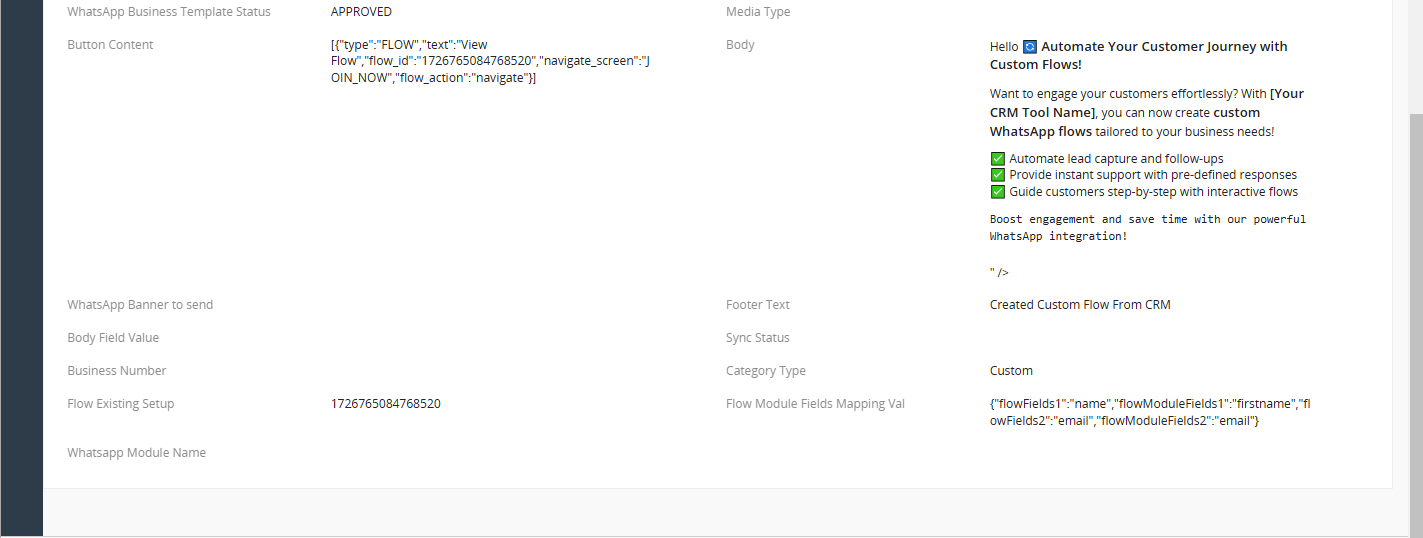
The highlighted message corresponds exactly to the message content displayed in the “Body” section and the “WhatsApp Message to Send” fields in the detailed view of the WhatsApp template. This ensures consistency between the template details and the actual message received in the chat. The recipient can view the intended message as formatted and structured during the template creation.
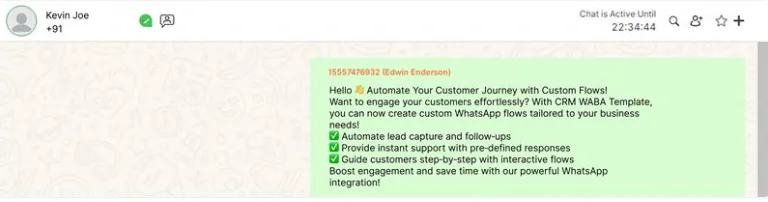
The received flow template message will appear on the recipient’s side in a clear and structured format. It will display all the relevant information as entered by the sender, ensuring easy readability and accessibility for the recipient. The design will maintain consistency with the sender’s message flow while adapting it for seamless viewing on the recipient’s end.
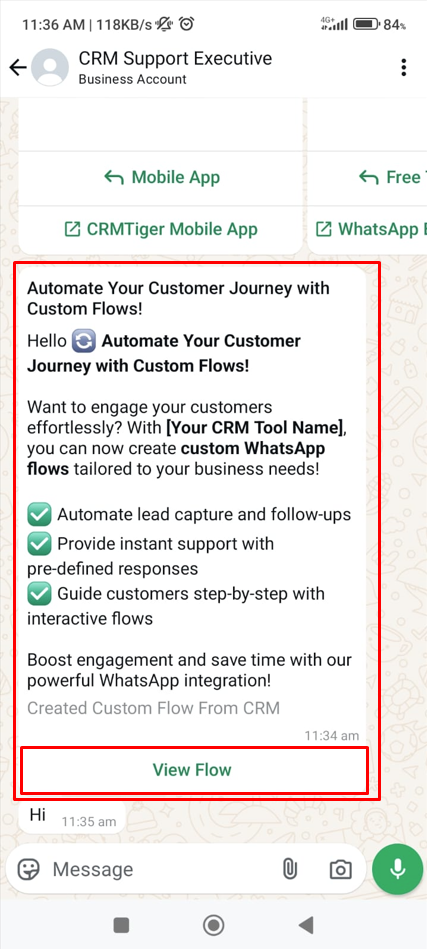
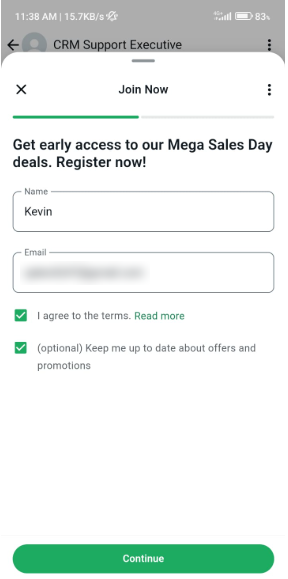
As displayed in the screenshot above, there is a button labeled ‘View Flow’. By clicking on this button, the user will be directed to the screen shown below.
On this screen, the user will be required to fill in their details, including Name and Email. Once the information is entered, the user can proceed by clicking on the ‘Continue’ button to move to the next step. This ensures the system captures essential user details for further interaction or communication.
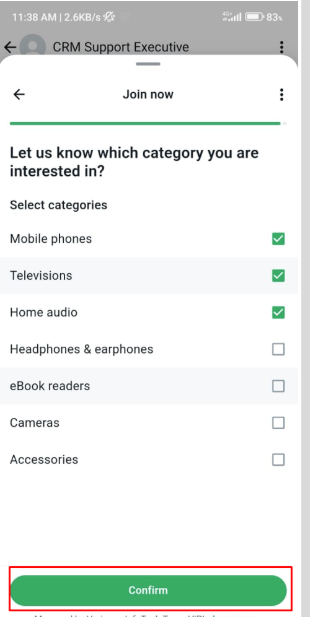
After clicking the “Continue” button, the user will be directed to the next screen, as shown below.
In this screen, the user will be prompted to select their areas of interest by checking the boxes next to their preferred topics. Once the user has selected their interests, they can click the “Confirm” button to submit their response. This step ensures that the user’s preferences are captured for personalized recommendations or further actions.
Once the user clicks on the “Confirm” button, the system will generate a response in PDF format. This PDF will contain all the details submitted by the user in the form, organized in a clear and professional layout. The content of the PDF will match the data displayed on the confirmation screen, ensuring accuracy and completeness. The user can then download or view this PDF as shown in the accompanying screenshot.
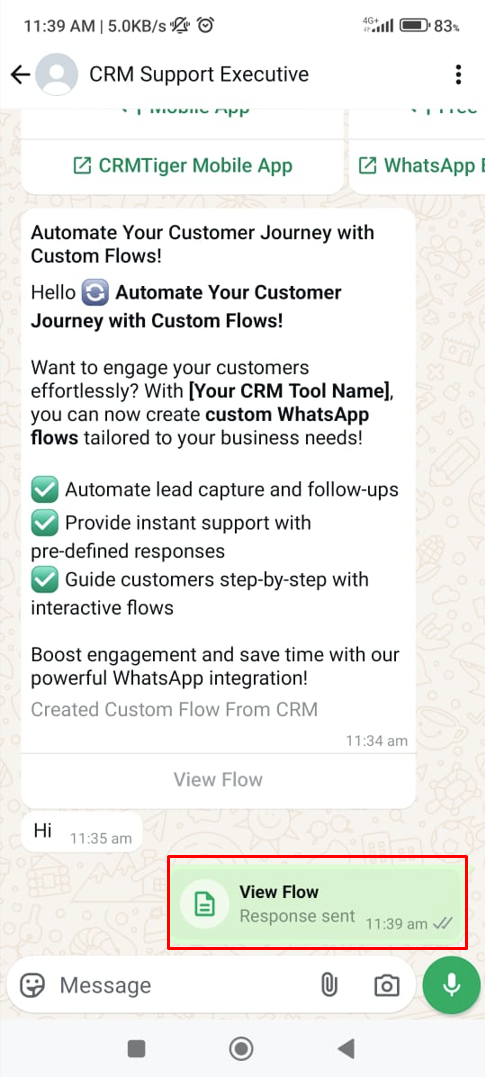
The response will display the information entered by the user in the form. This includes all the fields filled out by the user, such as name, email,and interested areas provided. The displayed details will be formatted in an organized manner, reflecting the exact entries made during the form submission process. This ensures transparency and allows for review or confirmation of the submitted data.
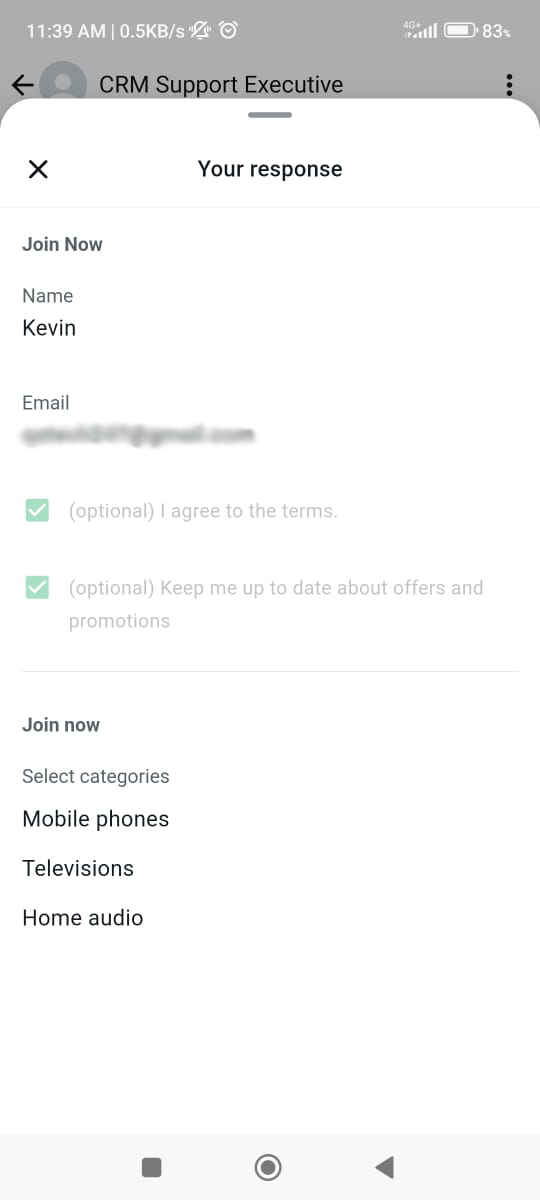
Note: Flow category type message only be displayed in mobile WhatsApp, it will not be displayed in Web WhatsApp view.
After the user enters the details in the flow, the data is saved to the CRM, and a new record is automatically created in the designated module of the template.


 by
by