
WhatsApp Business Automation (Workflow)
In the Quick Access Menu , clicking on Setup WhatsApp Workflow will redirect the user to the Automation (Workflow) page for configuration.
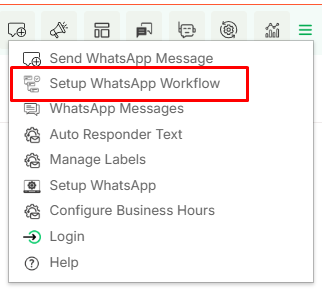
This module can be accessed from Settings > CRM Settings > Automation > Workflows.
Here the list view of the workflow will be visible.

The WhatsApp Workflow allows users to send automated WhatsApp Business messages based on trigger events from any module that is linked with the WhatsApp module.
To create a new workflow, click on “New Workflow” to add and configure a new workflow.

After clicking on the button, the screen shown below will be displayed for further configuration.
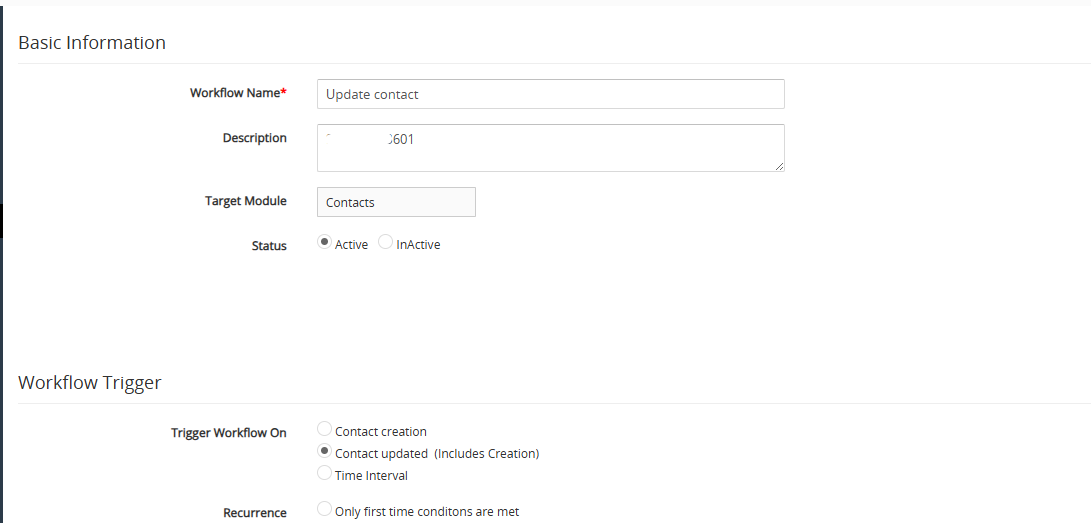
Enter the required basic details and define the conditions under which the workflow should be triggered.
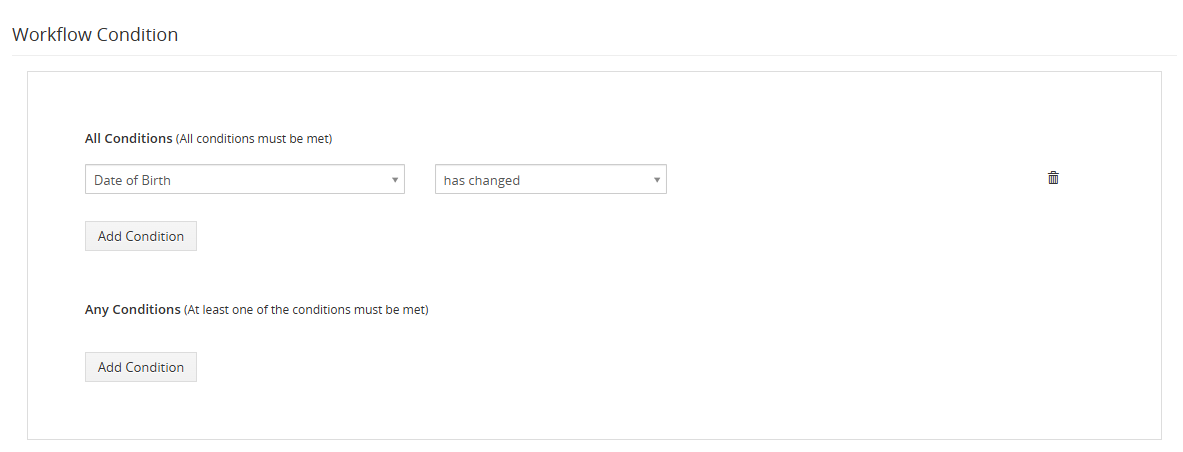
After defining the conditions, select the required action. From this section, users can choose Send Message on WhatsApp Business as the workflow action.
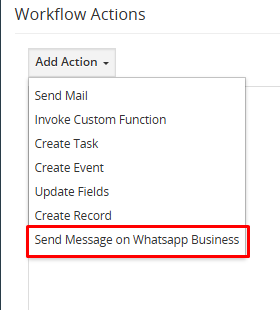
More conditions can be added from the above dropdown.
Once you select Send Message on WhatsApp Business , the configuration window shown below will open, allowing you to define the message settings and related fields.
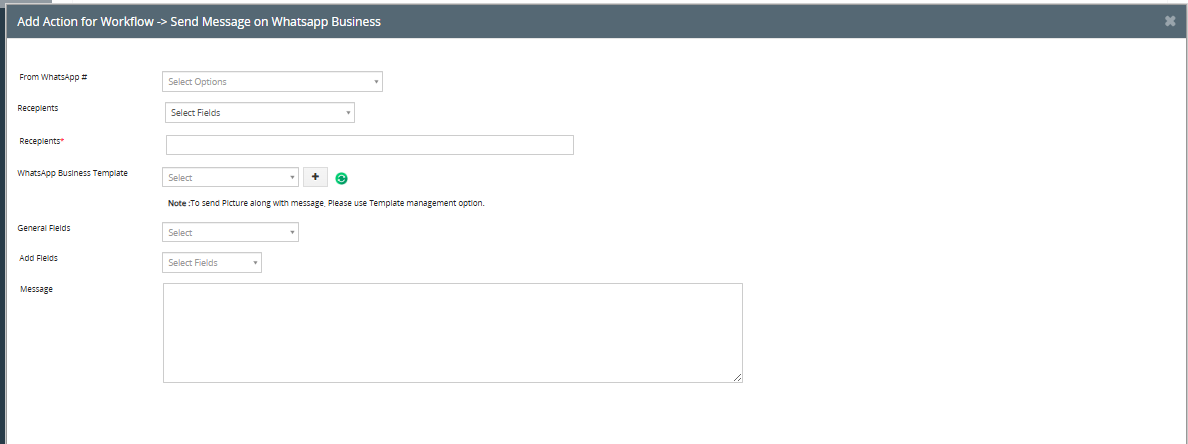
This page allows you to configure a WhatsApp message action within a workflow. Users can define message settings and select the appropriate fields to send structured WhatsApp communications.
Field Description
- From WhatsApp #
Select the configured WhatsApp number from which the message will be sent.
- Recipients (Select Fields)
Choose the module field that contains the recipient’s WhatsApp number.
- Recipients*
Manually enter specific recipient numbers if required.
- WhatsApp Business Template
Select an approved WhatsApp template to send structured or pre-approved messages.
The (+) icon allows adding a new template, and the refresh icon updates the template list.
Note: To send images along with a message, use the Template Management option.
- General Fields
Select predefined system fields to dynamically include record-related information in the message.
- Add Fields
Add additional custom fields to personalize the message content.
- Message
Enter the message content that will be sent via WhatsApp (if not using a template).
- Save / Cancel
Click Save to apply the workflow action or Cancel to discard changes.
Here the contact updation workflow is activated.
So if the conditions provided in the workflow met properly then workflow will work and update the contact.

In the above workflow whenever conditions will be matched and the contact get updated the user will get a message on WhatsApp/WhatsApp business.

 by
by