



Mass Message Configuration
- This option will be managed from Setup WhatsApp > Gear Icon
 >WhatsApp Configuration. Find Mass Message Configuration

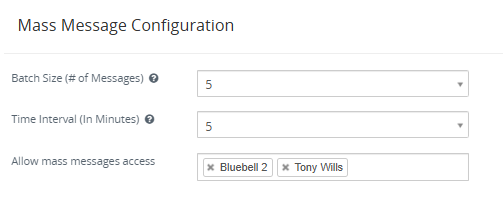
To access the WhatsApp business configuration go to Setup WhatsApp Business > Gear Icon >WhatsApp Business Configuration. Find Mass Message Configuration click on settings icon of WhatsApp business.

After clicking on it, the settings page will open to look for mass message configuration.
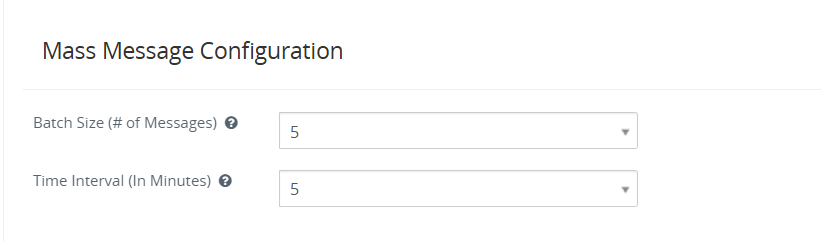
- Batch size allows the user to send mass messages in a batch of messages to avoid spamming.
- Example : If you wish to send 500 messages and if you set a batch size 15 and Time Interval to 15 minutes. Then it will send 15 messages in each batch based on the Time Interval calculated below.
- Time to send 500 messages = (500 messages / 15 Batch size) * 15 minutes = 500 minutes = 8 Hours Approximately.
- Random : Random selection dynamically select any number from 1 to 25 as a batch size when sending message to customer, It means if there is 500 messages to send and Batch Size – Random than it will send 5 messages in first Batch, 8 messages in a second Batch and so on.
- Users can send Bulk/Mass messages from Record List of CRM for those modules which are enabled from the “Allow module access” feature from WhatsApp configuration page.
- In the below image WhatsApp and WhatsApp business both bulk messages can be sent using highlighted buttons.
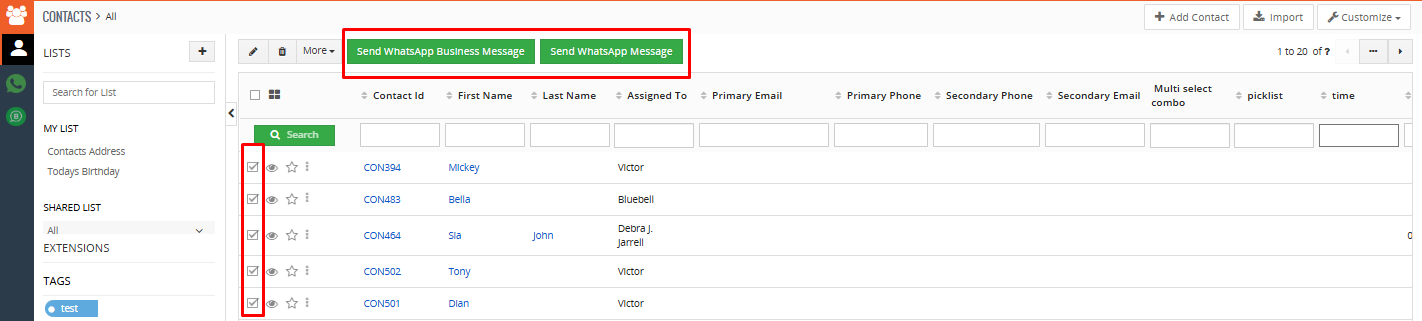
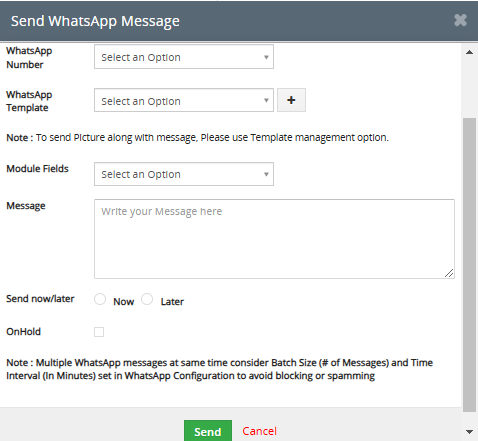
- From the Record List Select more than one record then Go To More > Send WhatsApp message or send Bulk WhatsApp messages to more than one contacts.
- Users can send Bulk messages now or any selected date to send messages according to the time set from the Send now/later option.
- The user can place the bulk message on hold by selecting the ‘On Hold’ checkbox.

 by
by