



GEO(Location tracking) Settings
GEO(Location) Settings Allow you to GEO-Code(e.g. Set Lat/Long) All records in CRM which contain addresses. This is an important setting to utilize all Maps features in SalesHiker Mobile Apps.
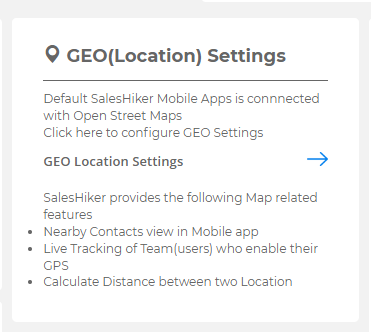
SalesHiker Mobile Apps allow users to set various types of MAP Api to capture Latitude/Longitude from address as well as track location of users and many other map related features.

You can activate any one from the available map type settings from the available list.
Currently SalesHiker Mobile Apps extensions offer OpenStreetMap and Google Map API to get addresses on Map.
OpenStreetMap
This is free map API and you do not have to pay and extra fees to enable it, but accuracy of this MAP API is lower compare to Google MAP API
Google Map
This is a Paid API you’ve to purchase from Google. This API will charge based on the number of requests, Draw a path on maps and other features.
Google Map required you to obtain API key, Click here to get more information on How to Obtain API key from Google

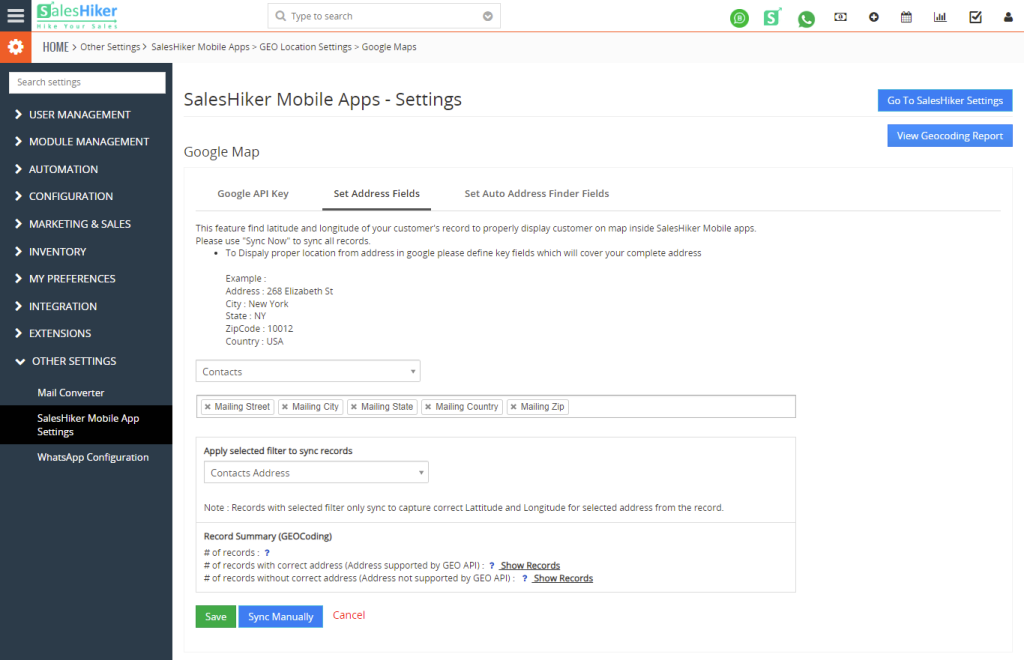
Set Address fields
This option allows you to set fields of allowed modules of your CRM to pass to Map API to capture correct Latitude/Longitude from address.
As per the standard follow fields example mentioned in the picture field.
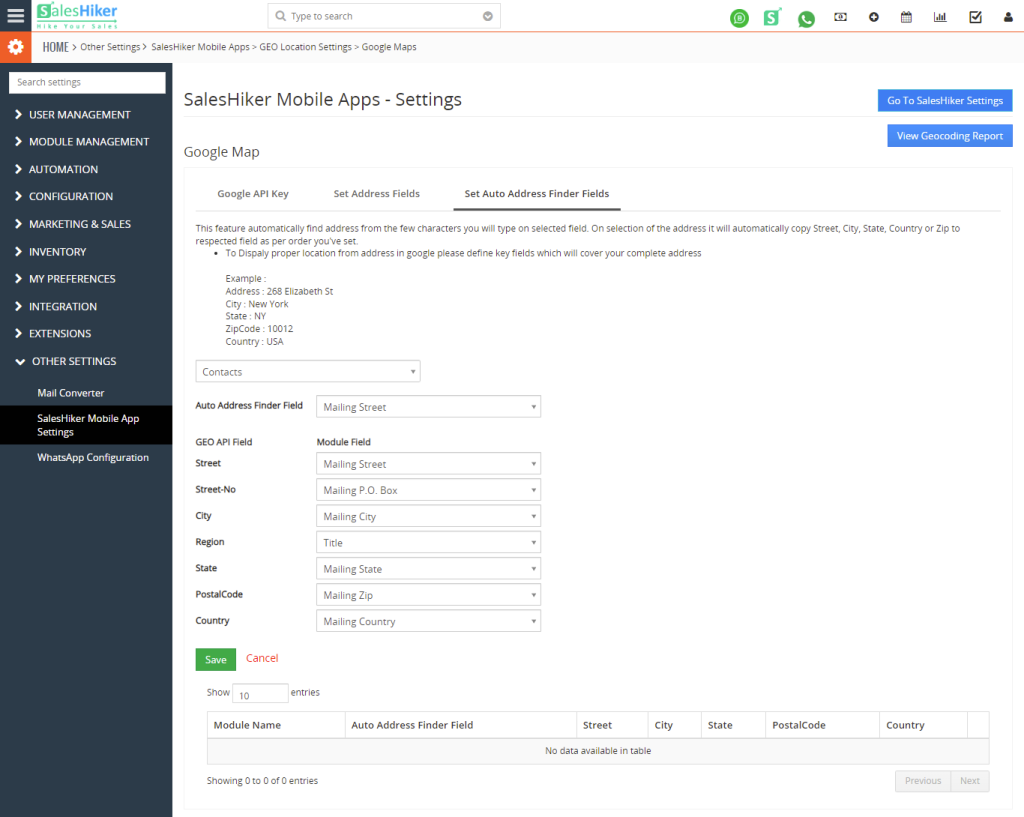
Set Auto Address Finder
This feature automatically finds addresses from the few characters you will type on a selected field. On selection of the address it will automatically copy Street, City, State, Country or Zip to a respected field as per order you’ve set.
To display proper location from address in google please define key fields that can fetch complete address details based on GEO-tag.
Example
Address – 268 Elizabeth St
City – New York
State – NY
ZipCode – 10012
Country – USA
Reports and Analytics
section of SalesHiker settings offer detailed report of all activities from SalesHiker Mobile Apps.
“Reports and Analytics” will be accessible from the following path.
Go To Settings > Other Settings > SalesHiker Mobile App Settings
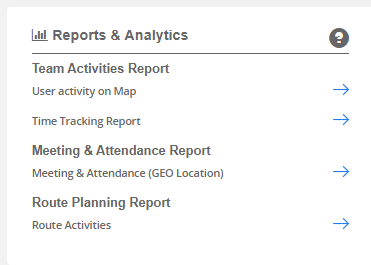
Team Activities Report
This report option provides more information about track activities of users on map. It means it will give you results of location of the user, actual location of meeting and track time of user spend on specific activities.
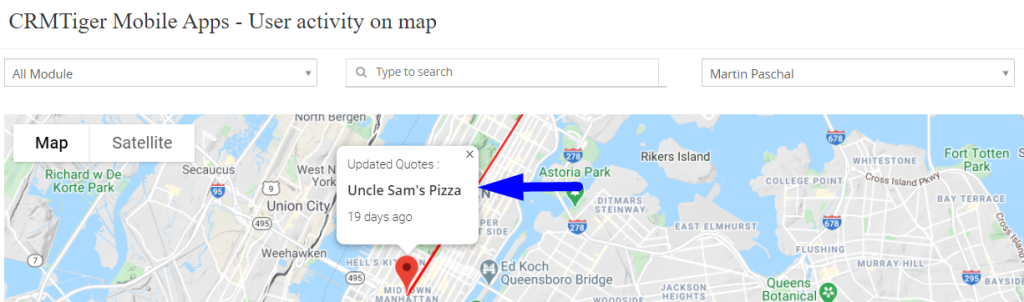
User Activity on Map
This report displays activity of the user on a map . It means at what location the user updates which record of the CRM. This is a very helpful feature for companies to track the location of updated records.
*This feature only works for the user If user has been added to “Track Location of user” option from “General settings”
To get accurate results we suggest using Google API to capture the correct location of the updated record.
Time tracking report
This report displays time spent on each record with the location on which activity happens on the record. This is a very useful feature for on field staff to manage time spent on various activities to offer accurate reporting to the manager/company.
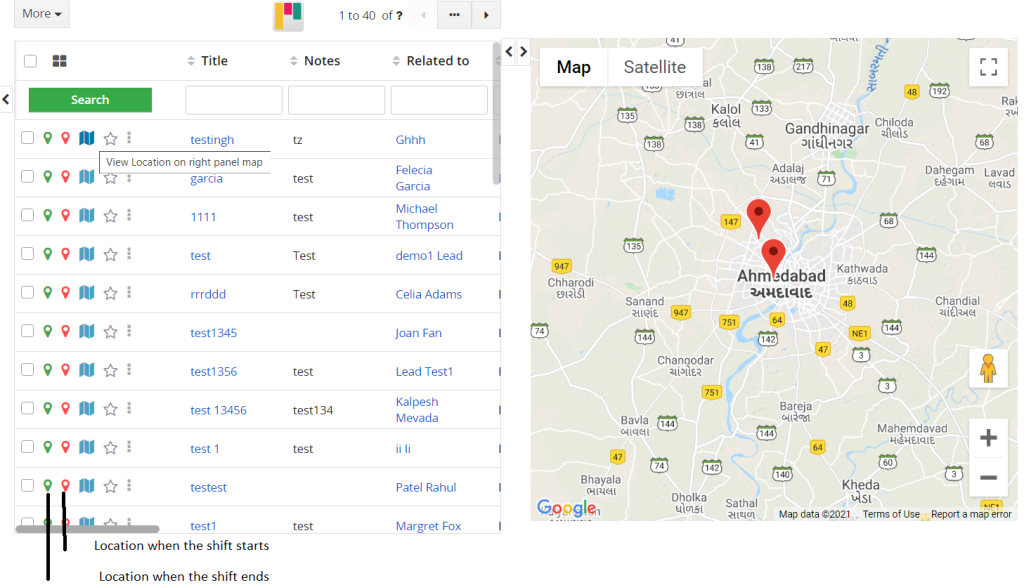
*This feature only works for the user If “Time tracking for the user” has been enabled from “General settings”Meeting Activity(GEO Location)
This report displays details of all meetings managed from Mobile Apps using Task/Event features of CRM. It will display Check-In Location and Check-out Location of the meeting.
Check-In : Whenever users click on Check-In when they reach the meeting location or start the meeting it will capture Location when the meeting.
Check-out : Whenever users click on Check-out when they leave the meeting location or finish the meeting it will capture Location when the meeting has been finished.
Team Attendance : This report displays details of daily attendance on mobile from the team. managed from Mobile Apps using Start shift/End shift option display in Dashboard of Mobile Apps.
Start-Shift : Whenever users click on Start-shift when they start their work shift. It will capture the time and location of the user.

End-Shift : Whenever users click on End-shift when they end their work shift. It will capture the time and location of the user.

Team attendance report
Attendance report will display a list of the employees/users to record their shift using Start/End shift option from Mobile Apps.

Route Planner Analytics
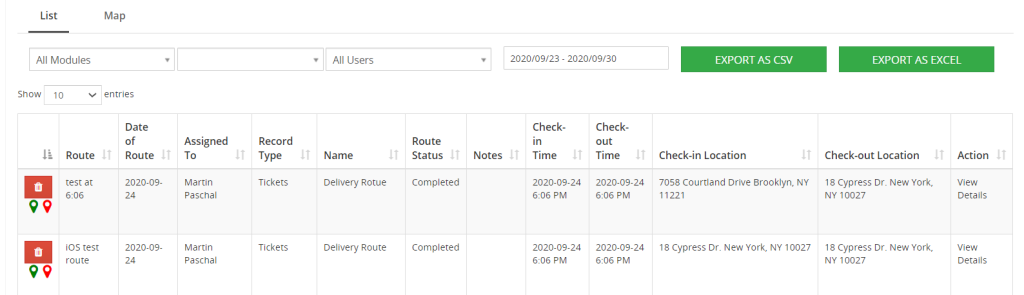
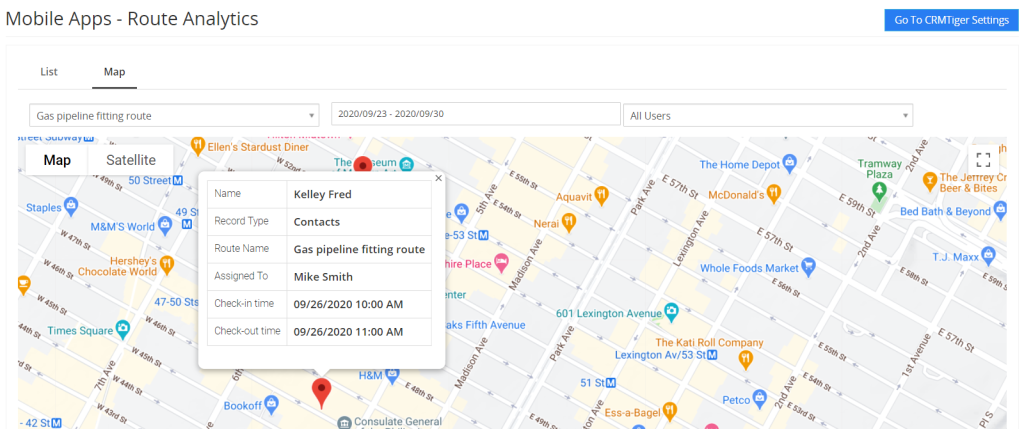
This report lists Route on Map which is captured from the “Route Planner” option in Mobile Apps.
Two types of report :
- Tabular report : This report lists records with location of route, distance, status of route with Location information.
- Map Report : This report lists records with location of route, distance, status of route with Location information on Map.

 by
by