
WhatsApp Business User’s Round Robin Configuration
This option will be managed from Other Settings > WhatsApp Business Configuration > Gear Icon > Find WhatsApp Business module/number Access to user, it will display the selected list of users to get WhatsApp Business # access
Click on Other Settings > WhatsApp Business configuration > edit icon will open the Pop-up for WhatsApp Business User’s Round Robin Configuration” to get WhatsApp Business # access
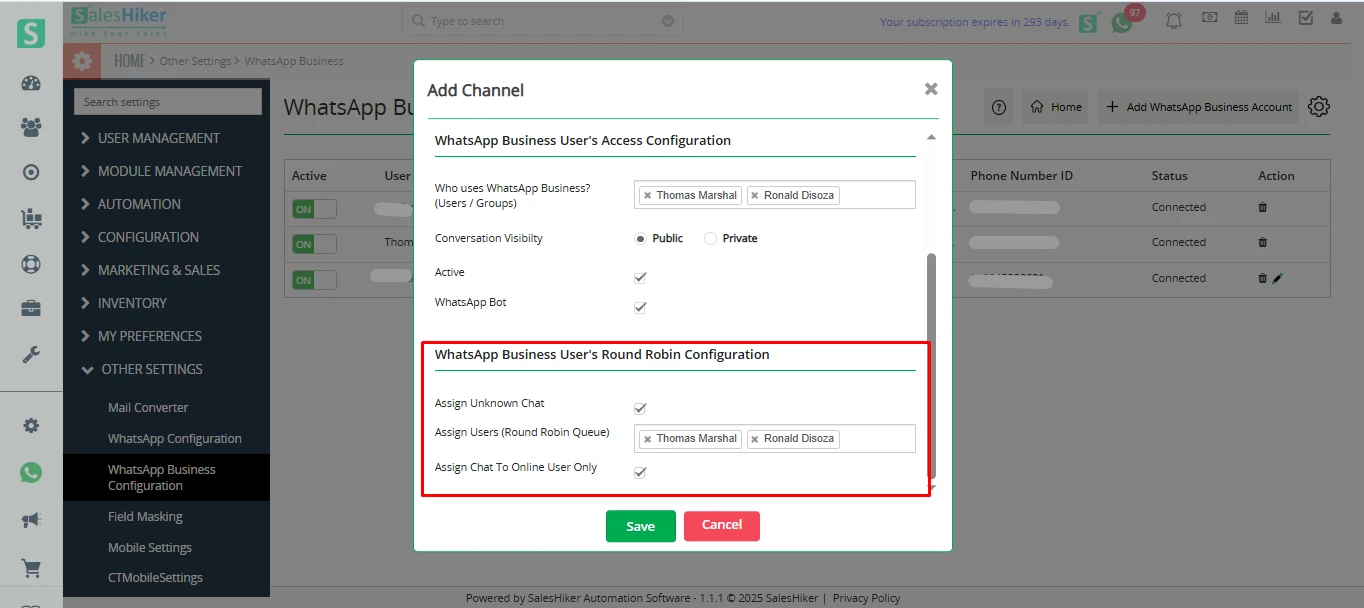
Assign Unknown Chat
Must be enabled for Round Robin to function.
If disabled, Round Robin will not assign messages from unknown numbers.
When enabled, new incoming messages from unknown numbers will be distributed using the Round Robin logic.
Assign Round Robin User
This field allows you to select users/groups who can receive chats via Round Robin.
Users listed here are filtered based on access granted under:
- “Who uses WhatsApp Business? (Users / Groups)”
Assign Chat To Online User Only
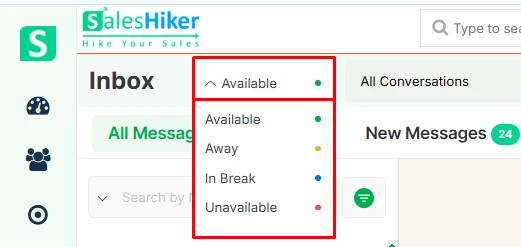
When checked, the system will only assign chats to users marked as “Available”.
It will ignore users with the following statuses:
Only users in the “Assign Round Robin User” list and with “Available” status will receive new chats.
Chat Assignment Fallback Rule
If no Round Robin user is available (i.e., all are Unavailable, Away, or In Break), the incoming chat will be automatically assigned to the Admin user.
This ensures no message goes unassigned, maintaining response continuity.
How Round Robin Works
When a new message is received from an unknown WhatsApp number, and “Assign Unknown Chat” is enabled:
- The system checks all users listed under Assign Round Robin User.
- It filters out users who are not “Available” (if “Assign Chat To Online User Only” is checked).
- The system assigns the message to the next available user in sequence.
- The process ensures equal distribution of incoming chats.
Quick Reference
Case 1: All Users Available
Users: A, B, C, D
All statuses: Available
→ Messages are assigned in sequence: A → B → C → D → A (and so on).
Case 2: Some Users Available
Case 3: Availability Changes
B receives a message when Available → later sets status to Unavailable
→ Next message assigned to next Available user (e.g., D).
Case 4: No Users Available

 by
by