
Top Navigation Bar
Here the top navigation bar is available with all menus.

New Message
By clicking on ‘New Message’ below the screen will be open.

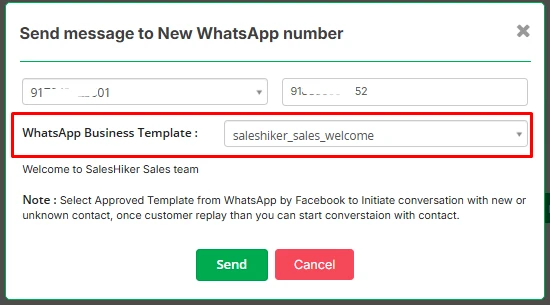
After Selecting the number for Whatsapp Business Message the further process will be the same as sending a message from Send WhatsApp Message .
Mass Campaign
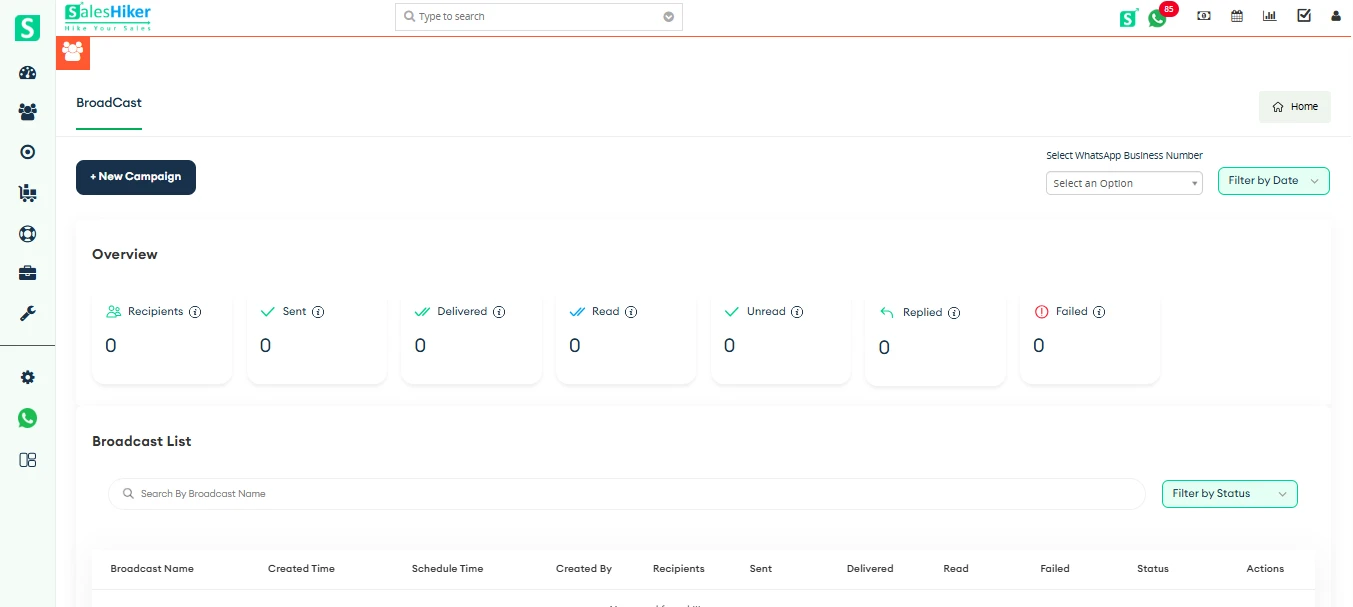
Navigate to the top navigation bar and click on the “Campaign” button from Timeline view, as highlighted in the screenshot below.

Upon clicking, the system will redirect you to the Campaign Dashboard, where you can view, create, and manage all your messaging campaigns.
For a detailed explanation of how it works, please refer to the how to Create and Manage Mass Campaign Guide.
WhatsApp Business Template
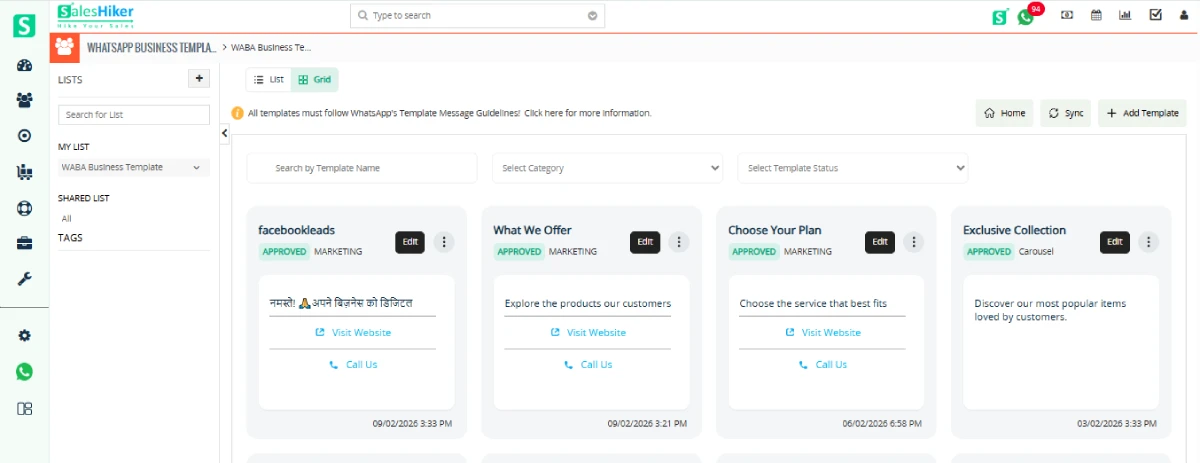
To see WhatsApp Business template click on Template.

After clicking on it below screen will appear. In which List of WhatsApp business template will visible.
WhatsApp Log
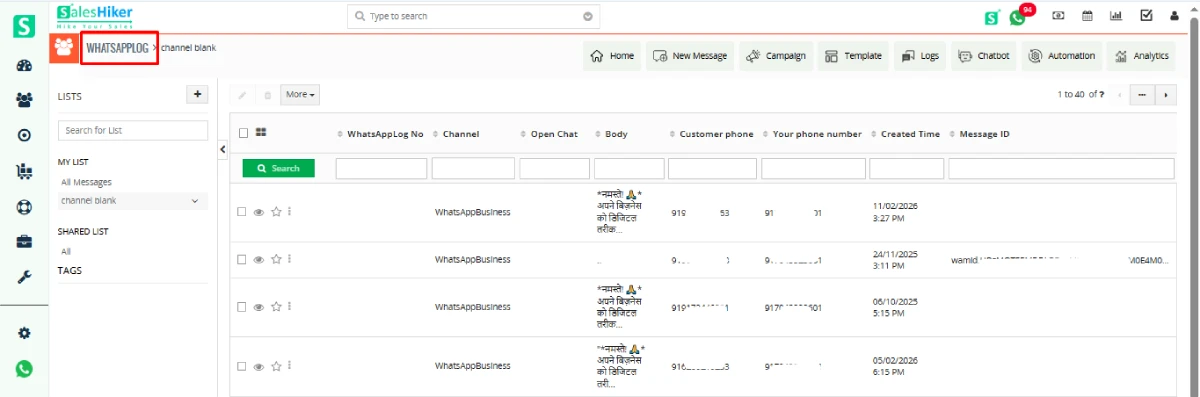
To access WhatsApp log module click on WhatsApp log in top navigation bar.

After clicking on it below screen will be visible in which WhatsApp and WhatsApp business both logs will be visible.
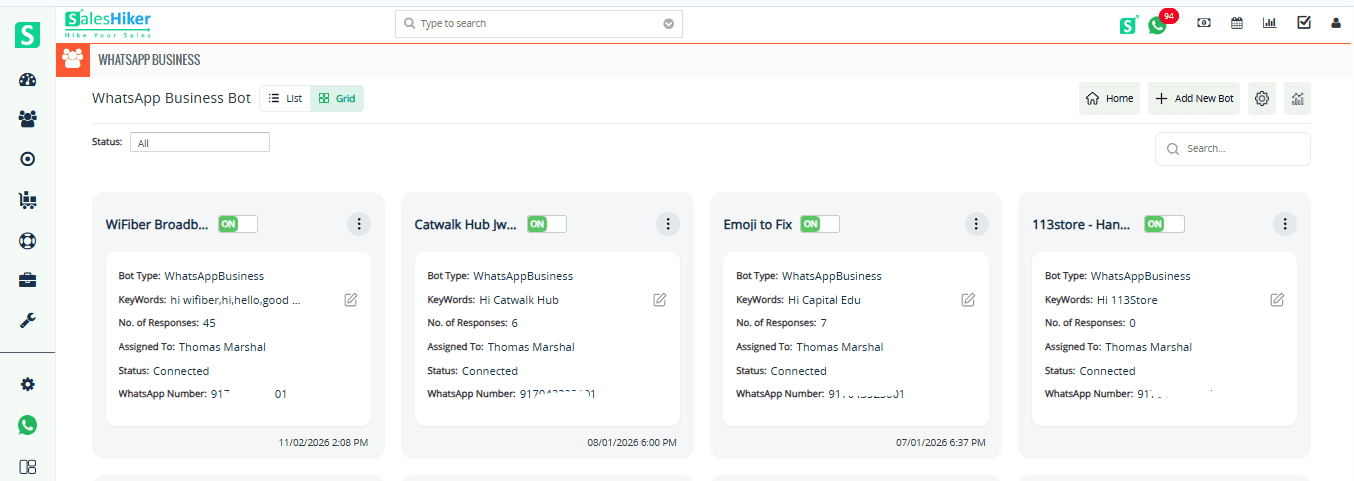
WhatsApp Business Bot
To access WhatsApp Business bot click on Chatbot in the top navigation bar.

- After clicking on this button below the screen will be open.
List screen of WhatsApp business bot will be visible.
Automation

Clicking on the Automation button redirects you to the configuration page, where you can set up automatic record creation for new numbers, define replies when agents are unavailable during working hours, and enable auto-responses for messages that do not match any chatbot keywords.
For a detailed explanation of how it works, please refer to the Automation Configuration Guide.
Analytics
Navigate to the top navigation bar and click on the “Analytics” button from Timeline view, as highlighted in the screenshot below.

Clicking on the Analytics tab provides a comprehensive view of performance insights, including conversation summaries, bot performance metrics, and broadcast statistics.
This is the core functionality of the Analytics module. For a detailed explanation of each metric and report, please refer to the Analytics Overview Guide.

 by
by