
Getting Started with the SalesHiker CRM
Introduction
Welcome to SalesHiker CRM, a cloud-based, multi-tenant SaaS platform designed to streamline and optimise your sales processes. This guide provides a step-by-step walkthrough for registering and setting up your Tenant CRM, ensuring a smooth onboarding experience.
Accessing the Setup Page
Open your preferred web browser.
Visit the SalesHiker.com.
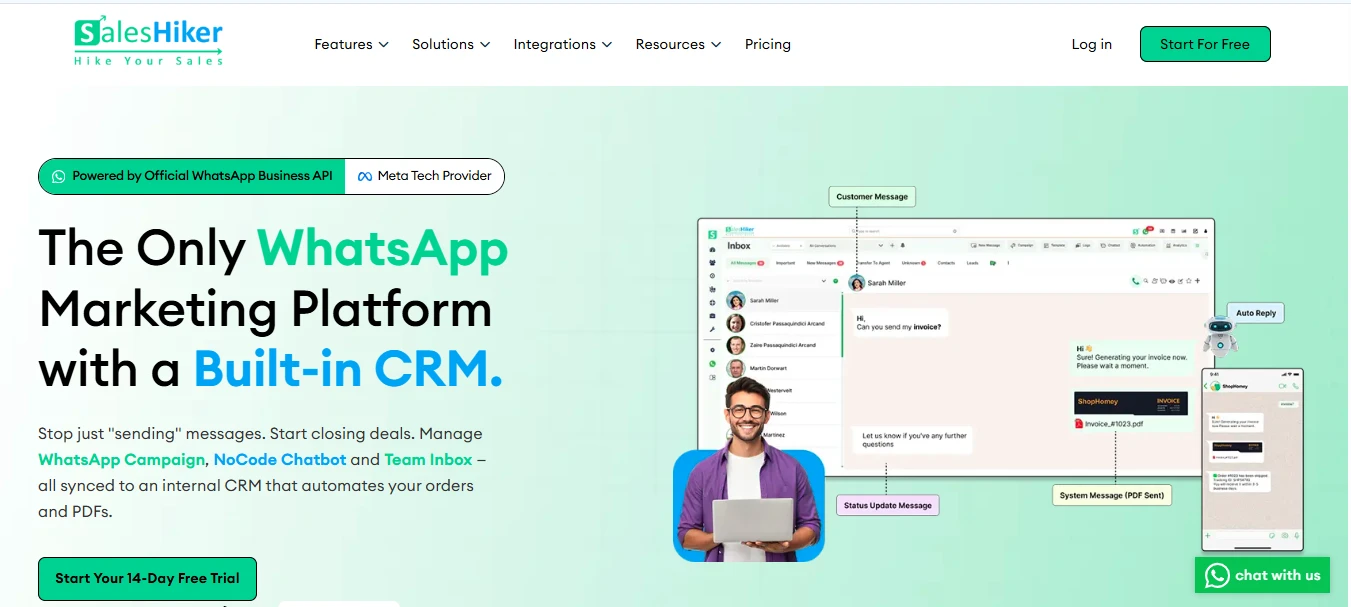
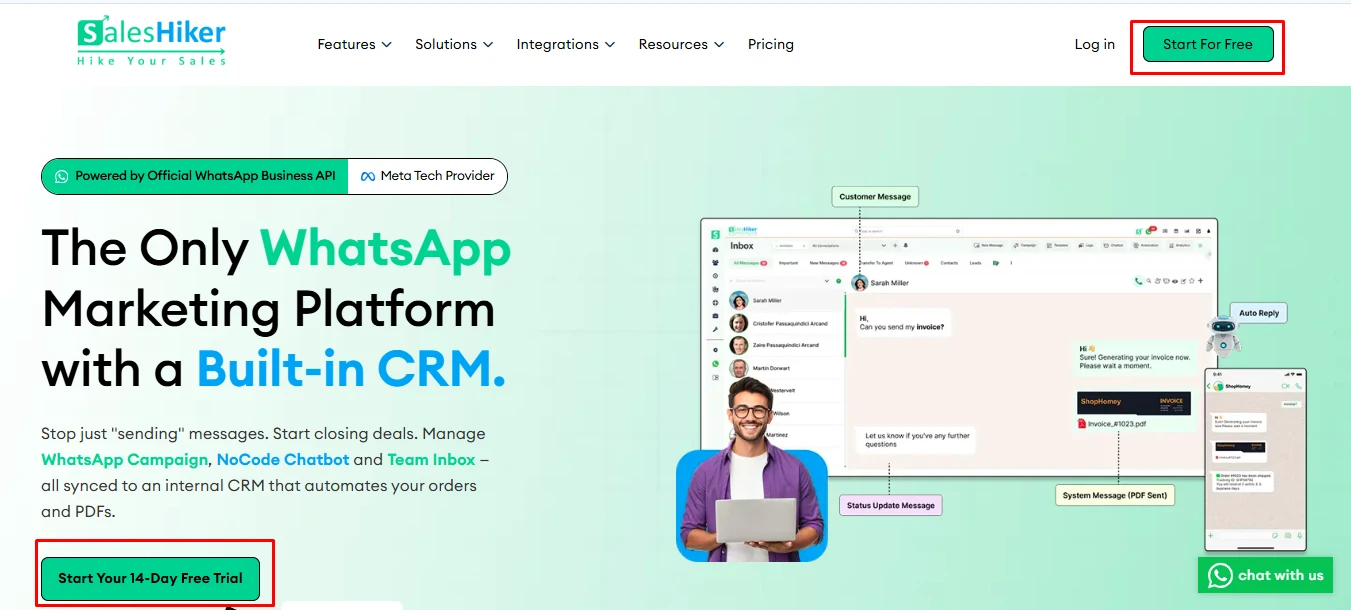
Click the “Start for Free” button, or enter your email and select “Free Trial” to proceed to the Registration page.
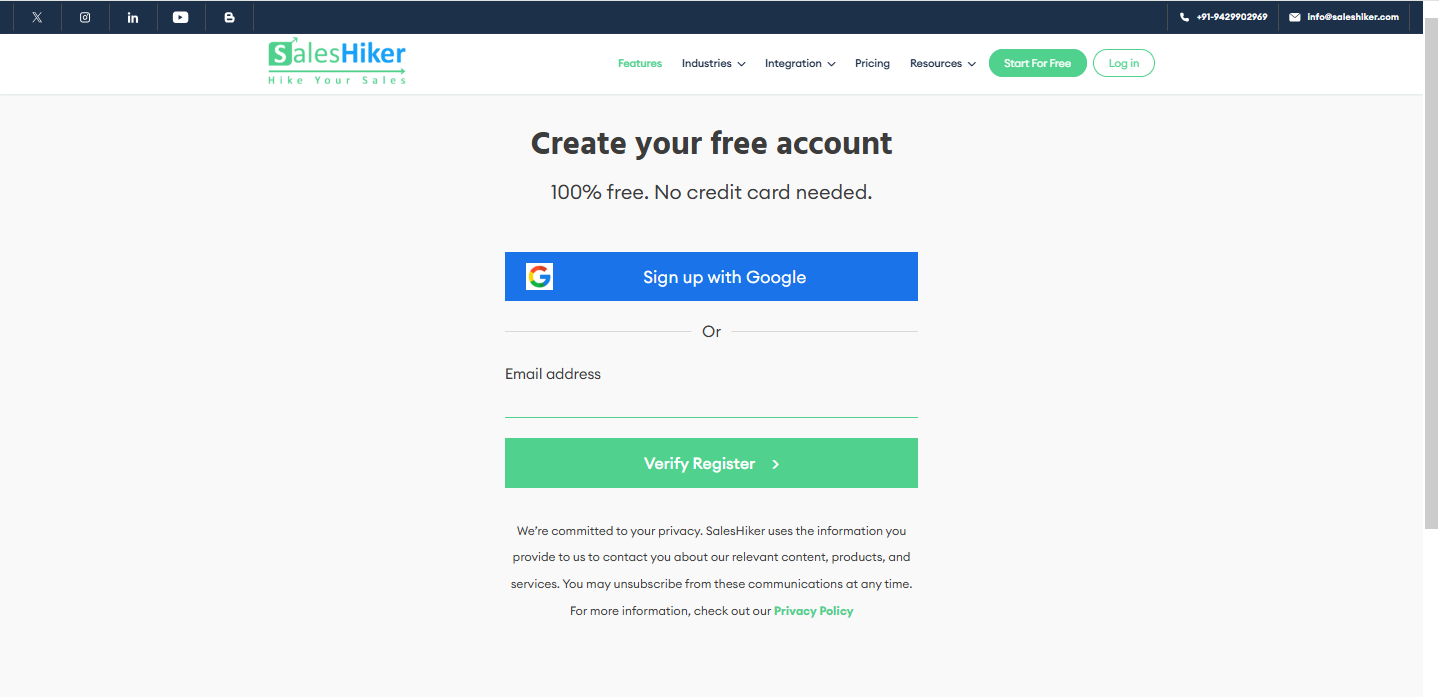
Choose one of the setup methods:
- Setup with Email
- Setup with Google Account
Setup with Email
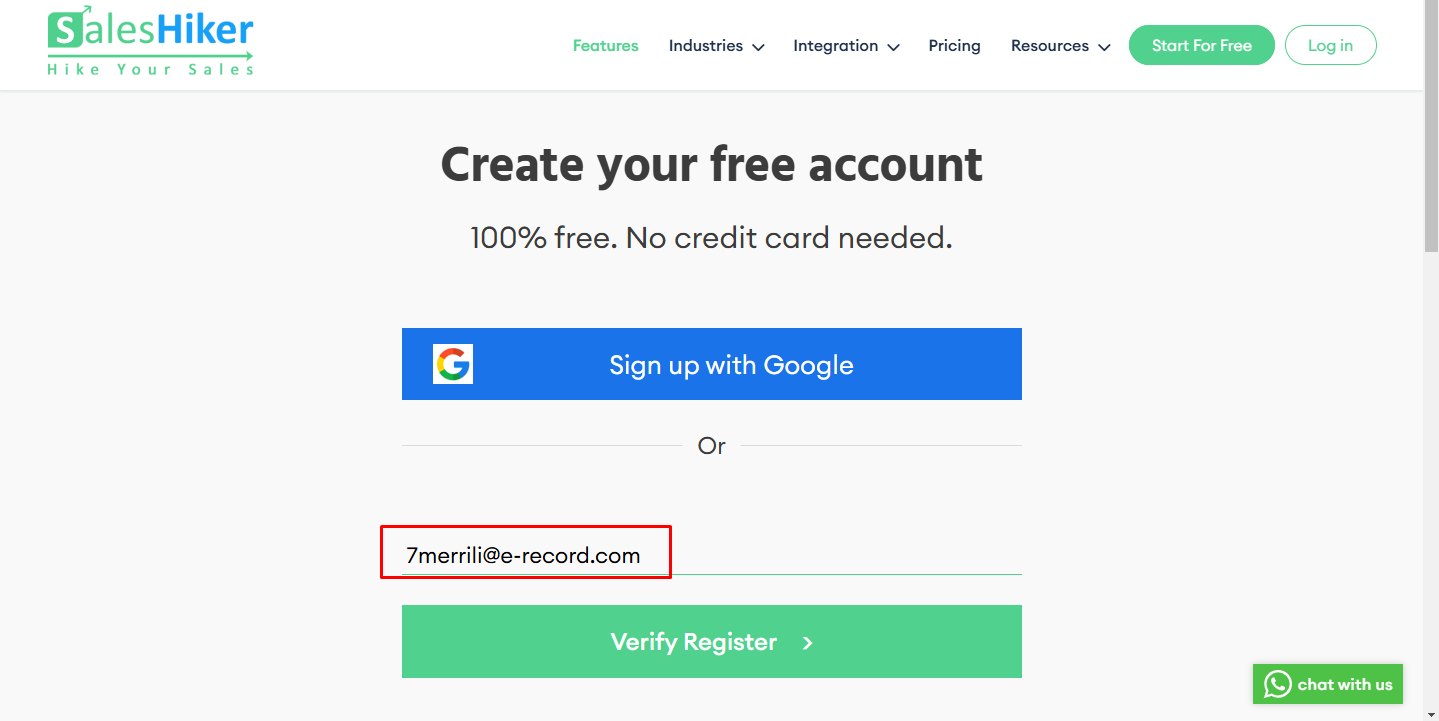
Enter your email address in the given field of Email address.
After entering your email address, click the “Verify Register” button.
After clicking on the verify register, the Company name will be asked.
Company Name: Enter your organisation’s name.
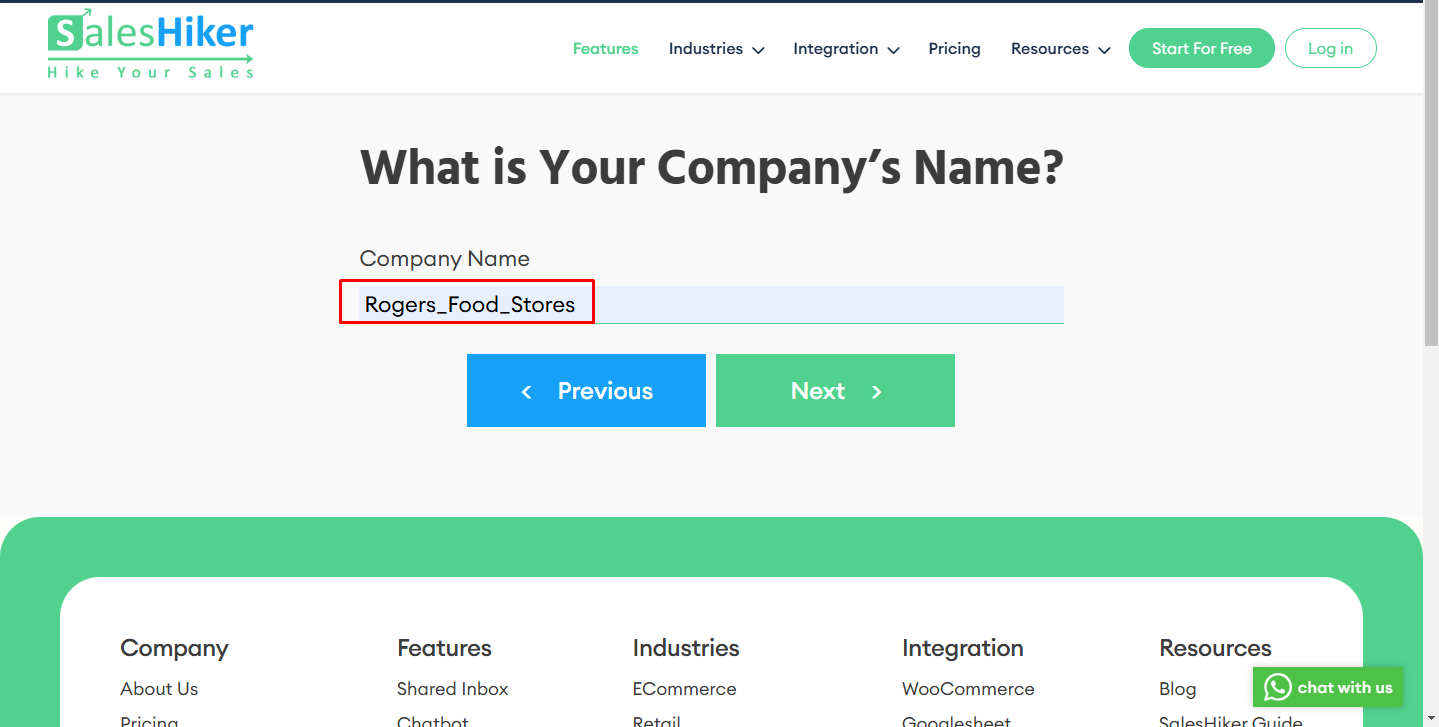
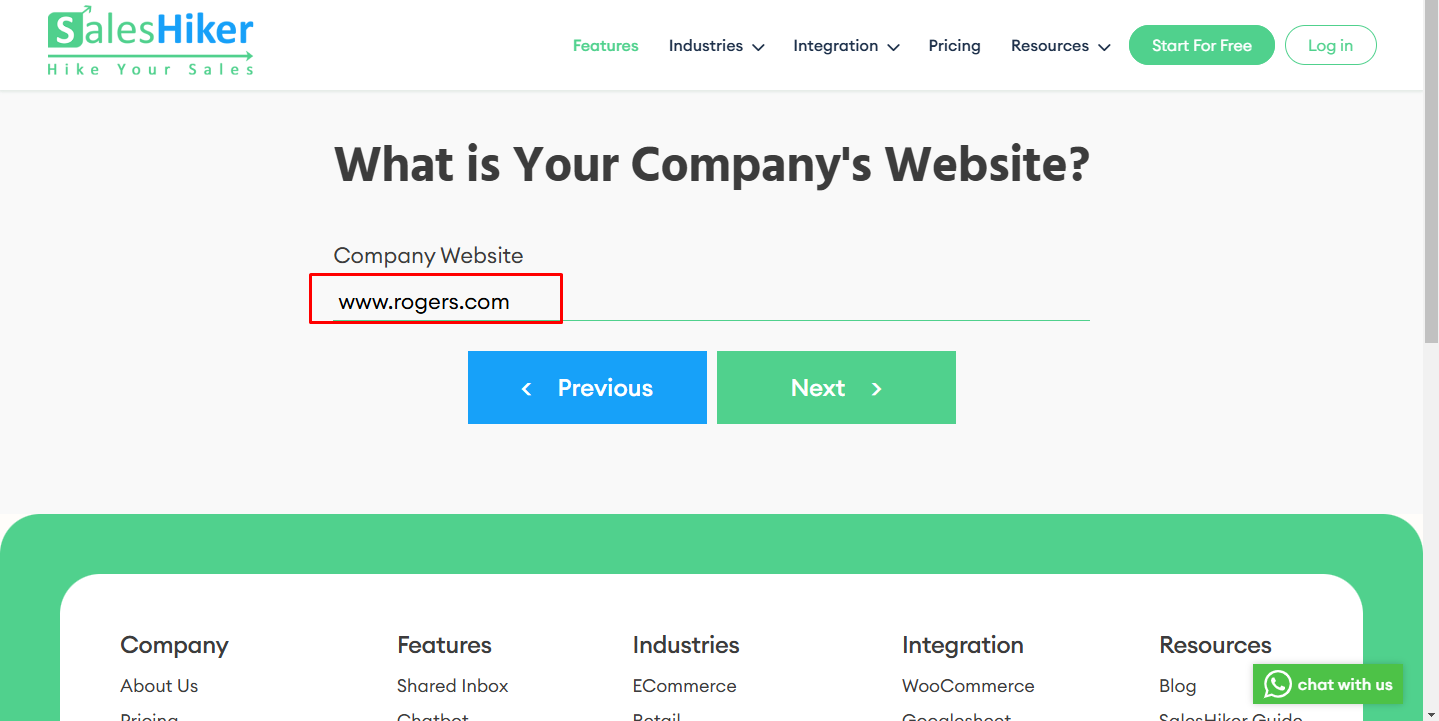
Company Website: Provide your company’s website URL.
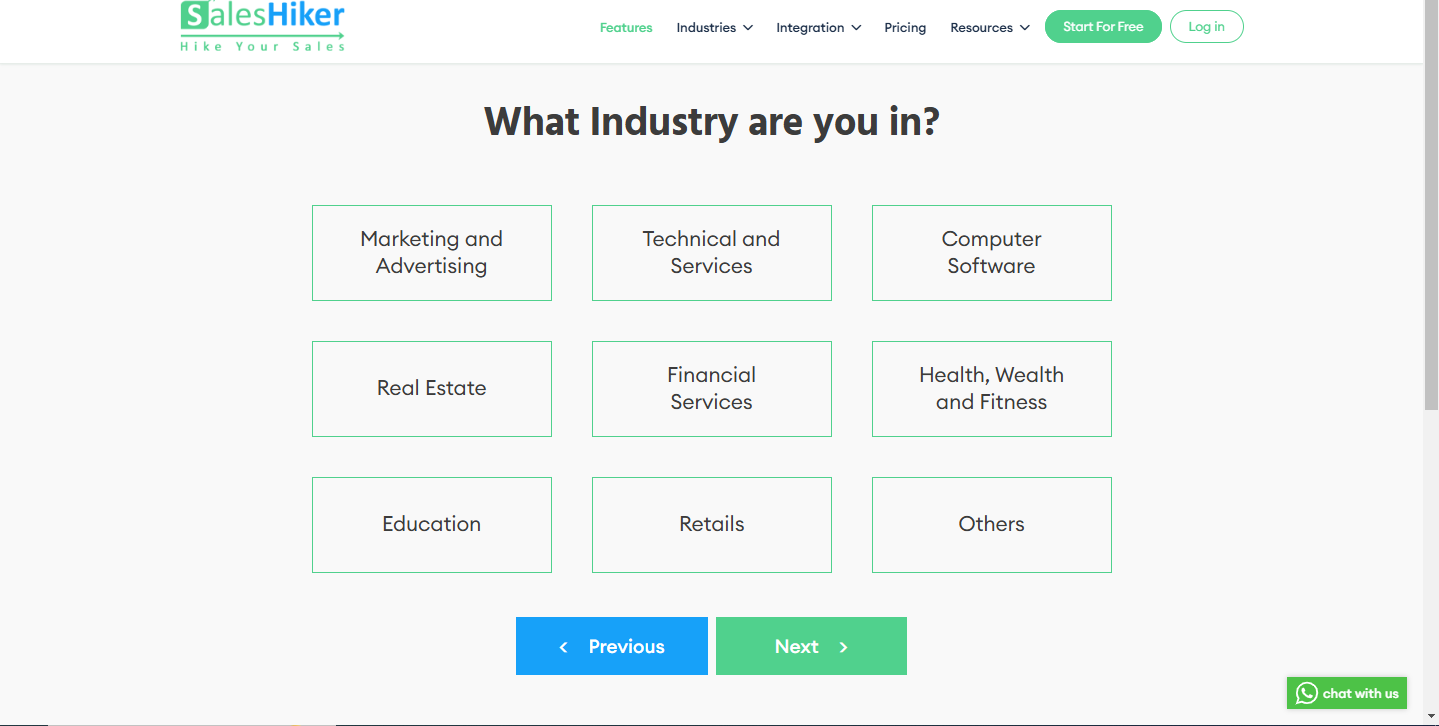
Industry: Select the industry that best describes your business from the given options.
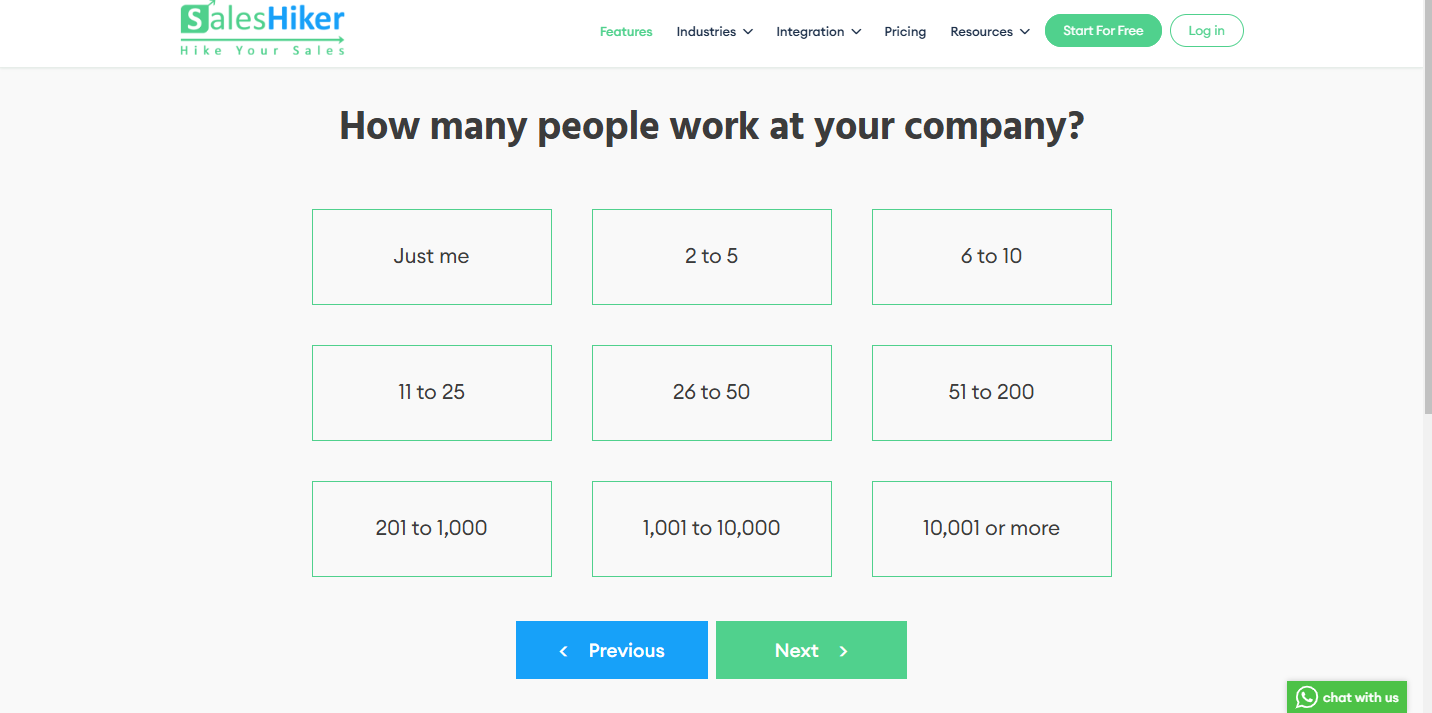
Company Size: Choose the number of employees in your company.
Specify WhatsApp CRM Preferences:
Indicate your intended use of the WhatsApp CRM features by selecting at least one of the following options:
- Manage WhatsApp Groups
- Manage multiple WhatsApp numbers
- Have multiple agents reply via one connected number
- Send bulk messages (to groups & 1-on-1)
- Connect WhatsApp to internal systems
- Track team productivity metrics
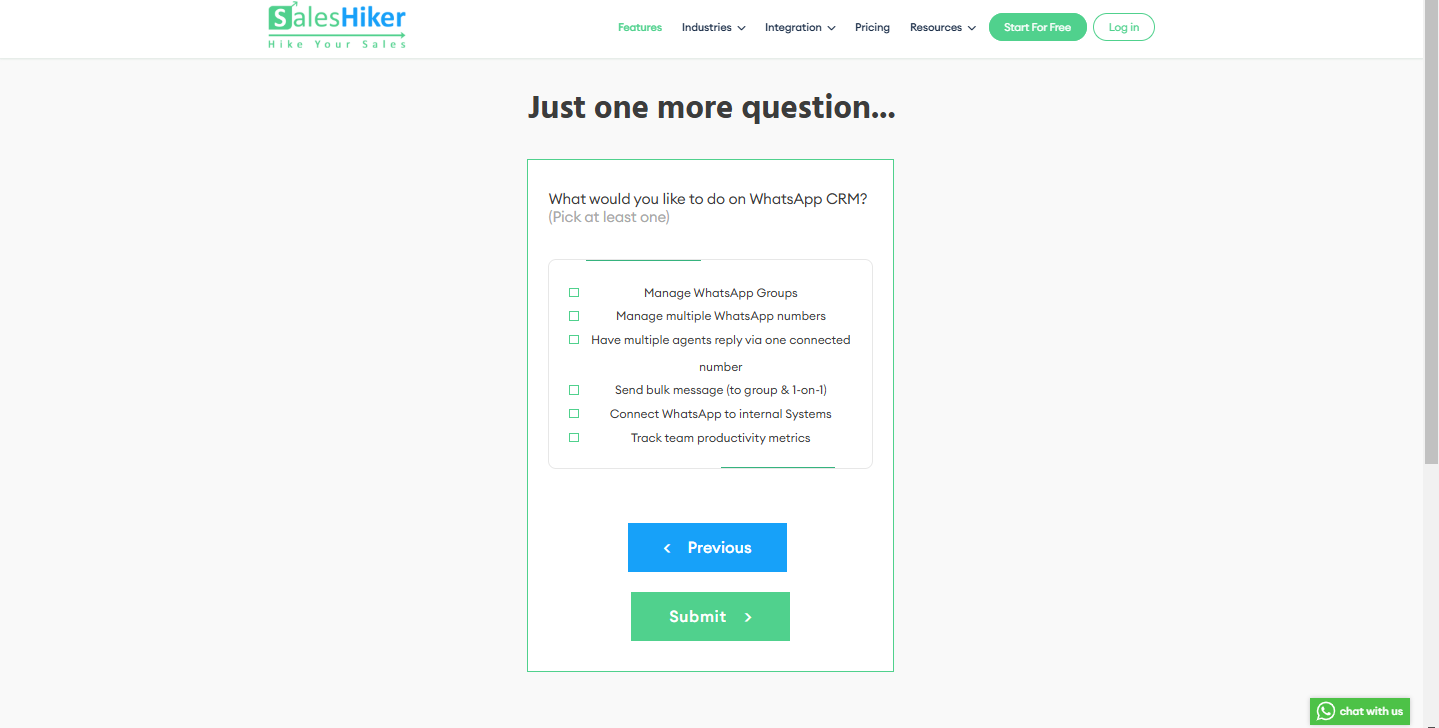
Click “Submit” to proceed.
- Connect WhatsApp to internal systems
- Track team productivity metrics
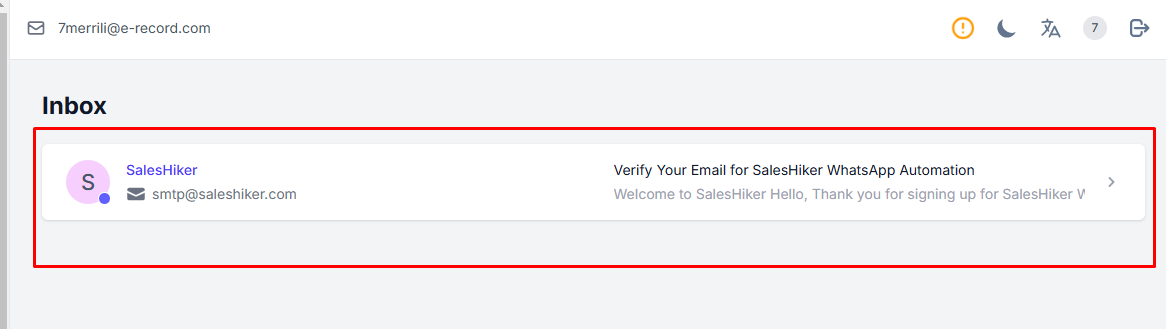
Verify Your Email:
- Check your inbox for a verification email.
- Click the verification link to activate your account.
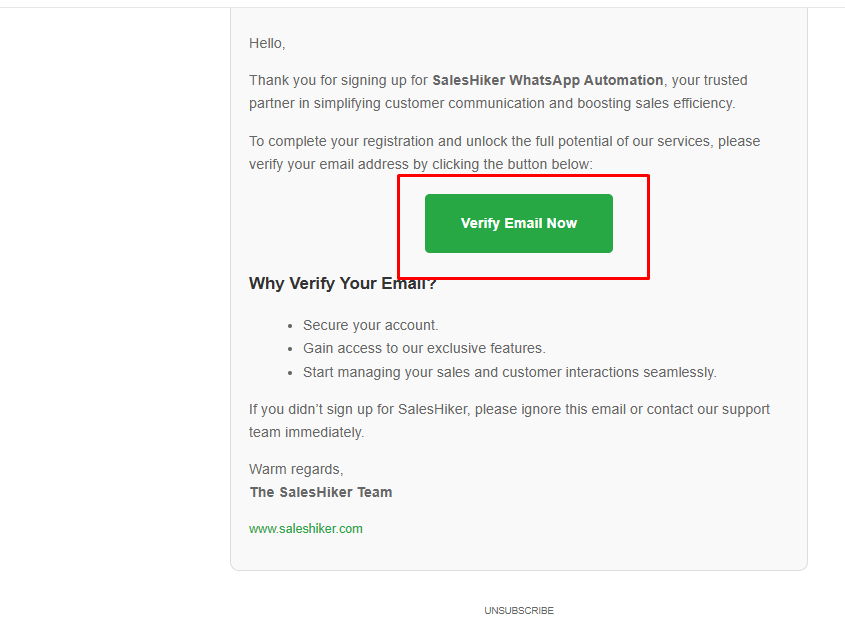
After verifying the mail, the tenant creation process will be started. The below page will be visible during the tenant creation process.
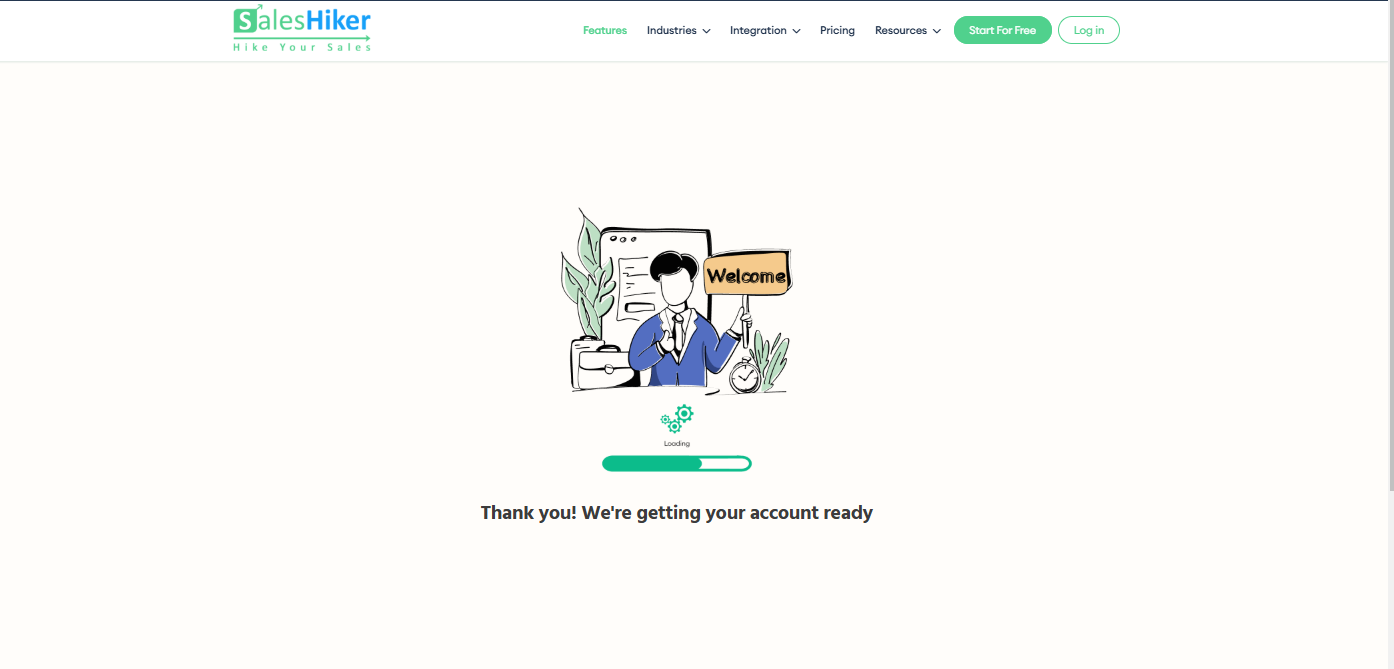
Once the CRM setup is completed successfully, the user will be redirected to SalesHiker CRM.
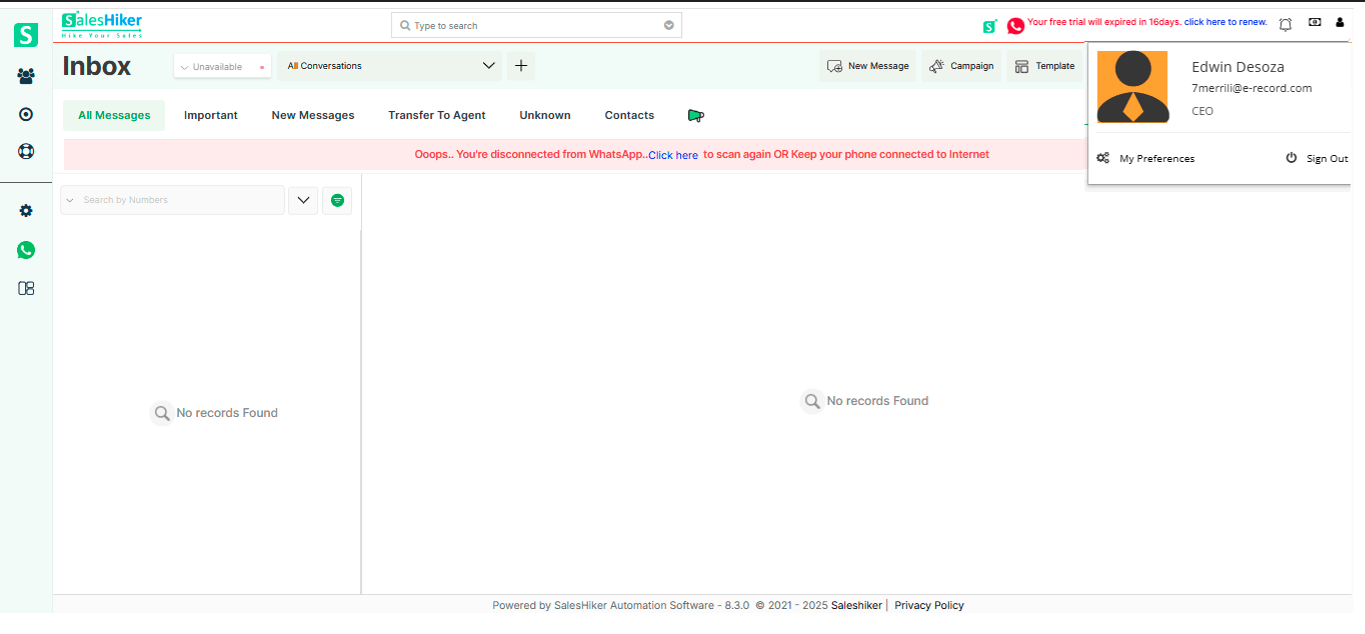
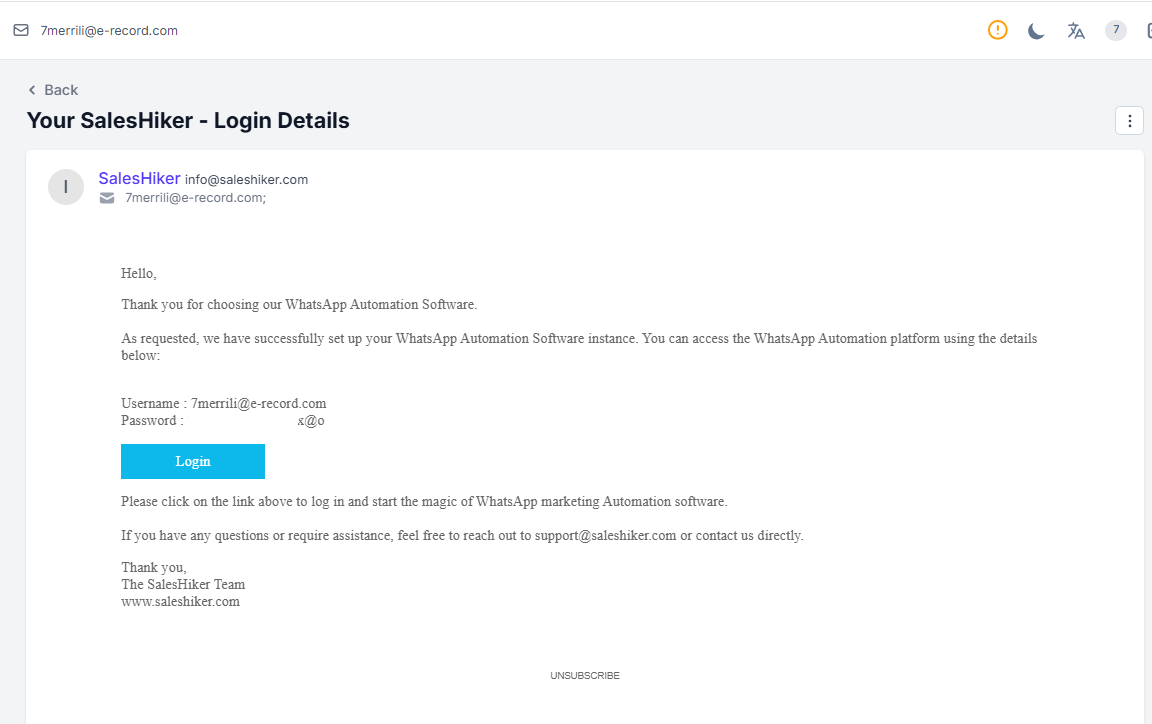
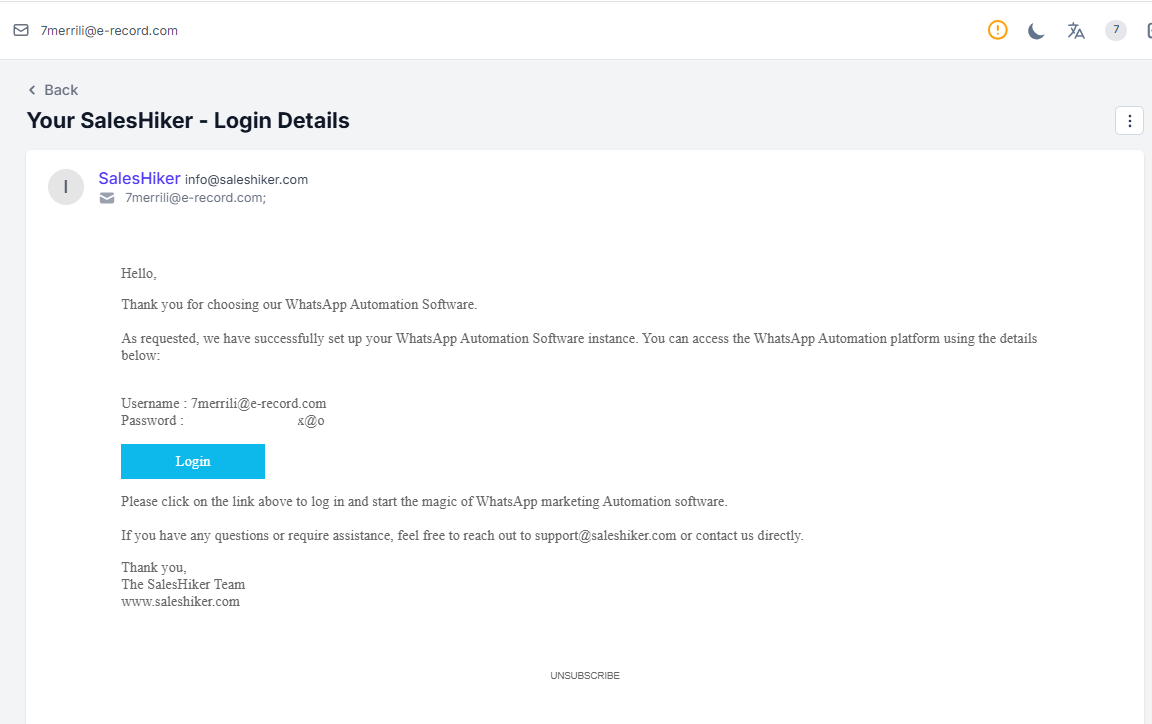
After this, tenant setup credentials will be sent in the mail.
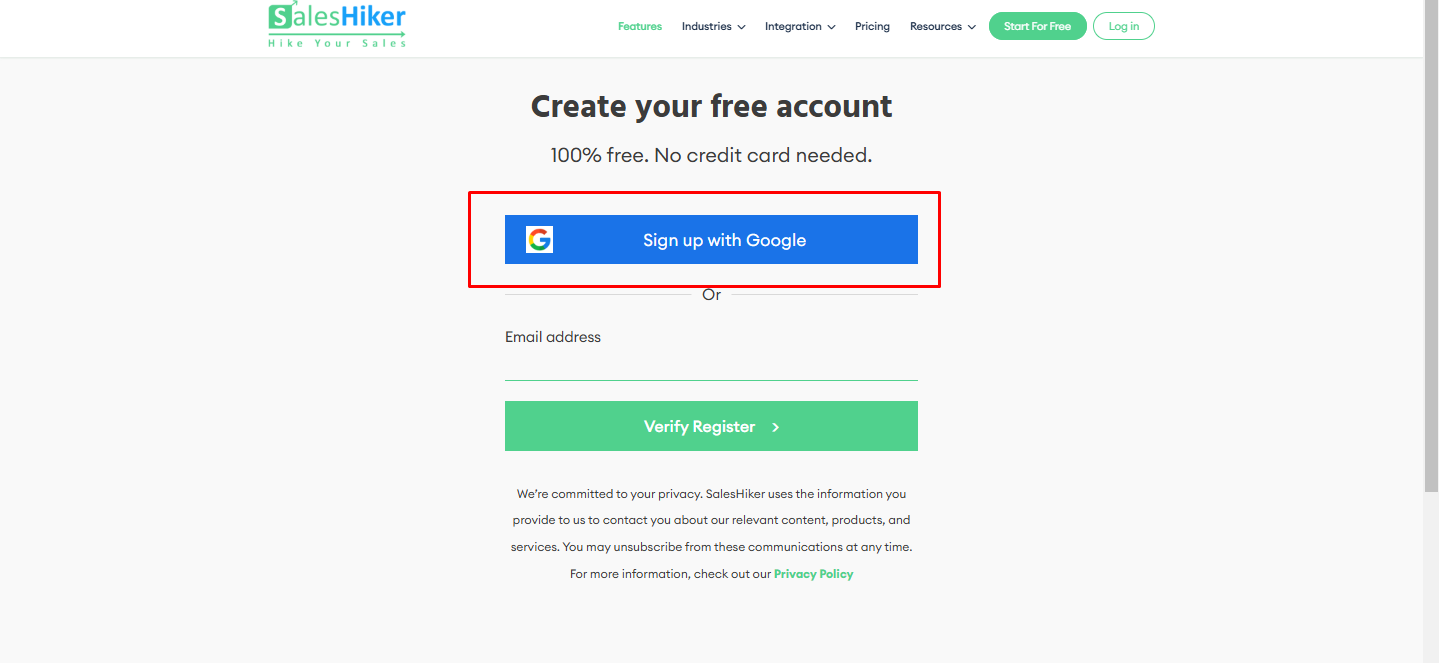
Setup with Google Account
Click on “Sign up with Google”.
Select your Google account.
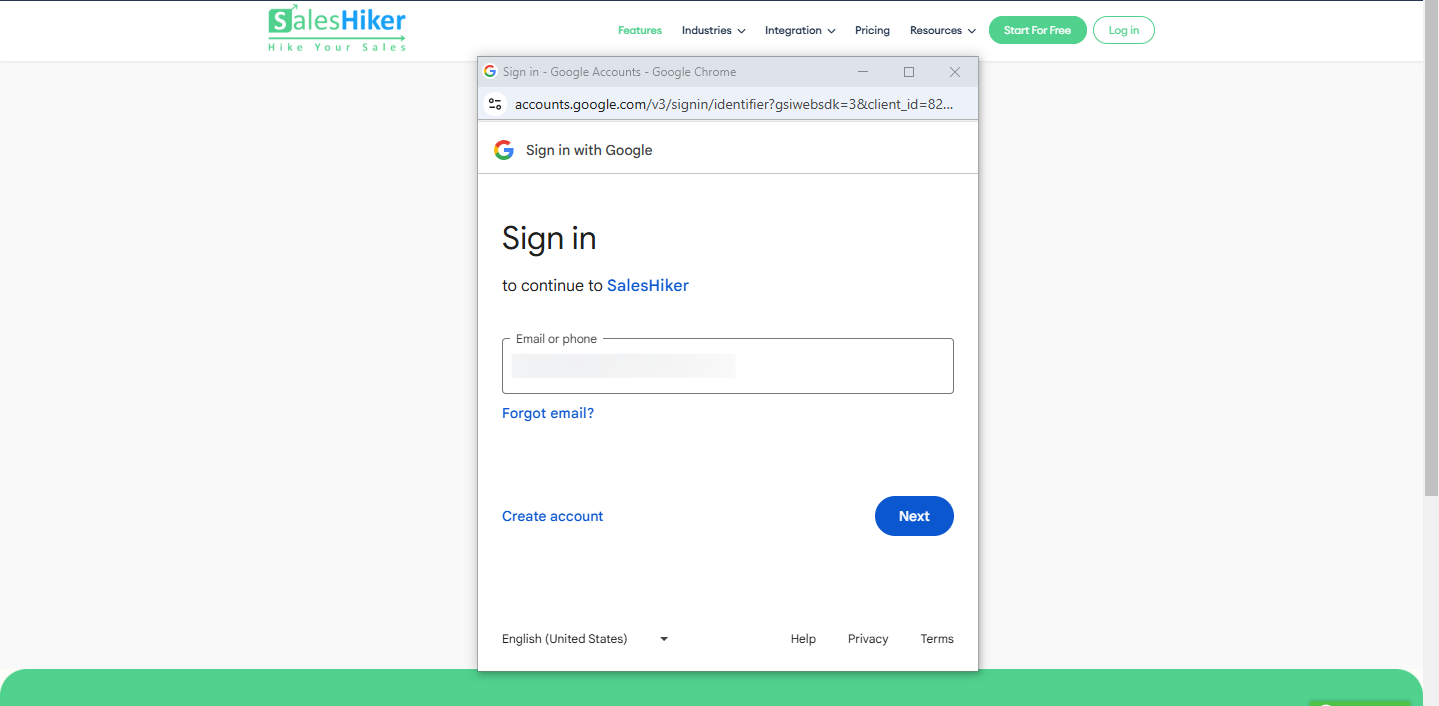
After selecting a Google account, a popup will appear to enter a password. After entering the password, the below screen will be visible.
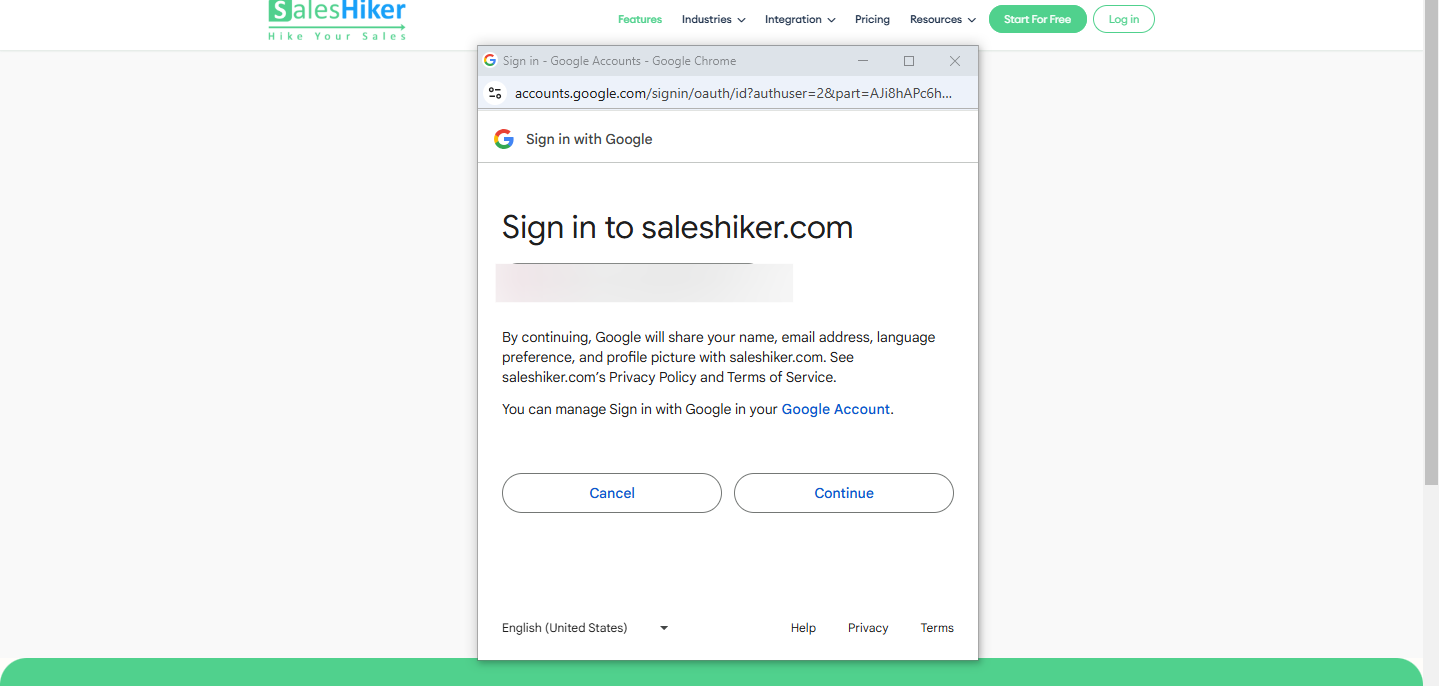
After clicking on continue, the tenant creation process will be started. The below page will be visible during the tenant creation process.
After a successful tenant creation process, it will automatically redirect to the saleshiker CRM.
Also, credentials will be sent in the mail.
Troubleshooting Registration Issues
Didn’t receive a verification email?
Check your spam/junk folders or request a new verification email.
Error during Google sign-up?
Ensure you’re using a valid Google account with the correct permissions.
Forgot your password?
Use the “Forgot Password” option to reset it.
Next Steps
After signing up, explore key features, set up integrations, and personalize your dashboard.
Once your Tenant CRM is set up:
Customize your dashboard and workflows.
Import customer data from spreadsheets or other CRMs.
Start adding and managing customers, deals, and tasks.

 by
by