
Analytics- Overview
Navigate to the top navigation bar and click on the “Analytics” button from Timeline view, as highlighted in the screenshot below.

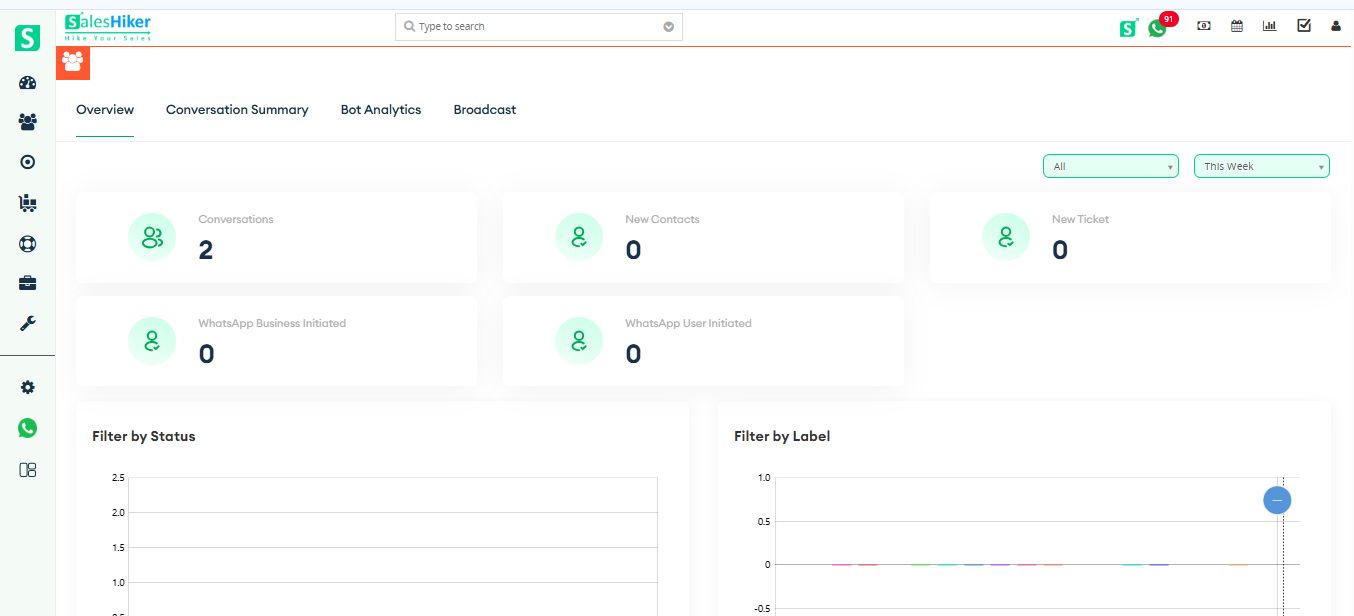
The Analytics dashboard provides a consolidated view of system performance, user engagement, and messaging activity. This page helps you monitor overall communication trends and evaluate bot and campaign effectiveness.
Overview
In the Overview section, you can view key metrics such as Total Conversations, WhatsApp Business–Initiated conversations, WhatsApp User Initiated, New Tickets, and New Contacts, along with filtered reports and Team Performance insights.
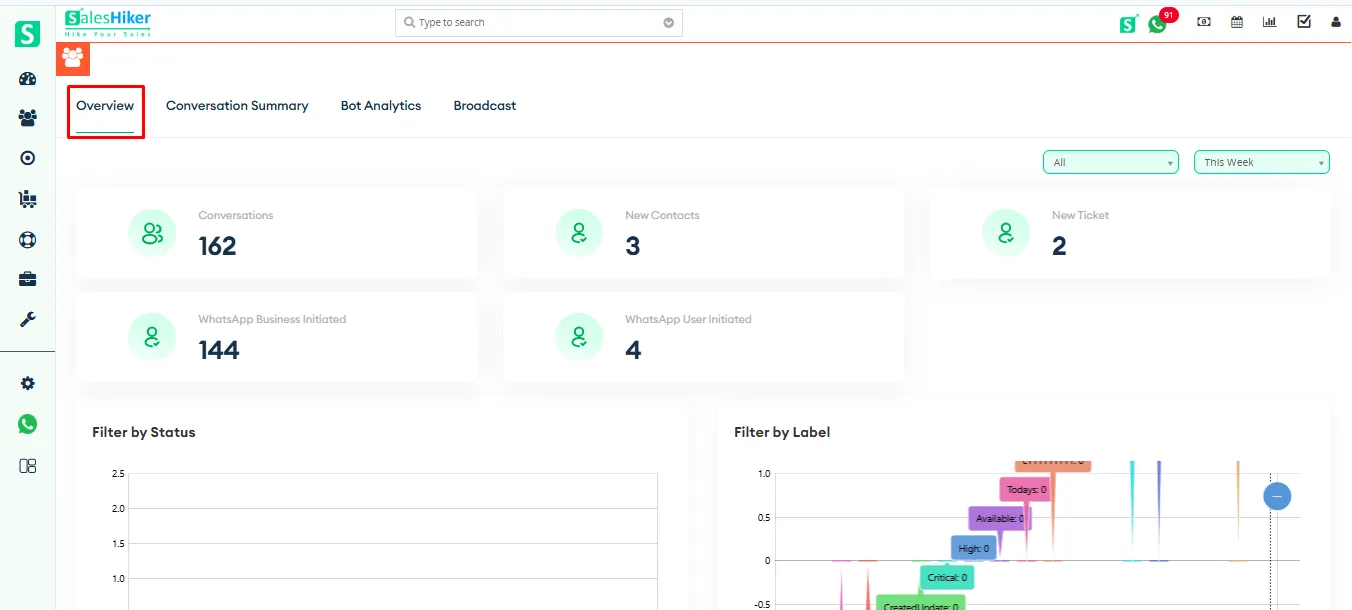
A detailed explanation of each metric is provided below.
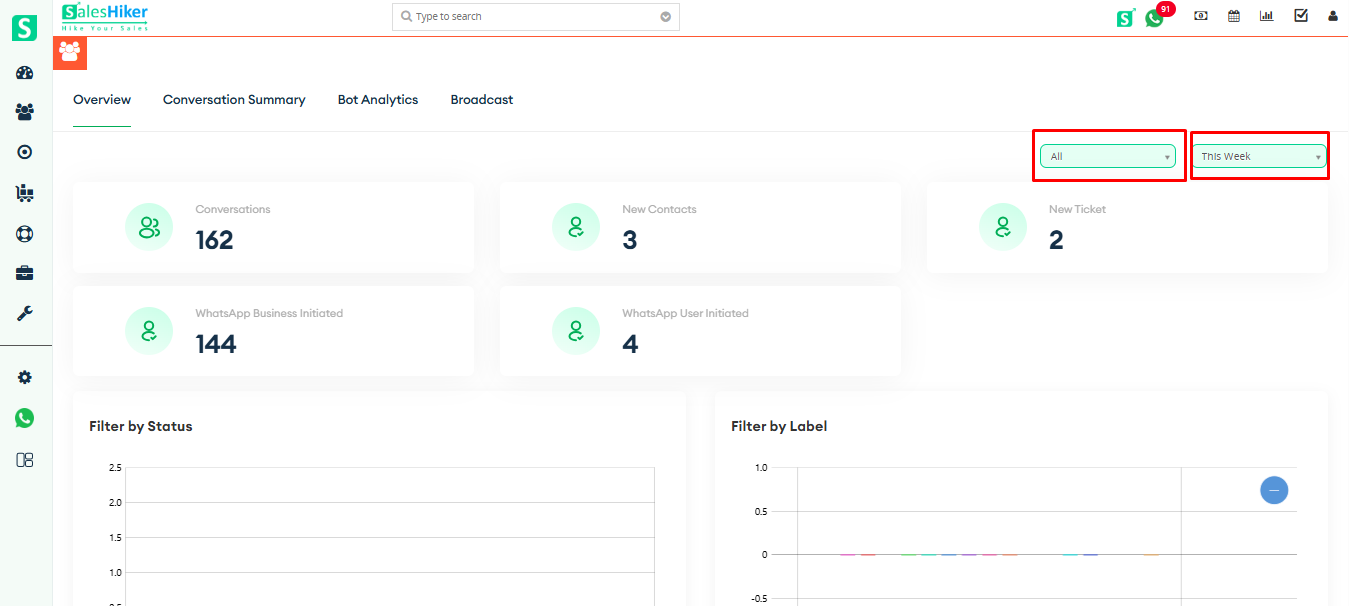
Users can select the preferred phone number and apply a day/date filter to view the Overview page details accordingly, as illustrated in the screenshot below.
Conversations
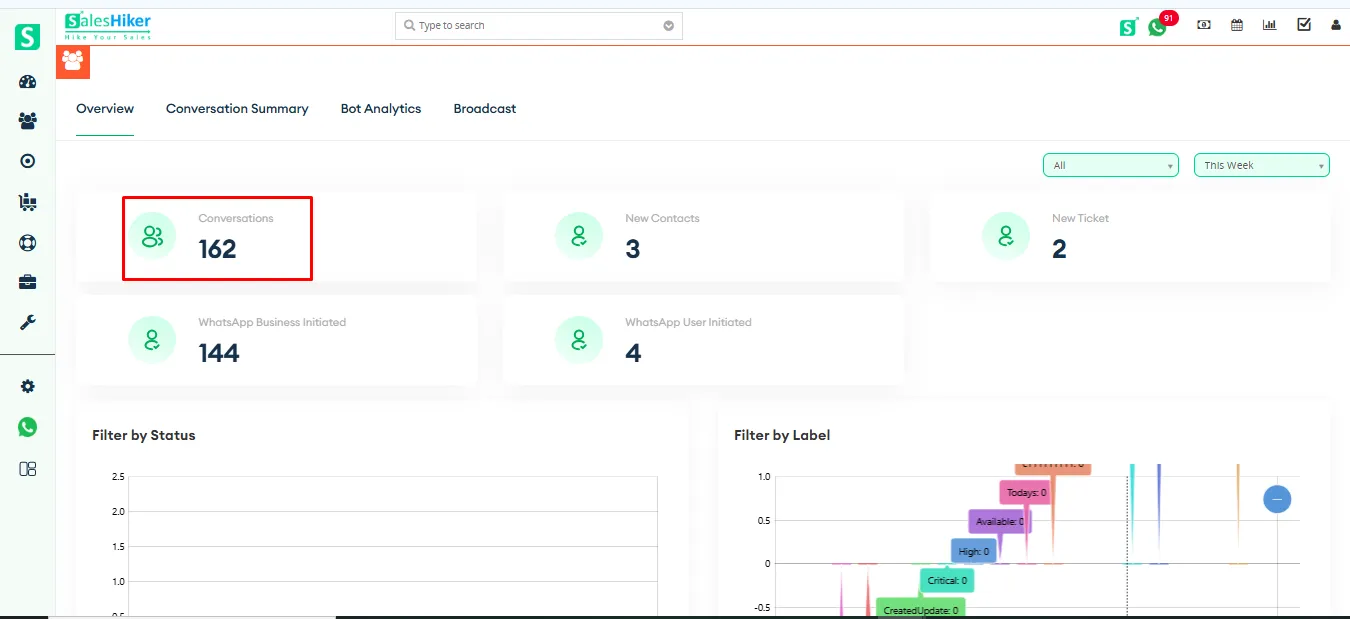
Shows the total number of conversations – including both incoming and outgoing messages for the selected phone number (or all numbers) within the chosen date range
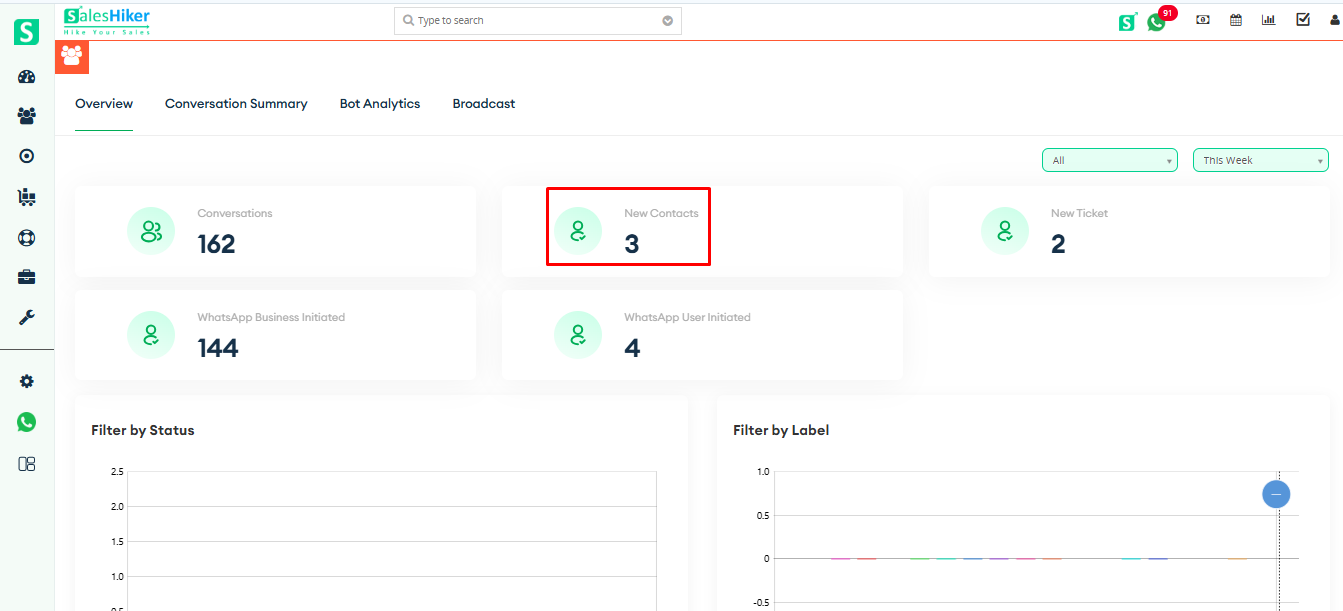
New Contacts
Displays how many new users were added to your contact list. A user is counted when they interact with you for the first time
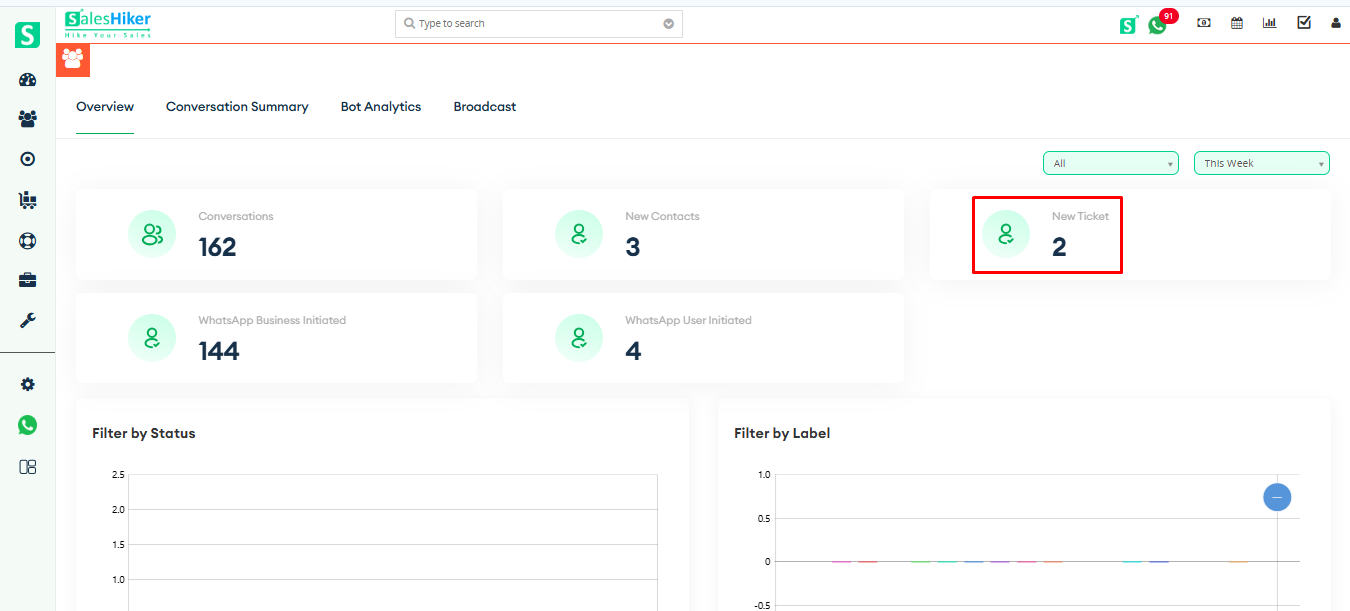
New Ticket
Shows the total support tickets generated during the selected period. Tickets can be created automatically or manually from conversation
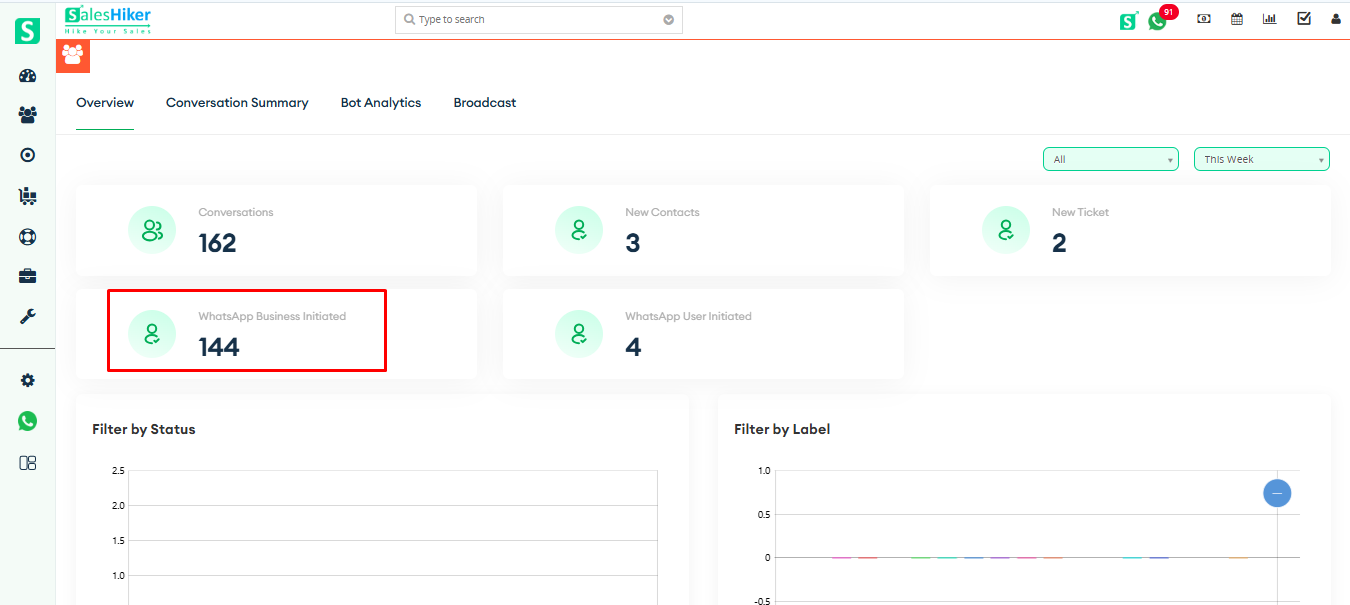
WhatsApp Business Initiated
Indicates conversations that your business initiated on WhatsApp. Includes campaign messages, template sends, and outbound responses.
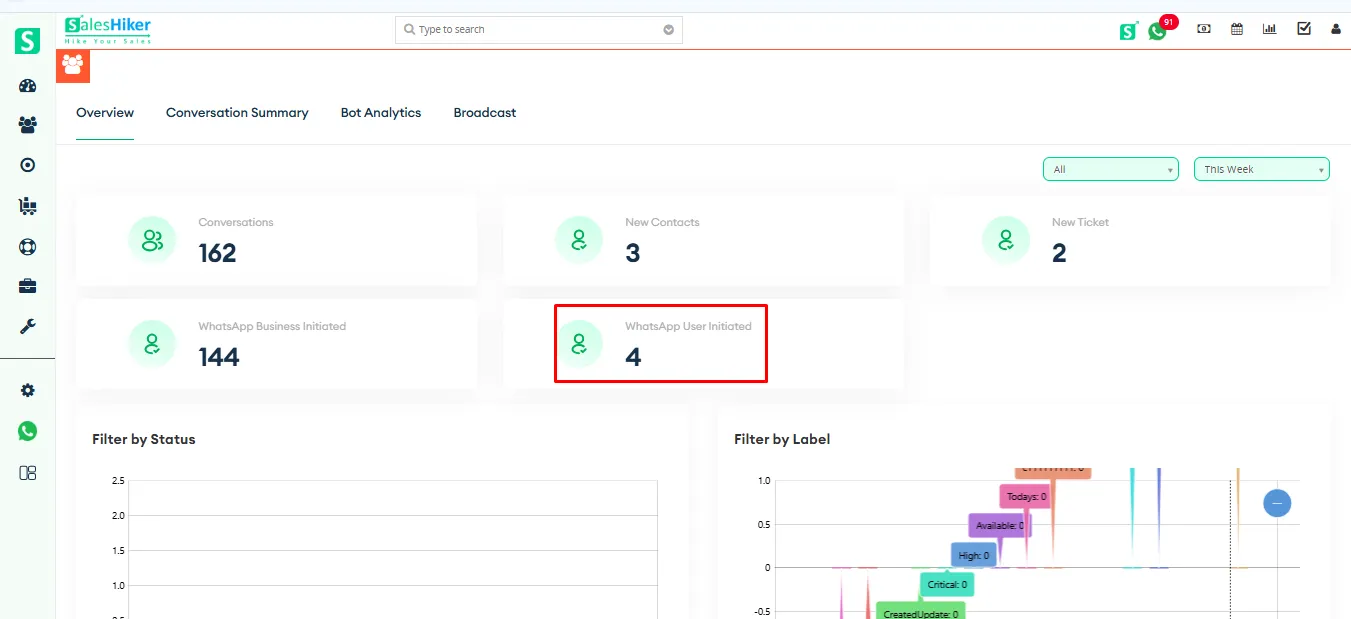
WhatsApp User Initiated
Shows the number of conversations started directly by users on WhatsApp. Begins when a customer sends their first message to your business.
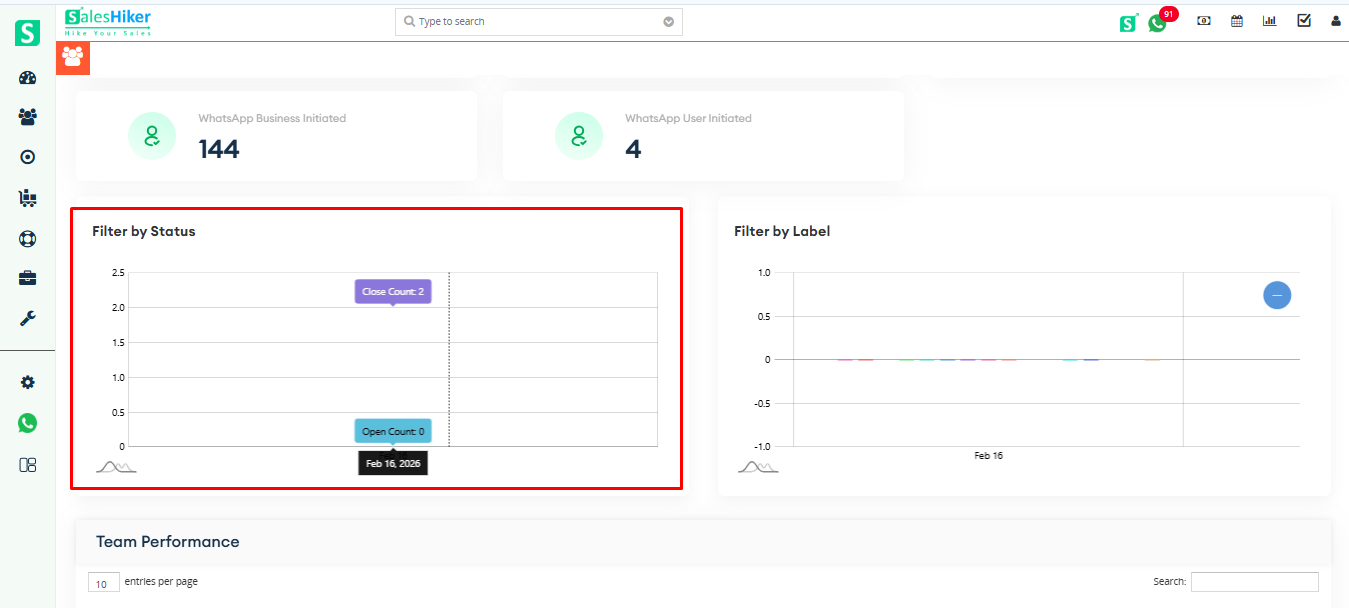
Filter by Status
In the Overview section, the Filter by Status report is displayed in graphical format, showing the distribution of conversations based on their current status (e.g., Open and Closed). This visual representation helps in quickly analyzing active and resolved conversation trends.
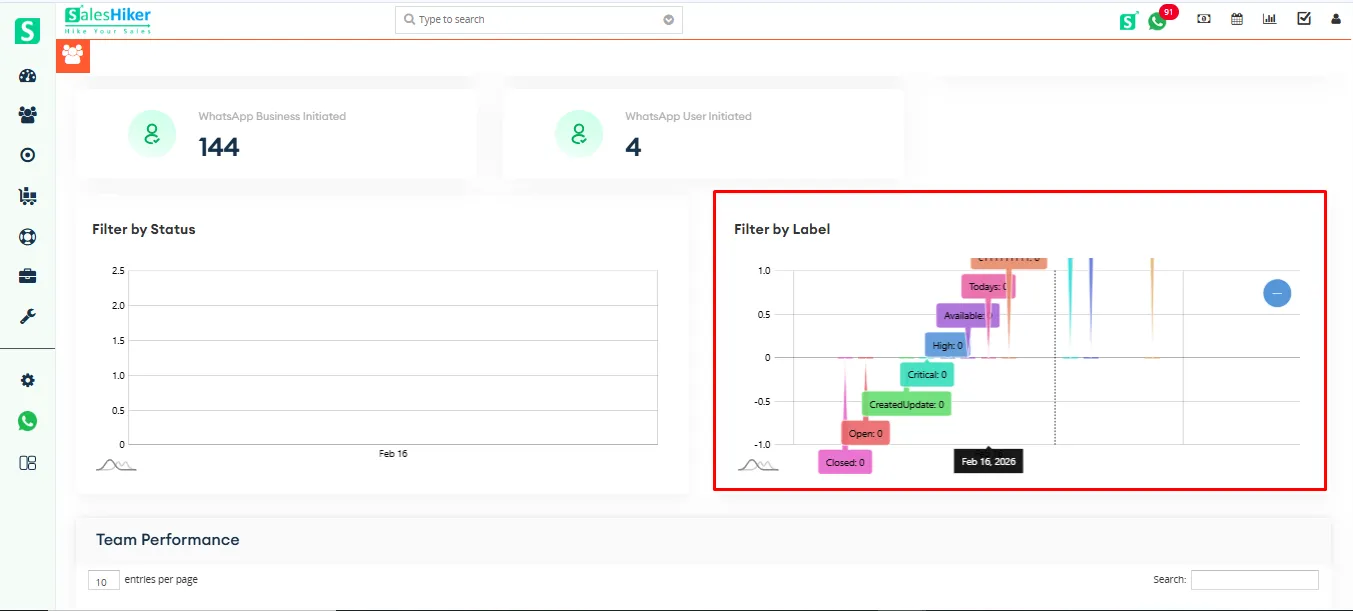
Filter by Label
In the Overview section, the Filter by Label report is presented in graphical format, displaying the distribution of conversations based on the assigned labels. This helps in analyzing conversation categories and tracking performance by specific tags.
Team Performance
Team Performance providing a detailed breakdown of each team member’s activity. It shows performance metrics such as the number of assigned conversations, handled chats, response activity, and overall contribution. This section helps in evaluating individual and team productivity efficiently.

 by
by