
How to Setup Template for WhatsApp Business
WhatsApp Business Template Overview :
WhatsApp Business Template helps users to create/manage WhatsApp business templates to send template messages using our extension.
Features
- You can add a message template in a specific language when creating a template.
- You can create templates with the “Marketing” or “Utility” or Media Card Carousel category.
- You can create templates with various text, media, and interactive components, based on your business needs.
- You can also see Template Message Preview.
- When you send template create requests, Facebook immediately validates its category using Templates Guidelines.
Create WhatsApp Business Template
Users can create a WhatsApp Business Template in two ways.
- Facebook Developer page
- WhatsApp Business Create Template page
Create WhatsApp Business Template From Facebook Developer page
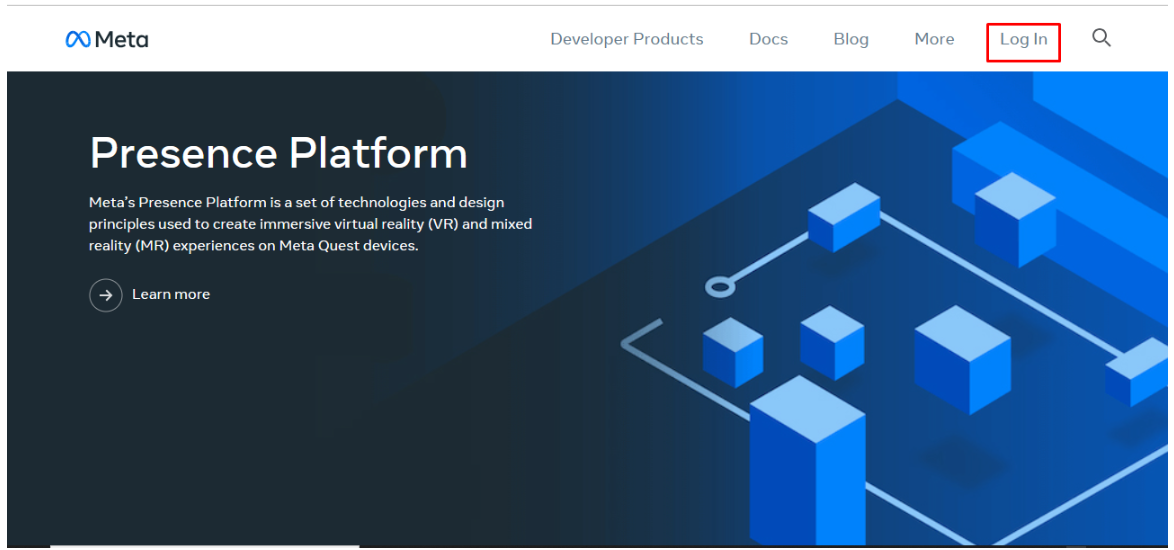
Users have to go and login to the developer’s Facebook page
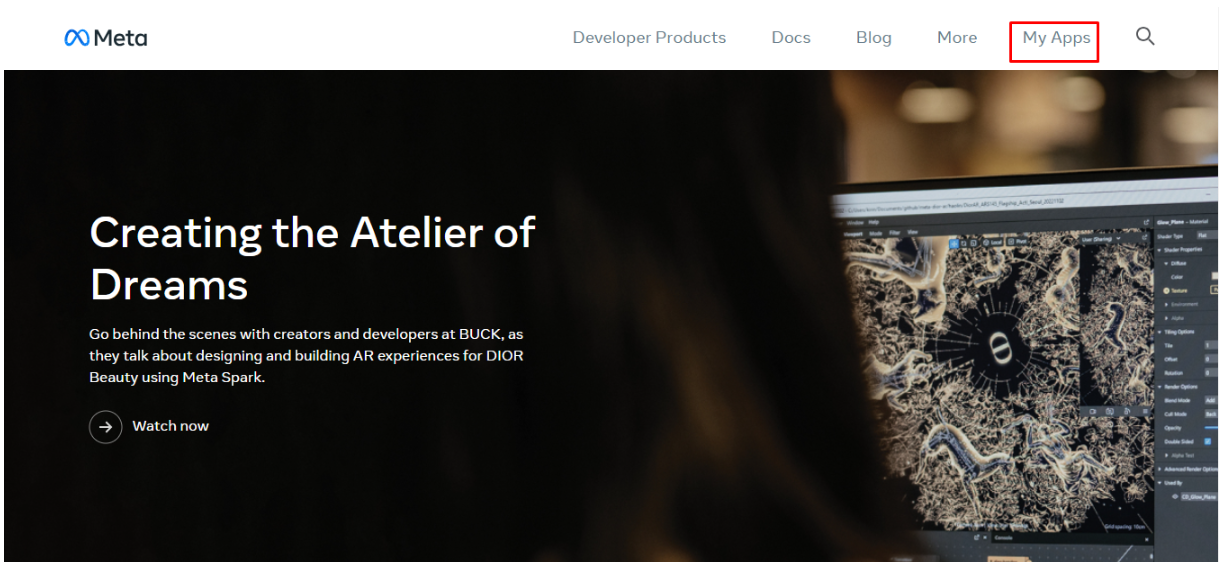
Once you login the page click on My App
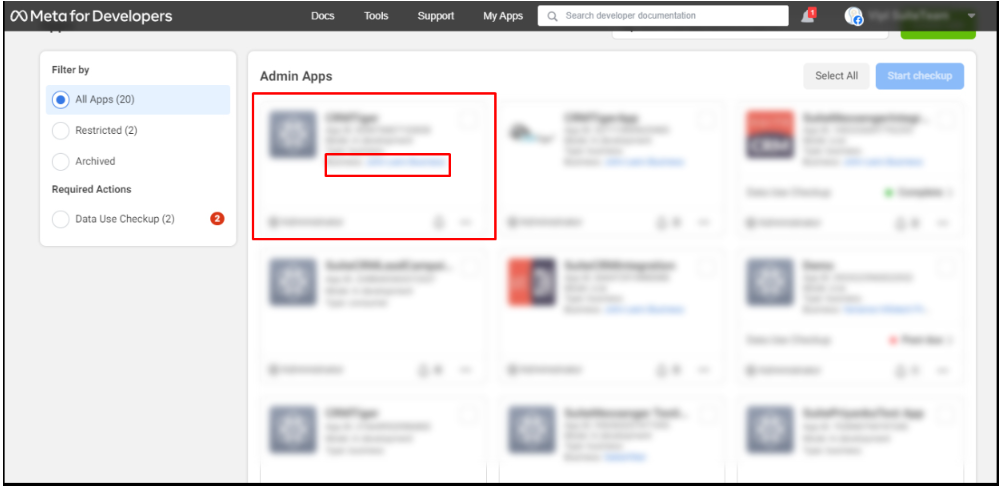
Once you click on My App the page will look like below screenshot, Click on your SalesHiker App
Once user click on SalesHiker app it will redirect to the App Dashboard, users have to click on WhatsApp in the sidebar > API Setup
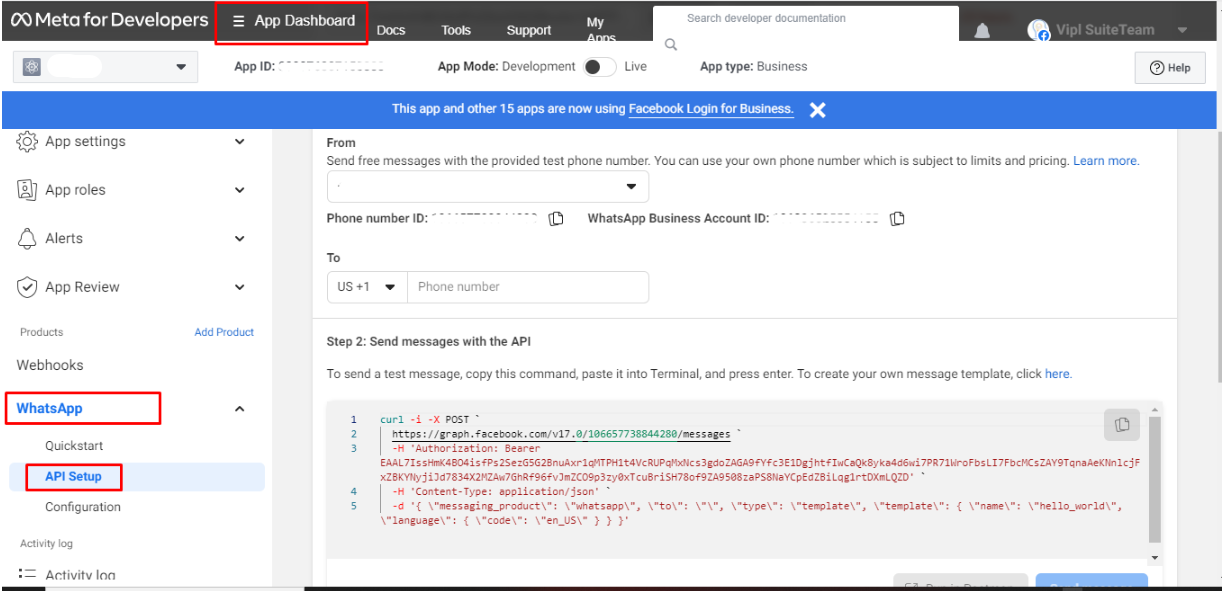
Once user click on SalesHiker API setup it will take user to the API setup page, scroll down to step 2 – To create your own message template click here
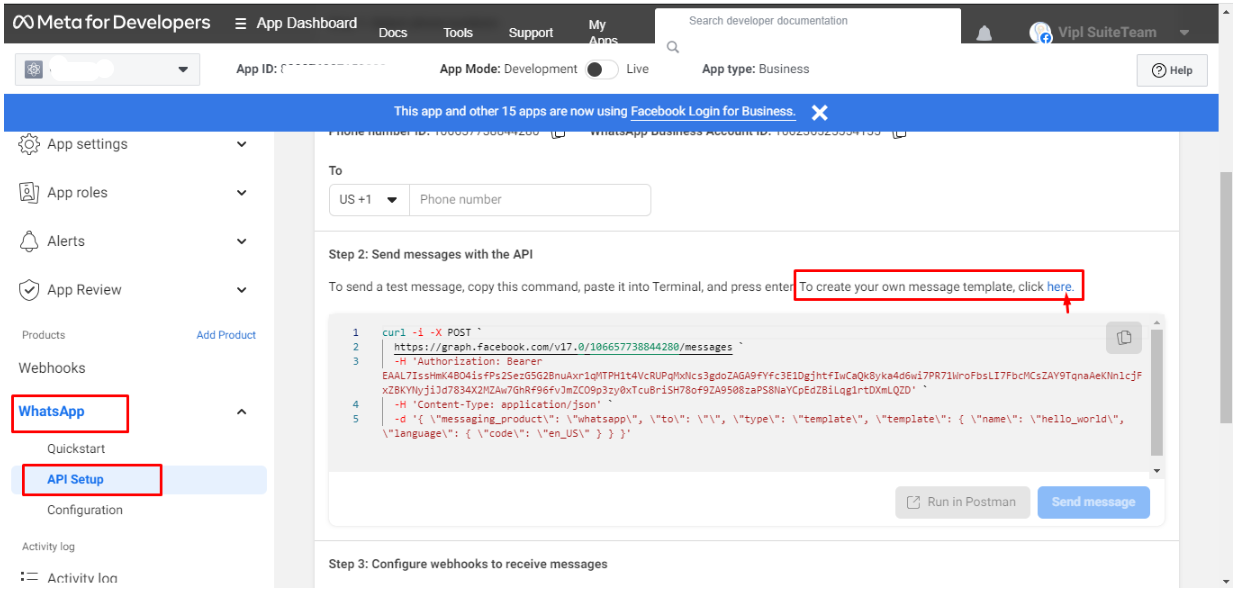
After clicking on the link, it will open the page displaying a list of the created templates.
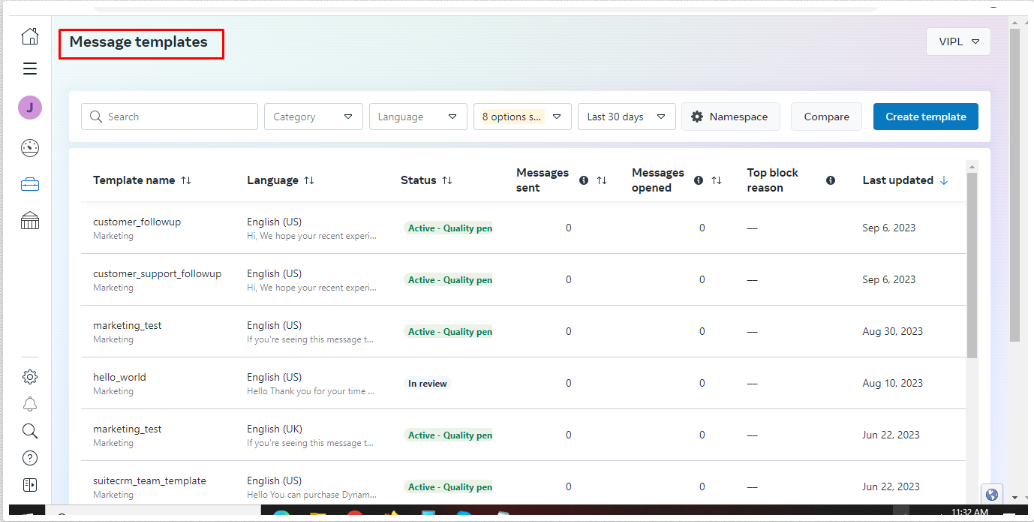
Click on create template button.
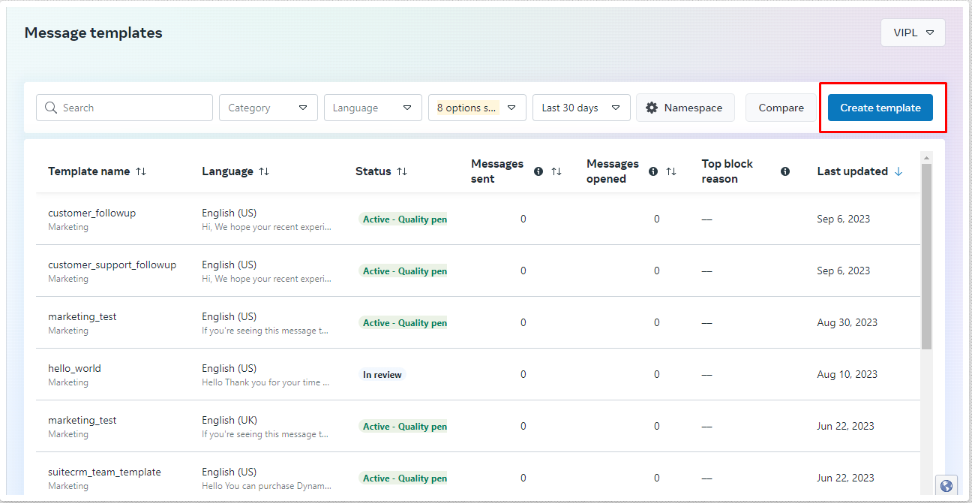
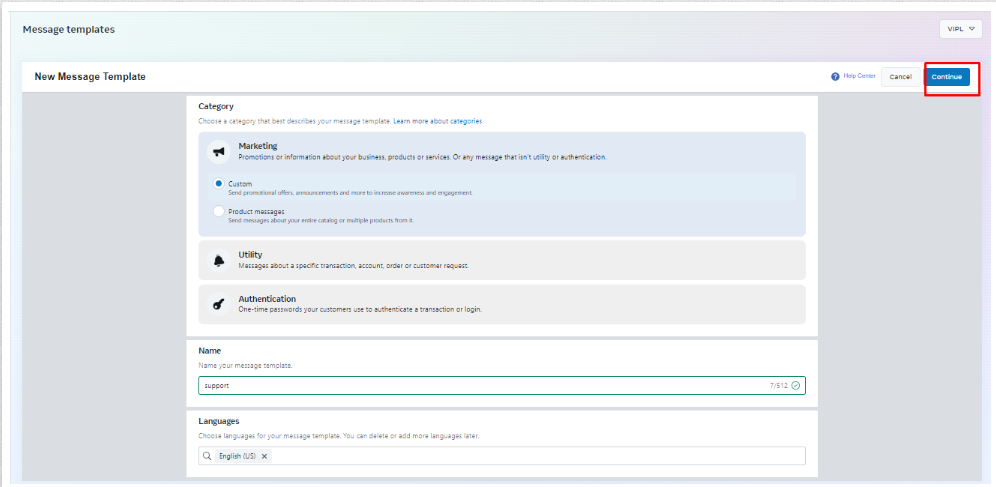
Users have to select the category, name and language of the Creating template.
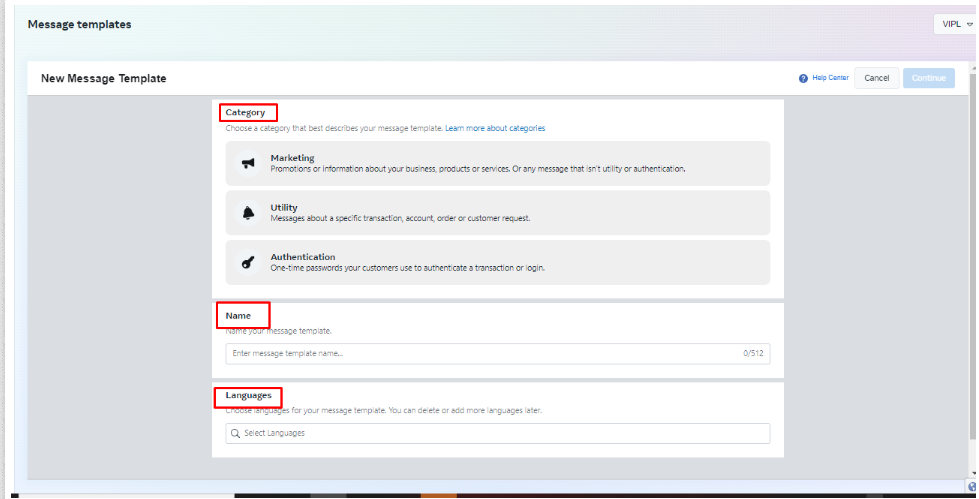
After selecting the category and language, and entering the template name, the ‘Continue’ button will be enabled, and the user will have to click on the ‘Continue’ button.
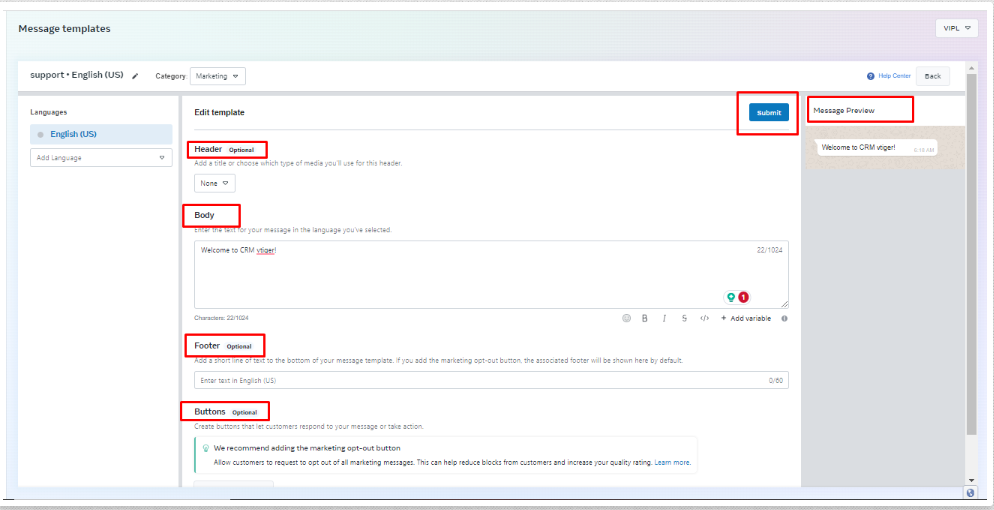
After the user clicks on ‘continue,’ they will be taken to the following page where they can add a header, body, footer, and buttons to the template.
Users can also preview how the message will be displayed. And at last By clicking the ‘submit’ button, the template will be created
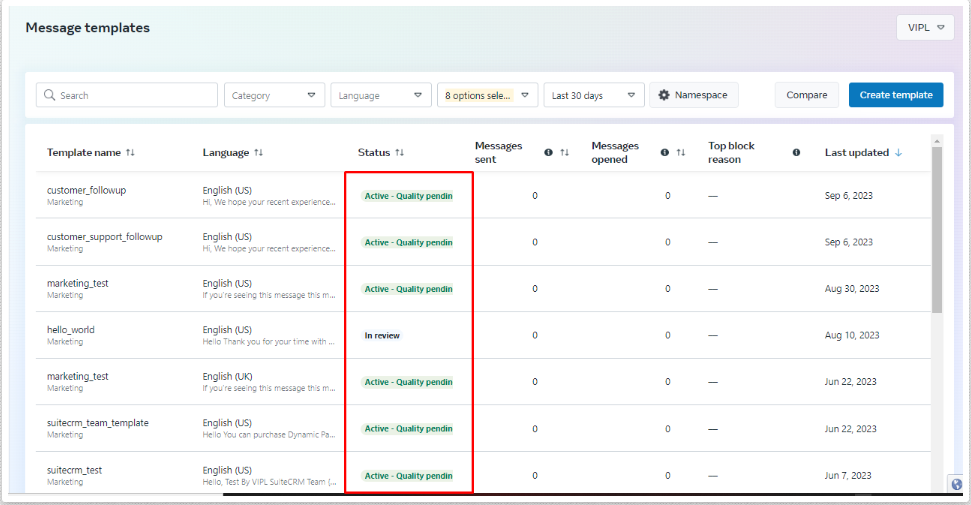
Once the template is created, it will be submitted to Facebook for approval, and users can view the status of the created template on the list page under the ‘Status’ column.
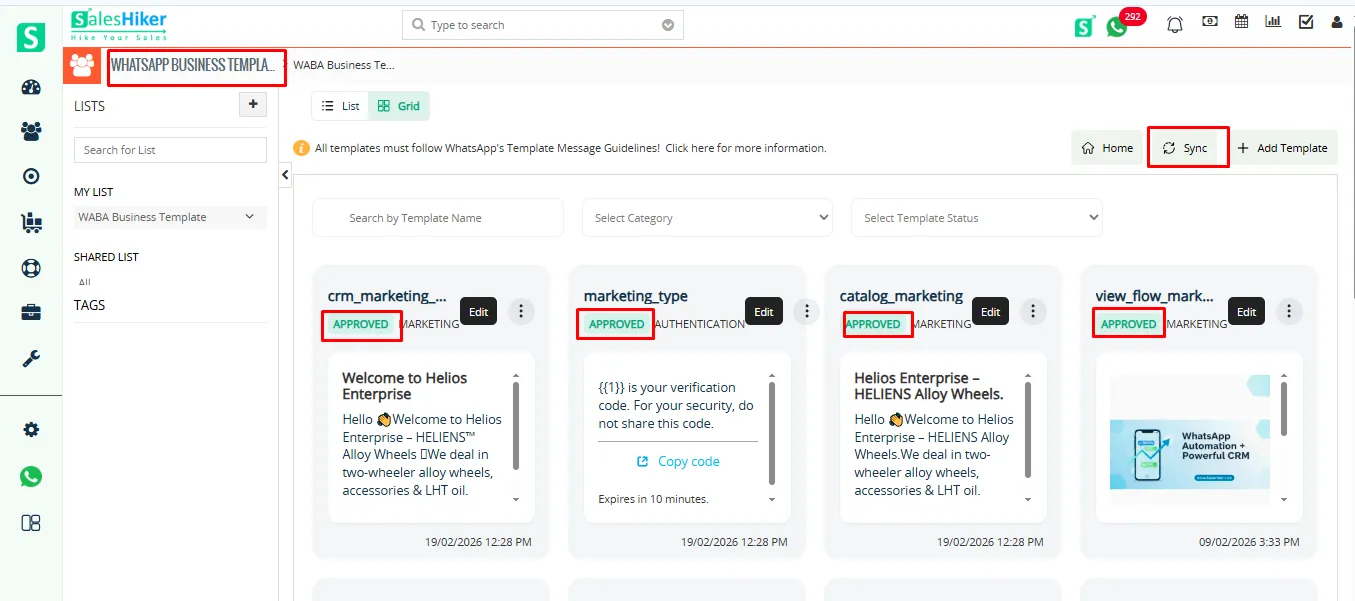
Once the template is approved by facebook, Template will automatically sync to the CRM WhatsApp Business Template list.
Next Steps if Rejected
- Submit a new template with the correct category.
- Update the category manually.
- Request a review.
WhatsApp Business Template view
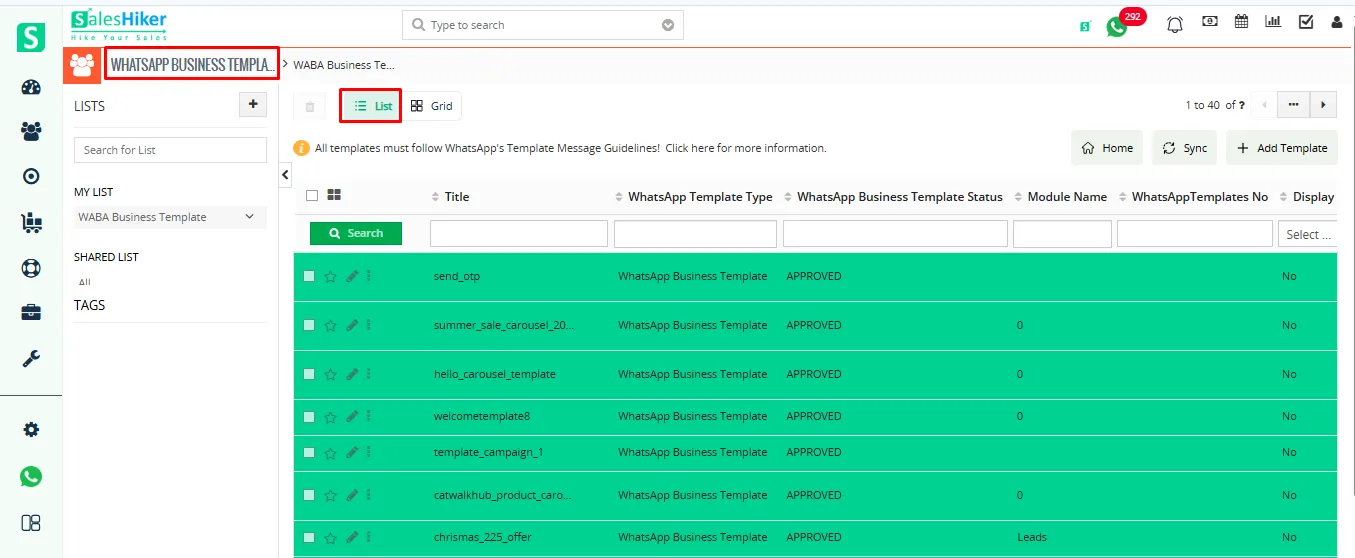
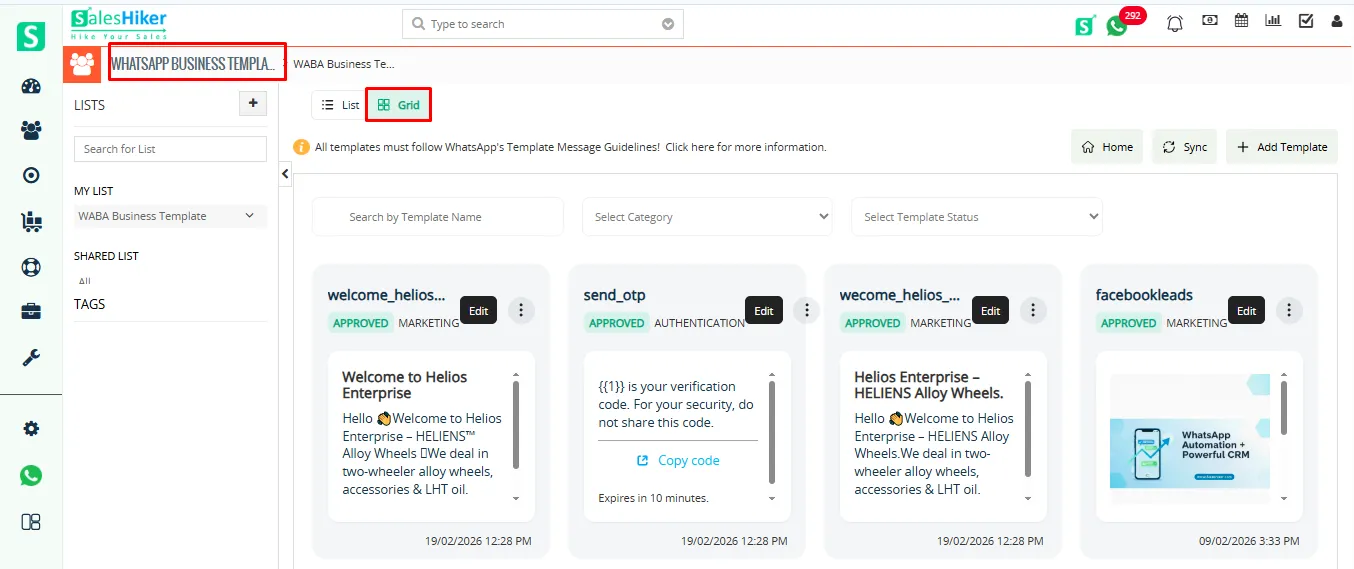
Users can view WhatsApp Business Templates in two different formats:
- List View – Displays templates in a vertical list format for easy scanning.
- Grid View – Displays templates in a card/grid layout for a visual overview
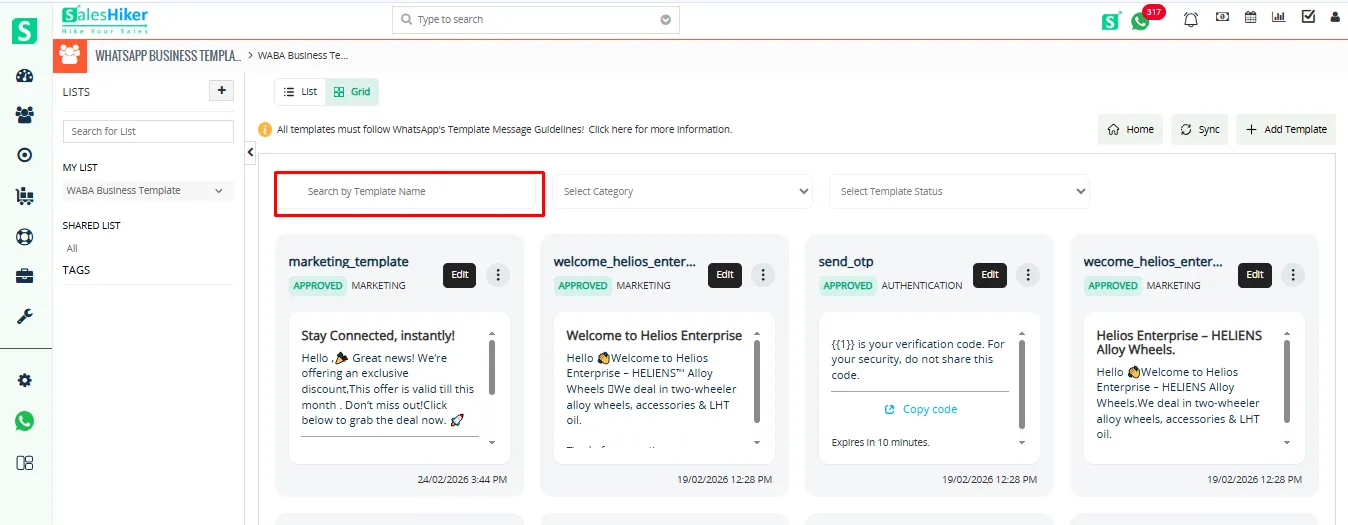
Users can easily locate a template by typing its name into the search bar or by applying filters based on category or status, as shown in the screenshot below.
Select Category
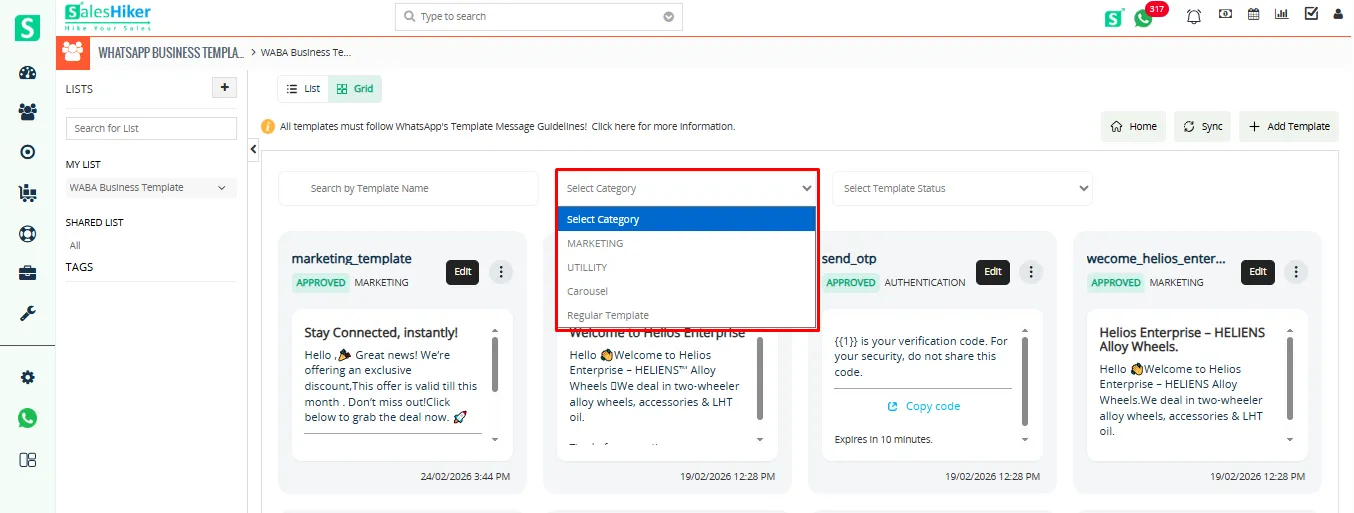
Marketing:
Used for promotional and engagement messages such as offers, campaigns, product launches, and announcements sent to customers.
Utility:
Used for transactional or informational messages like order confirmations, payment updates, reminders, and account notifications.
Carousel:
Used to send interactive templates with multiple cards in a single message, ideal for showcasing multiple products or offers.
Select Template Status
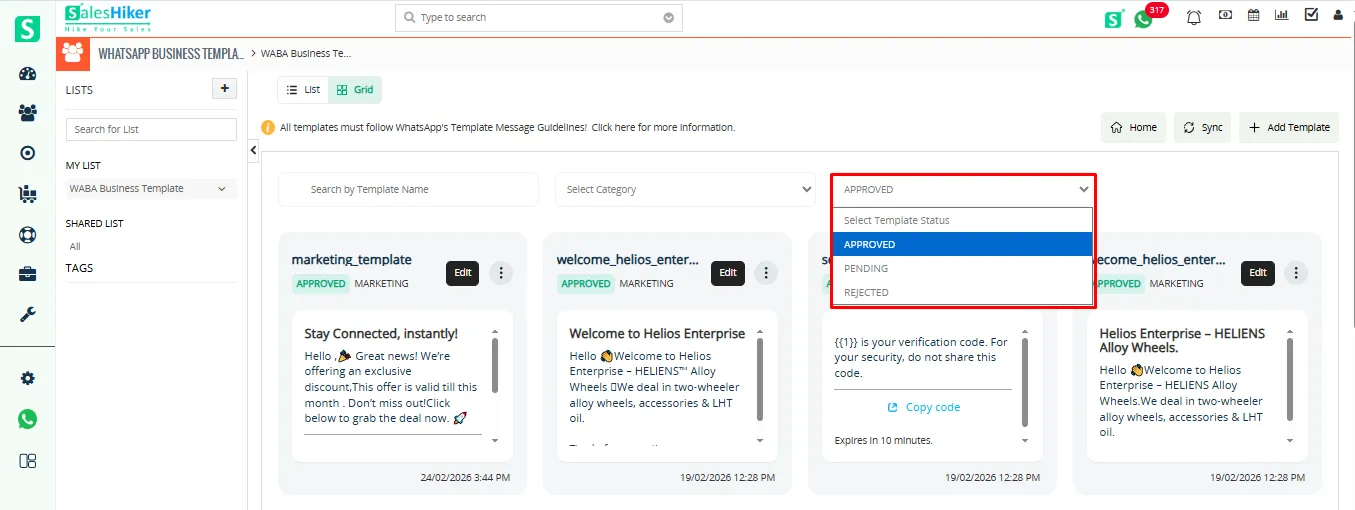
Template Status
When submitting a template creation or edit request via API, you must specify a category based on the provided guidelines. The system will validate your selection and assign one of the following statuses:
APPROVED
Indicates that the template is correct and has passed review. The template is now available for use in messages.
A message template_status_update webhook will be triggered with the event set to APPROVED
PENDING
Indicates that the template is correct, but the template is under review. The outcome will be communicated via a message_template_status_update webhook, which will update to either APPROVED or REJECTED.
REJECTED
Indicates that the Template is incorrect A message_template_status_update webhook will be triggered with the event set to REJECTED and the reason specified as INCORRECT_CATEGORY.
Quick Actions
The user can Create the duplicate Template, edit Templates, and delete templates as shown in the screenshot below
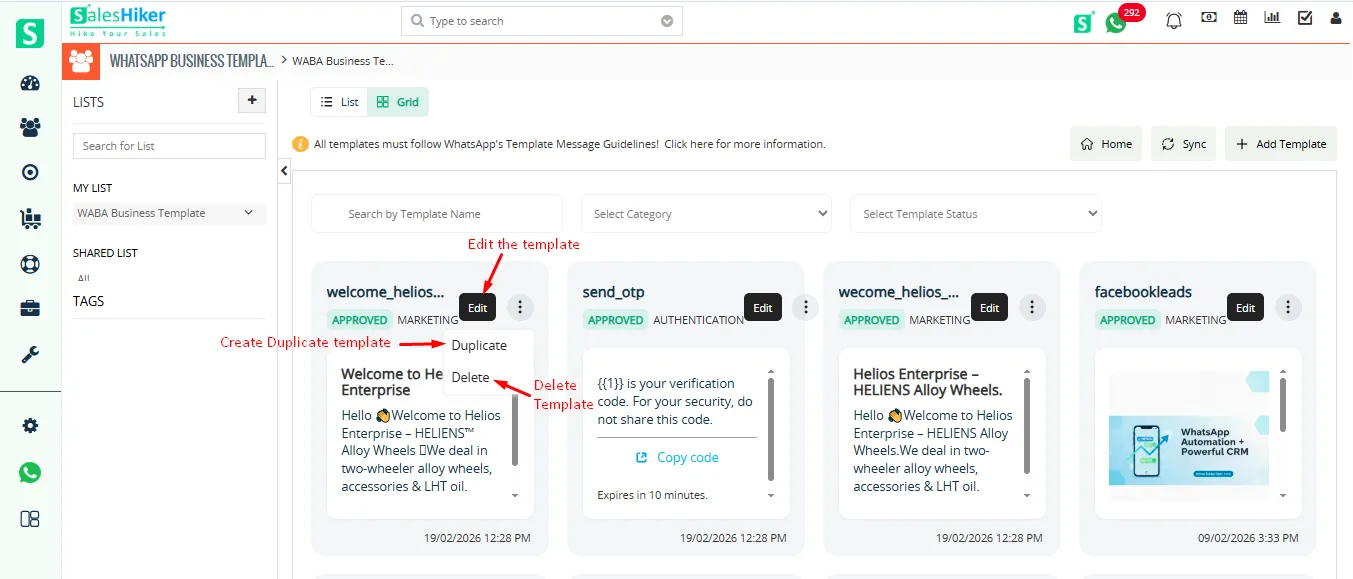
How to Create a WhatsApp Business Template
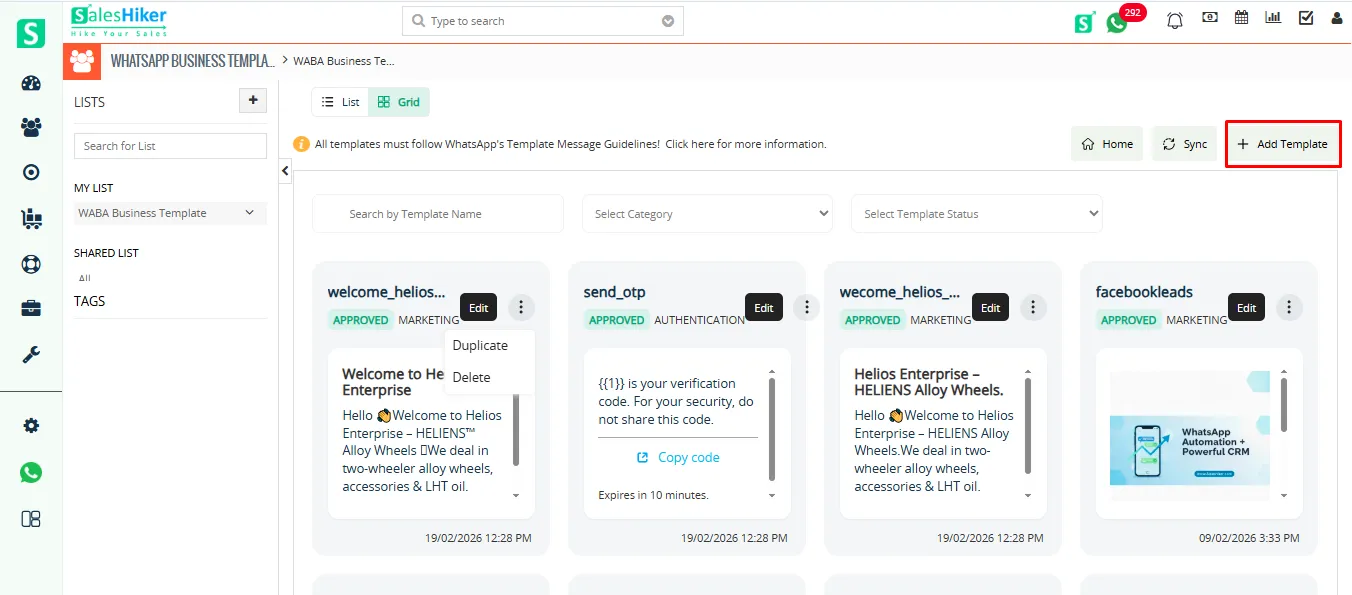
Click on ‘Add Template’ as shown in the screenshot below to create a WhatsApp Business template
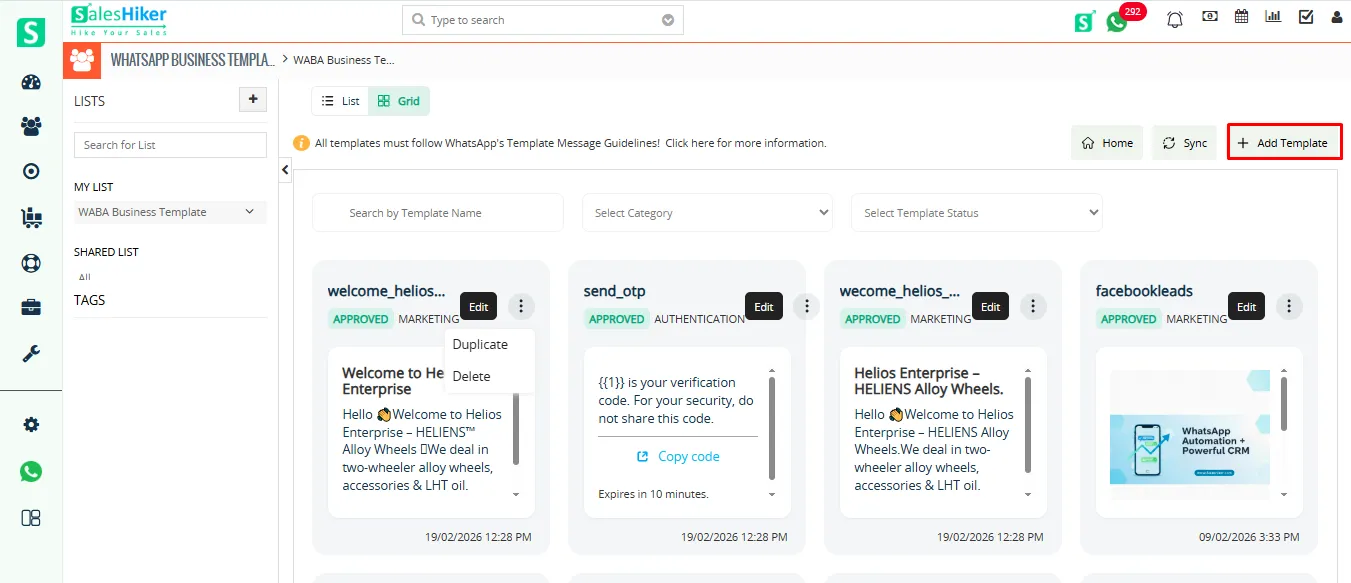
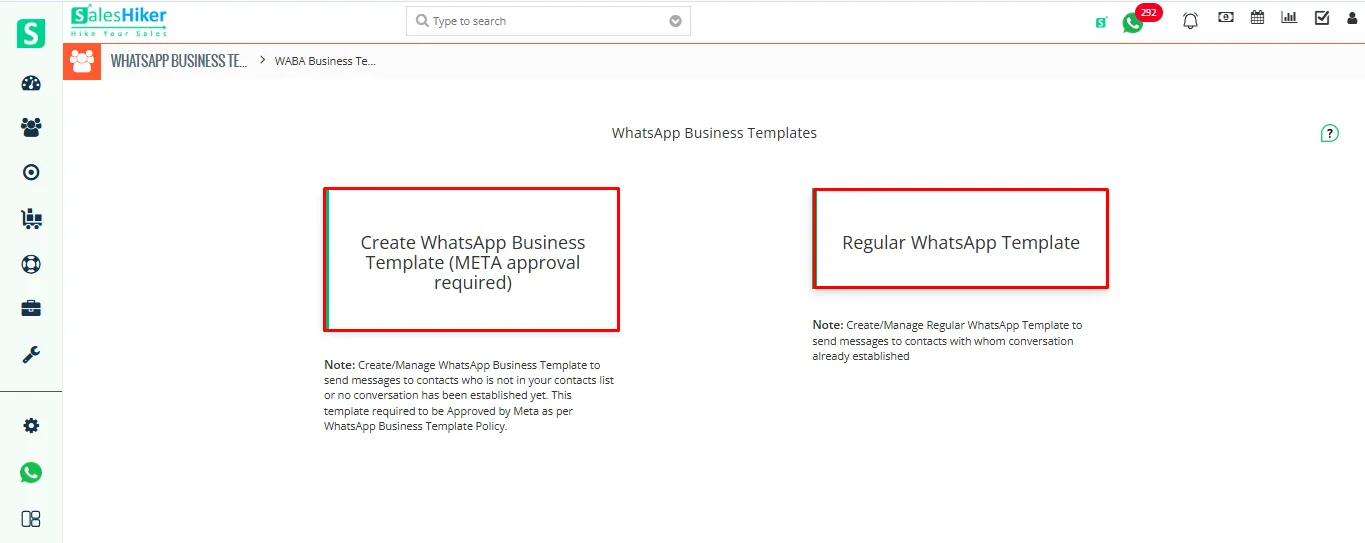
WhatsApp Business Template
WhatsApp Business template used to send template messages to contacts in which conversations have not been established. It means you’ve to first approve templates with WhatsApp and it will take 1-5 days time by WhatsApp to approve templates.
Once the template has been approved by WhatsApp then only you can send template messages to unknown contacts. Regular Template Regular template used to send template messages to contacts in which conversations have been established.
You can send any templates with text, media or video to promote your business / services / products to contacts to their WhatsApp number.
Setup Regular WhatsApp Template
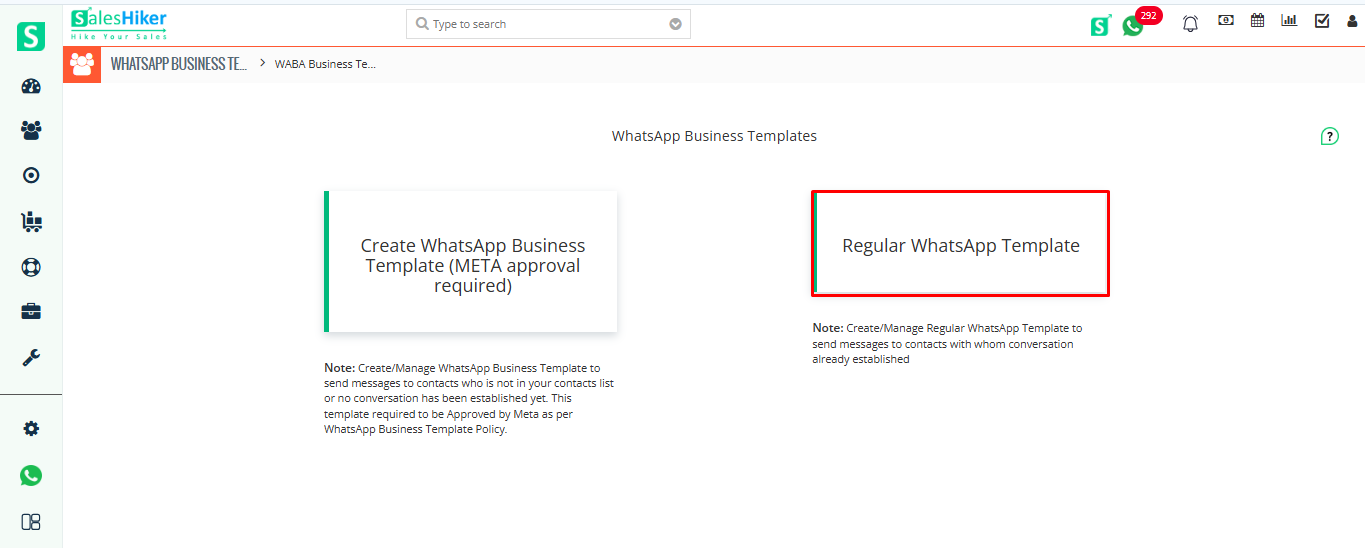
To add Regular Template click on the “Regular WhatsApp Template” widget as shown in the below screenshot.
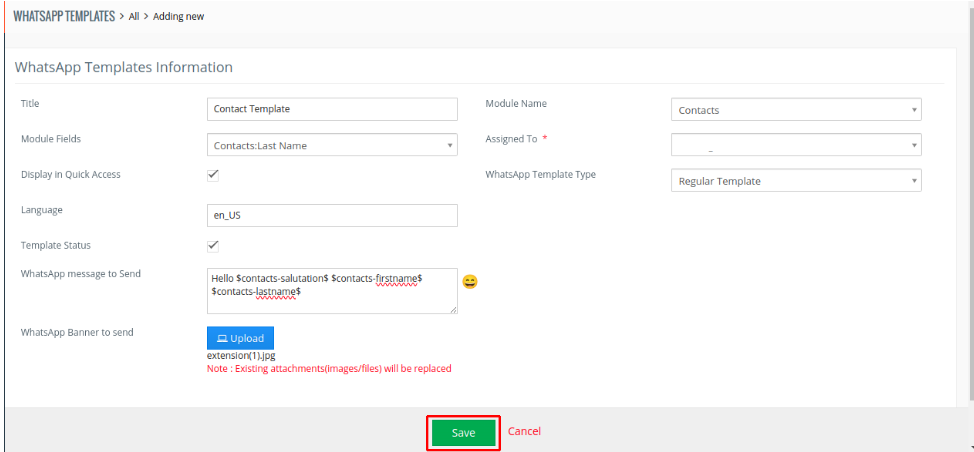
Fill up all the details for the Regular template & click on the “SAVE” button as shown in the below screenshot.
Set up WhatsApp Business Templates
WhatsApp Business Template Category
- Marketing
- Utility
- Media Card Carousel
To create WhatsApp Business Template click on “+ Add WhatsApp Templates” button as shown in the screenshot below.
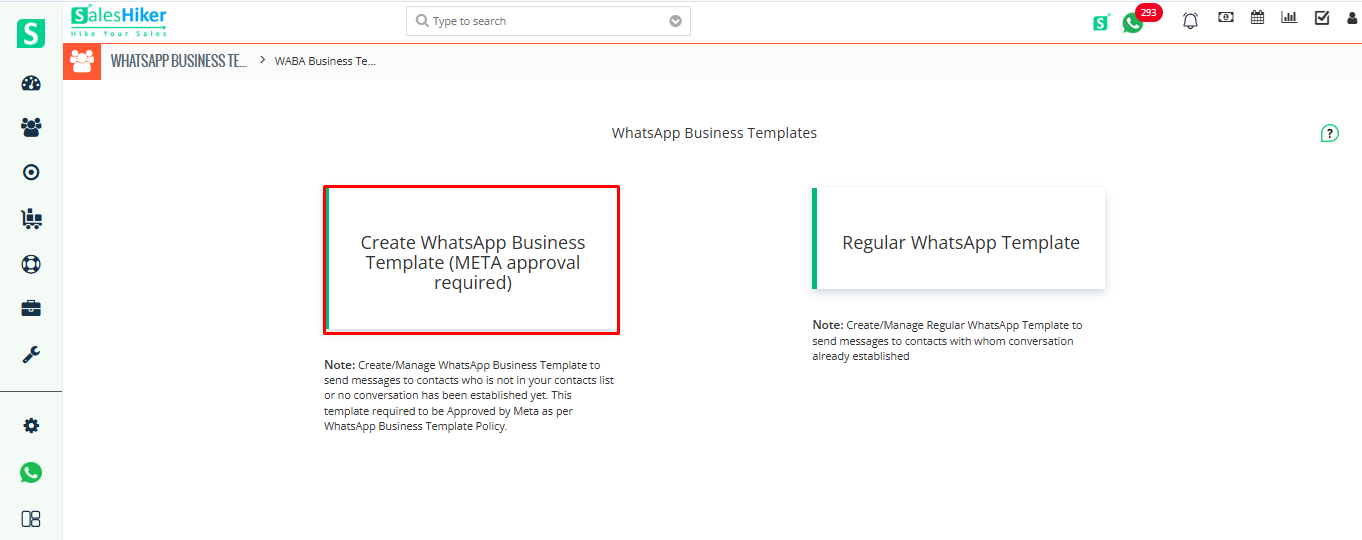
Click on “Create WhatsApp Business Template (META approval required)” widget as shown in the screenshot below.
Enter all details as shown in the screenshot below.
Template Name: Enter the template name with lowercase, numbers, and underscores.
Category: Select template category.
Language: Select template-specific language.
Broadcast Title: Headers are optional components that appear at the top of template messages.
Header Type: Select header type for template.
- If you select Header Type TEXT then Enter the Header Text & you can also add the one variable in the header.
- If you select Header Type Media then you can select Media Type like, (Image/Document/Video) & attach media.
Body: Add body text with variables. To Add Variable in body click on “+ Add Variable” button.
Limitations
- You can enter template name with lowercase, numbers & underscores & template name field is limited to 512 characters.
- Header Media Valid values are application/pdf, image/jpeg, image/jpg, image/png, and video/mp4.
- Body text field is limited to 1024 characters.
- Footer text field is limited to 60 characters.
- You can add a total of 10 buttons in one template.
- You can add a maximum of 2 Visit Website type buttons.
- You can add only one Copy Offer Code & Call Phone Number type buttons.

 by
by