



WhatsApp Business Template helps users to create/manage WhatsApp business templates to send template messages using our extension.
Features
- You can add a message template in a specific language when creating a template.
- You can create templates with the “Marketing” or “Utility” or Media Card Carousel category.
- You can create templates with various text, media, and interactive components, based on your business needs.
- You can also see Template Message Preview.
- When you send template create requests, Facebook immediately validates its category using Templates Guidelines.
Create WhatsApp Business Template
Users can create a WhatsApp Business Template in two ways.
- Facebook Developer page
- WhatsApp Business Create Template page
Create WhatsApp Business Template From Facebook Developer page
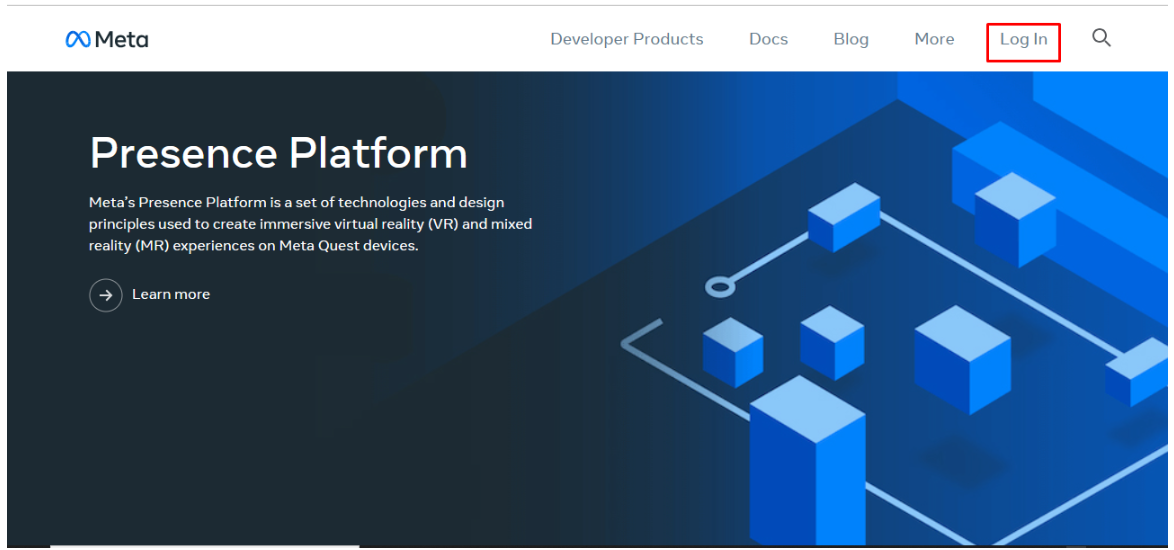
Users have to go and login to the developer’s Facebook page
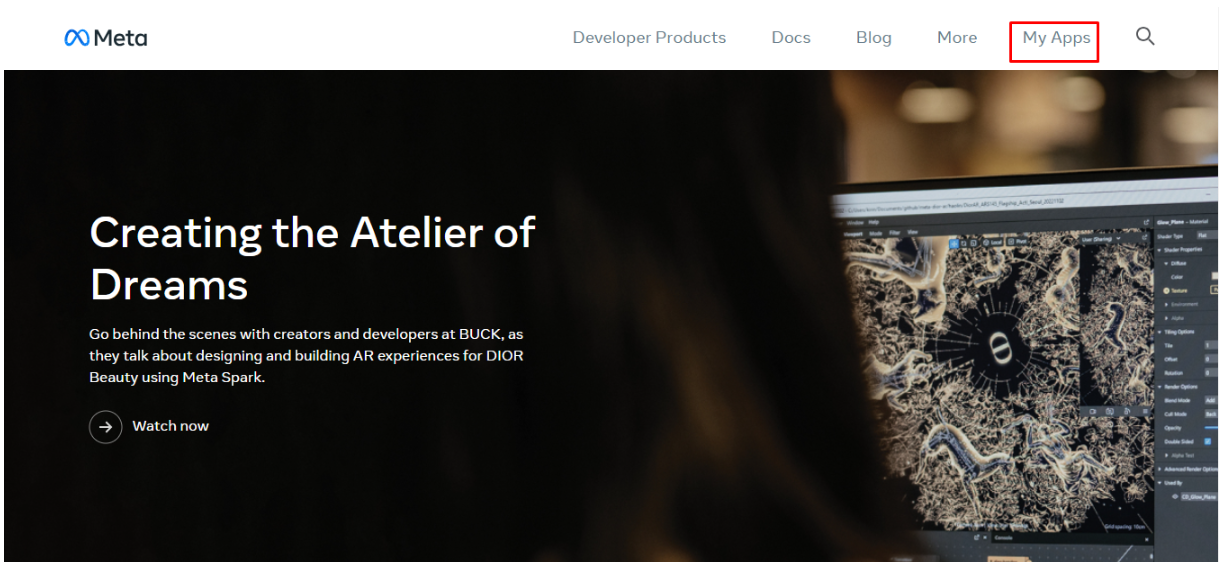
Once you login the page click on My App
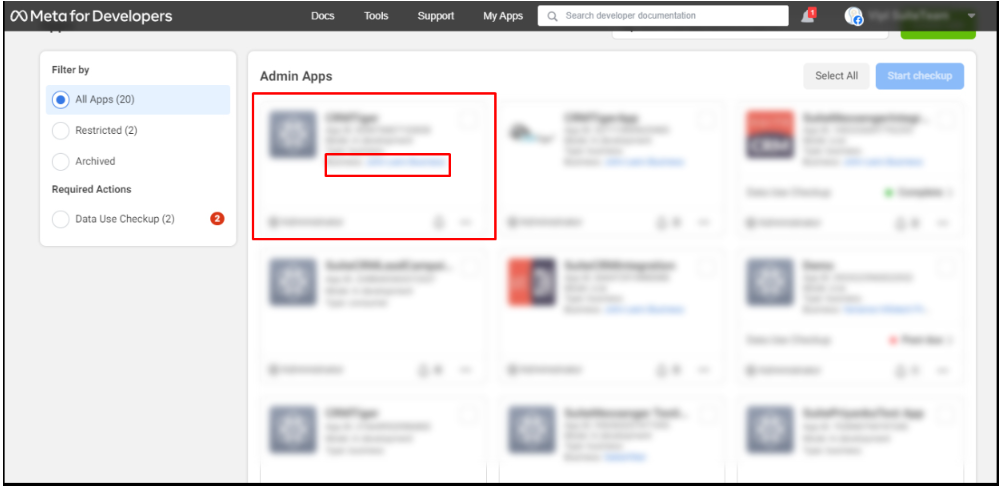
Once you click on My App the page will look like below screenshot, Click on your SalesHiker App
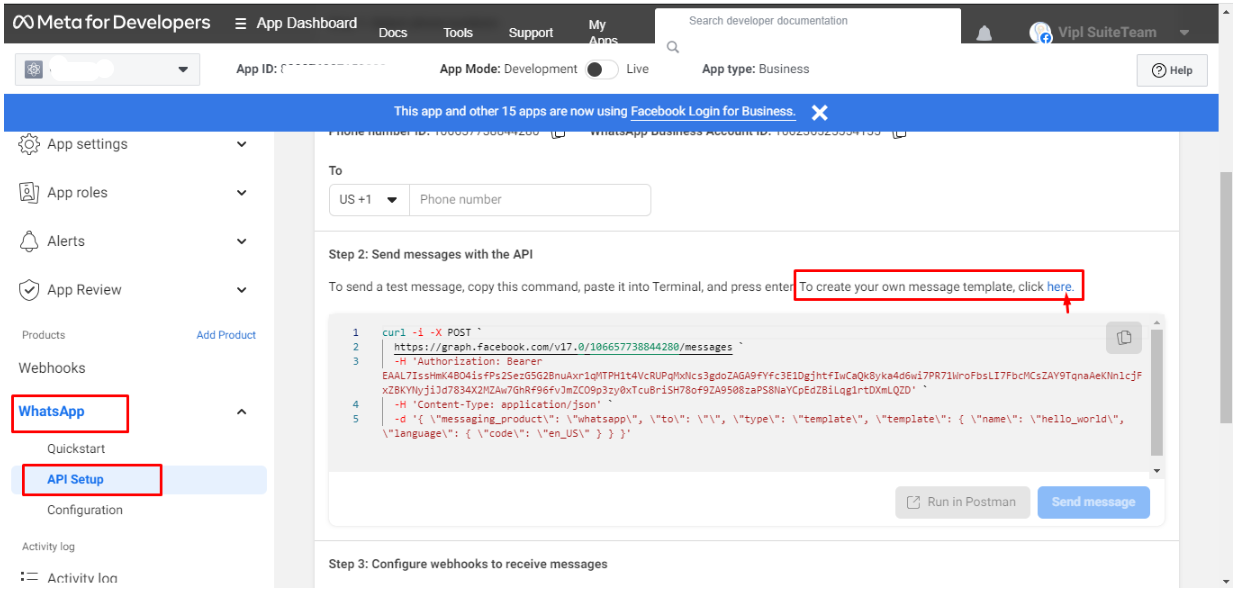
Once user click on SalesHiker app it will redirect to the App Dashboard, users have to click on WhatsApp in the sidebar > API Setup
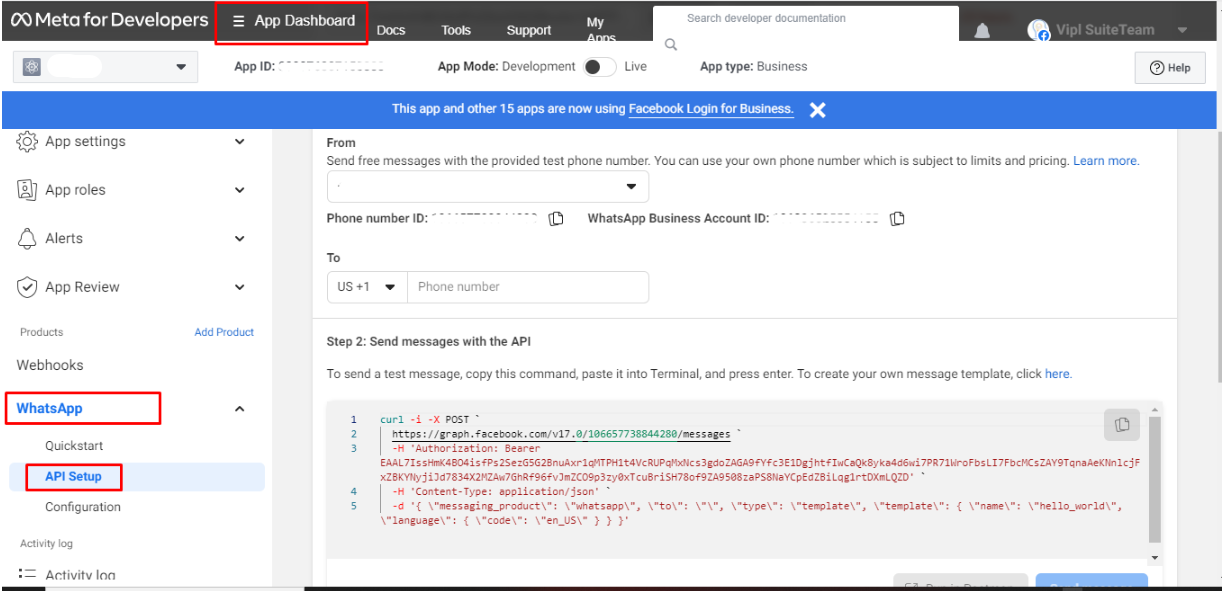
Once user click on SalesHiker API setup it will take user to the API setup page, scroll down to step 2 – To create your own message template click here
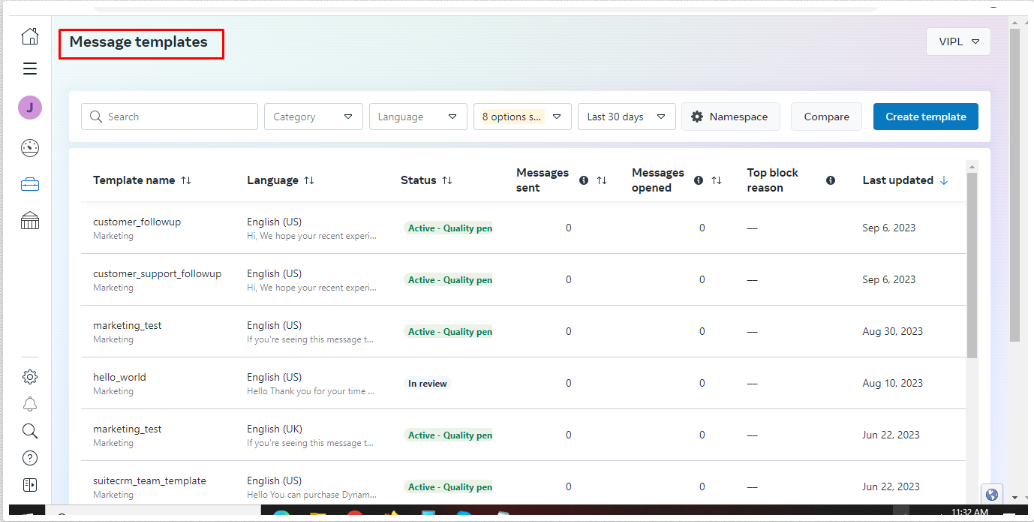
After clicking on the link, it will open the page displaying a list of the created templates.
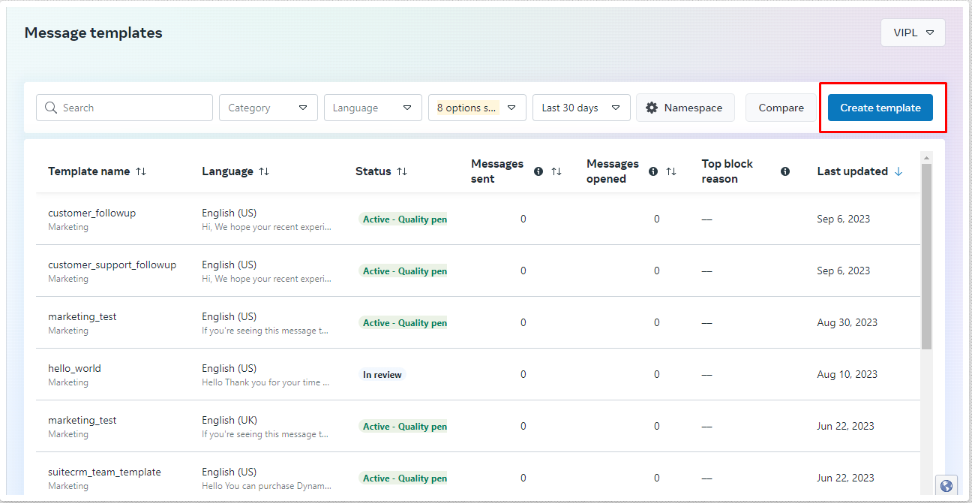
Click on create template button.
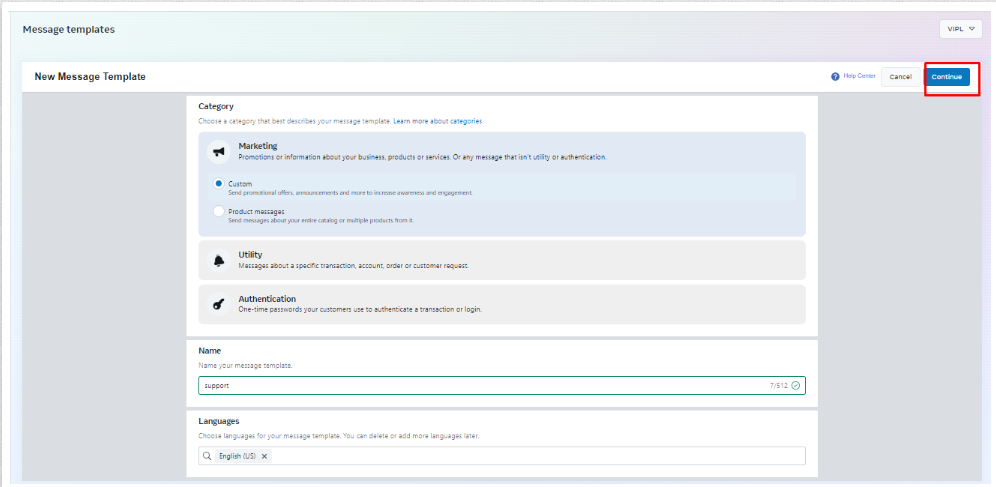
Users have to select the category, name and language of the Creating template.
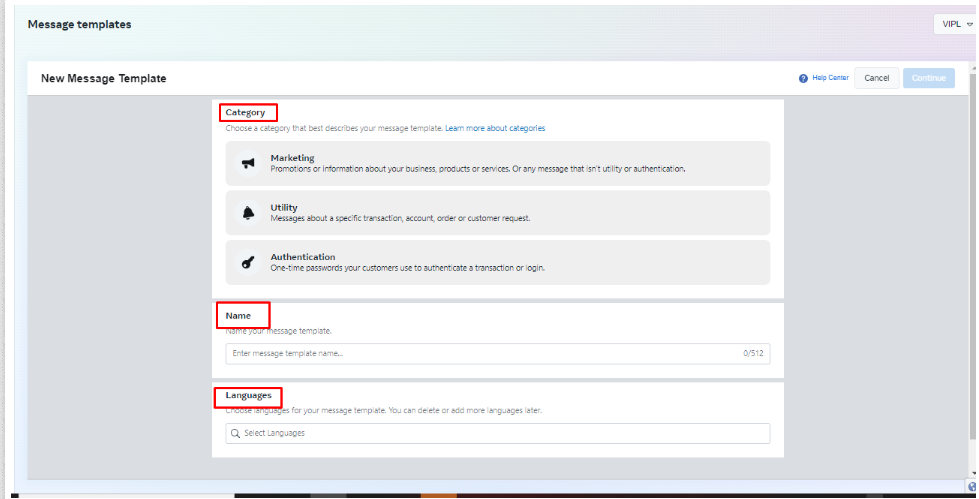
After selecting the category and language, and entering the template name, the ‘Continue’ button will be enabled, and the user will have to click on the ‘Continue’ button.
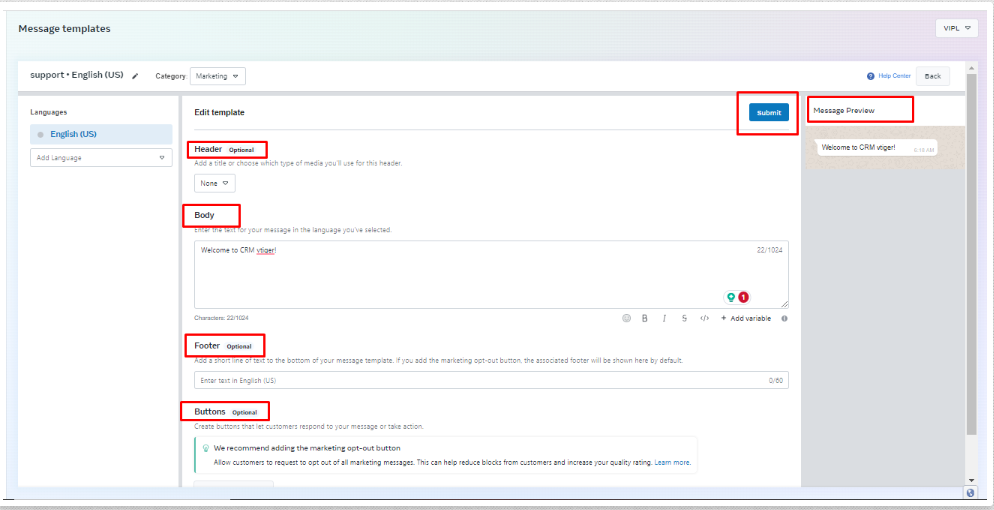
After the user clicks on ‘continue,’ they will be taken to the following page where they can add a header, body, footer, and buttons to the template.
Users can also preview how the message will be displayed. And at last By clicking the ‘submit’ button, the template will be created
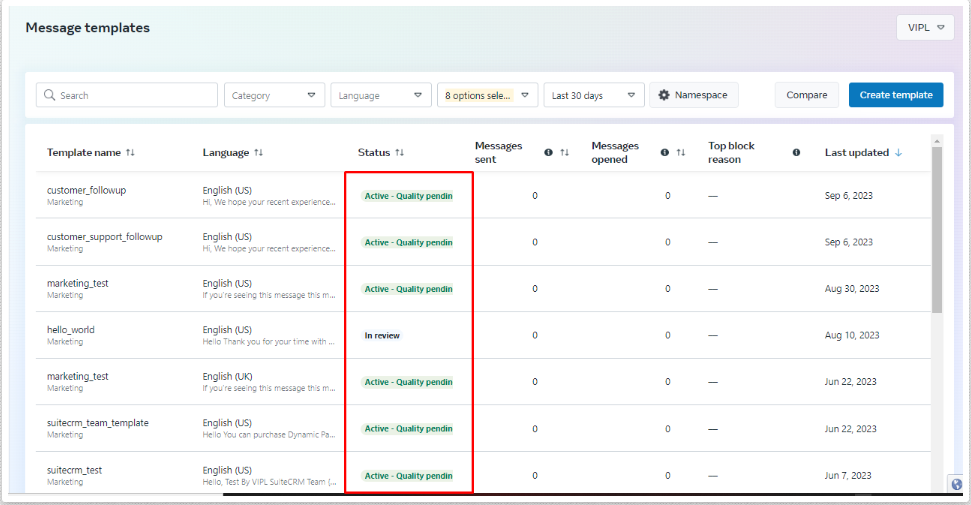
Once the template is created, it will be submitted to Facebook for approval, and users can view the status of the created template on the list page under the ‘Status’ column.
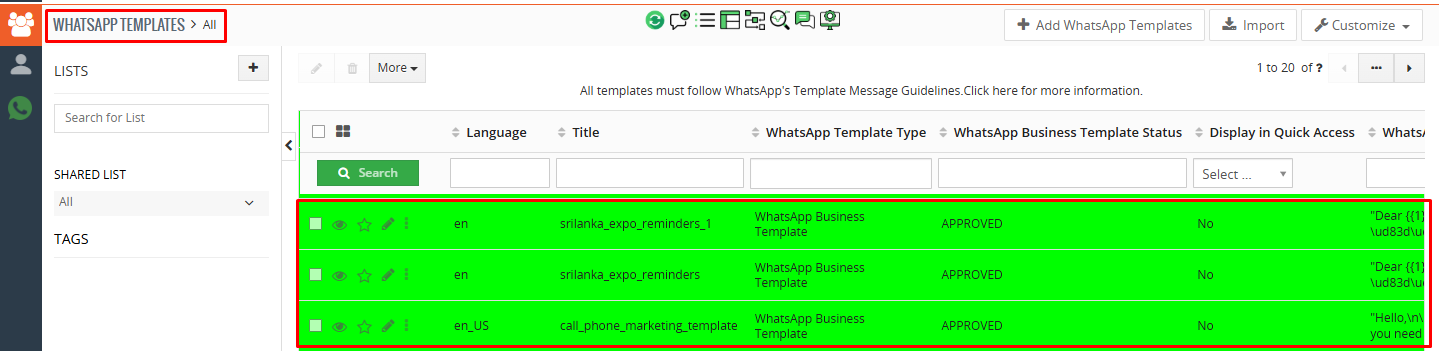
Once the template is approved by facebook, Template will automatically sync to the CRM WhatsApp Business Template list.
Category Validation
When submitting a template creation or edit request via API, you must specify a category based on the provided guidelines. The system will validate your selection and assign one of the following statuses:
APPROVED
Indicates that the category is correct, and the template has passed review. The template is now available for use in messages. A message_template_status_update webhook will be triggered with the event set to APPROVED
PENDING
Indicates that the category is correct, but the template is under review. The outcome will be communicated via a message_template_status_update webhook, which will update to either APPROVED or REJECTED.
REJECTED
Indicates that the category is incorrect A message_template_status_update webhook will be triggered with the event set to REJECTED and the reason specified as INCORRECT_CATEGORY.
Next Steps if Rejected
- Submit a new template with the correct category.
- Update the category manually.
- Request a review.
WhatsApp Template
To Create a WhatsApp template click on WhatsAppTemplate.

After clicking on it below the pop up will be open.
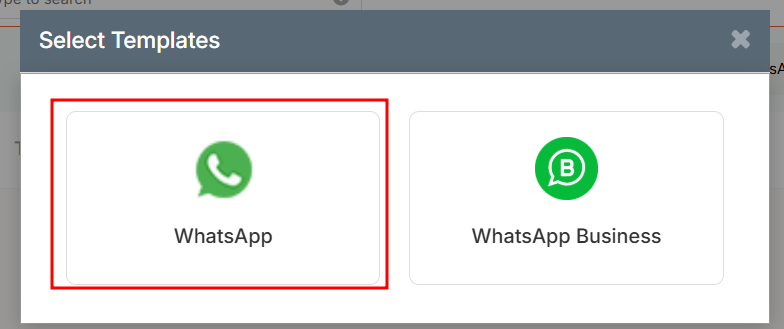
Click on the WhatsApp icon ,list view of the WhatsApp template will be open.

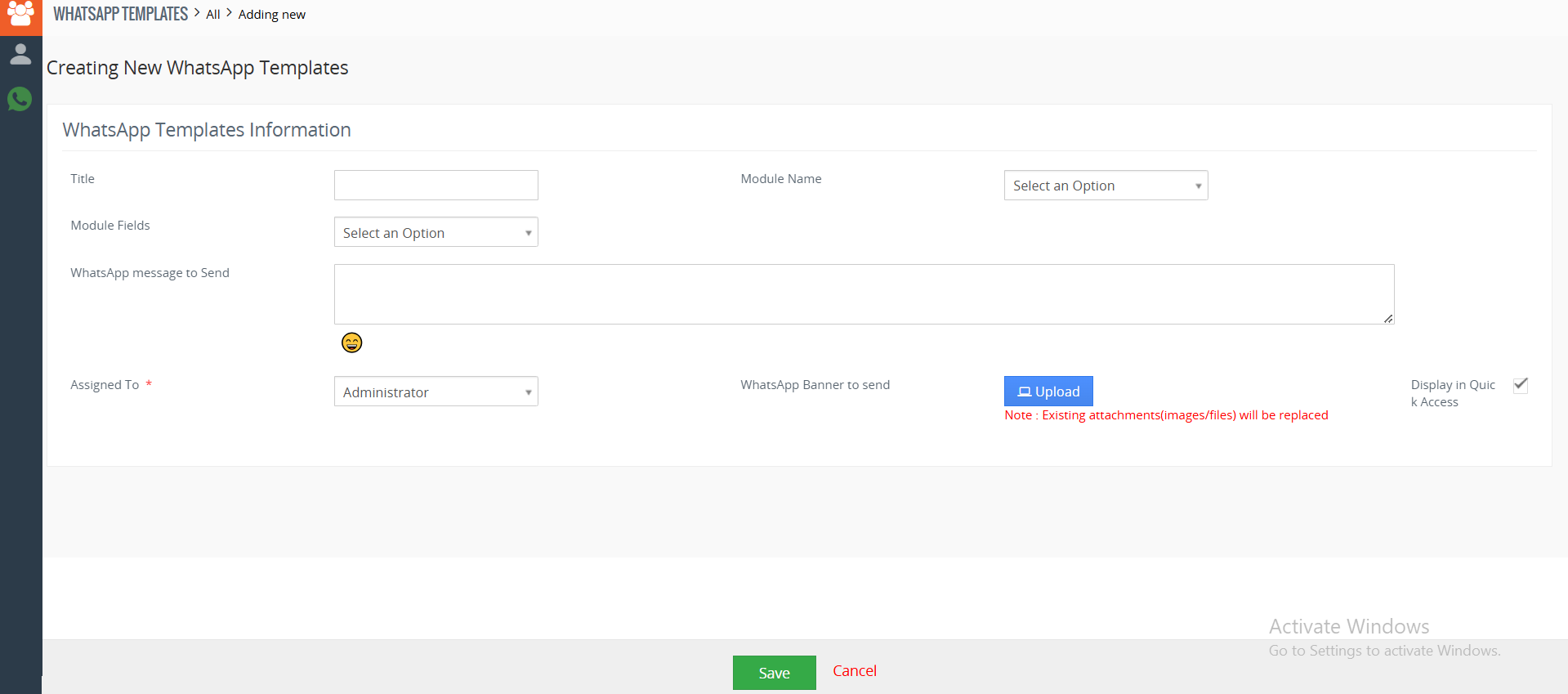
To add a new WhatsApp template click on the button named ‘Add Record’.
After clicking on the button below the form will be open.

 by
by