



What is Co-Existence in WhatsApp ?
Coexistence in WhatsApp refers to the ability for a business to use multiple WhatsApp solutions at the same
time—most commonly the WhatsApp Business App (mobile or desktop) coexisting with the WhatsApp Business API /
Cloud API on the same phone number or within the same business environment.
Because WhatsApp normally enforces one number = one product, coexistence solutions focus on enabling:
- A WhatsApp number already in use on the Business App to be migrated or connected to the API
- Seamless transition between app-based usage and API-based automation
- Parallel operations during migration without losing chat history or disrupting service
- Ensuring agent interfaces, automation tools, and mobile app usage can work together (where permitted)
Types of WhatsApp Apps in Mobile support Coexistence
| WhatsApp Type | Icon | Coexistence Support |
|---|---|---|
| WhatsApp Messenger (personal app) |  | No Support To Personal WhatsApp  |
| WhatsApp Business App (mobile app for small businesses) |  | Yes Support WhatsApp Business  |
For years, businesses who wanted access to automation, broadcast messaging, CRMs, and AI tools through the
WhatsApp
API faced a frustrating limitation:
New number required
Existing chat history lost
Contacts, groups, conversations — gone
What Does Coexistence Actually Mean?
Coexistence allows:
| Before Coexistence (Old Rules) | After Coexistence (New Update) |
|---|---|
| Create a new number for API | Use your existing WhatsApp number (Only WhatsApp Business App number) |
| Lose contacts + chat history | Contacts + chats stay safe |
| No access to API automation | Unlock automation, AI, CRM |
| WhatsApp OR API | WhatsApp AND API |
You don’t need to choose anymore.
You don’t start over anymore.
You don’t lose data anymore.
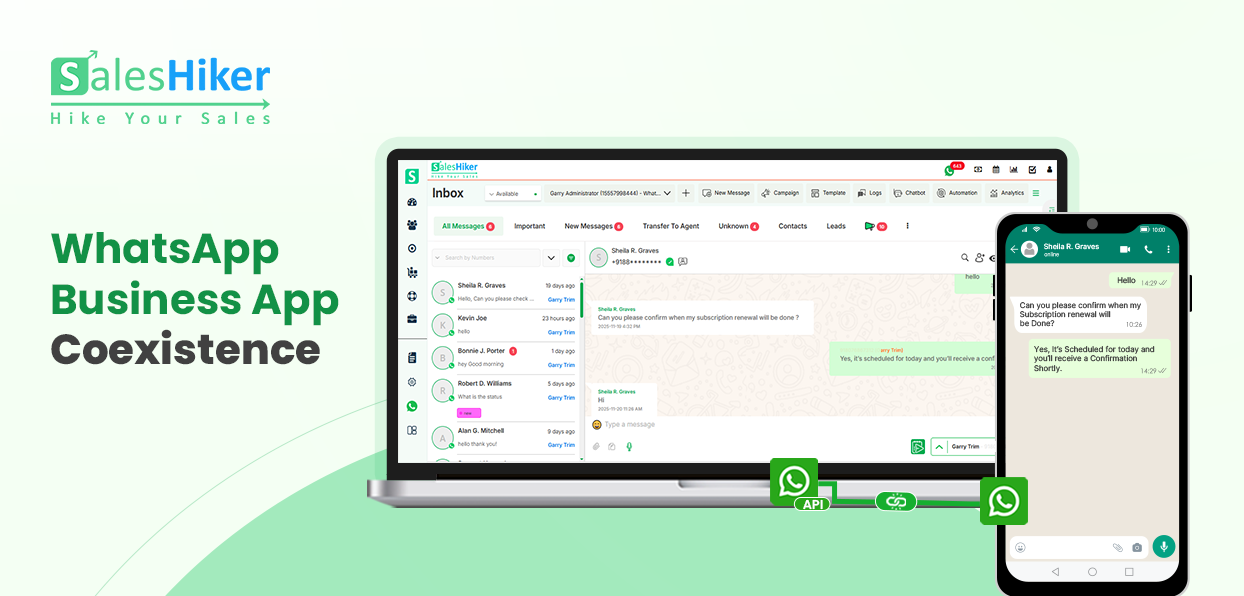
The Game-Changer: WhatsApp Coexistence
WhatsApp Coexistence is a new Meta update that finally solves this problem.
You can now enable WhatsApp Business API on your existing WhatsApp Business number — without deleting the app or losing chats.
Both systems can run together, side by side.
- WhatsApp Business App
- WhatsApp Business API / CRM / Automation tools
Both work simultaneously on the same number.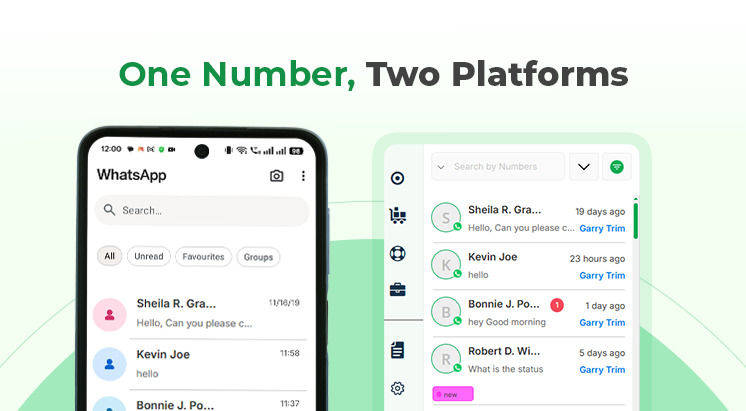
How to Connect WhatsApp Business with Saleshiker CRM
To connect your WhatsApp Business Account with Saleshiker, begin by opening the WhatsApp Business Settings page in
your CRM. On this page, you will find an option labeled Add WhatsApp Business Account. Click this button to start
the connection process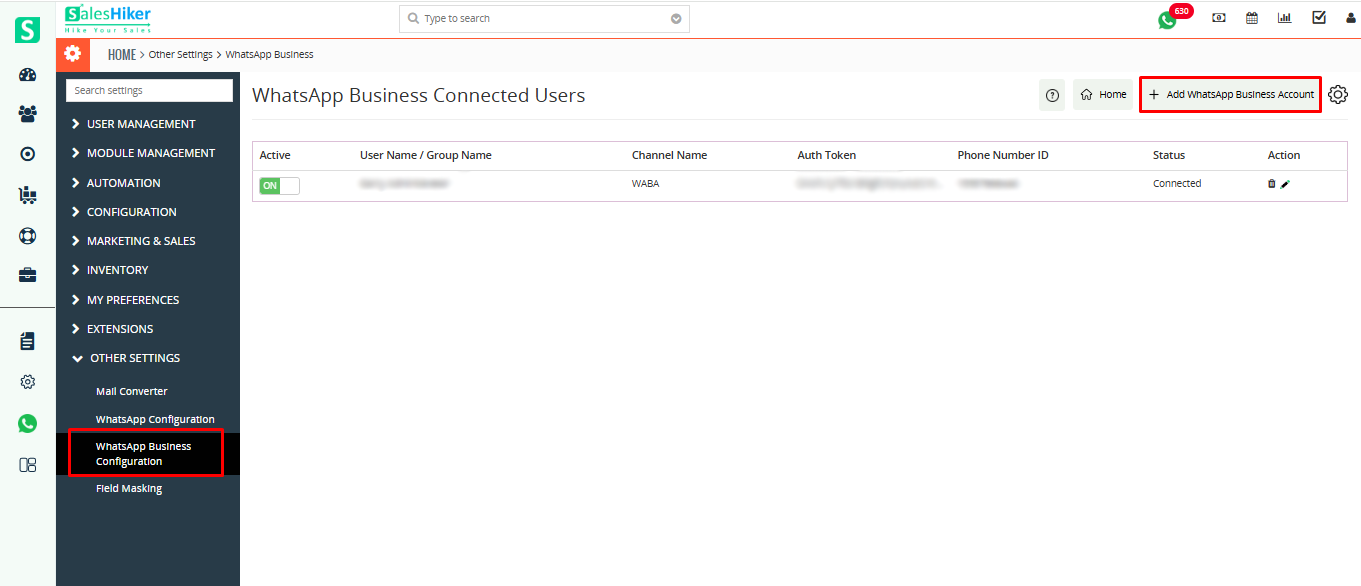
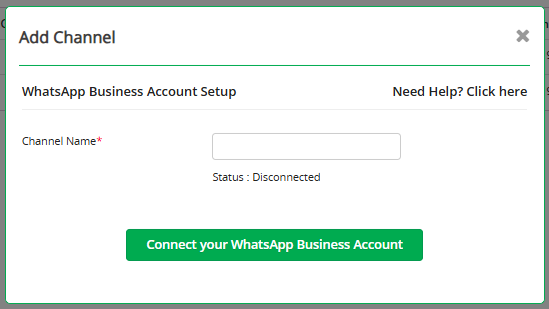
You will be prompted to provide a Channel Name for your WhatsApp connection. After entering the name, select the
option Connect Your WhatsApp Business Account to proceed.
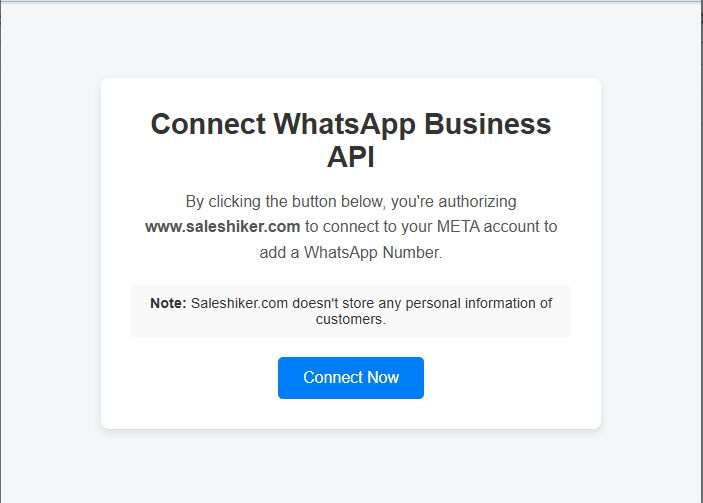
Next, you will be redirected to a page that asks you to connect your WhatsApp Business API. Simply click on the
Connect Now button to continue with the onboarding process.
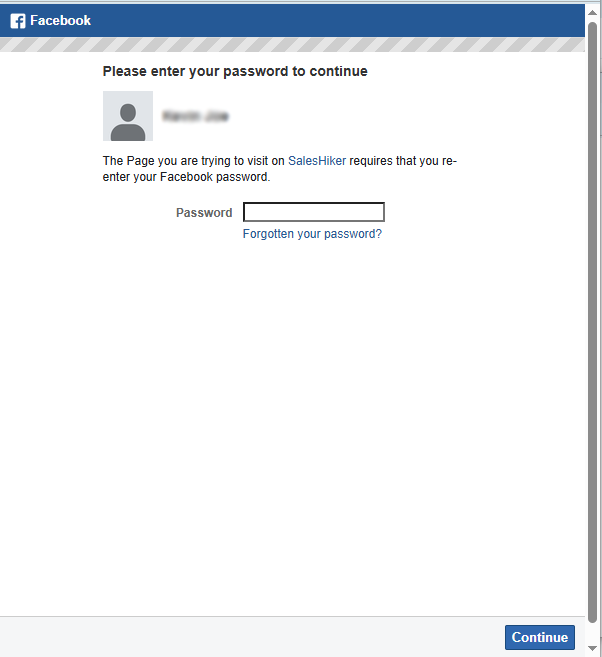
A Facebook login screen will appear, as WhatsApp Business API is managed through Facebook. Enter your Facebook
password and click Continue to authorize the connection.
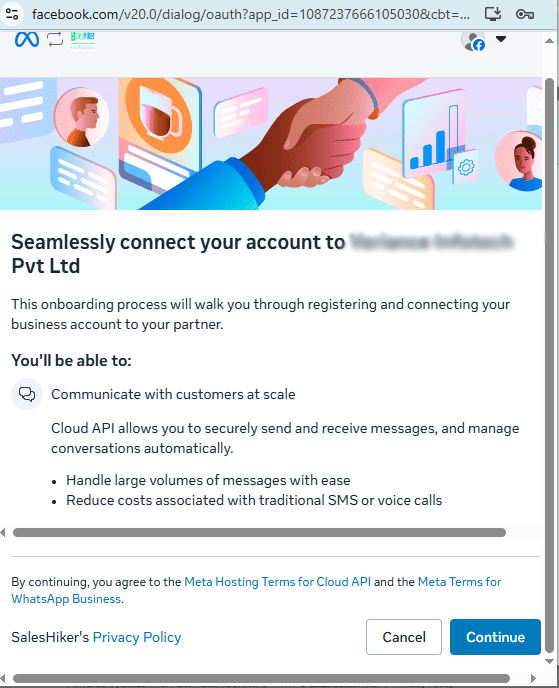
You will then see a page describing the permissions and features you will be able to access using WhatsApp Business API. Review the information and click on the Continue button to move forward.
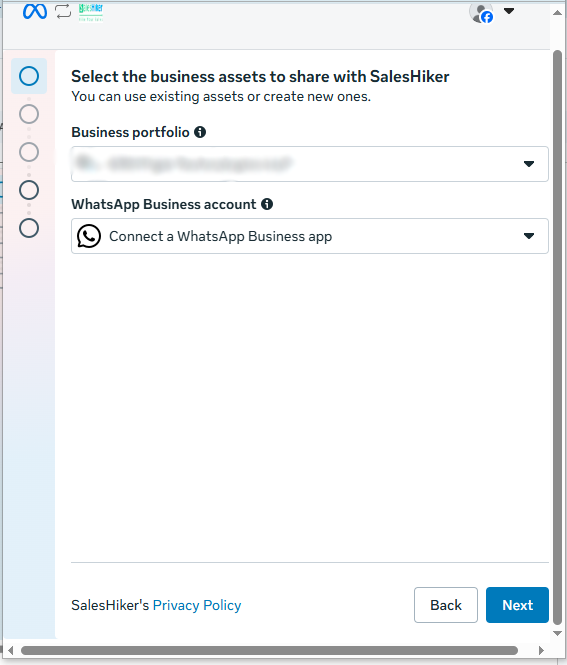
Next, a page will appear asking you to select the business assets you want to share. Here, you must choose your Business Portfolio and WhatsApp Business Account. You may either select an existing WhatsApp Business Account or create a new one directly from this screen.
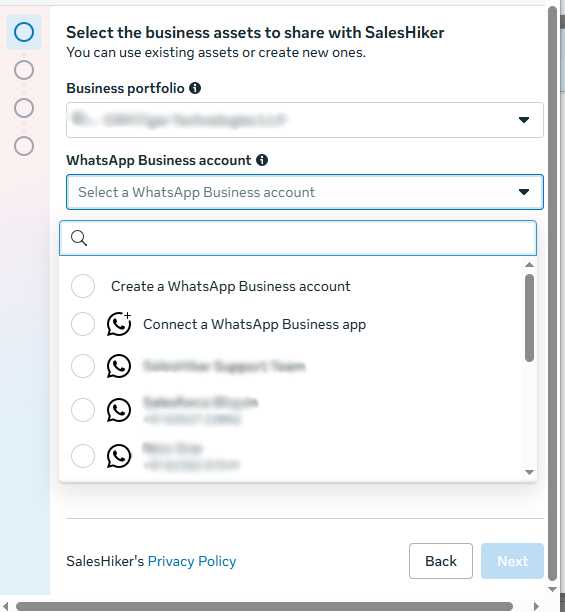
After selecting the appropriate Business Account, click on the Next button to continue.
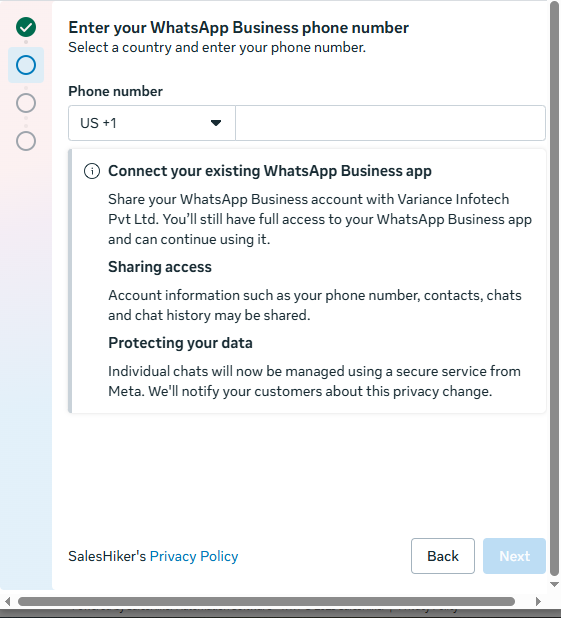
The system will then prompt you to choose your country code and enter your WhatsApp Business phone number. Make sure the number is active and associated with your WhatsApp Business App.
Once you have entered your phone number, click the Next button to proceed to verification.
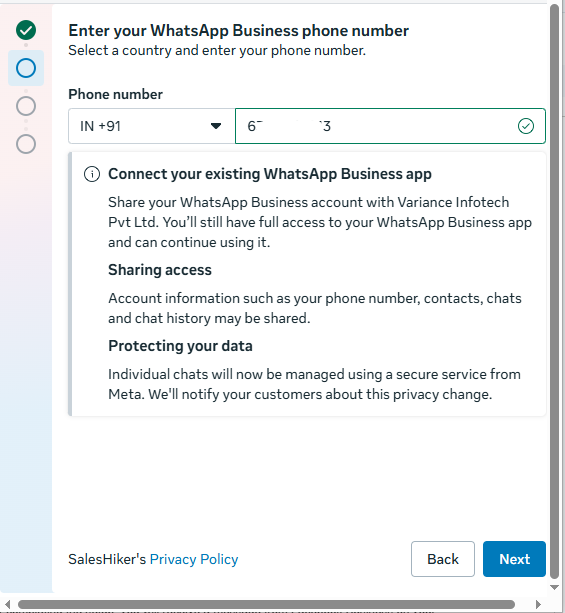
Note: Only WhatsApp Business Account numbers can be added or connected.
The system will then prompt you to choose your country code and enter your WhatsApp Business phone number. Make sure the number is active and associated with your WhatsApp Business App.
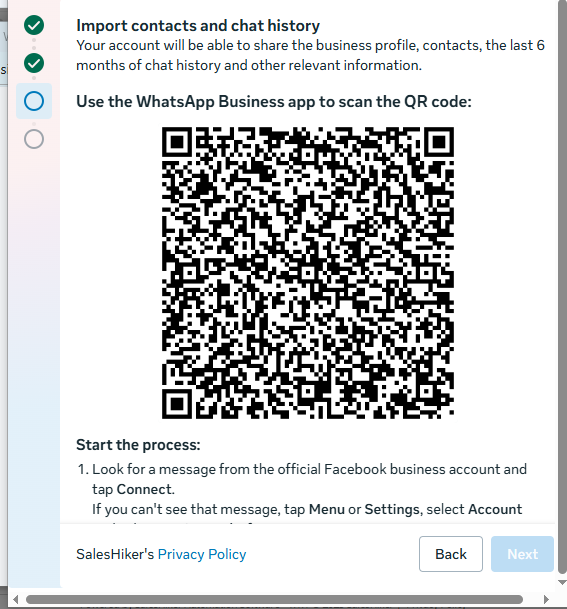
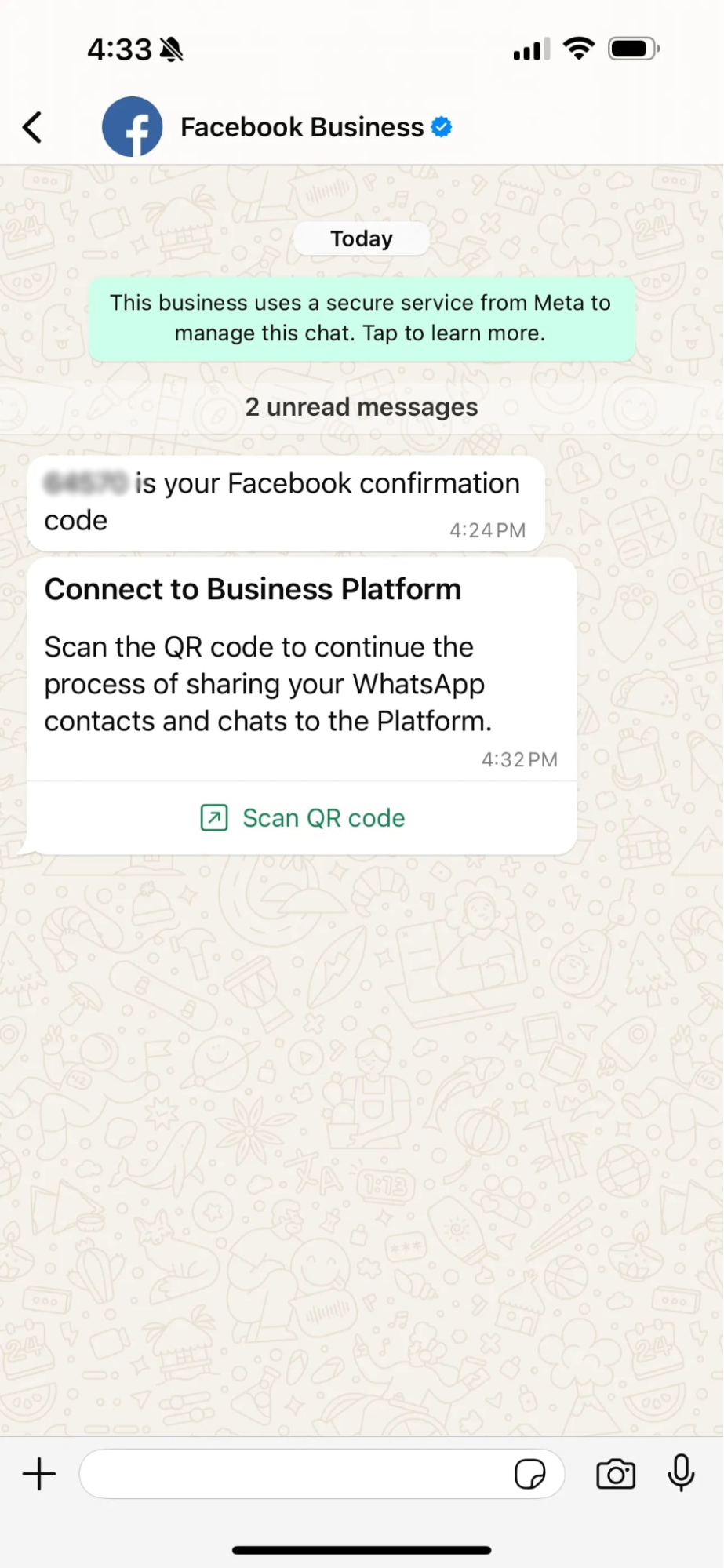
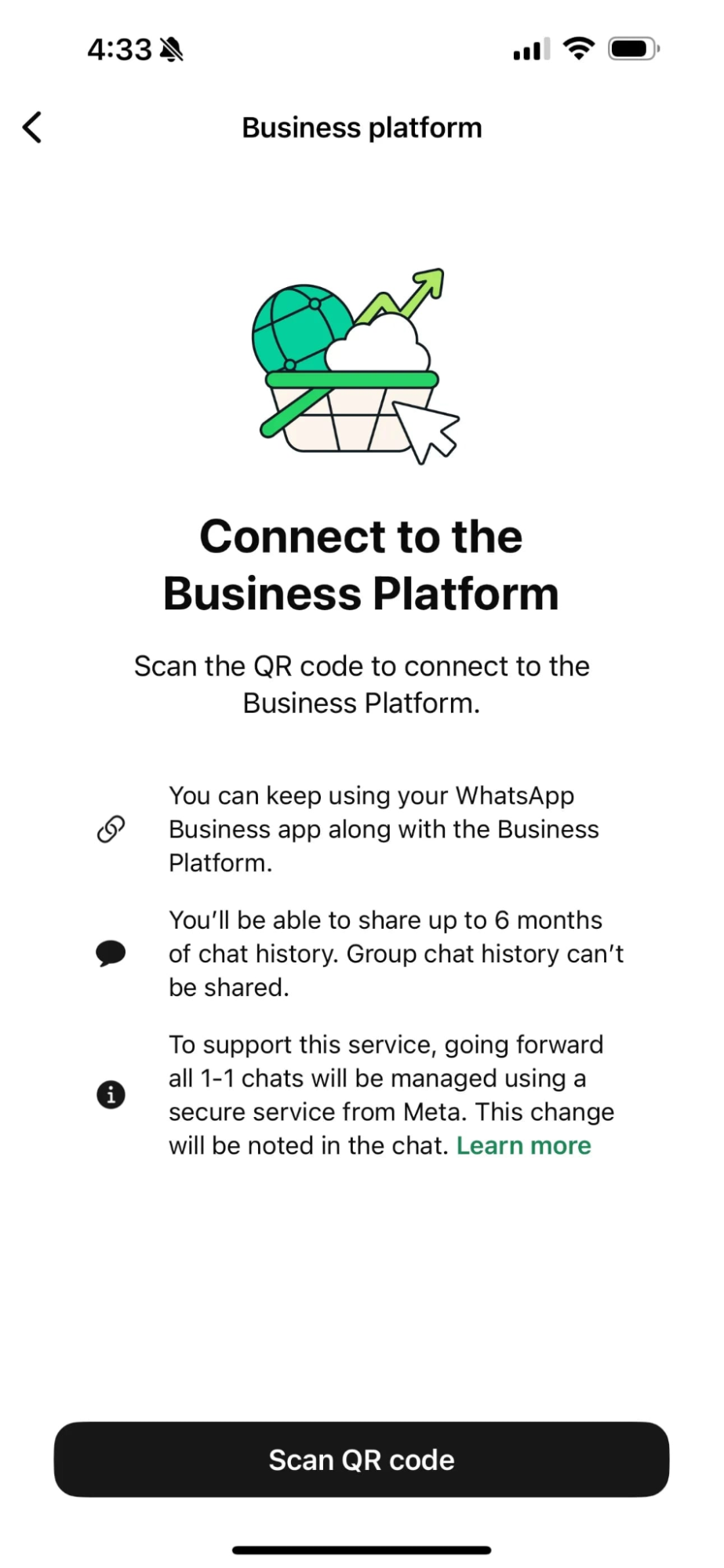
Once the connection request is initiated, your WhatsApp Business App will display a prompt asking whether you want to share your chat history. You can choose to share it or this step based on your preference.
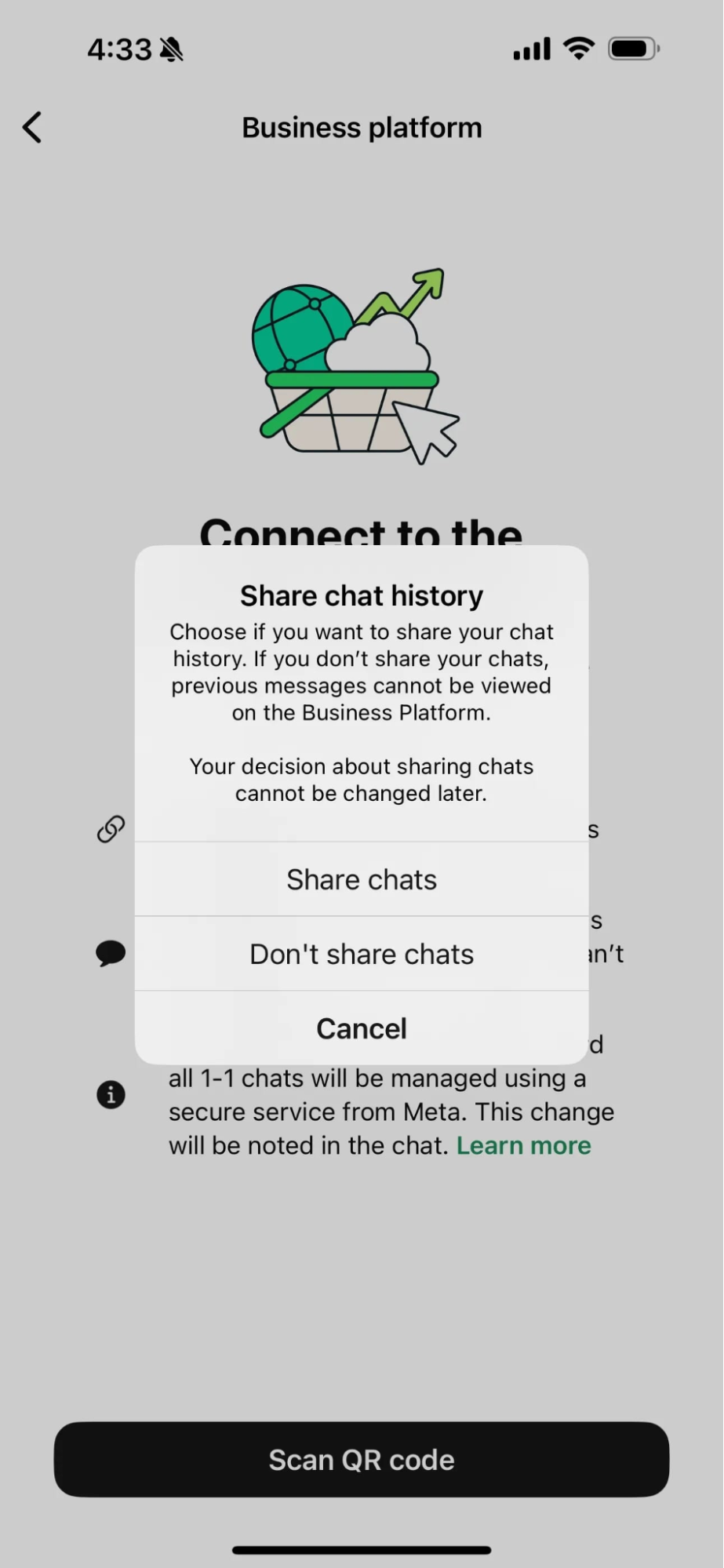
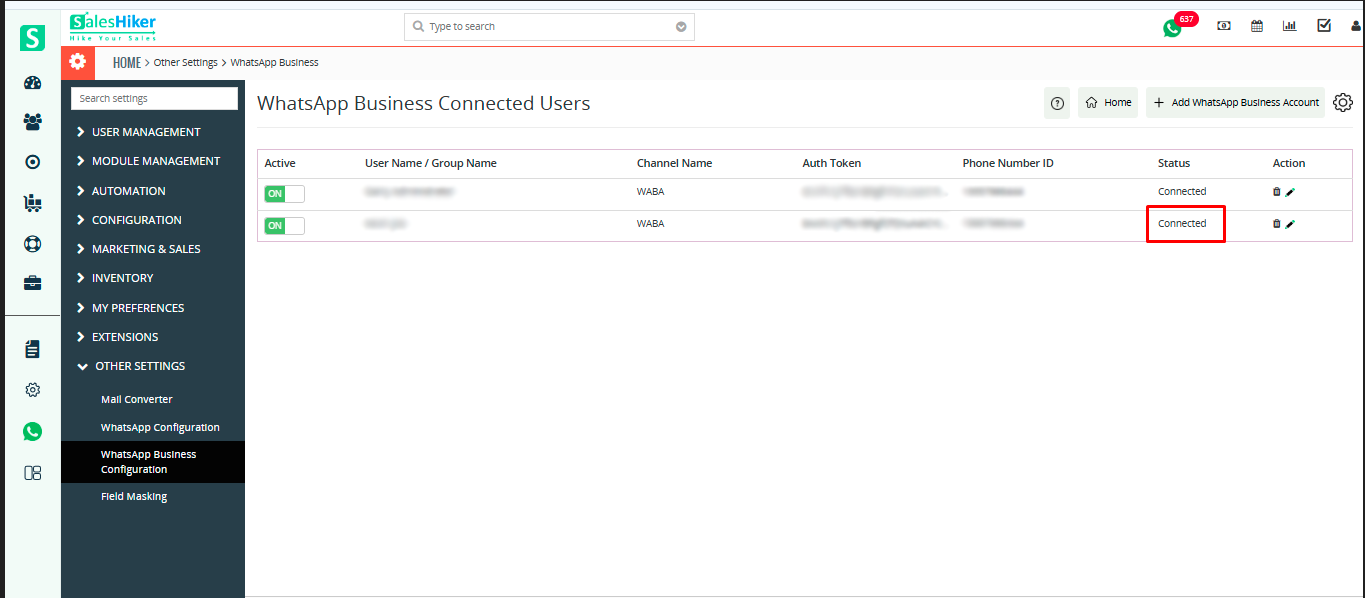
After you confirm your choice, the system will complete the verification, and your WhatsApp Business Account will
be successfully connected to SalesHikerCRM.
Key Benefits of WhatsApp Coexistence
- Zero Data Loss — Keep Your Chats
- Same WhatsApp App ExperienceKeep chatting on your mobile app like you do today.No change in your daily workflow.
- Unlock Automation + Advanced Features
With API enabled on the same number, you can now:- Send large-scale broadcasts
- Auto-reply using AI
- Route chats to multiple agents
- Connect CRMs and third-party systems
- Great for TeamsYour support team can reply via CRM/API tools You can still reply on your phone app
Both stay synced. - Cost-Friendly UpgradeNo need to buy extra SIMs or migrate numbers.
Your existing chats, contacts, and groups stay exactly where they are.No messy transfers. No risky deletions.
Limitations of WhatsApp Co-existence (Business App + Cloud API)
- Disappearing messages do not work because the API cannot handle time-based auto-deletion, so the feature is
disabled when coexistence is active. - View-once photos/videos cannot be viewed through the API, so WhatsApp disables them entirely for the number.
- Live location sharing is turned off because real-time location updates cannot sync across the API.
- Status updates do not sync; the API cannot read statuses, so they only appear on the mobile Business App.
- Group chats are not supported on the API side; the API cannot send or receive group messages, even though
groups still appear in the mobile app. - Message throughput (sending speed) is lower because coexistence operates under a shared infrastructure
designed for app traffic, not high-volume automation. - Bulk campaigns or large broadcasts may be delayed because Meta prioritizes non-coexistence API numbers for
high-volume messaging. - During setup, WhatsApp automatically unlinks some previously connected companion devices, as coexistence
restricts multi-device usage. - Only limited companion devices can be connected; laptops, tablets, or certain web devices may not mirror API
messages. - You must open the WhatsApp Business App every 10–12 days, or the coexistence connection may expire for
security reasons. - If the App becomes inactive for several days, the API connection may break, requiring re-verification or QR
linking. - Business name changes become restricted after coexistence is enabled, because Meta locks the display name to
keep API identity stable. - Some business profile fields (about, description, categories) may become locked or require Meta approval for
any changes. - Only up to 6 months of chat history can sync (provider-dependent), which means older conversations will not
migrate to the API. - Older chat media files might not sync correctly, especially large files or messages stored outside local
device memory. - Co-existence is not available for all countries or regions due to Meta’s phased rollout and local compliance
rules. - The phone number must have at least 7 days of active use in the WhatsApp Business App to be eligible for
coexistence. - Some BSPs recommend 1–2 months of usage to reduce onboarding failures or Meta verification issues.
- Co-existence cannot be activated directly by developers; it requires a Meta Business Solution Provider (BSP)
with coexistence onboarding access. - The API does not receive all message types—certain media, reactions, and system messages may not appear on
the API side. - App-based automation features (welcome messages, away messages, quick replies, catalogs) may conflict with
API automation or stop working. - After coexistence setup, some linked devices must be manually re-linked, as only allowed devices remain
connected. - If the number was previously inside a WhatsApp Business API (WABA) account, a cleanup process may be
required before enabling coexistence.
Requirements (Simple!)
You only need:
- A WhatsApp Business account
- A number that is currently using WhatsApp Business app
That’s it.
How Setup Works (Summary)
Once the coexistence feature is available on your provider/platform:
- Choose “Connect existing WhatsApp Business number”
- Verify the number with a QR code from WhatsApp
- Choose whether you want to sync chat history
- Complete verification
After setup:
- The mobile app remains active
- API + automation tools start working in parallel
It usually takes just a few minutes.
Why This Update Matters for Businesses
WhatsApp is the most used communication channel for businesses today. But the automation gap held many companies
back from scaling.
With Coexistence:
- Small businesses can keep their number + upgrade
- Growing teams can scale communication without fear of losing customer records
- Enterprises can enable automation without disrupting operations
This update finally makes WhatsApp automation accessible for everyone.
FAQ’s
- Do I need to delete my existing WhatsApp account?No. Coexistence works without deleting your account.
- Will I lose my existing chats or contacts?No. All chats, groups, and contacts stay intact.
- Can I use both — WhatsApp app and API — at the same time?Yes. Both work together on the same phone number.
- Is this feature available for everyone?It is being rolled out in phases. Some businesses might see early access as it’s in beta.
Final Thoughts
WhatsApp Coexistence removes the biggest barrier businesses faced — the fear of losing their number and chat
history.
- Continue using WhatsApp the way you like
- Add automation and AI without starting over
This update marks a major shift in business communication:
WhatsApp can now scale with your business — not limit it.

 by
by