



Getting Here
This module can be accessed from the header.
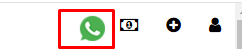
By clicking on this highlighted icon WhatsApp and WhatsApp business both will be accessible.
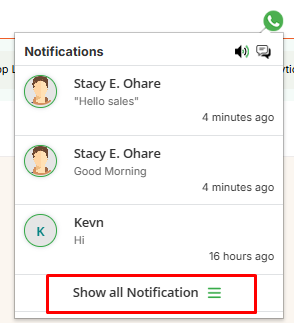
By clicking on this ‘Show Notification’ below the screen will be visible.
Here the first screen of the inbox is visible.
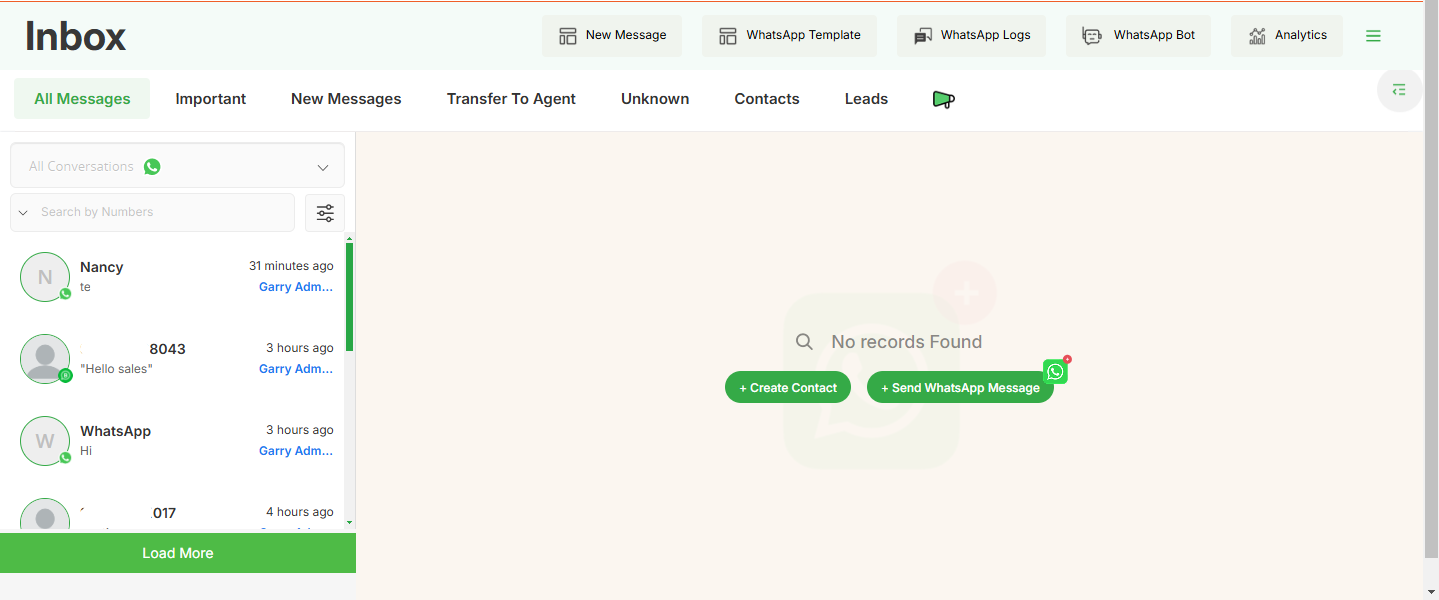
Here all the options for WhatsApp and WhatsApp business are available.
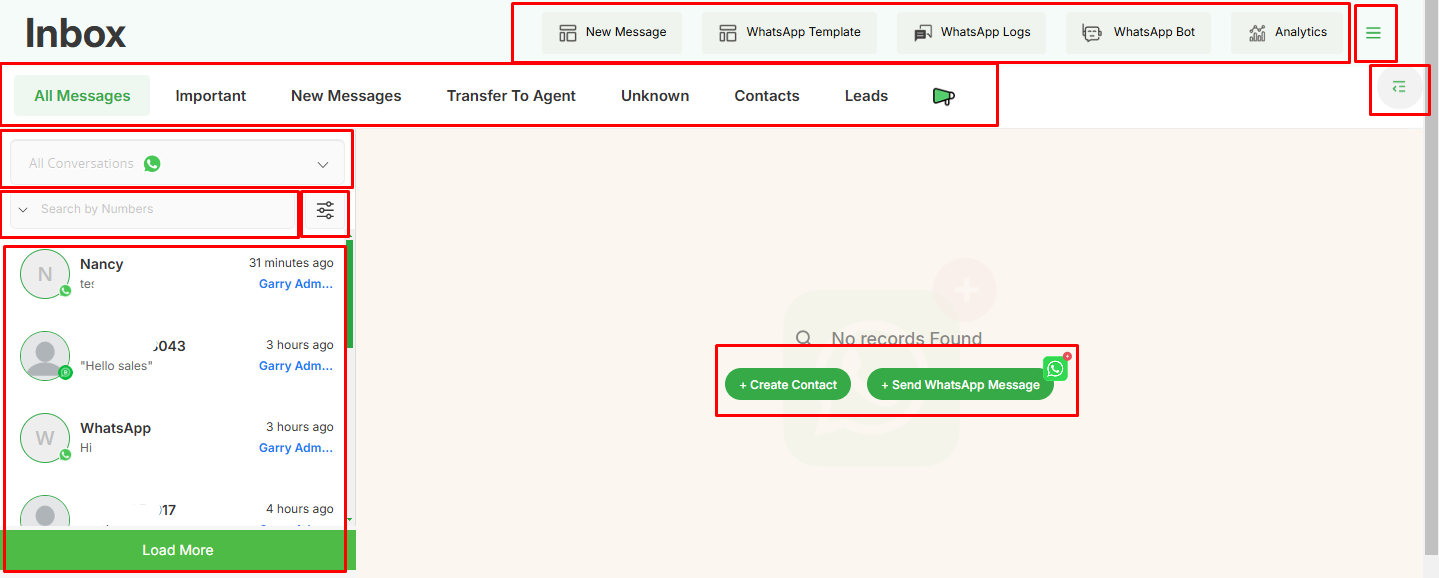
Create Contact
- To create a contact from WhatsApp chat screen .
- Click on ‘Create Contact’.
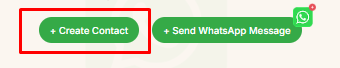
- After clicking on it below screen will appear.
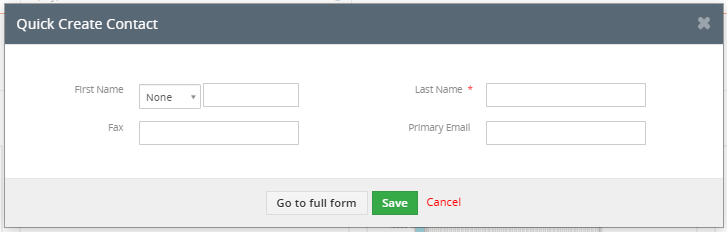
- Add data to save this contact.
- To send a WhatsApp Message Click on ‘Send WhatsApp Message’

- By clicking on that button below the screen will be open.
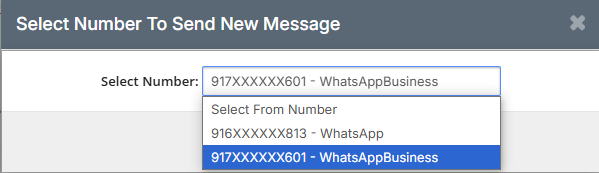
- Users have to select from which WhatsApp number or WhatsApp Business Number they want to send a WhatsApp message.
- After selecting the number for WhatsApp, users have to type a message in the below screen.
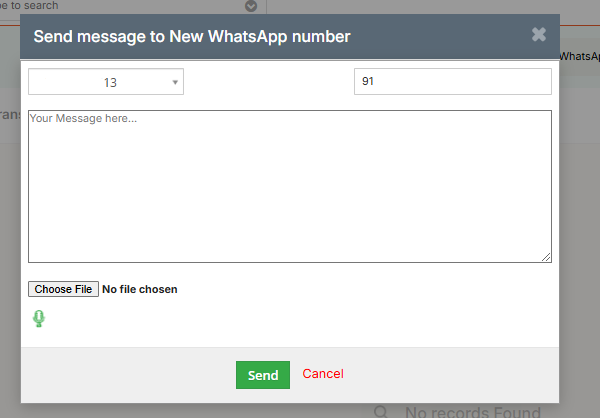
- If users want to attach an image or any file they can attach from here.
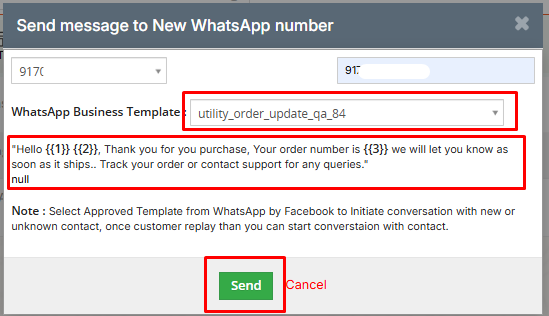
- If the user selects WhatsApp business number to send a message then the first message will be any pre approved WhatsApp template to initiate conversation.
Top Navigation Bar
- Here the top navigation bar is available with all menus.

New Message
- By clicking on ‘New Message’ below the screen will be open.
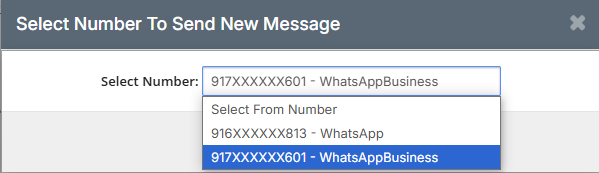
- After Selecting the number for WhatsApp message send the further process will be the same as sending a message from Send WhatsApp Message .
WhatsApp Template
- In WhatsApp templates there are two options.
- WhatsApp Business
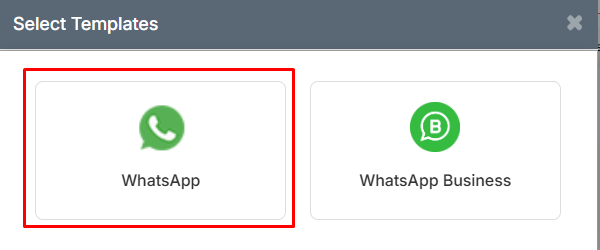
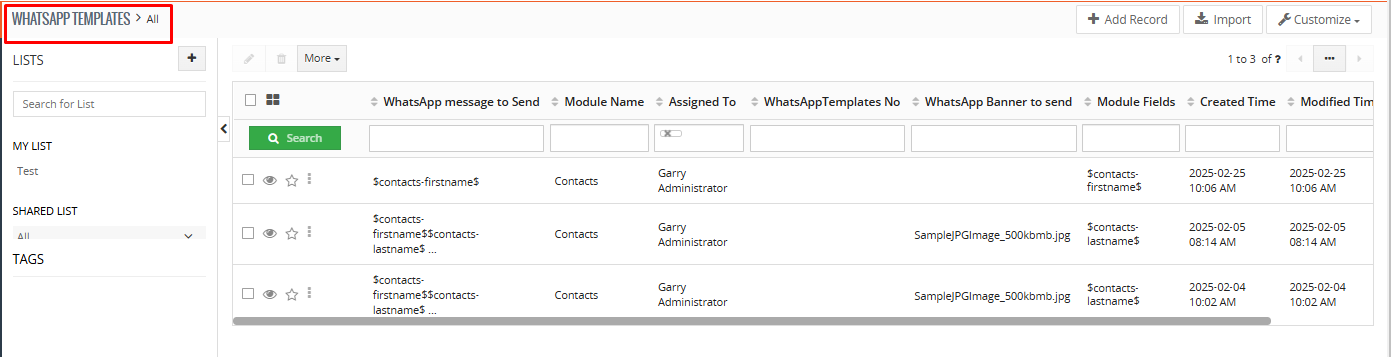
- To see WhatsApp template click on WhatsApp .
- After clicking on it below screen will appear.In which List of WhatsApp template will visible.
WhatsApp Business Template
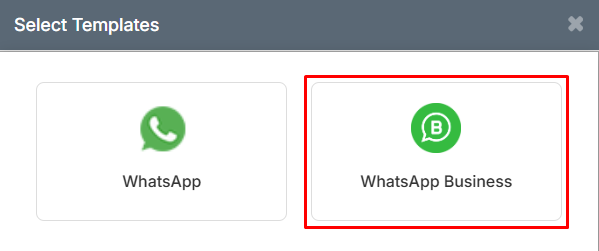
- To see WhatsApp Business template click on WhatsApp .
- After clicking on it below screen will appear.In which List of WhatsApp business template will visible.

WhatsApp Log
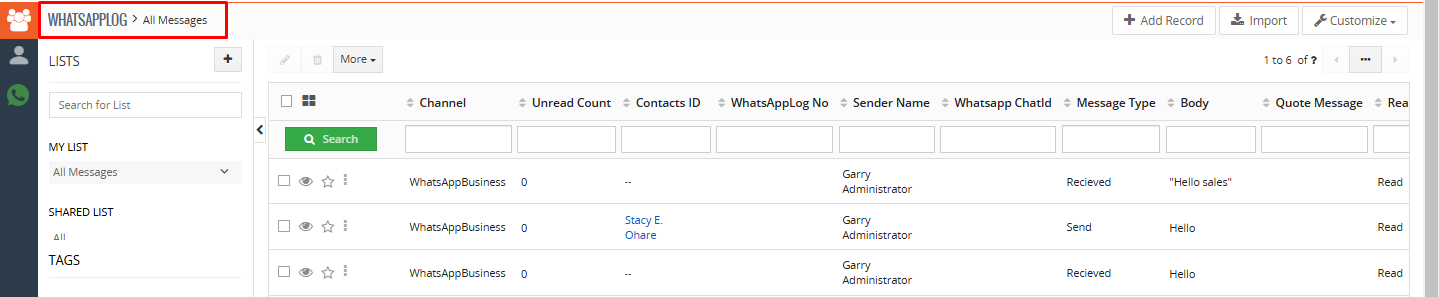
- To access WhatsApp log module click on WhatsApp log in top navigation bar.

- After clicking on it below screen will be visible in which WhatsApp and WhatsApp business both logs will be visible.
WhatsApp Bot
- To access WhatsApp bot click on WhatsApp Bot in the top navigation bar.
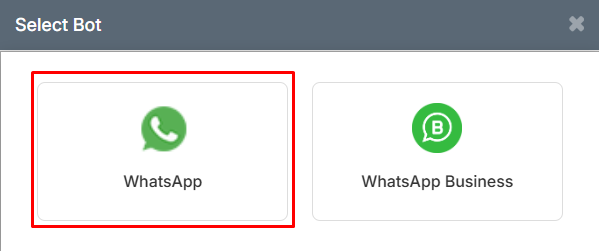
- Clicking on this WhatsApp icon from the bot pop up below screen will appear.
- In this WhatsApp bot screen the list of WhatsApp bot will be visible.

WhatsApp Business Bot

- After clicking on this icon below the screen will be open.
- List screen of WhatsApp business bot will be visible.

- Another header navigation is available with different options .

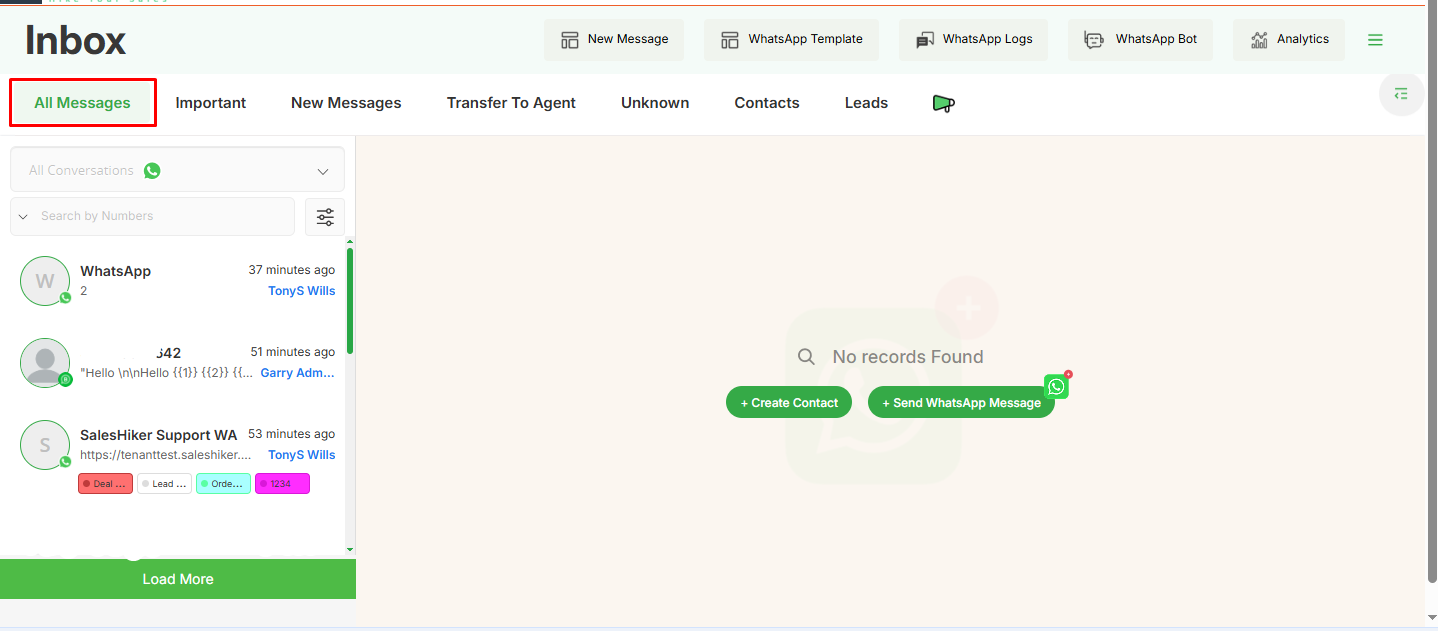
All Messages
- In the ‘All Messages’ section, all conversations will be displayed, including important, saved, unsaved, new messages, and WhatsApp chats from different modules.
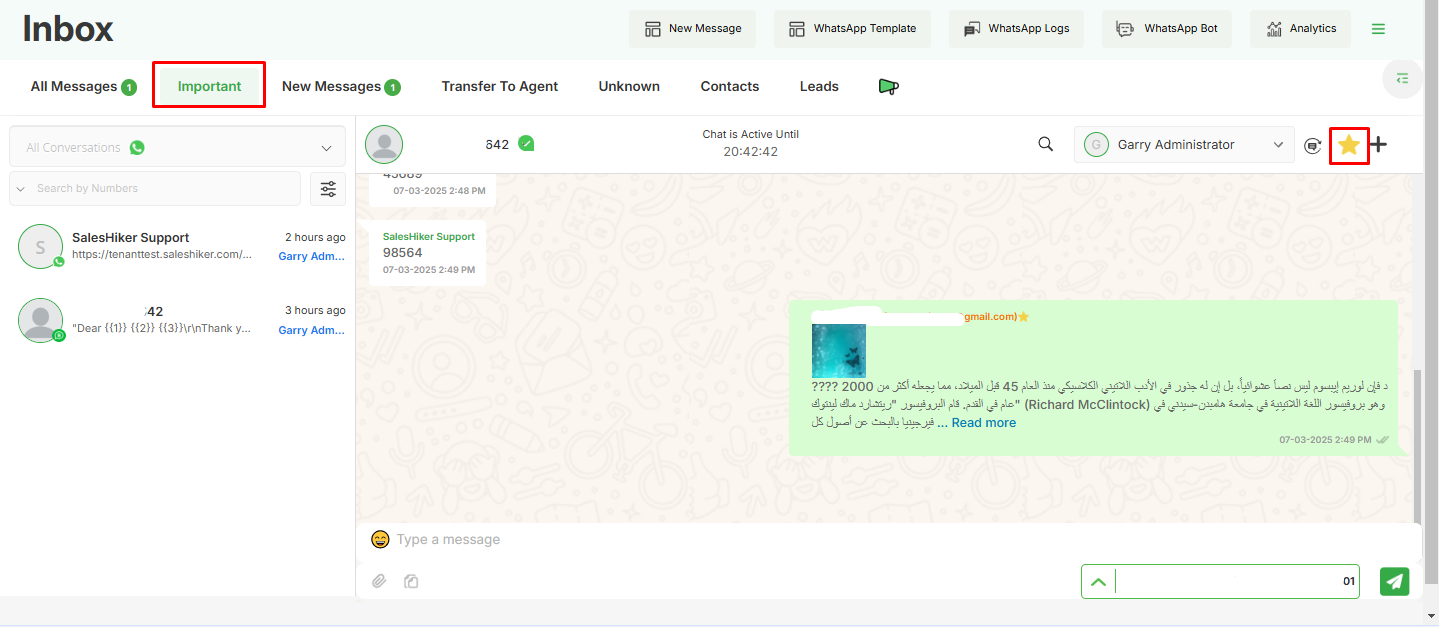
Important Messages
- An important feature helps you to quickly access your WhatsApp Business contact which is important.
- You can manage to move any contact under Important by simply click on
 icon to move contact under Important contact.
 - Marked as important chat will be visible with
New Message
- In the WhatsApp Business messages, New messages area list display all unread messages either from “unknown number” or “existing contact records”
- WhatsApp Business messaging has the same option as sending/receiving message to individual records
Transfer To Agent
- When the bot is transferred to an agent (Manual mode), it shows the contact from which the bot conversation was held in the ‘Transfer to Agent’ section for the manual conversation.

Unknown
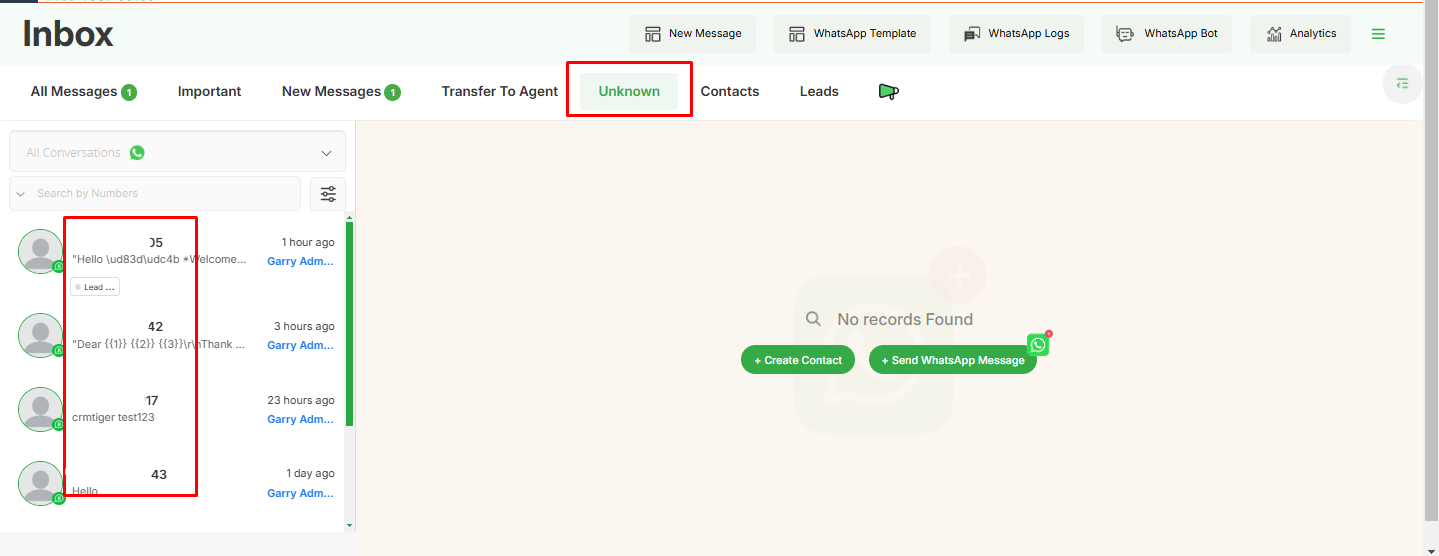
- “Unknown numbers” in the WhatsApp Business Global messages area list all messages from an “unknown number” not stored as a record in CRM.
- “Unknown numbers” messaging section has the same option as sending/receiving messages to individual records.
- From Unknown number there is an option to Create new customer record or update “Unknown number” to existing record in SalesHiker.
Contacts
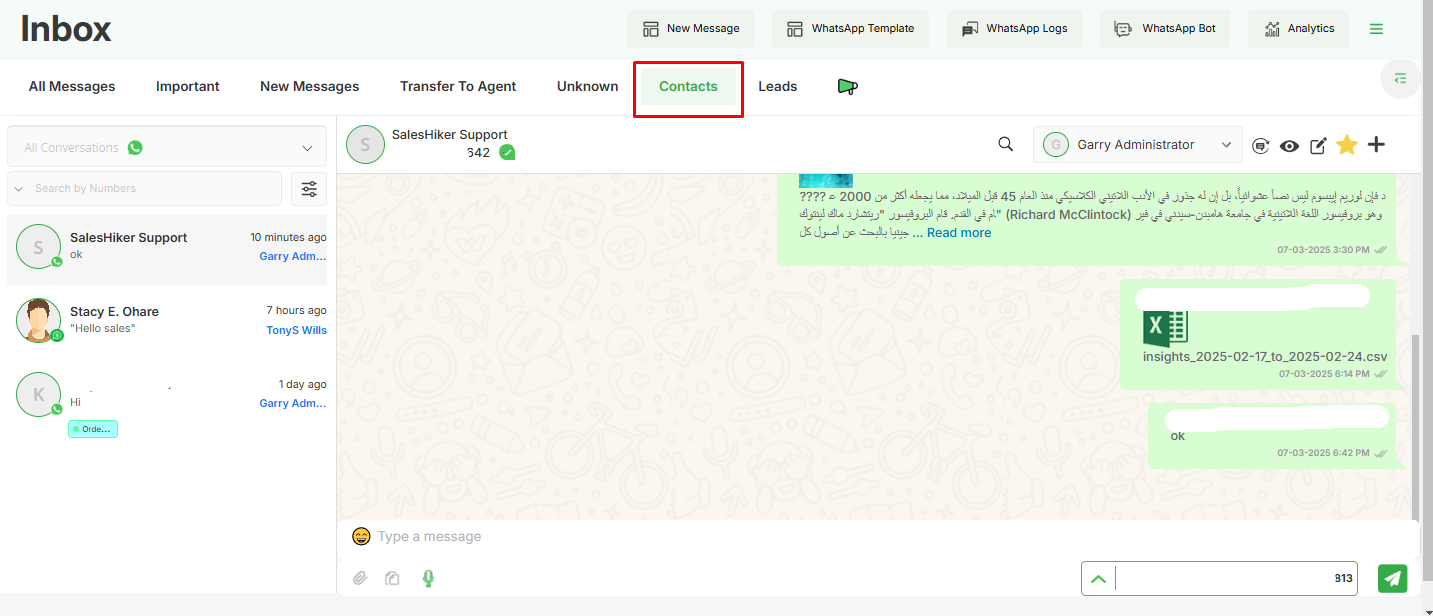
- Here in the contacts section the WhatsApp chats which are saved as record in contact module will appear here.
Leads
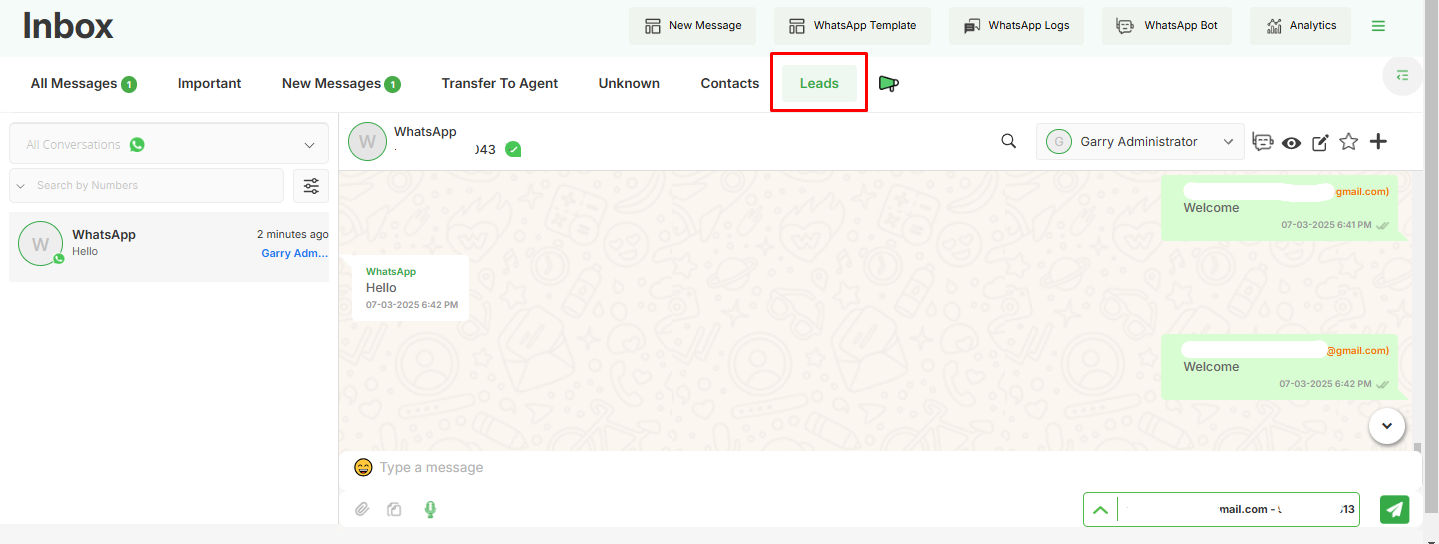
- Here in the Leads section the WhatsApp chats which are saved as records in the Leads module will appear here.
Groups
- WhatsApp Group inside SalesHiker allows you to copy all the Group’s participants to CRM and download participants of the group.
- WhatsApp Logs will store Group to WhatsApp Log Master.
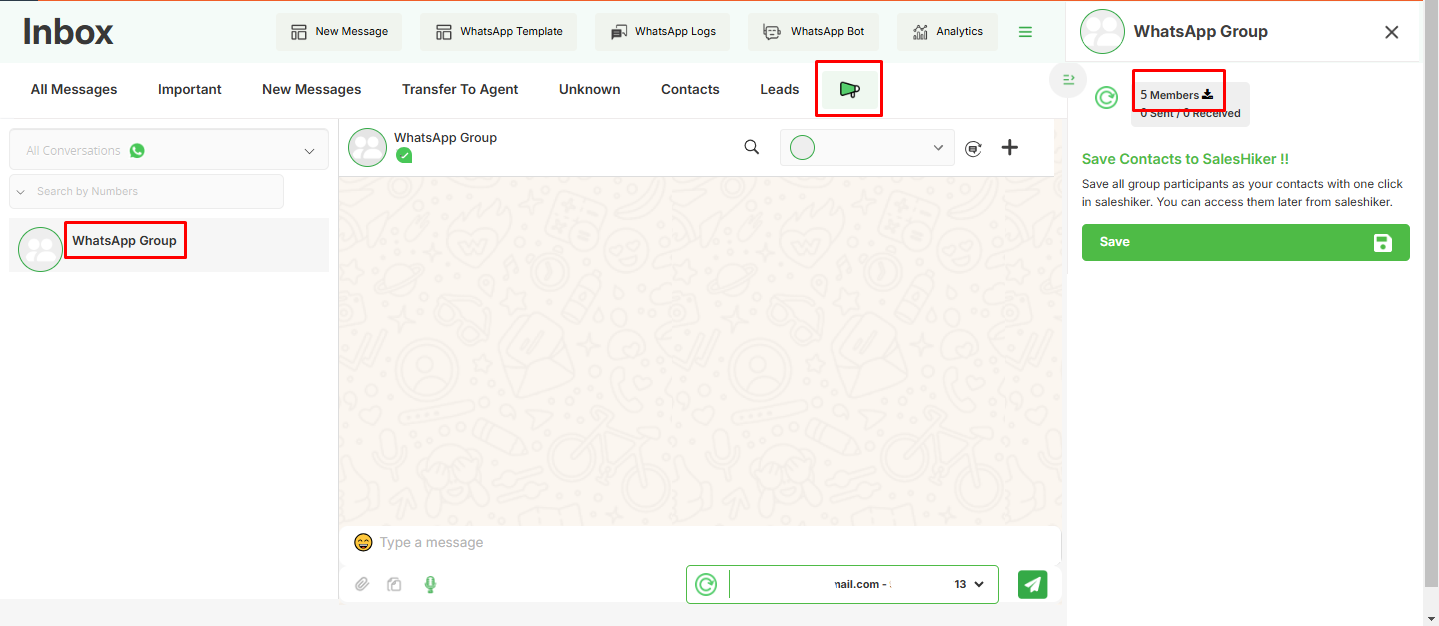
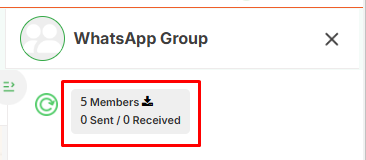
- Displays the List of members of a group and the total number of members in the group.
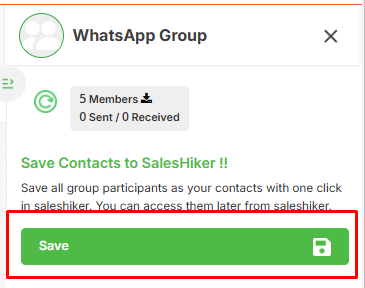
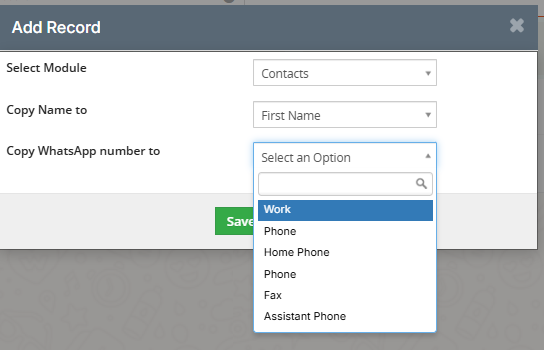
- Clicking on “Save” will create either leads or contacts from the Group’s contact .
- After clicking on save button the record can be saved in contact ,Lead or any other connected module.
- That module should be selected by the user and also that number can be saved in the selected field.
- Name and WhatsApp number both can be saved in the user selected field.
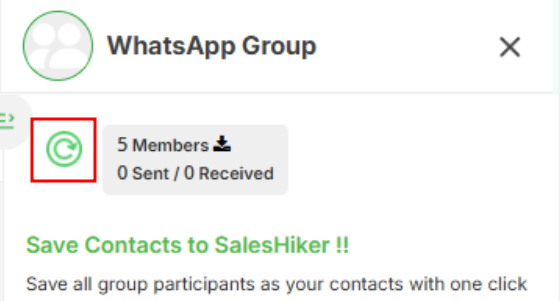
- Click on the Refresh button to retrieve the Latest Group for Selected WhatsApp Number.
Conversation Selection
- The Conversation Selection Form is used to choose specific conversations from WhatsApp or WhatsApp Business. This form helps users manage and organize their chats efficiently by selecting relevant messages for processing, follow-ups, or integration with external systems.
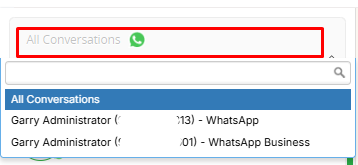
Search By Numbers
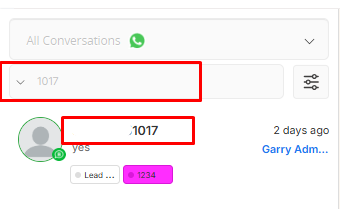
- Allows users to find specific conversations by entering a phone number.
- Useful for quickly locating messages exchanged with a particular contact.
- To use this functionality select the search by numbers option from the dropdown.
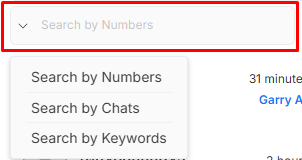
Search By Keyword
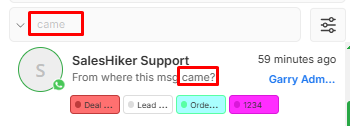
- Enables users to search for specific words or phrases within chats.
- Helps in quickly locating important messages, links, or details without scrolling through the entire conversation.
- In WhatsApp Business, businesses can use keyword searches to track customer queries, complaints, or orders.
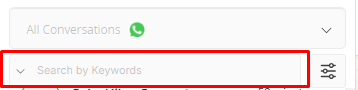
- To use this functionality select the search by keyword option from the dropdown.
Search By Chat
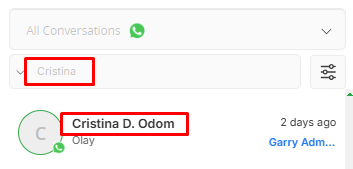
- Lets users filter and search within a specific conversation instead of across all chats.
- This is useful when looking for past messages from a particular contact or group.
- In WhatsApp Business, businesses can use this to find past conversations with a customer for better context in support or sales interactions.

- To use this functionality select the search by Chats option from the dropdown.
Filter
- A filter is available here to search all chats assigned to any specific user and also labels can be applied to that filter of the user’s chat list .
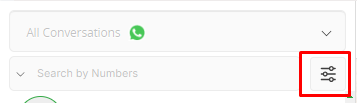
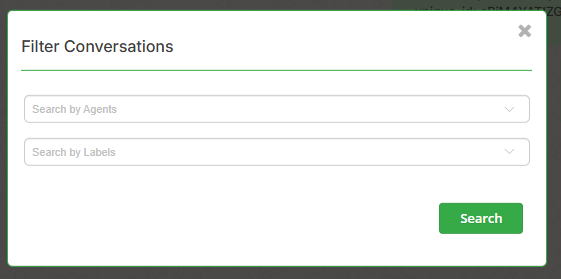
- The Filter Conversation feature allows users to refine their chat searches based on two key fields:
- Agent Selection Field
- Enables users to choose a specific Agent.
- Displays conversations only with the selected Agent.
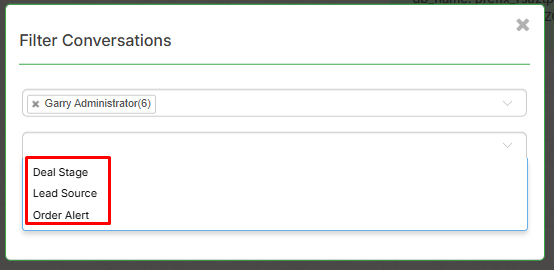
- Label Selection Field
- Allows users to filter chats based on assigned labels (e.g., “Deal Stage,” “Lead Source,” “Order Alert”).
- Helps in categorizing and organizing conversations for efficient follow-ups.
- In WhatsApp Business, labels can be used to prioritize messages and streamline customer management.
- Agent Selection Field
Profile
- Profile of the selected chat user can be accessed from here.
- After clicking on this icon below the screen will be open Where details of the selected user can be found.
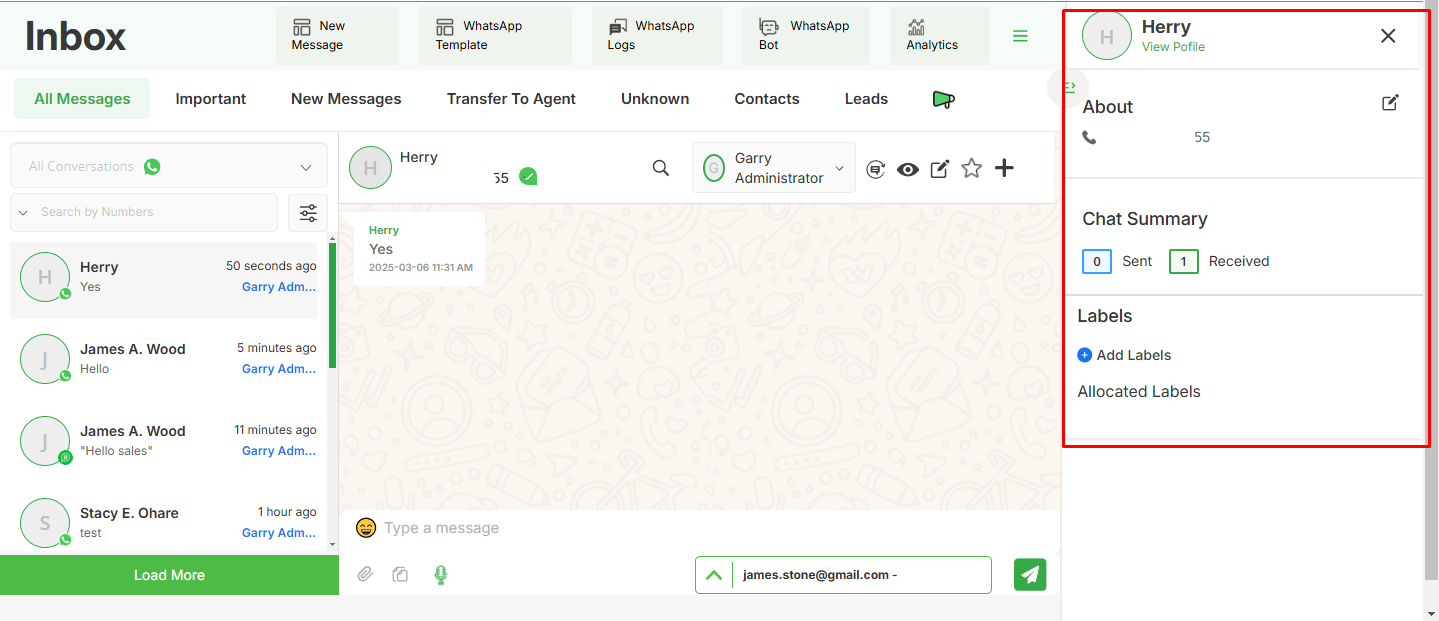
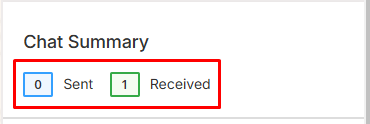
Chat Summary
- This section presents the number of sent and received messages.
Attachment , WhatsApp Template and Voice message
Attachment
- The Attachment feature allows users to send and receive different types of files within a conversation. This is useful for sharing important documents, media, and other resources efficiently.
Types of Attachments Supported:
- Images & Videos – Share photos and videos directly from the gallery or camera.
- Documents – Send PDFs, Word files, Excel sheets, and other documents.
WhatsApp Template
- Here one pop up will be open for users to select a WhatsApp template.
Voice Message
- Voice Message option allows the user to send any voice note or voice message .
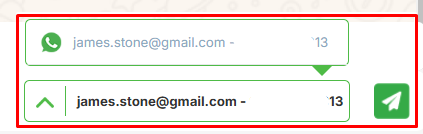
Number selection for sending WhatsApp Messages
This option is available in the chat of all users at the bottom right corner.
- If multiple numbers are registered, they will be displayed here.
- If only one number is registered, only that number will be visible.
- If only one number is registered, only that number will be visible.
Close Conversation
- The highlighted icon in the image below is for closing a conversation.
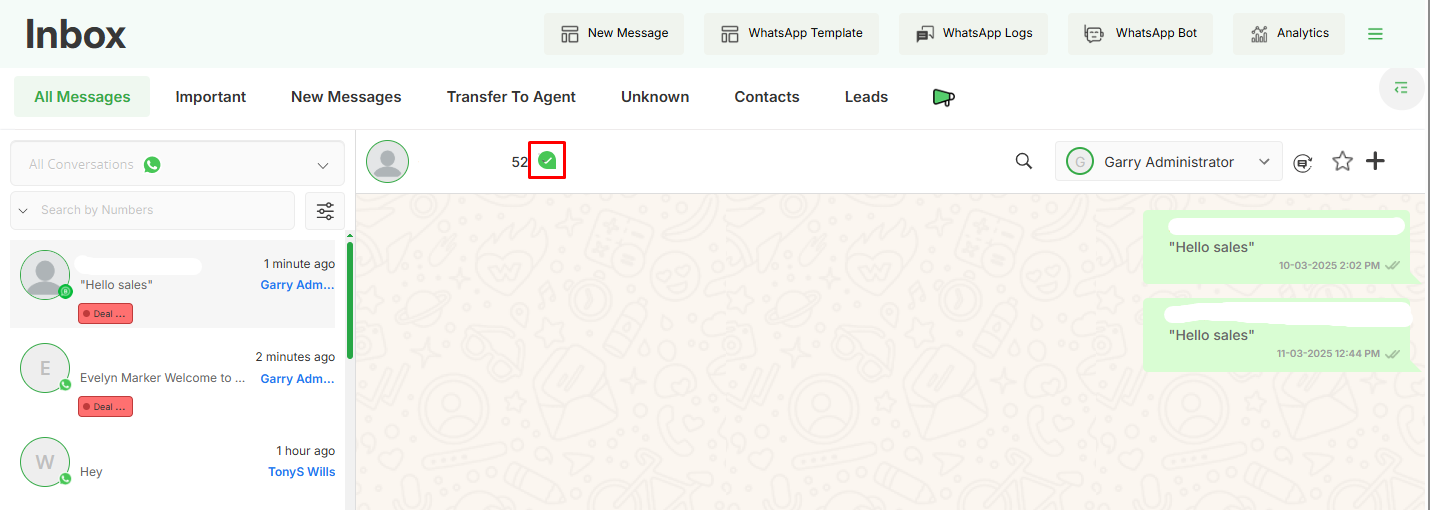
- By clicking on this icon one pop up will be visible like the below screen.
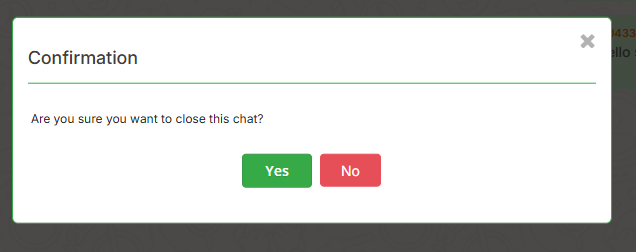
- After clicking on yes the icon will turn blue .
 like this.
 - To open the conversation again click on the same icon again one pop up will appear.
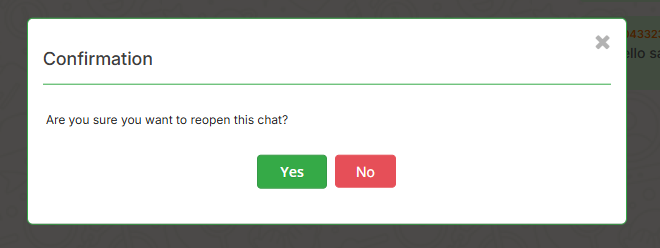
- After clicking on yes again the icon will turn to green color .
Sync Message
- Ensures that the latest messages are updated and synchronized across devices or platforms
Preview Record
- Allows users to view a record before making any changes or taking further action
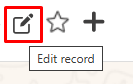
Edit Record
- Enables users to modify existing records, such as contact details, notes, or labels.
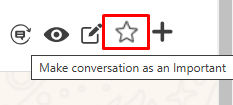
Mark As Important
- Allows users to highlight or prioritize specific messages or records.
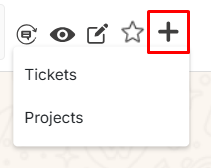
Add Related Records
- The ‘+’ icon is used to add related records for the user whose chat is currently open.
- By selecting any option from the dropdown record, the additional form for the selected option will be open.
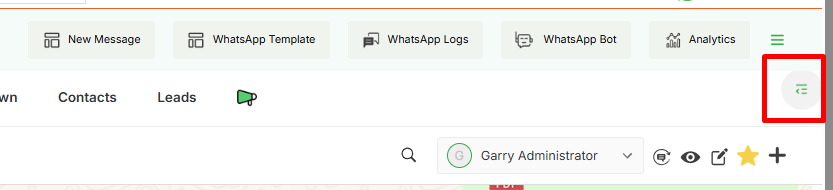
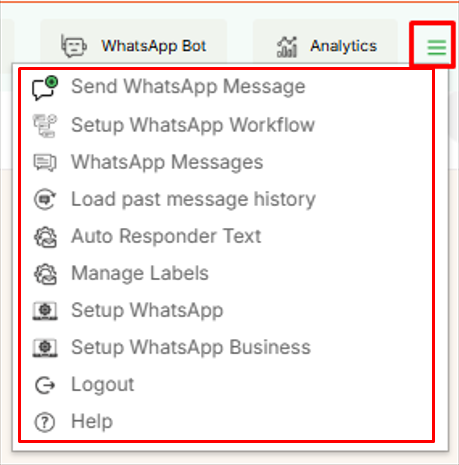
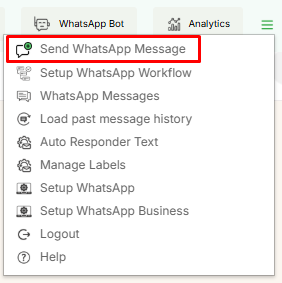
Side Menu
- In the top menu, the last option is for the side menu bar, which contains various options related to WhatsApp.
Send WhatsApp Message
- This process is same as Send WhatsApp Message
Setup WhatsApp Workflow
- This option will redirect a user to the workflow module where the user can create and manage workflows.


- WhatsApp workflow allows sending Automated WhatsApp messages on the trigger event of any module link with the WhatsApp module.

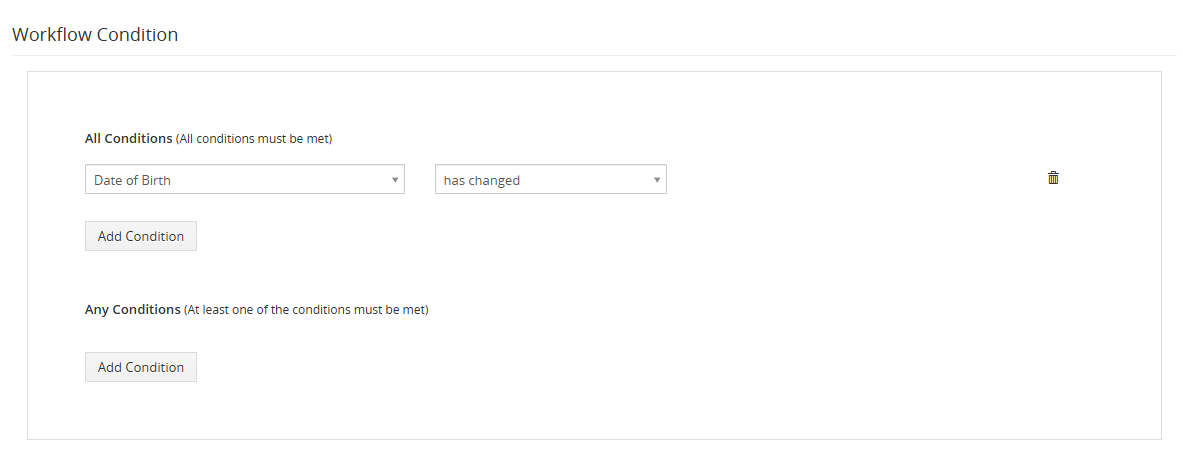
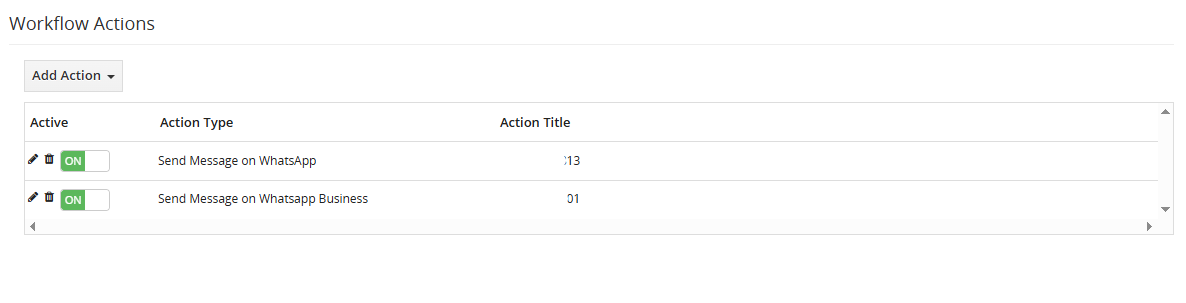
- The WhatsApp workflow can configure the WhatsApp messages to whom we want to send individually WhatsApp templates to share files or message format, general field, add fields and message.
- In the above workflow whenever conditions will be matched and the contact get updated the user will get a message on WhatsApp/WhatsApp business.
WhatsApp Messages
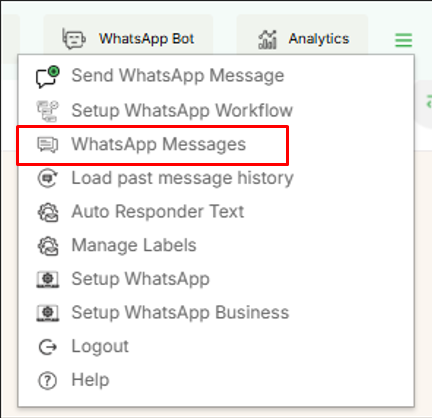
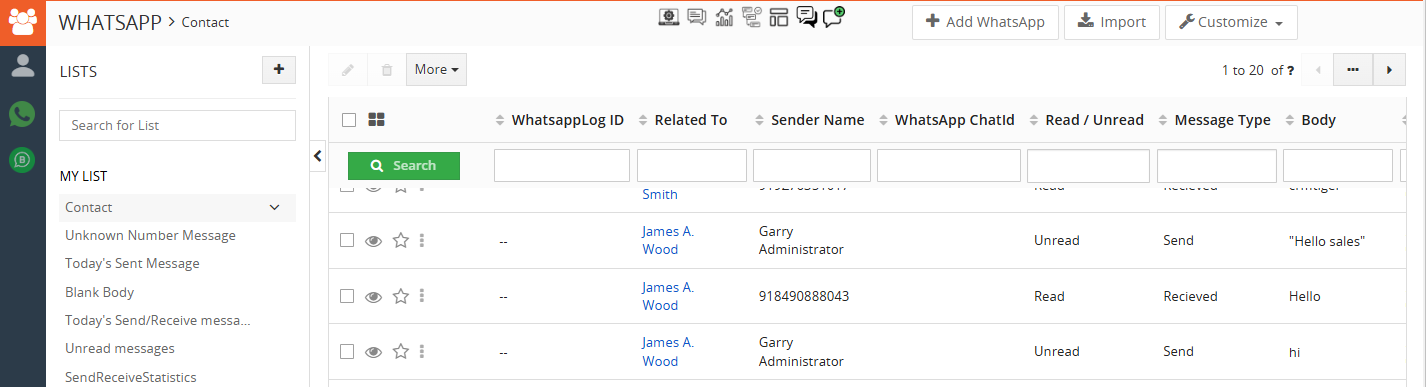
- This option will direct the user to the WhatsApp Log screen.
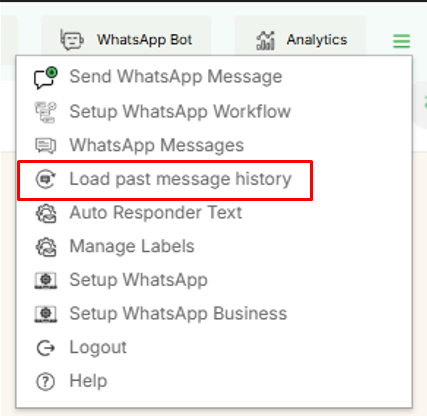
Load Past Message History
- To access this feature click on the highlighted menu.
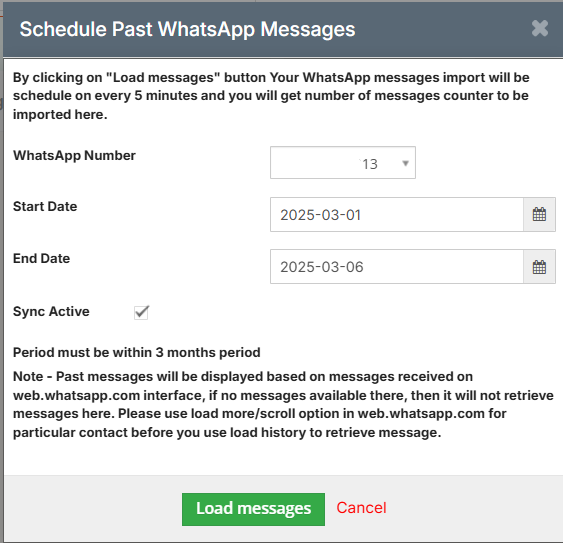
- The Load Past Message History feature allows users to retrieve and view previous conversations that are not currently visible in the chat window.
- Users can select WhatsApp number from which the messages were sent , Start and End date.
- After selecting those details click on load message to load past messages.
Auto Responder Text
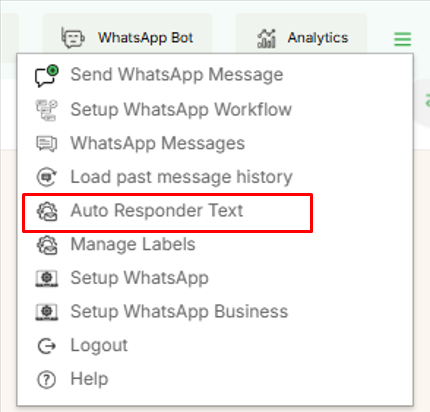
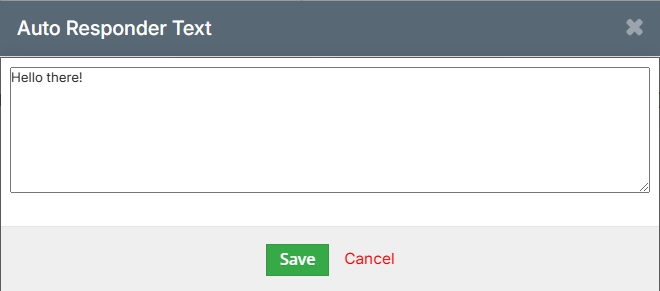
- The Auto Responder Text feature allows users to set predefined messages that are automatically sent in response to incoming messages. This is especially useful in WhatsApp Business for customer service and engagement.
- This message will be sent to the receiver when he/she sends a message for the first time.
Manage Labels
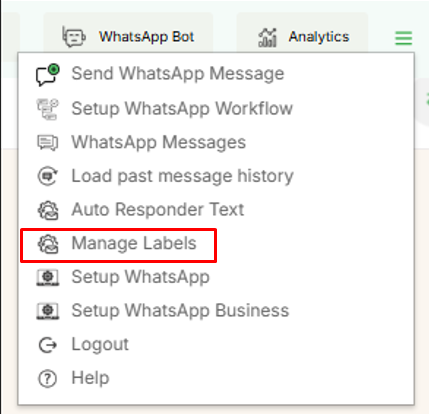
- Labels can be managed and added from this menu.
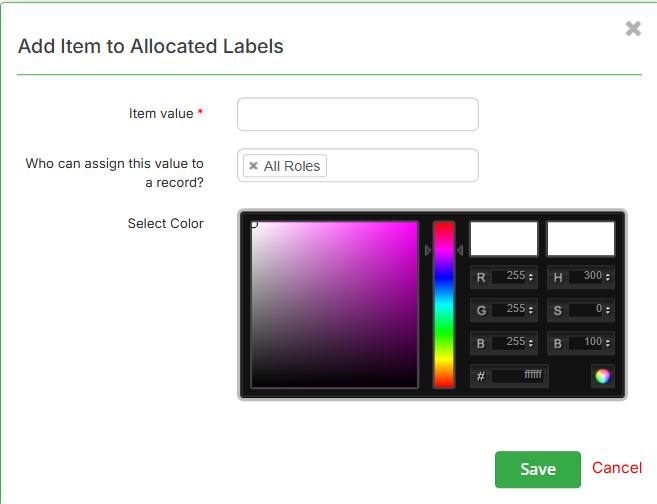
- By clicking on this menu below the screen will be open.
- Where users can add the name of label and also it can be assigned to a particular role with specific color.
Setup WhatsApp
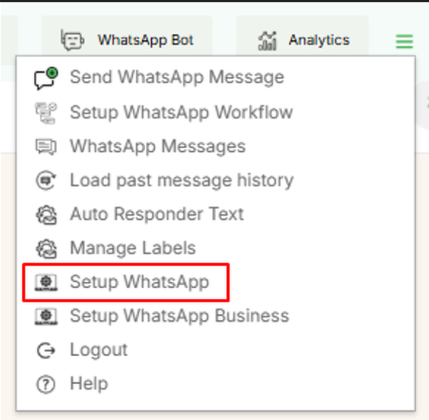
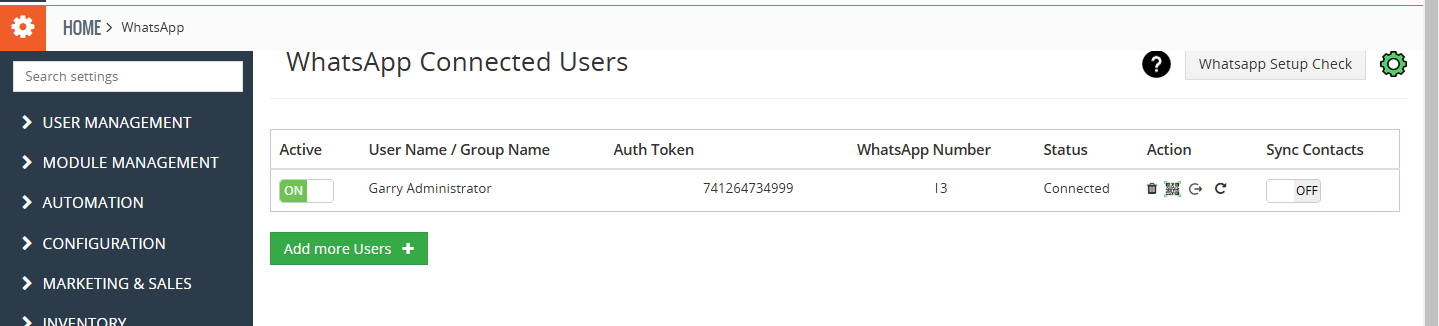
- Users can add users and grant access to the WhatsApp integration from the Setup WhatsApp menu.
- By clicking on it below the screen will be visible .
- In this screen click on ‘Add more user ‘ to add a new user .
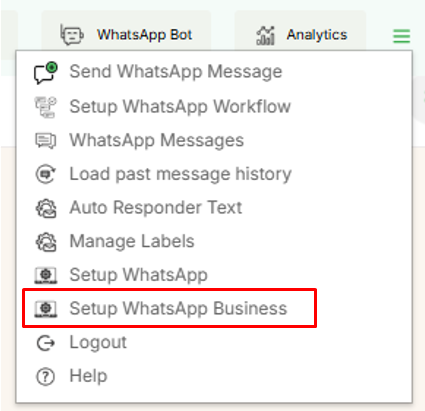
Setup WhatsApp Business
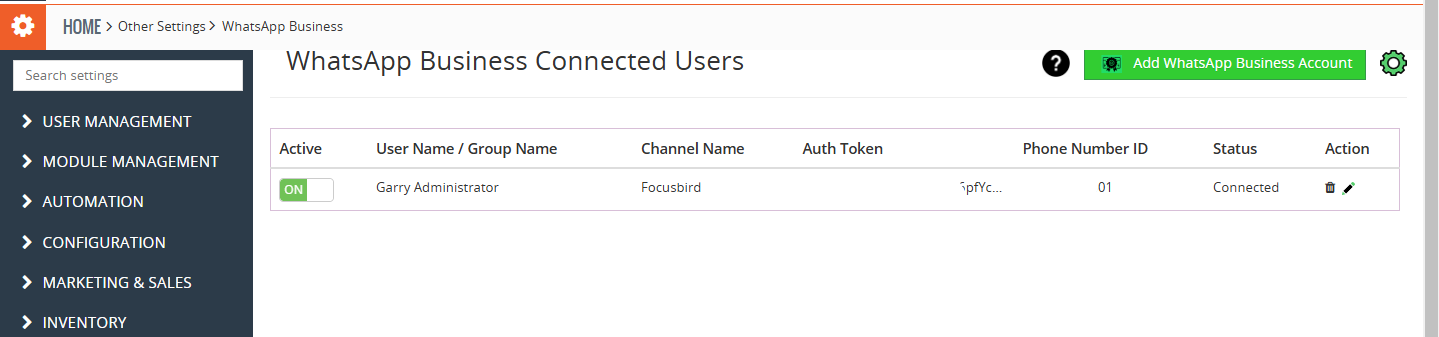
- From this screen the connected WhatsApp business number details will be visible here.
Logout
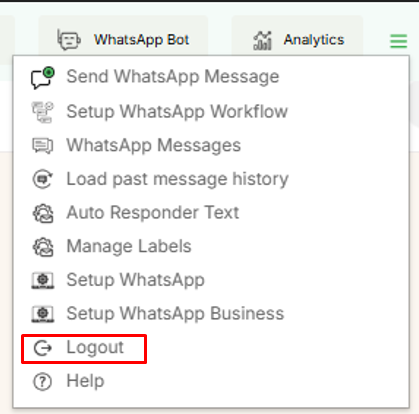
- The Logout option allows users to sign out of their CRM account, ensuring security and preventing unauthorized access.
Help
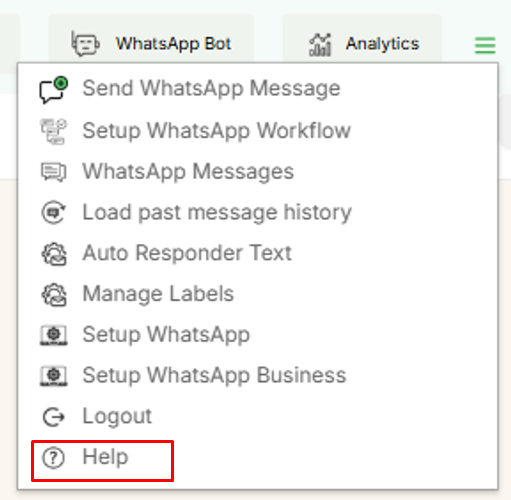
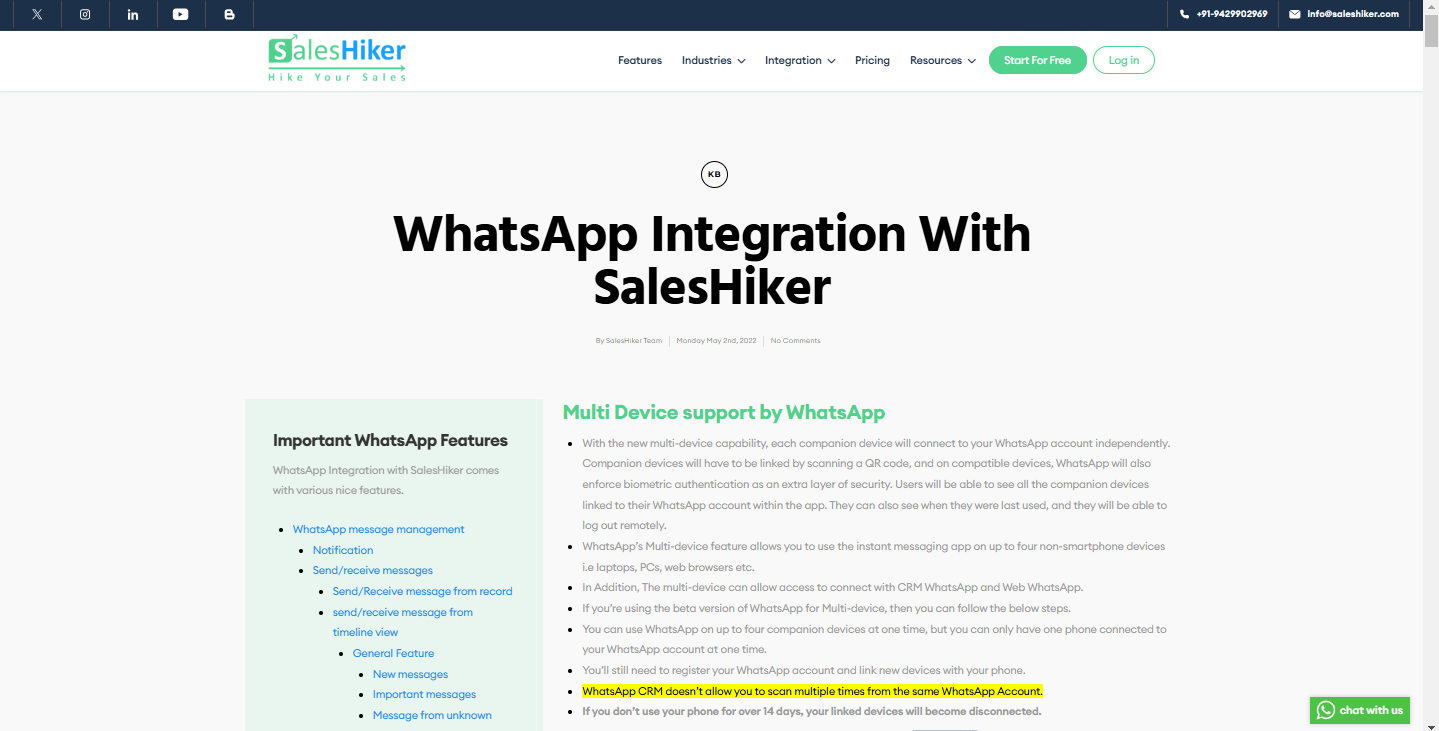
- When the user clicks on ‘Help,’ they will be redirected to the user guide of SalesHiker WhatsApp & WhatsApp Business Integration.

 by
by