



To Access this module click on Analytics from the top menu.
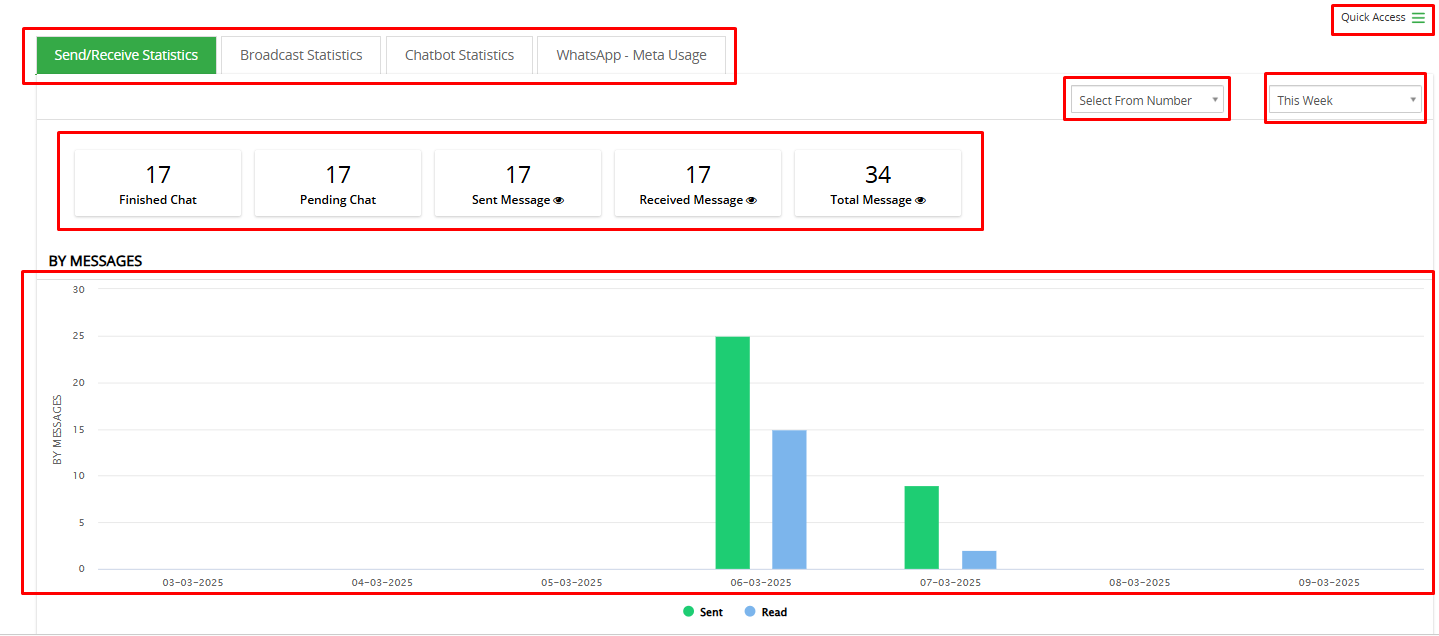
Below screen is the main screen of analytics from where different filters can be applied and get results accordingly.
Send/Receive Statistics
- To check Send/Receive Statistics Go to Analytics and click on ‘Send/Receive Statistics’.
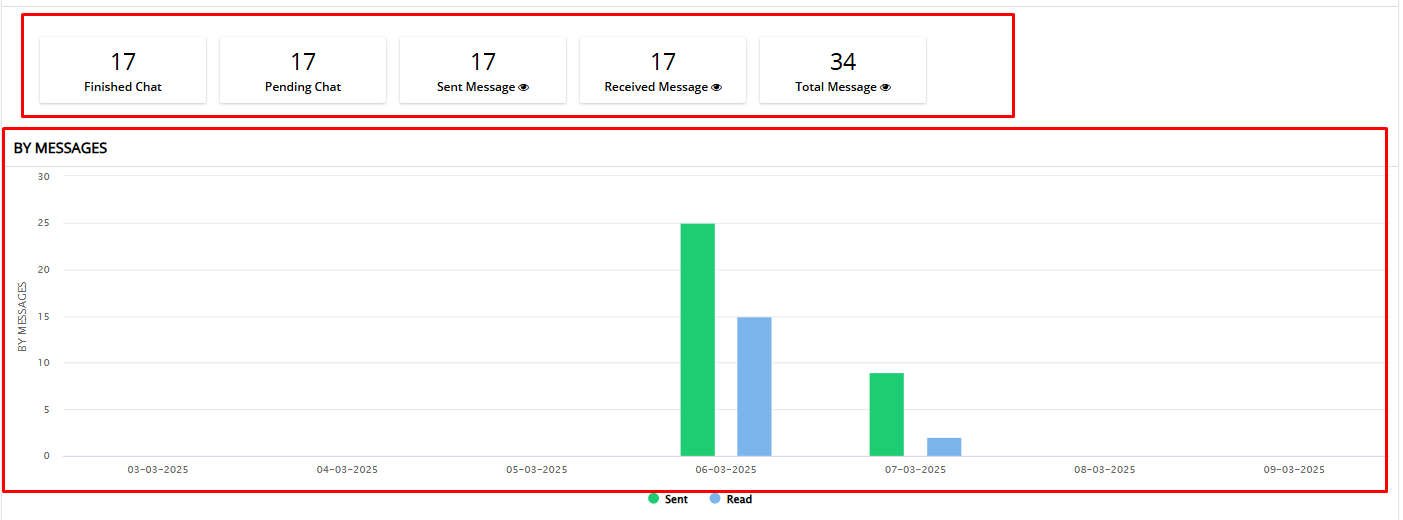
- Send/Receive Statistics for WhatsApp messages typically refers to data on the number of messages sent and received over a specific period. This may include:
- Total Finished Chat
- Total Pending Chat
- Total Sent Message
- Total Received Message
- Total Message
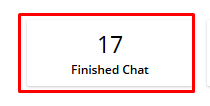
Total Finished Chat
- “Finished Chat” for last sent message from CRM, “Pending Chat” for last received message in CRM
Total Pending Chat
- The number of chat sessions that are still open or awaiting a response.
Total Sent Message
- The total count of messages sent from the system to users.
Total Received Message
- The total number of messages received from users.
Total Message
- The combined count of all sent and received messages.
Broadcast Statistics
- To access Broadcast Statistics Go to Analytics and click on ‘Broadcast Statistics’.
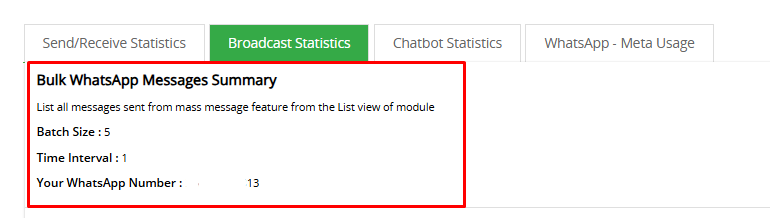
Broadcast Statistics parameters with descriptions:
- Batch Size – The number of messages sent in a single batch during a broadcast.
- Time Interval – The time gap between consecutive message batches to prevent spam detection.
- Your WhatsApp Number – The WhatsApp number used to send the broadcast messages
Chatbot Statistics
- Click on the highlighted button to see Chatbot statistics.
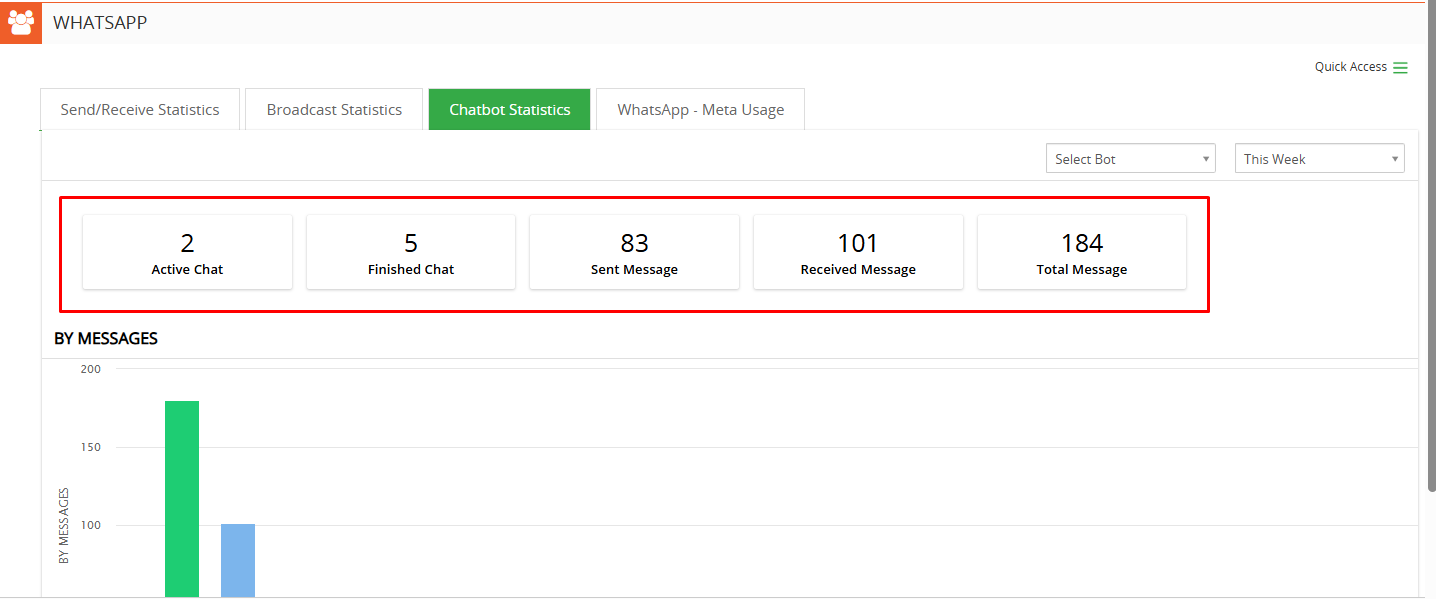
- This Chatbot Statistic option will show total count of “Active Chat” for initiated chat of all customers, “Finished Chat” of chatbot with customer, “Sent Messages” from chatbot, “Received Message” in chatbot And “Total Messages” of all sent/received message of chatbot.
WhatsApp – Meta Usage
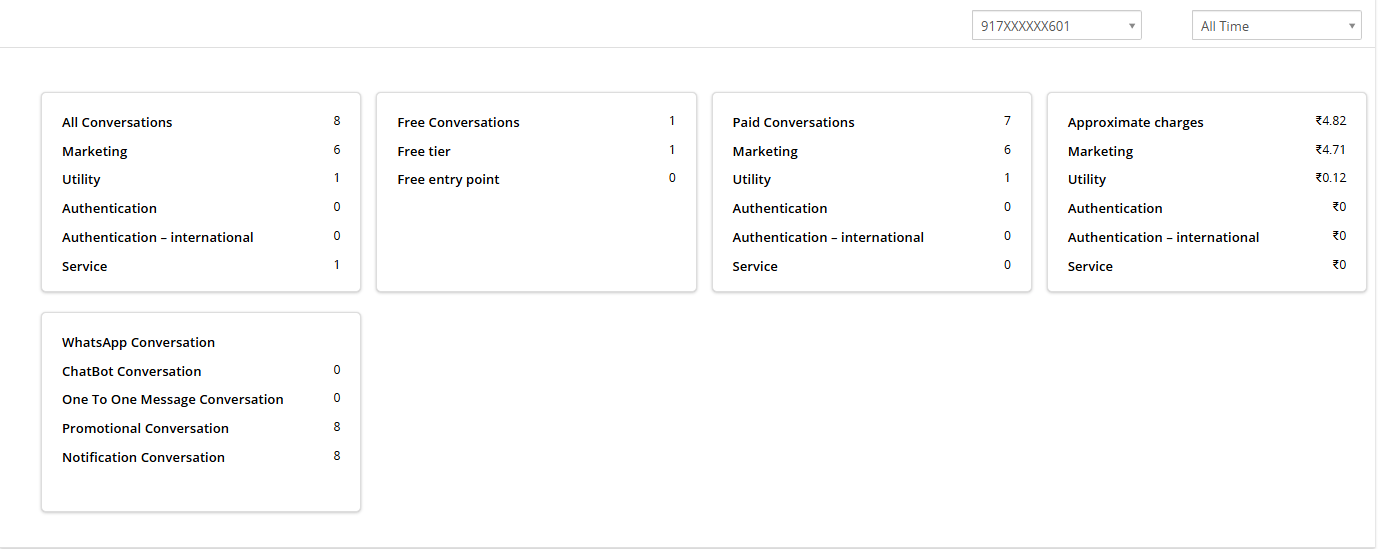
- WhatsApp – Meta Usage provides a detailed view of all conversations, both free and chargeable, within the CRM, along with analytics and estimated charges as shown in the below screenshot.
Quick Access
- This is a list of submenus which can be directly accessed from here.

WhatsApp Timeline View
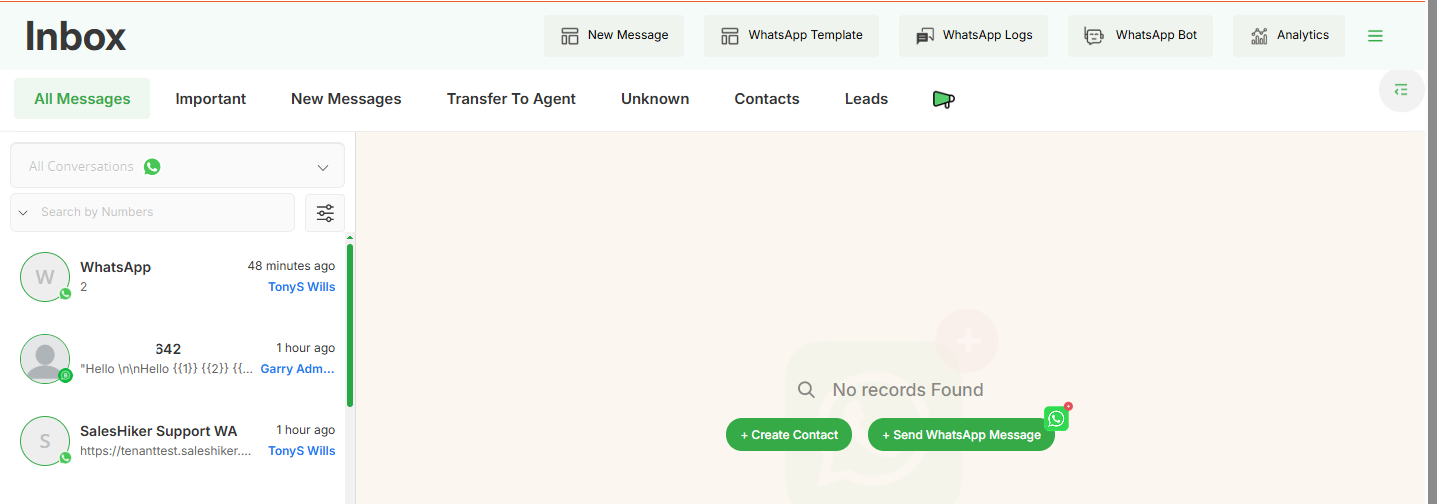
- This menu will redirect to the main page of WhatsApp chat.
WhatsApp Messages
- This will redirect a user to the WhatsApp logs.
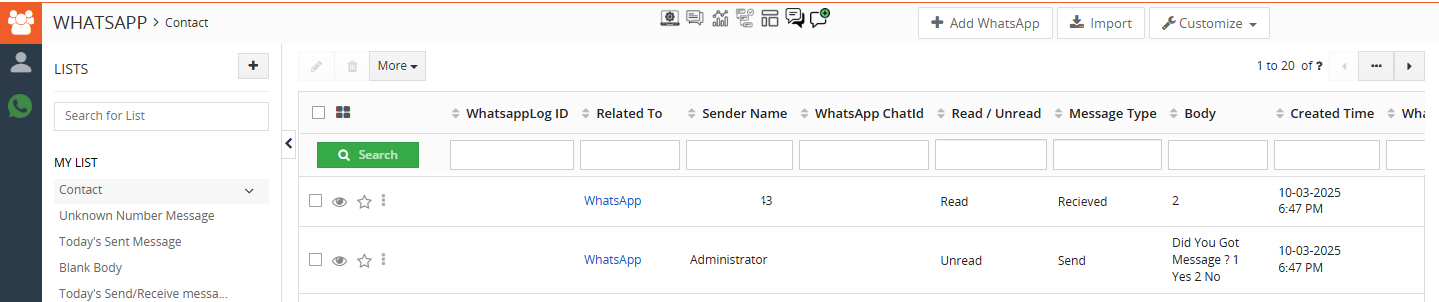
WhatsApp Templates
- This option will redirect users to the WhatsApp templates module.

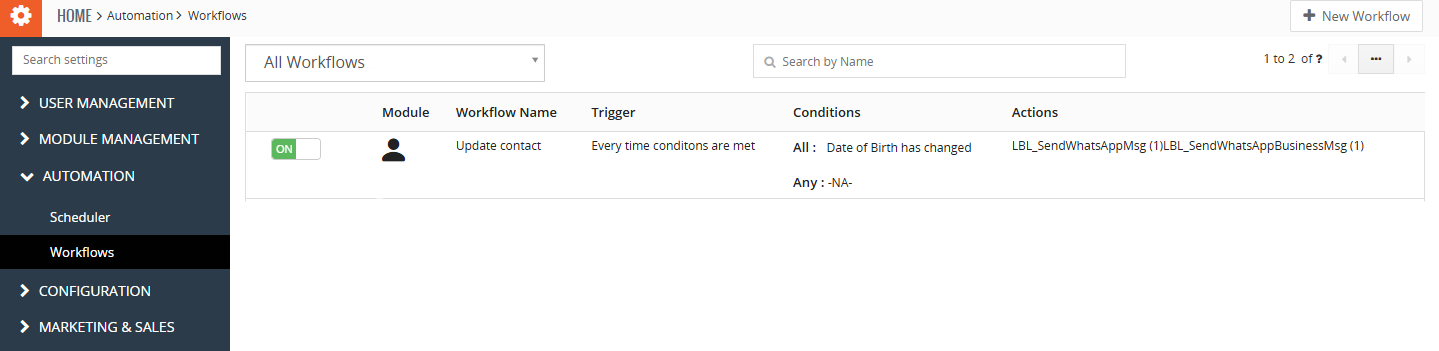
WhatsApp Workflow
- This option will redirect a user to the workflow module where the user can create and manage workflows.
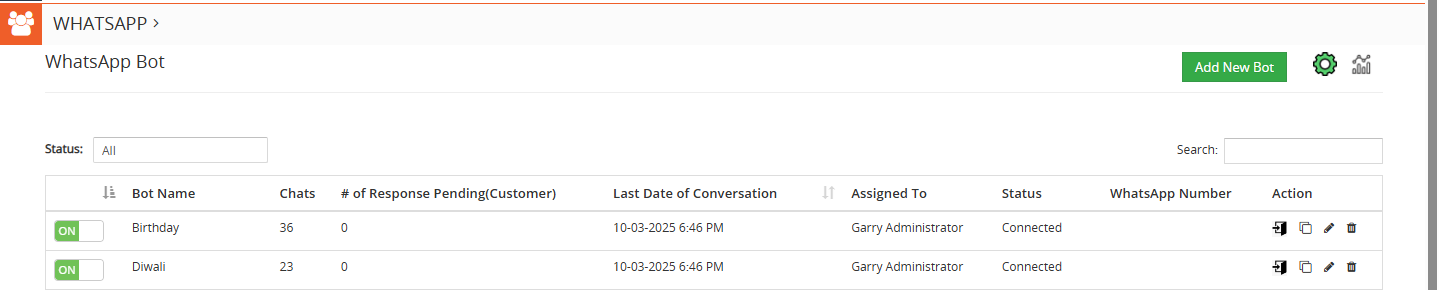
WhatsApp Bot
- This option will redirect a user to the WhatsApp bot page.
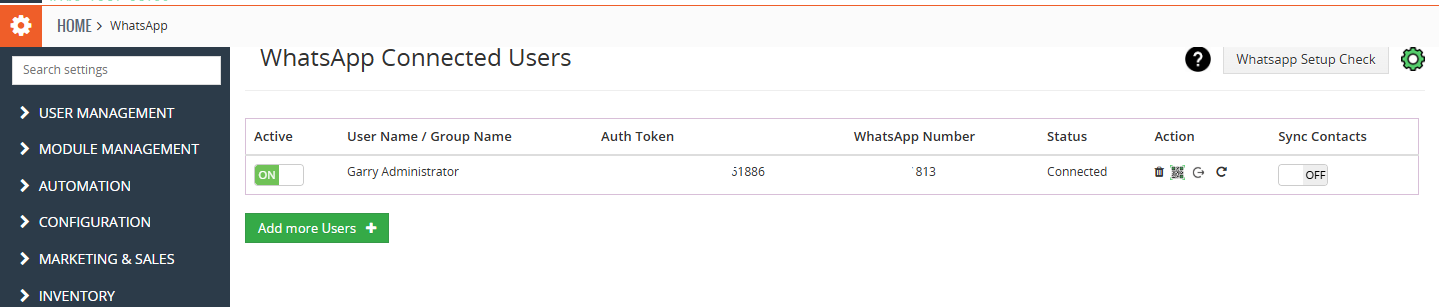
Setup WhatsApp
- This menu will redirect a user to the ‘ WhatsApp Connected Users ‘ page where users can Setup WhatsApp for more users.
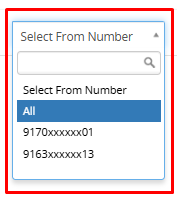
Select From Number
- To see analytics reports of WhatsApp number or WhatsApp business number, select that number from this dropdown and to see both numbers data select ‘All’ Option.
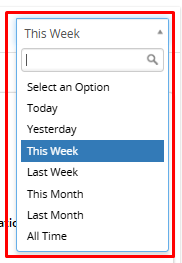
Duration
- This option allows users to select the duration of the analytics report according to their requirement.
- After selecting one option from the dropdown the report will give the results according to the selected option.

 by
by