



- Track meeting with Geo-Location
Users
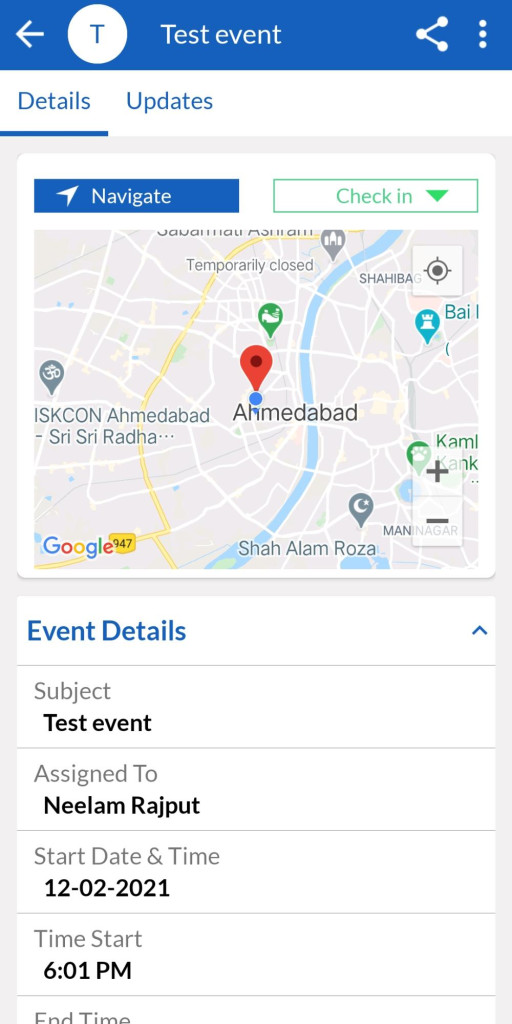
This allows admin users to keep a track on end users geo-location and presence during an event as soon as they check-in.
– Navigate location or online link.
– Check-in to the event. When a user checks-in, it captures users geo-location, Check-in time.
– Check-out from the event. This feature allows access to the user’s check-out location along with the check-out time and status.
– Users can add notes/comments for an acknowledgment purpose.
Address Auto Finder
This feature auto fills addresses in the record address details field from map geotag set by user while setting up address during creating a Record.
- Admin Settings
This feature helps admin to allow/disallow Address Auto finder to following modules.
- Lead
- Contact
- Organization
- Calendar
This feature is only accessible to users only when the following settings are enabled by Admin users in Web CRM :
- Go To Settings > Other Settings > SalesHiker Mobile App Settings
- Refer GEO(Location) Settings > Edit Google Map or OpenSteet Map option
Note : For Accurate result SalesHiker suggest to use Google Map but you should
have an account with Google.
- Select Module and set the following field.
Auto Address Finder field : This field allows use of Type 3 characters and it will Automatically list addresses from Google.
Address fields : Set various fields for Street, City, State, Country and Zip code so when the user selects address from “Auto Address finder field” it will Automatically copy address to another field selected as address field.
The following are the steps for filling up address details automatically.
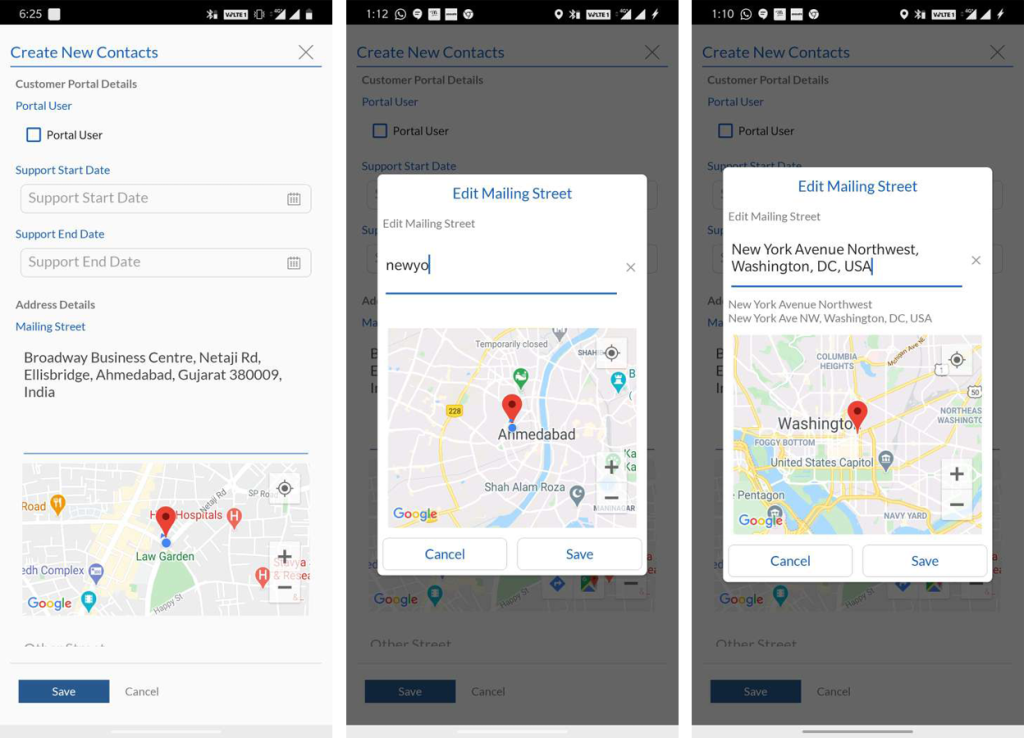
– Go To Main menu > Marketing > Contacts.
– Create new contact, refer to Go To Full form.
– Enter Address details field.
– Users can either type an address or find a location in the map, set geotag on preferred location.
– The location will be auto filled with respect to the geo tag.
Access to Record
This feature allows users to maintain any record of any module accessible from the menu.
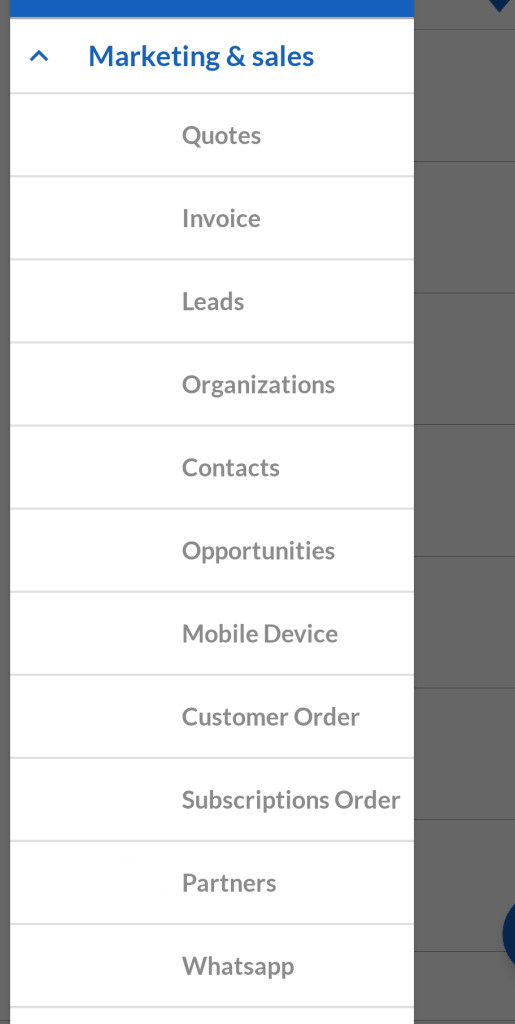
Record are accessible using the following path :
Go To Main Menu > Marketing & sales OR Any other menu item > Leads (example module)
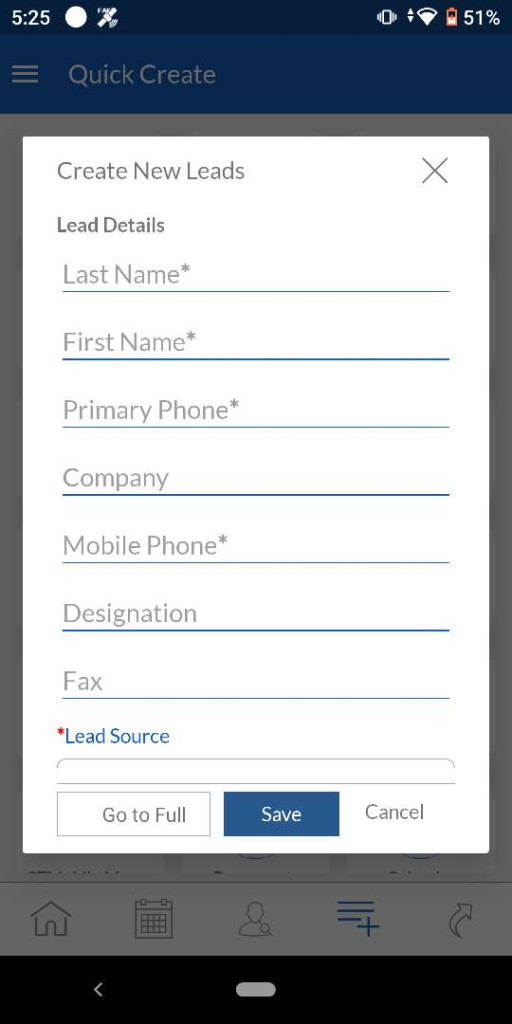
Create New Record
Go To Record section, To create new leads, click on
That will lead to a pop-up form. Fill in the details related to the new Record and save.
Users can use the Go to full option to add Record information in detail if required.
Record List View
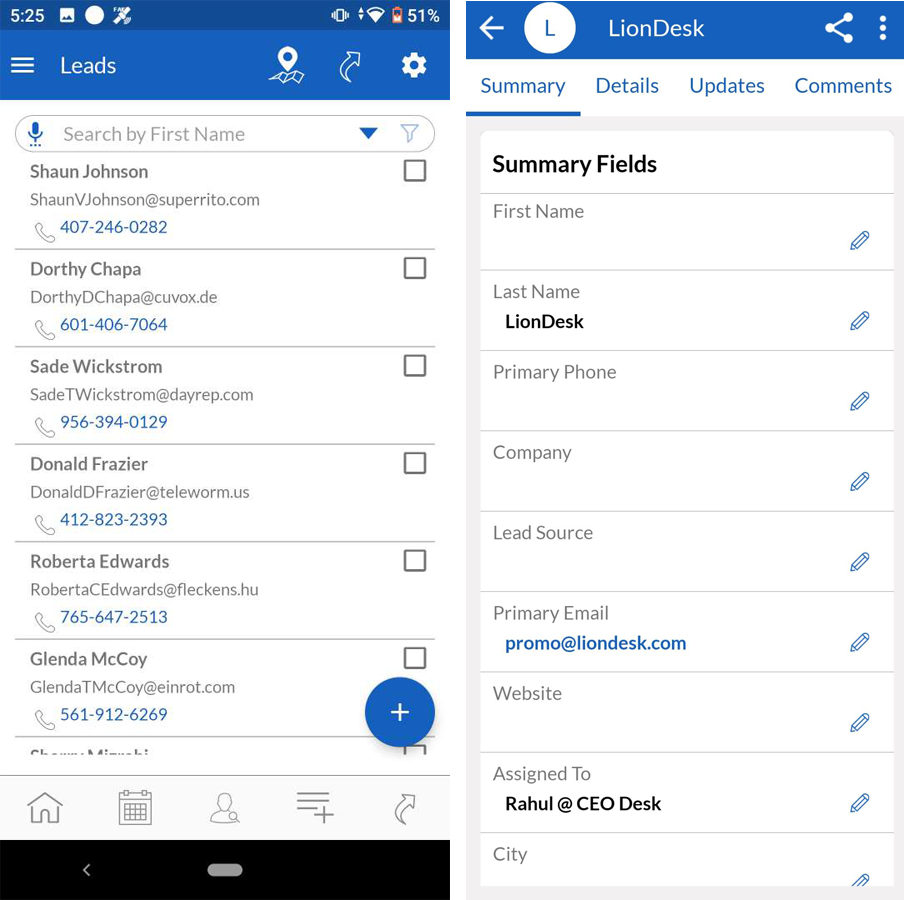
When users access the Record, it appears in the list manner which can be sorted or searched using search and filter options.
Users can directly approach a record using a call option from the list view.Users can view complete details of the record by clicking on an individual record.
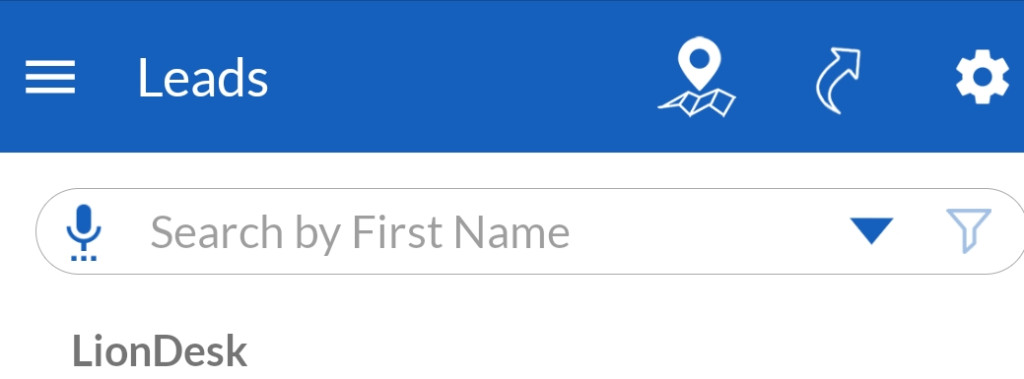
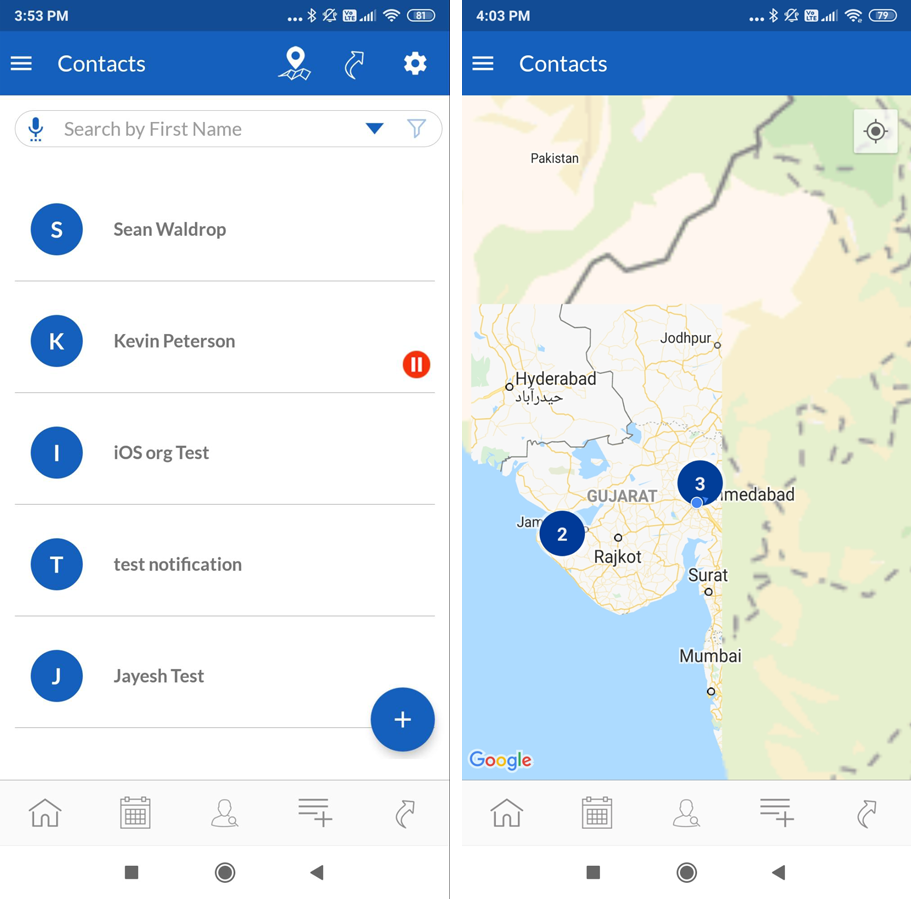
To check the map view of record, click on Map view on top as shown.
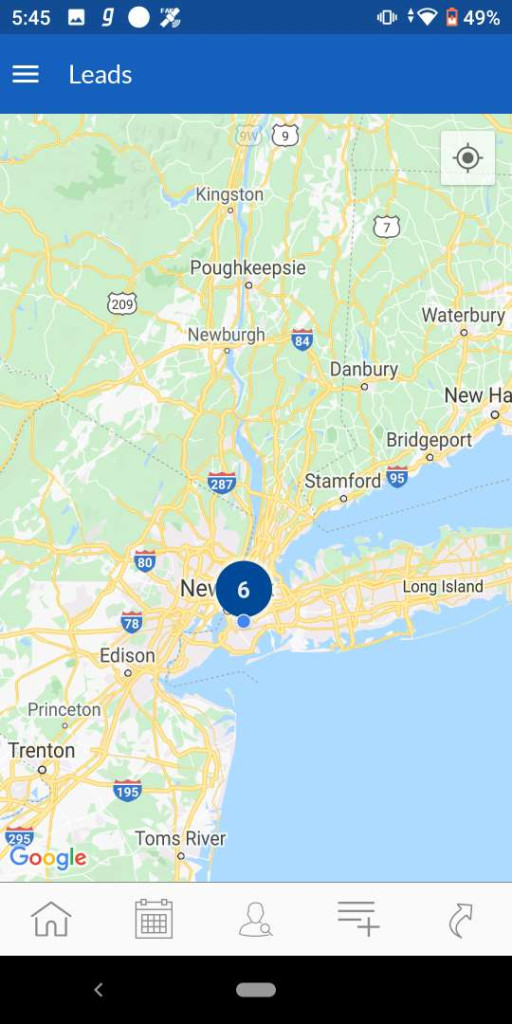
- *Admin have the right to enable/disable the map view for all the records related modules.
- Admin
- Record Map view setting is accessible using the following path:
- Go To Settings > Other Settings > SalesHiker Mobile App Settings > GEO Location Tracking.
- Admin users can Enable/Disable the map view for record related module’s with Turn ON/OFF Record Map View.
- Admin
Record Options
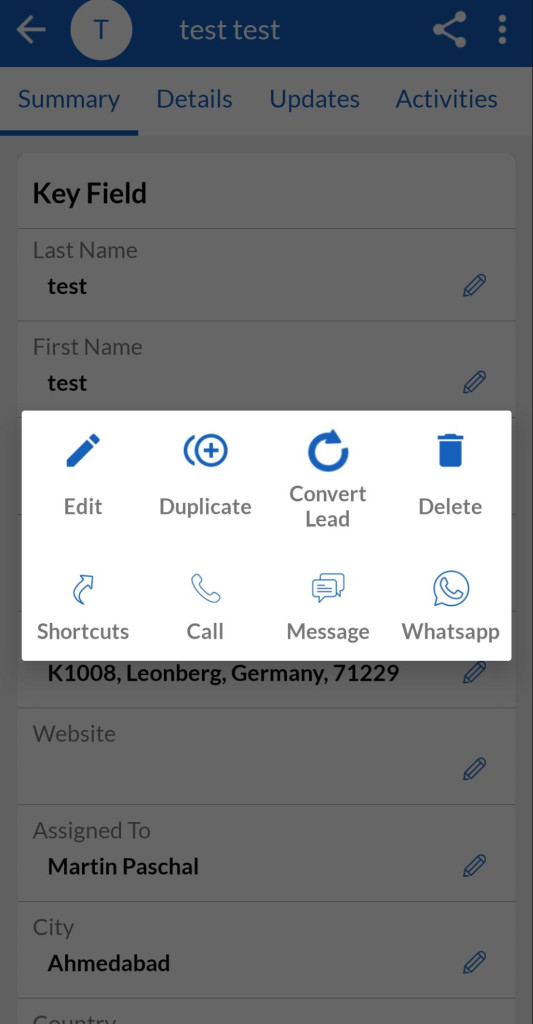
This option allows users to perform a few functions such as Edit, Share, Duplicate, Convert, Call and many more.To access the lead options click on the  on the right top corner of the Lead summary page. The following are the options users will
- Edit – allows users to edit lead information.
- Duplicate – allows users to duplicate the record.
- Convert Lead – allows users to transfer lead to contact/opportunity/organization.
- Call – Users can approach a call directly using this option.
- Message – allows users to leave a message to the individual lead.
- Whatsapp – allows users to approach leads on whatsapp to the individual lead.
- Shortcuts for quick access this option allows users to add shortcuts of an individual lead on the home screen.
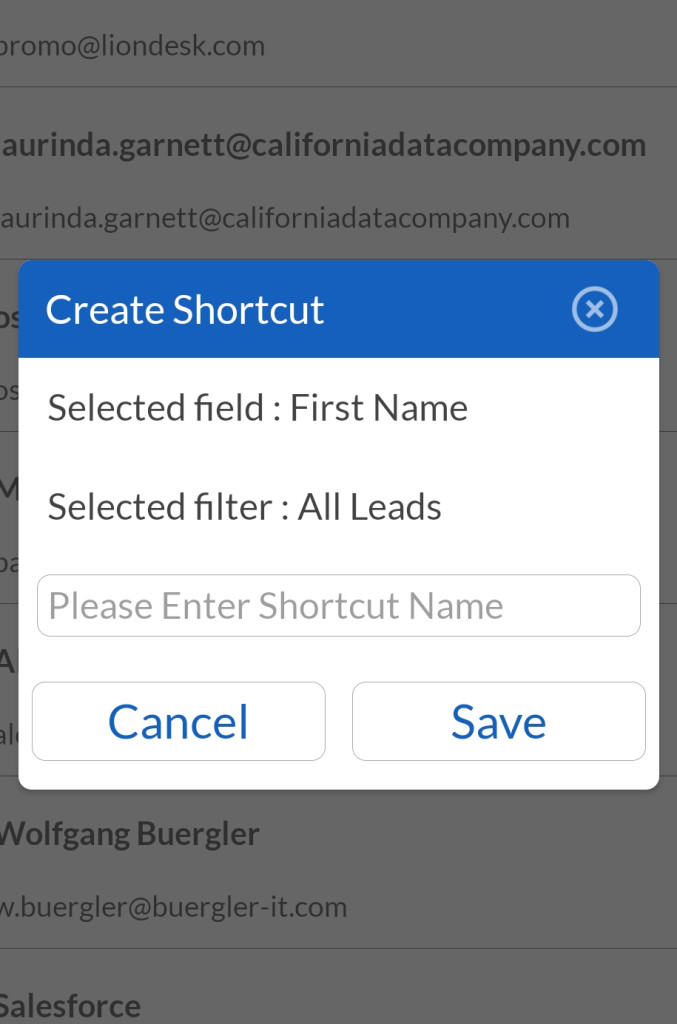
– Click on the shortcut option to create a shortcut. – It will lead to a pop-up form. Add Shortcut Name and save.
Customize Record Display Fields
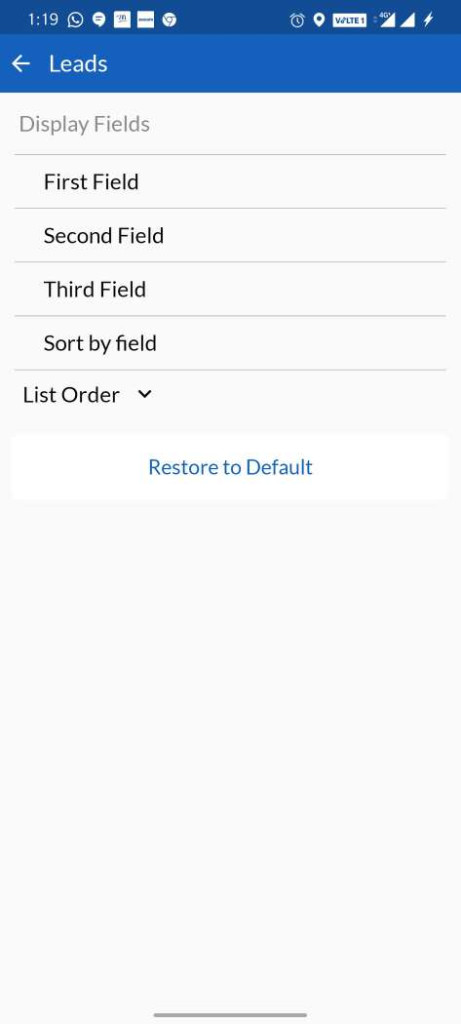
This feature allows users to customize record field display order based on the information priority user would like to set in record as required.– In the lead module, Go to settings  , to change display fields.– In Display fields users can select from the drop down list for the First field, Second field, Third field .
- Allow module access
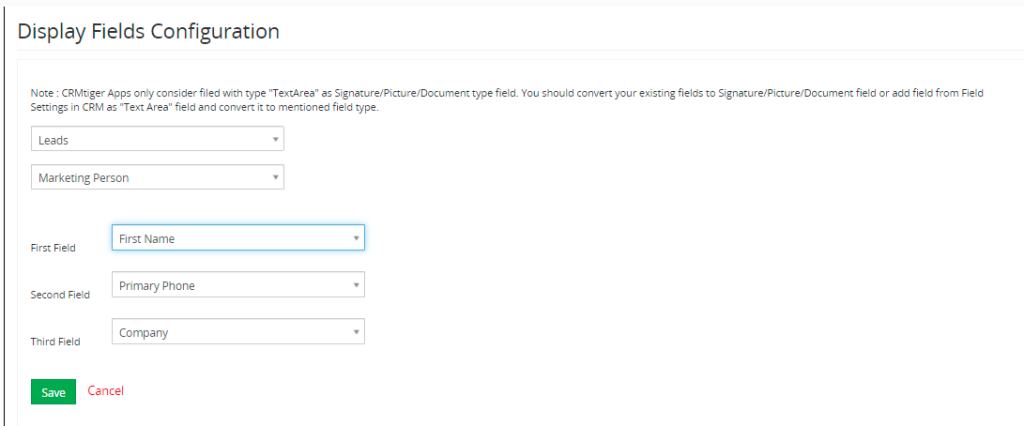
Admin users are allowed to change the primary order of users record display fields, for ex. Set First Field like First Name, Phone number, company … in record information display , likewise set Second Field, Third Field.The Display field settings are accessible using the following path :
- Go To Settings > Other Settings > SalesHiker Mobile App Settings > General Settings > Fields Configuration.
- Refer Display Fields Configuration.
- Select the module such as leads, contacts, organization, calendar, etc..
- Select User admin would like to change display field order.
- Select for First fields, Second fields, Third fields for display order and save.
Quick Record Search
This feature allows users to search an individual lead/record using different parameters such as search by First Name, Last Name, Phone number, Company etc.Multiple field search
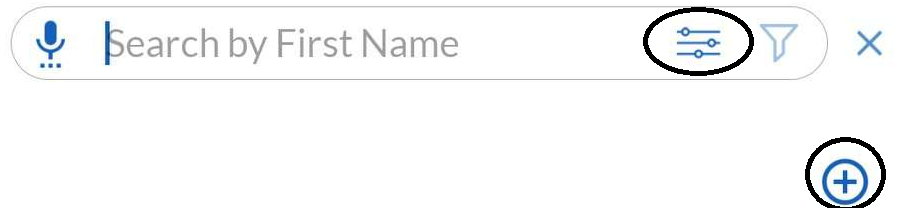
– This Feature allows users to set multiple search criteria using add multiple field search fields against record modules.
– Referring to any record module, as shown use search option or add search fields option.
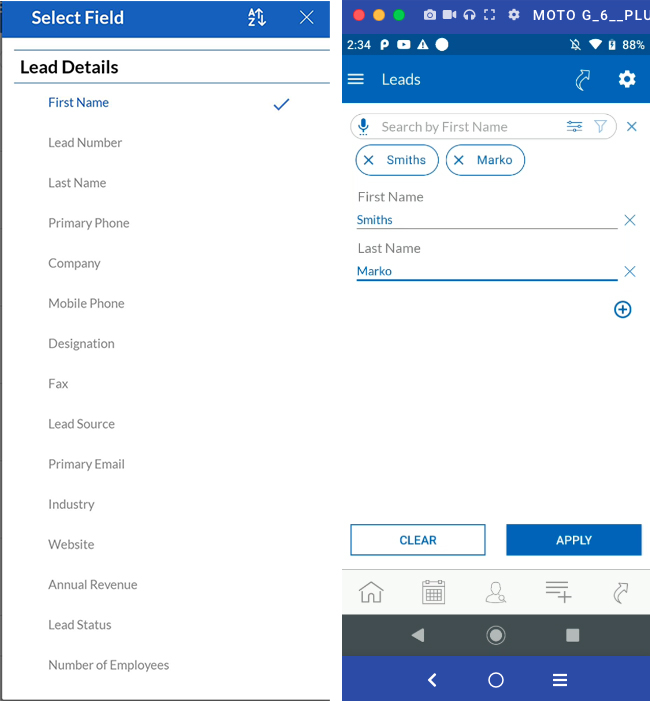
– When clicking on the search option, it will give a list of search fields the user might want to search with.

– Users can search with more than one parameter using multiple searches.
Search by Custom Filter
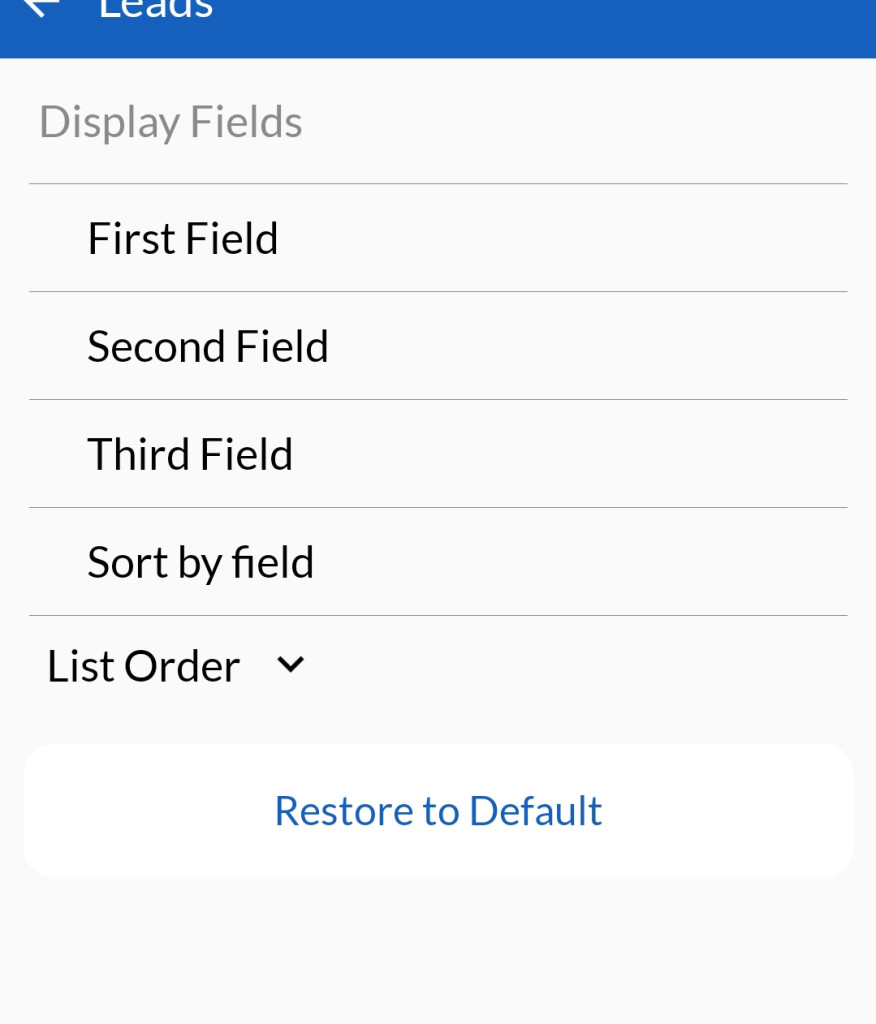
- This feature allows users to filter records using parameters such as the first field, second field, and third field to narrow down the search criteria.
- It also allows users to sort records using the list order option in ascending or descending order.
Custom Filter
- Filter-by-option allows users to create filters with custom conditions to ease record sorting.
Create Filter
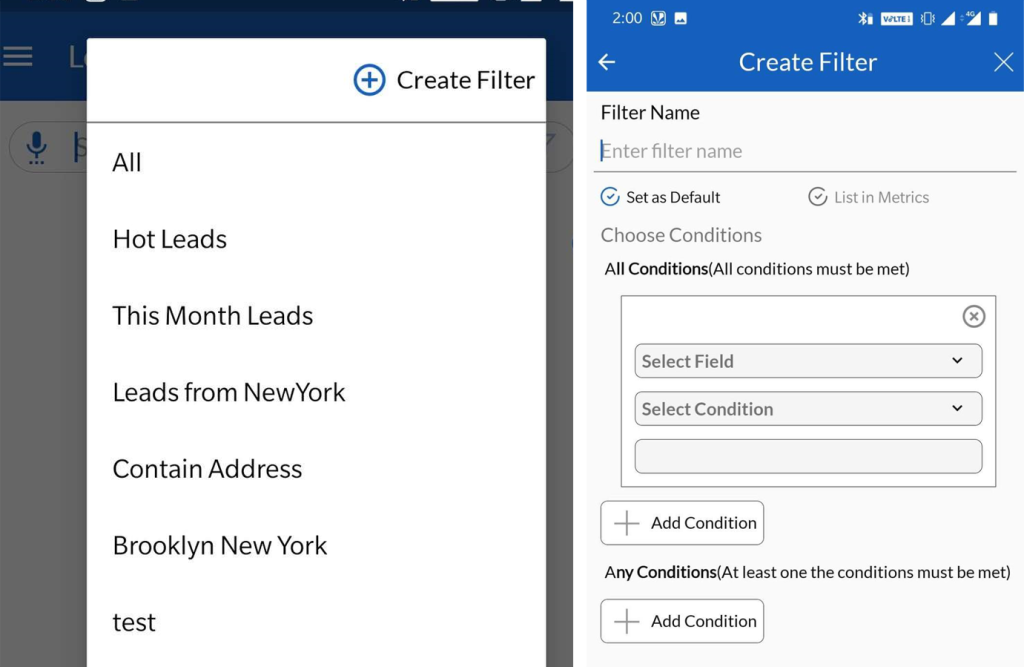
The following are the steps to create own custom filter :
- Click on Create Filter.
- Enter the Custom Filter Name.
- Users can set this filter as a default filter or add it to the list of filters using List in Metrics and sort data using the parameter when required.
- Set a field using which users want to sort records, such as first name, last name, phone number, company, etc.
- Select conditions such as equals to, start with, end with, etc., and save.
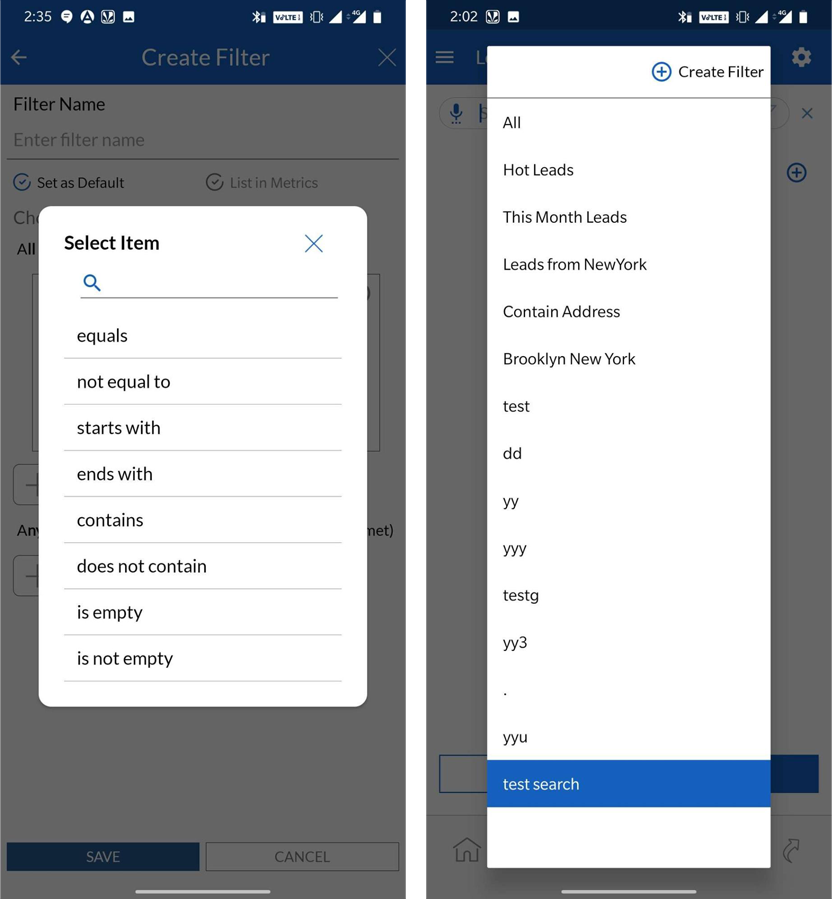
- Once saved it will appear in the list of filter metrics.
Share Record
- This feature allows users to share leads or records with other users using supporting apps available on their devices, such as WhatsApp, mail, contacts, SMS, etc.
- Users will receive the shared resource in the form of a link that can be accessed by clicking on the link to view the resource.
- Users can share individual leads, contacts, or organizations using the share record option .
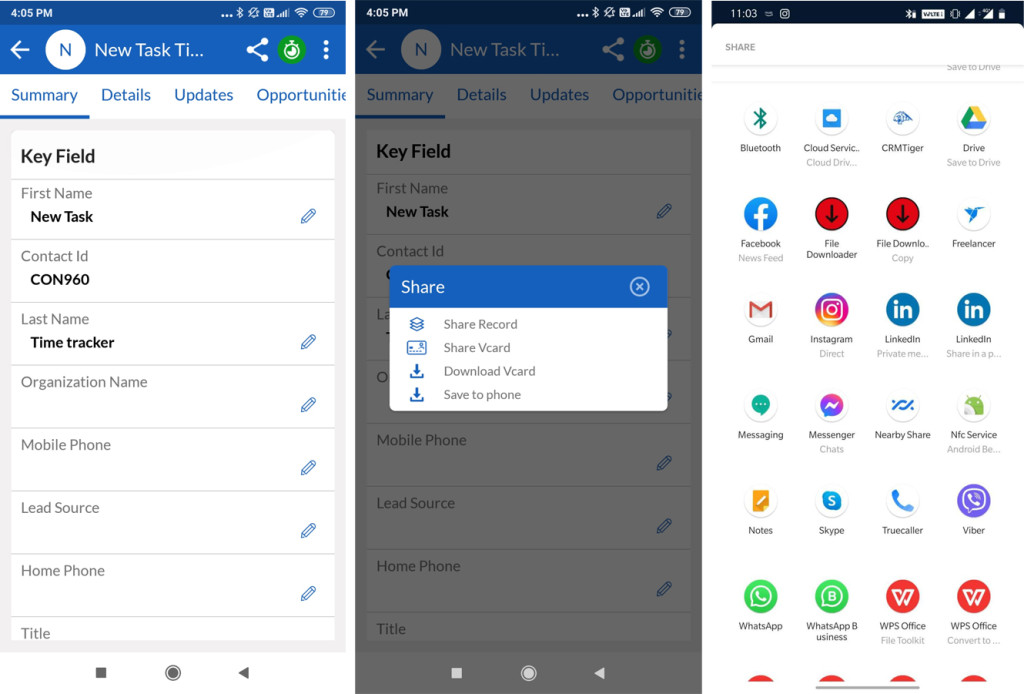 Share vCard
 - This option allows users to share a Vcard of any record directly with other users on supporting apps available on the device that has the SalesHiker app.
- Users can save record vcards on the device using the Save to Phone option.
- Admin
- Admin users can control the fields to be exported in the vcards while using the Share/Download Vcard option.
- Admin users can access the Vcard configuration settings using the following path:
- Go to Other Settings > SalesHiker Mobile App Settings > SalesHiker Mobile Apps – Fields Configuration > VCard Configuration.
- To configure or change the default settings of record fields, admin users are required to select the module, i.e., contacts, leads, or vendors.
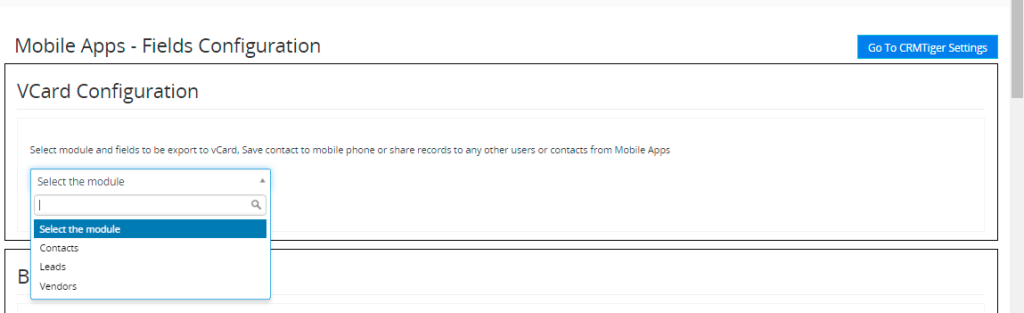
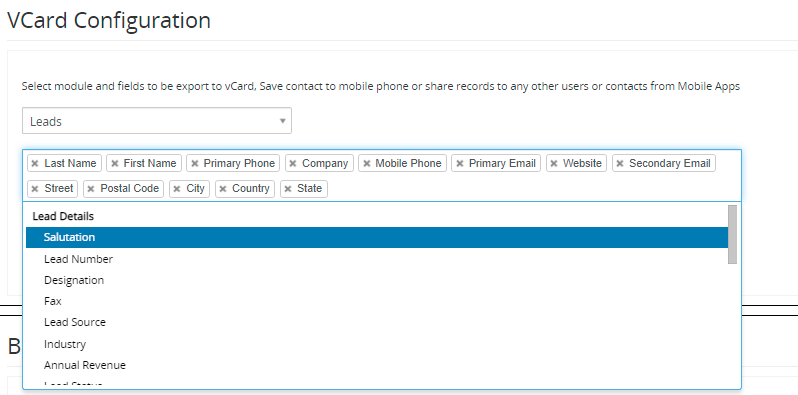
- Upon selecting the module, ex. Leads, admin users can add/remove required fields for the individual module and save.
- These settings will allow users to include required fields in the record vcards.
Asset/Card scanner
- Admin
- Admin users have control over this feature access. For users to access this feature, admins must enable it using premium feature management.
- Premium Feature Management settings are accessible using the following path:
- Go To Other Settings > SalesHiker Mobile App Settings > SalesHiker Mobile Apps – Feature management > Premium features management.
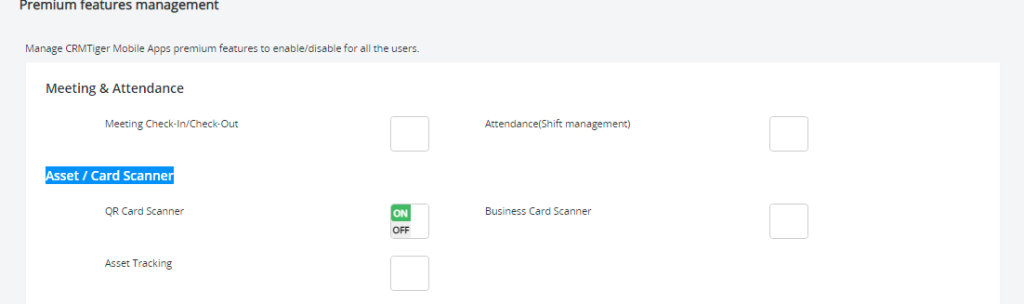
- Refer to Asset / Card Scanner configuration.
- To allow users to access QR/card scanner and Asset Tracking Turn ON/OFF the following options :
- Go To Other Settings > SalesHiker Mobile App Settings > SalesHiker Mobile Apps – Feature management > Premium features management.
- QR Code Scanner
- Business Card Scanner
- Asset Tracking
Card Scanner
This feature allows users to scan assets such as a business card, QR code, product barcode, or product ID, which can be added as leads, contacts, or opportunities.
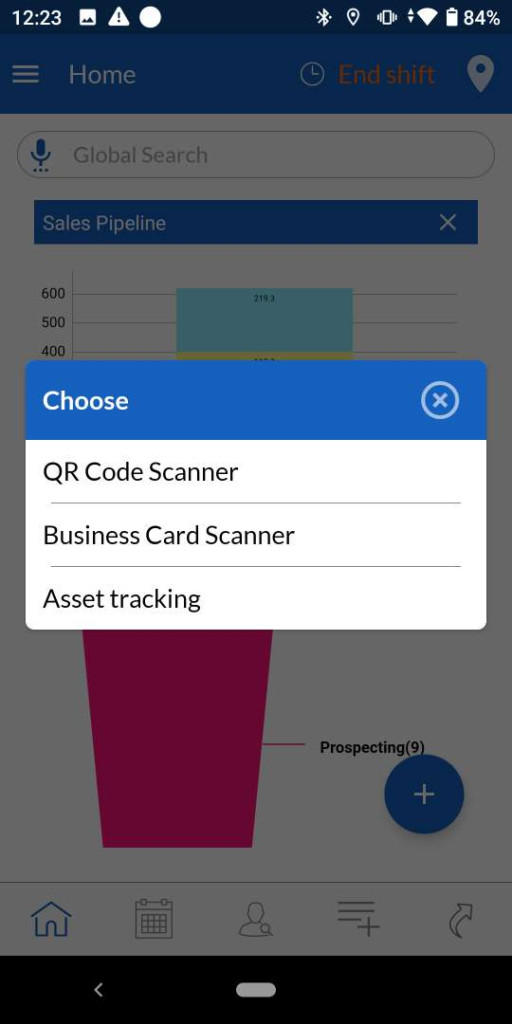
QR Code Scanner
This feature allows users to scan QR codes using the device camera of an organization or business, and this feature will help users fetch details automatically from the form fields and create a vcard for the records.
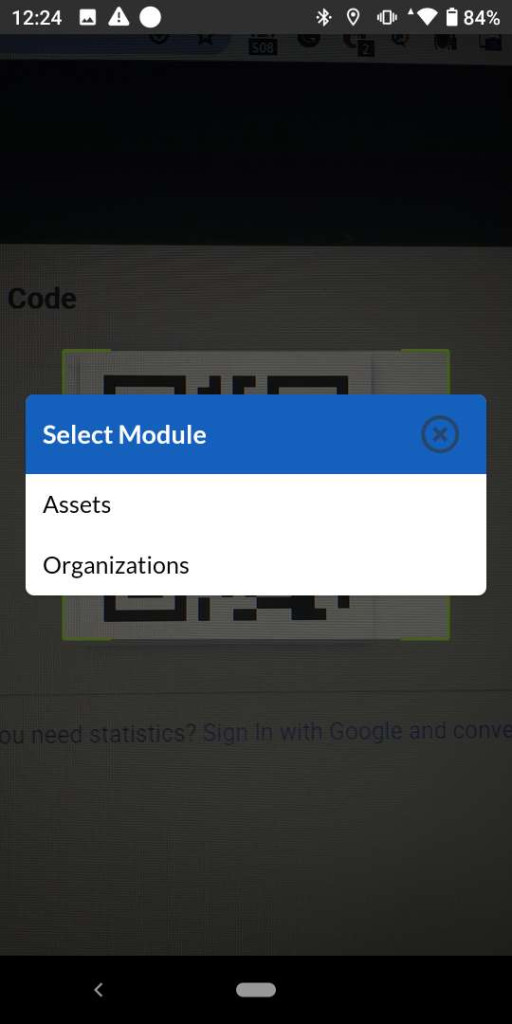
Select the contact type upon scanning QR Code.
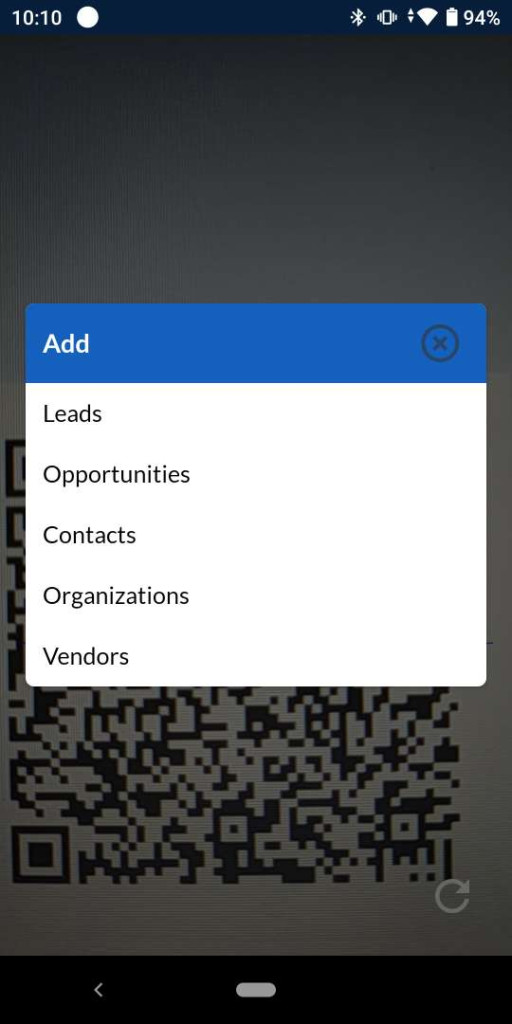
– Enter the required details in the selected contact type pop up form.
– Save the record as lead/opportunity/contact/organization/vendor.
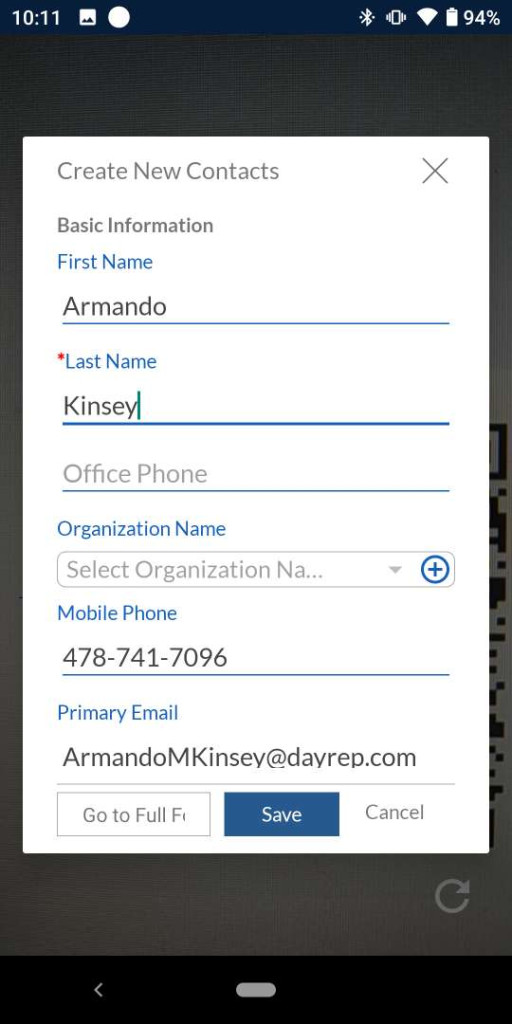
Business Card Scanner
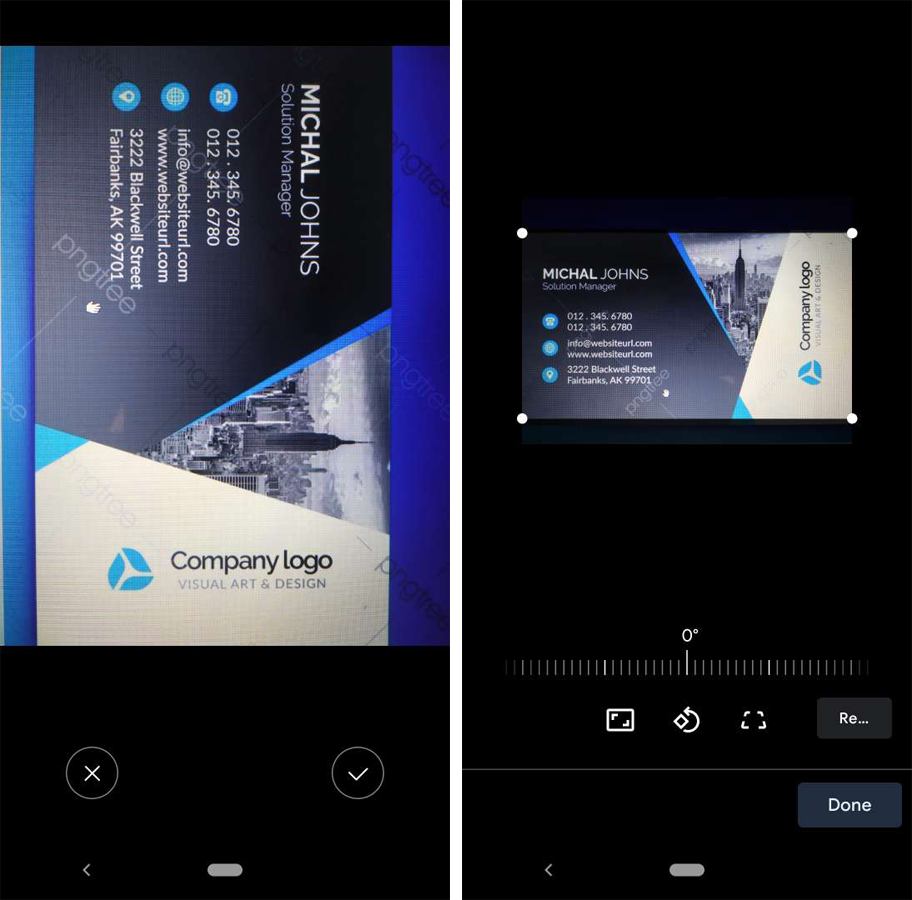
– If any business card doesn’t have a QR code, this feature allows users to scan business cards using a device camera to fetch details such as business name, person name, email, or phone number that will automatically fill in the required details to add the record.
– Adjust or edit the capture.
– Retake if required.
– Done to move further with a record entry.
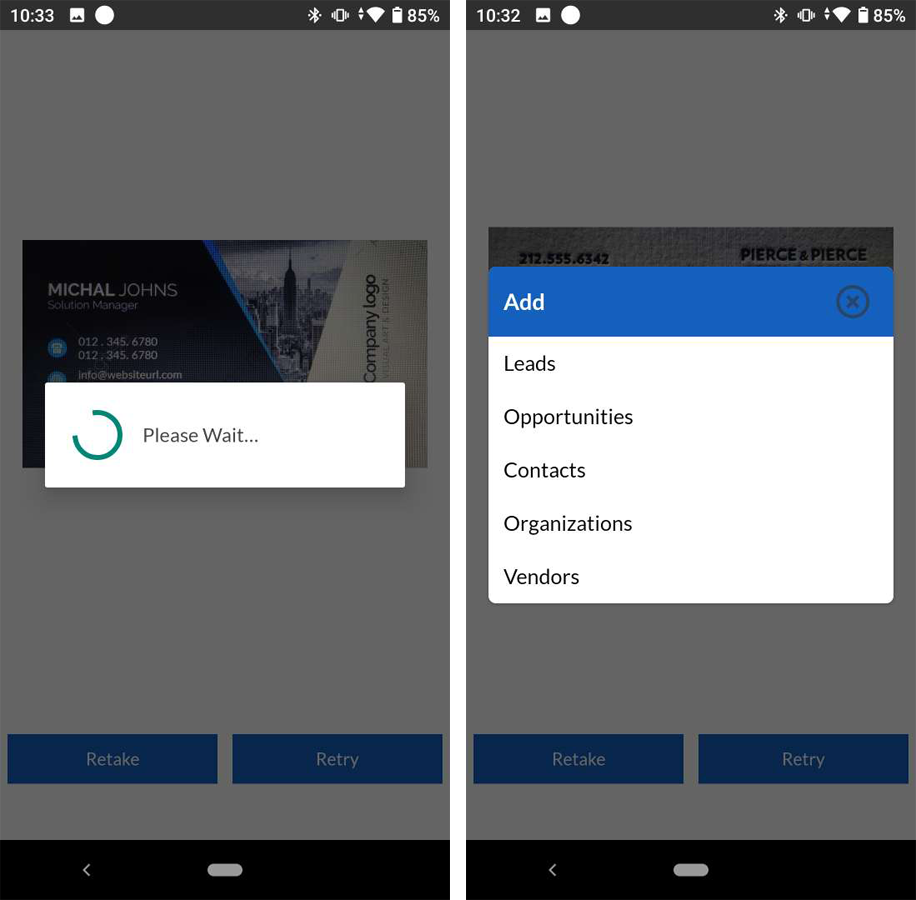
– Select the contact type of scanned card.
– Enter required details in the selected contact type pop up form.
– Save the record as leads, opportunities, contacts, organizations or vendors.
Asset tracking
– This feature is very useful for warehouses and organizations that have large numbers of assets to handle. Using this feature, they can scan the barcode available on a particular product, and the app will open those product details. The user can view or update required details, like stock management.
Admin
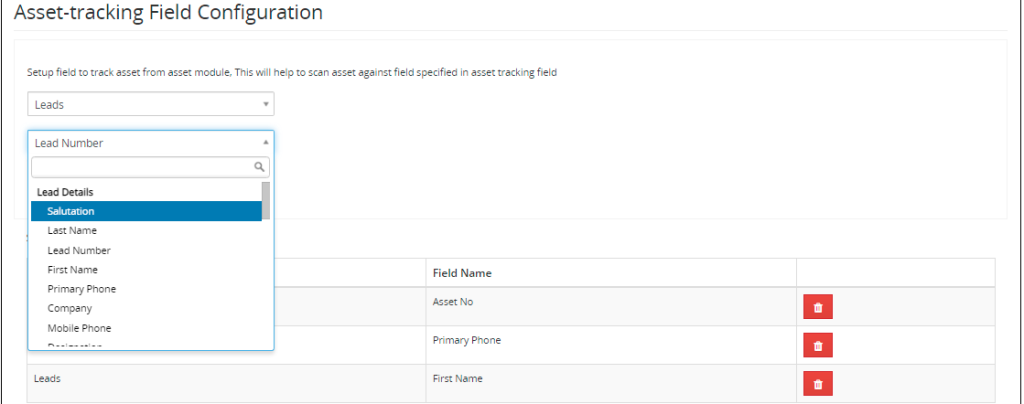
Admin users can control the asset fields of tracking against asset modules such as leads, contacts, organization, calendar, tickets etc.
Asset tracking field configurations are accessible using the following path :
- Go To Other Settings > SalesHiker Mobile App Settings > SalesHiker Mobile Apps – Fields Configuration > Asset-tracking Field Configuration.
- Select the asset module against which the user needs to track.
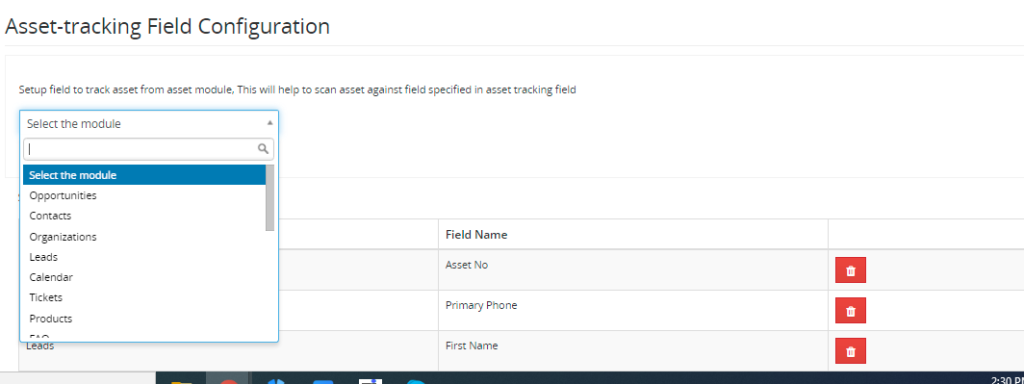
- Select the field of the asset module specifically against which tracking needs to be set and save the configuration.
- Barcode Field Configuration
- This feature allows admin users to set up the field of products for barcode scanning, such as product number or ID, product name, part number, etc., to add to the inventory.
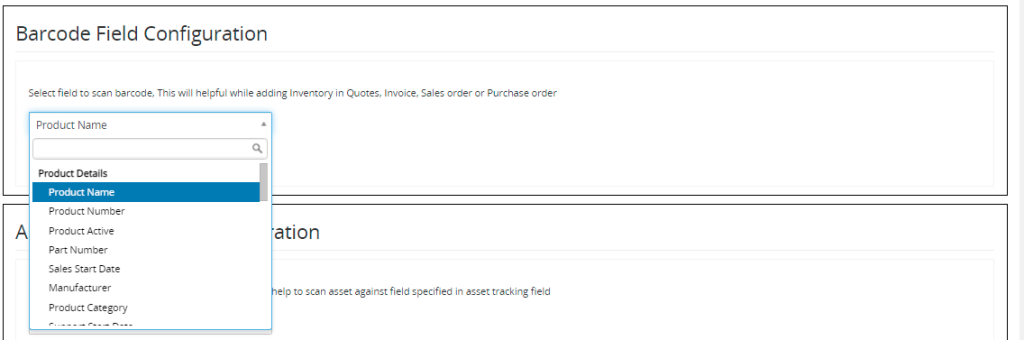
Barcode field configurations can be accessible using the following path :- Go To Other Settings > SalesHiker Mobile App Settings > SalesHiker Mobile Apps – Fields Configuration > Barcode Field Configuration.
- Select the product field to scan the barcode and save.
Live Tracking
- This feature will allow the admin or sales head to live track their on-field salesperson.
- Admin can control the live tracking list of users.
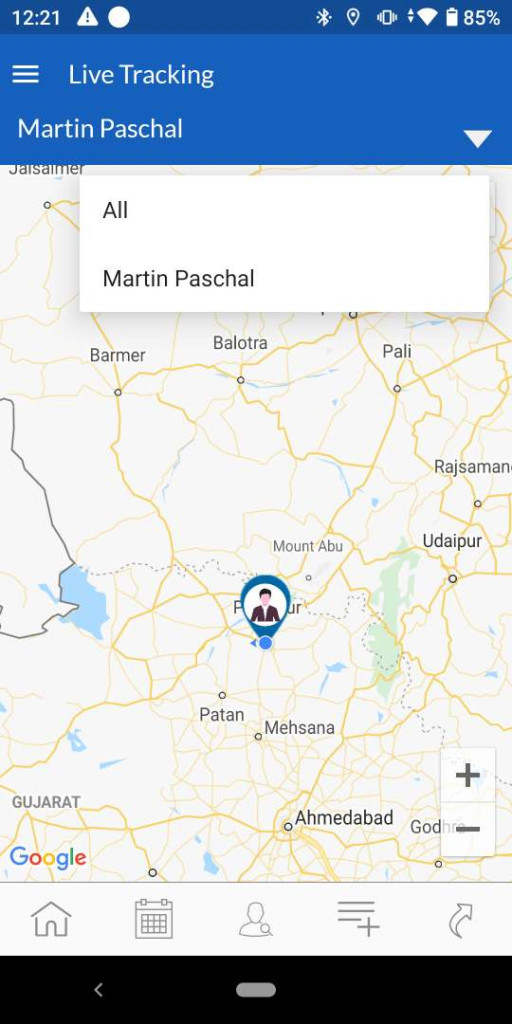
- Admin
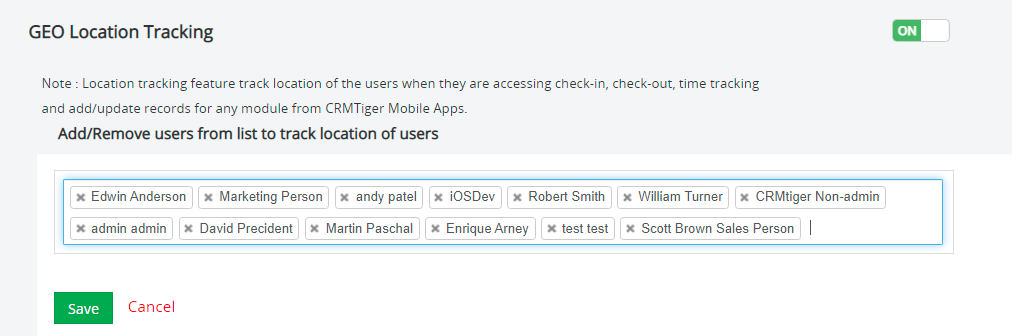
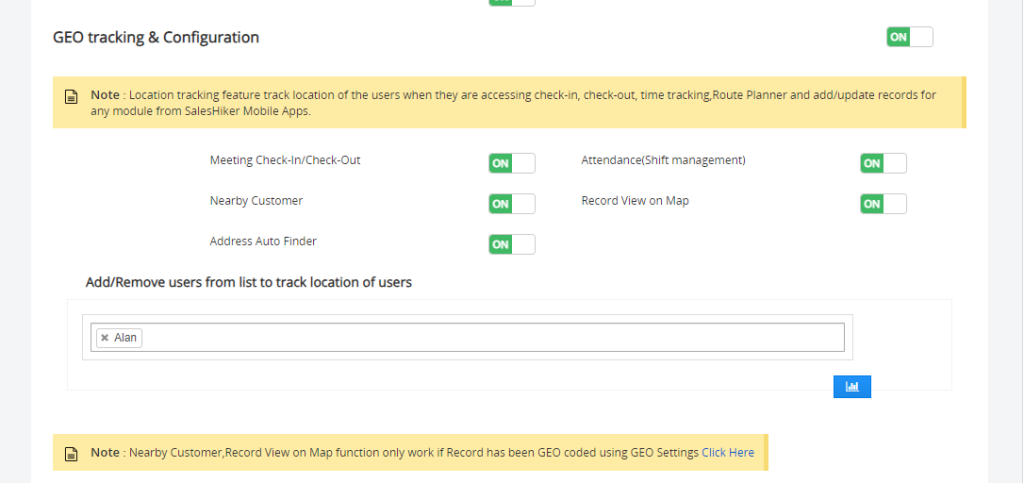
- Live tracking allows admin users to build a user list for whom they wish to set live tracking. Admins can add or remove users from the tracking list.
- Live tracking user settings are accessible using the following path :
- Go to Settings > Other Settings > SalesHiker Mobile App Settings > GEO Location Tracking
- Turn on or off the GEO location tracking to enable or disable live tracking.
- Add or remove the users from the list of locations that need to be tracked.
Electronics Signature
- This feature helps users with delivery- or service-based requirements where customer approval is required upon delivery or service completion by a team member.
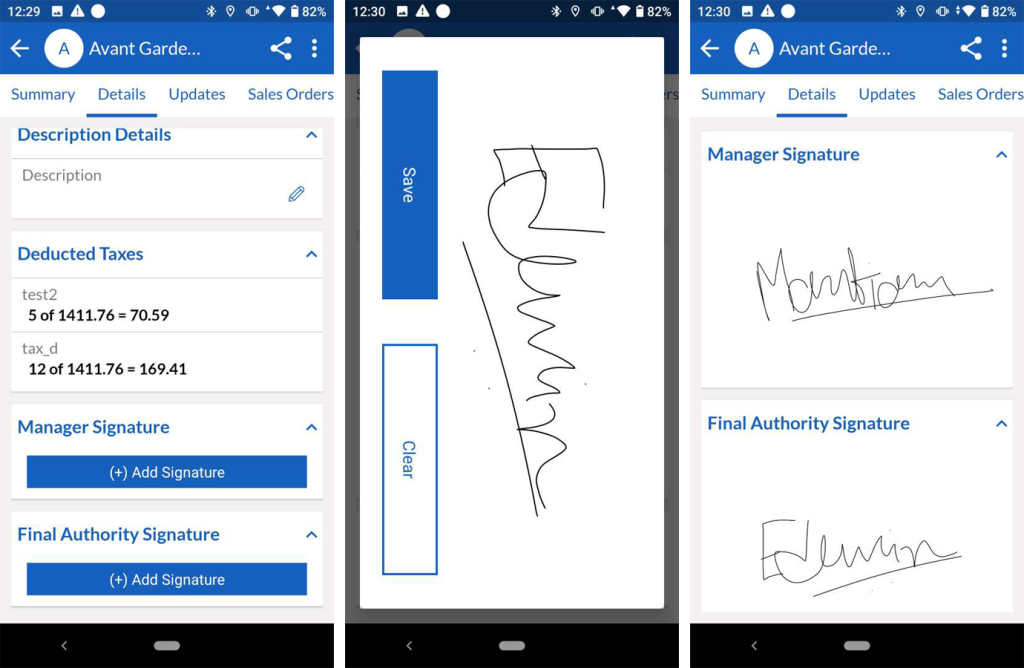
- Admin
- This feature allows users to set up the signature field type against sales or service-based modules.
- Signature fields configuration are accessible using the following path :
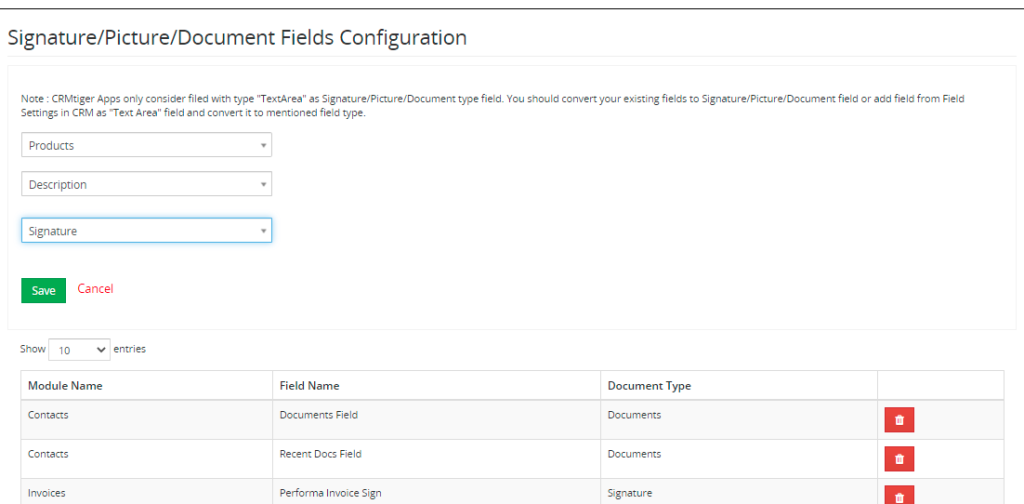
- Go to Other Settings > SalesHiker Mobile App Settings > SalesHiker Mobile Apps – Fields Configuration > Signature/Picture/Document Fields Configuration
- Select the module, such as product, leads, or opportunity, for which admin users are required to set up the signature type.
- Select the module Signature field.
- Select the signature field type and save.3
Site Inspection/Visit
- This feature is useful for industries that include site work such as construction and mechanical, where users may take pictures highlighting specific areas and taking notes.
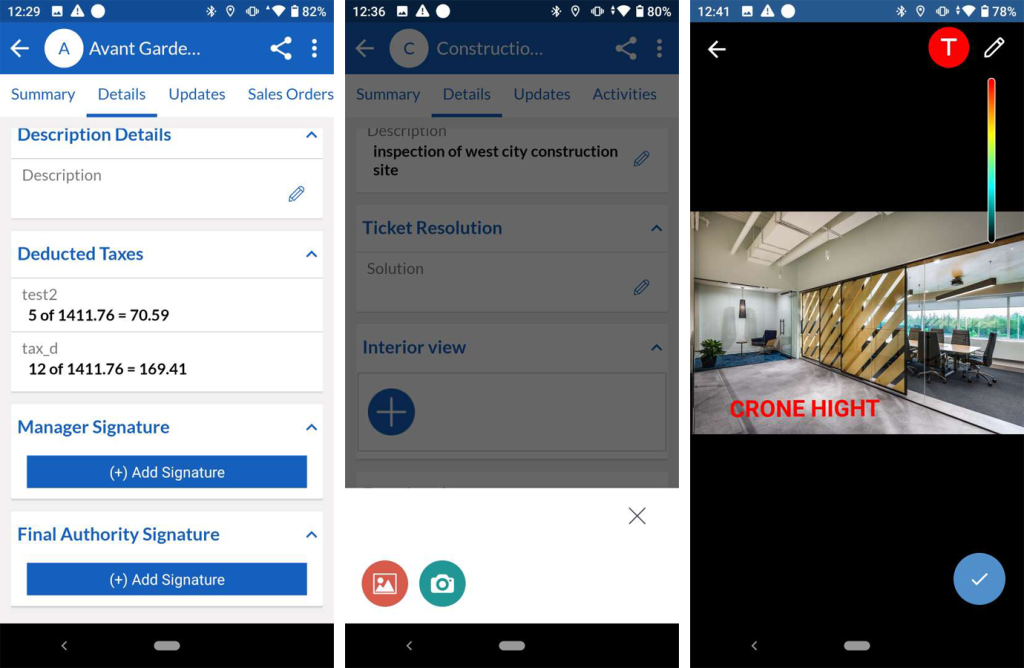
- Admin
- This feature allows users to set up the photo/document type against the visit/project based modules.
- Photo/Document fields configuration are accessible using the following path :Electronics Signature
- Go to Other Settings > SalesHiker Mobile App Settings > SalesHiker Mobile Apps > Fields Configuration > Signature/Picture/Document Fields Configuration
- Select the module, such as project, site, organization, or opportunity, for which admin users are required to set up the picture or document type.
- Select the module field.
- Select the picture or document field type and save.
Route Planner
- Admin
- Route planner gives admin users control over building the user list that can access assigned routes.
- Route planner configuration settings are accessible using the following path :
- Go to Other Settings > SalesHiker Mobile App Settings > General Settings > Route Planner Configuration.
- Add users to be considered in route planner.
- Distance of the Route can be considered in miles/kilometers from the admin settings.
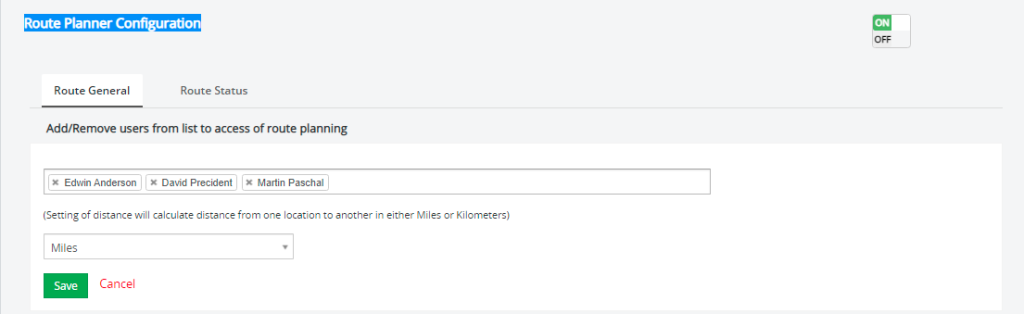
- Turn ON or OFF the Route Planner configuration to enable or disable users accessing Route Planner.
Create Route – Team Head
- This feature allows Admin Team head to create routes using this feature for team members. The following are the steps.–
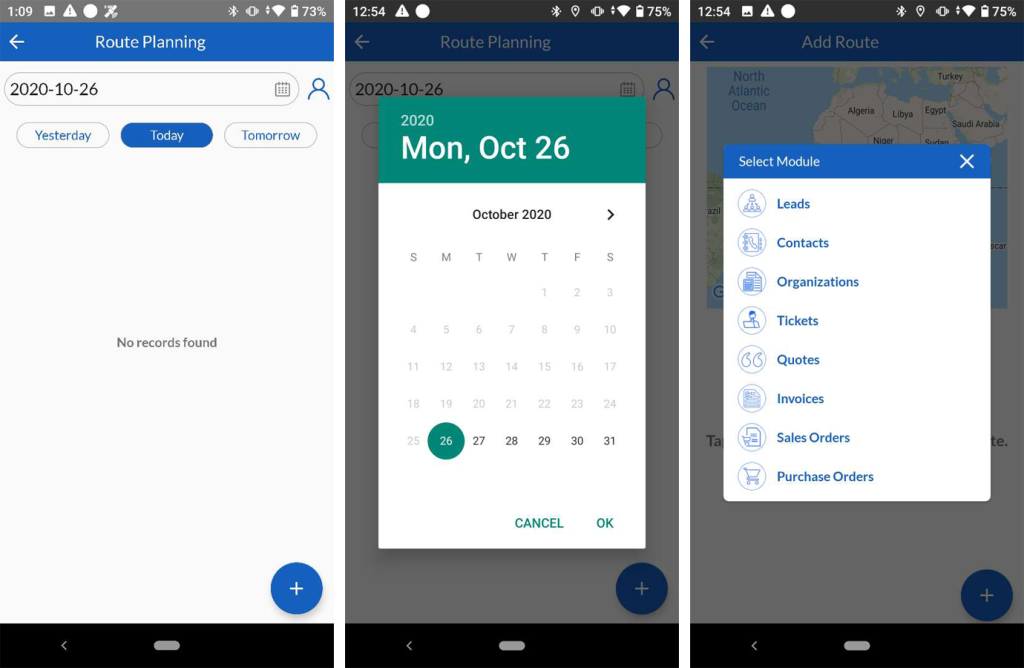
- Go to Route Planner.
- Select the date of a route.
- Click on create route at ight bottom.
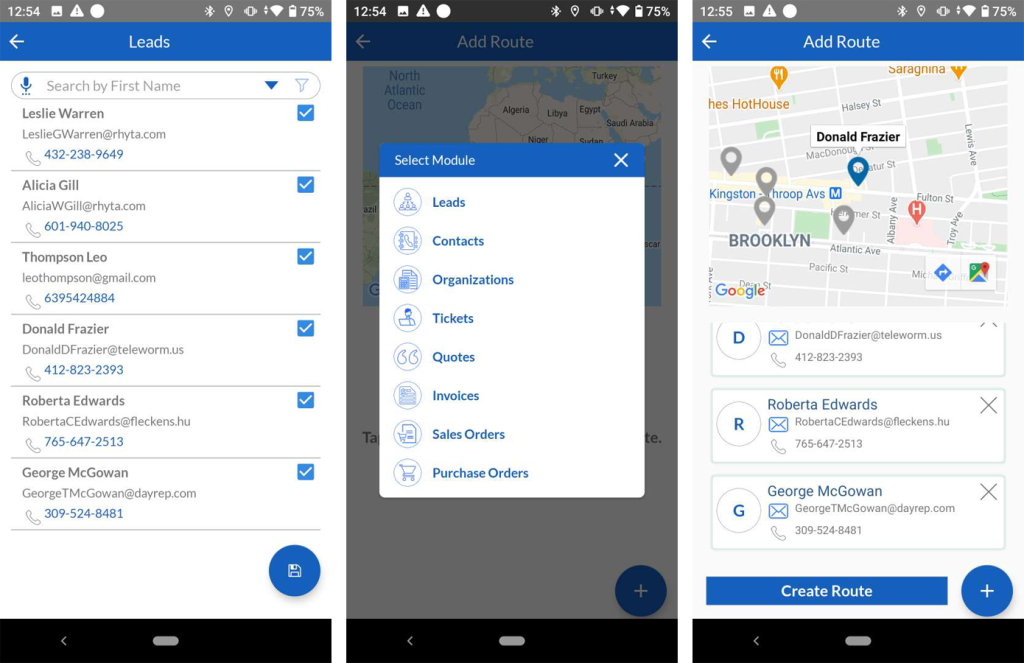
- Select modules of Route such as leads, contacts, organizations etc.
- Select one or multiple routes from the modules.
- Proceed further by click on the Create Route button.
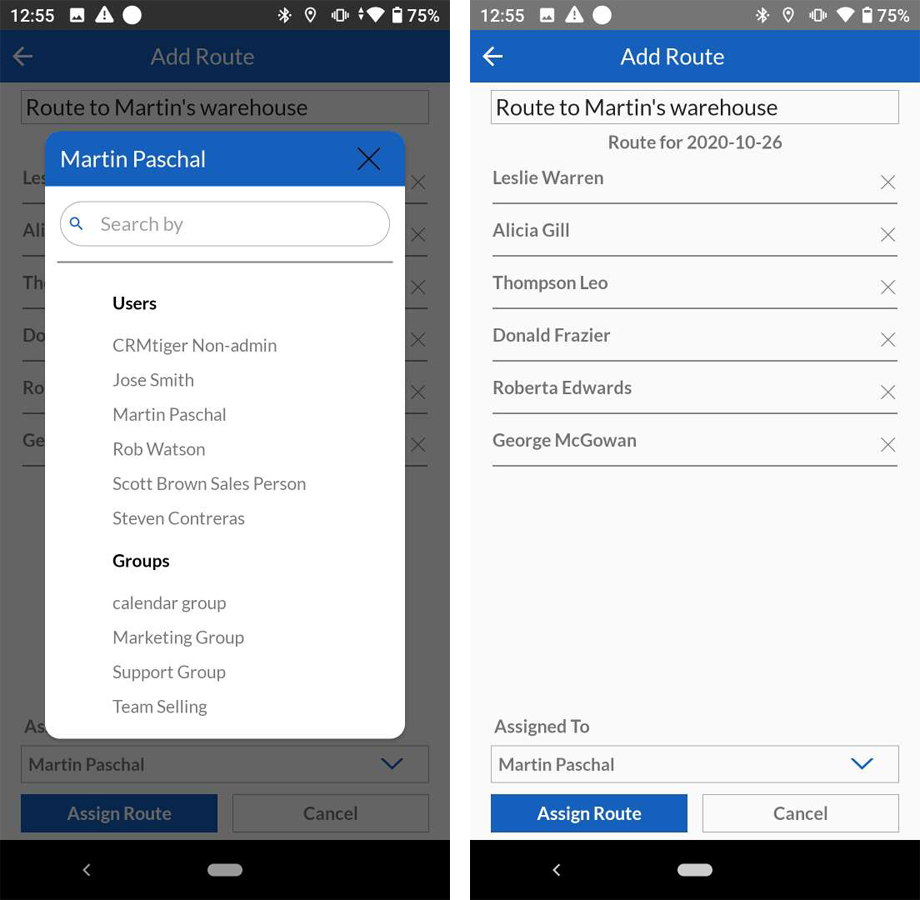
– Select team members or groups to be assigned to.
– Add route title.
– Assign Route.
- Follow Assigned Route – User/Team member
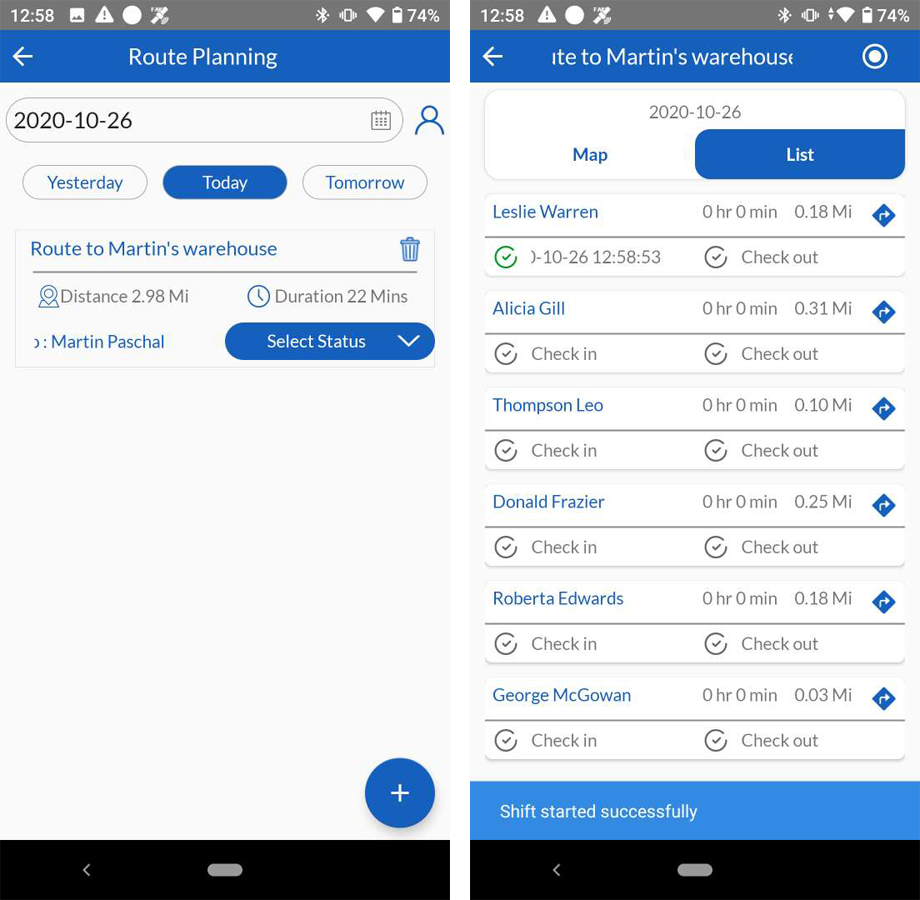
- Assigned Route users will be able to see their route planner in terms of list of leads/contacts or organization/opportunity.
- Direction to the route has been given to ease the user’s follow up.
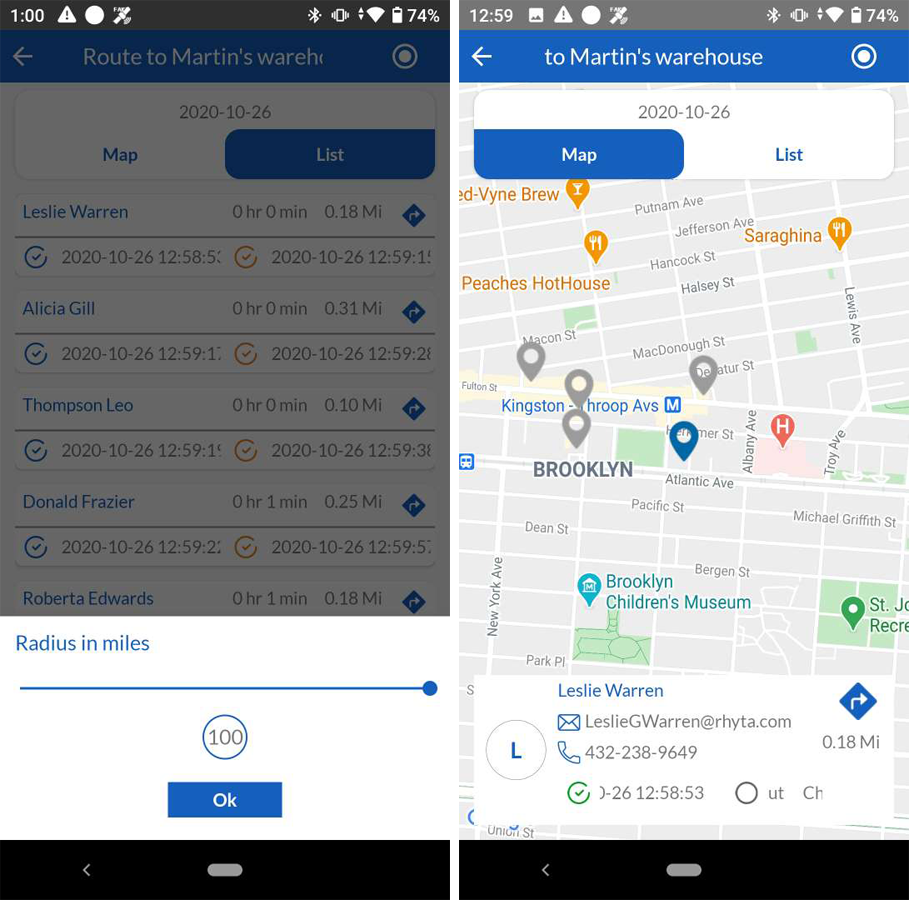
- Narrow down to get leads/opportunities in specific areas/radius using Radius in miles from the list.
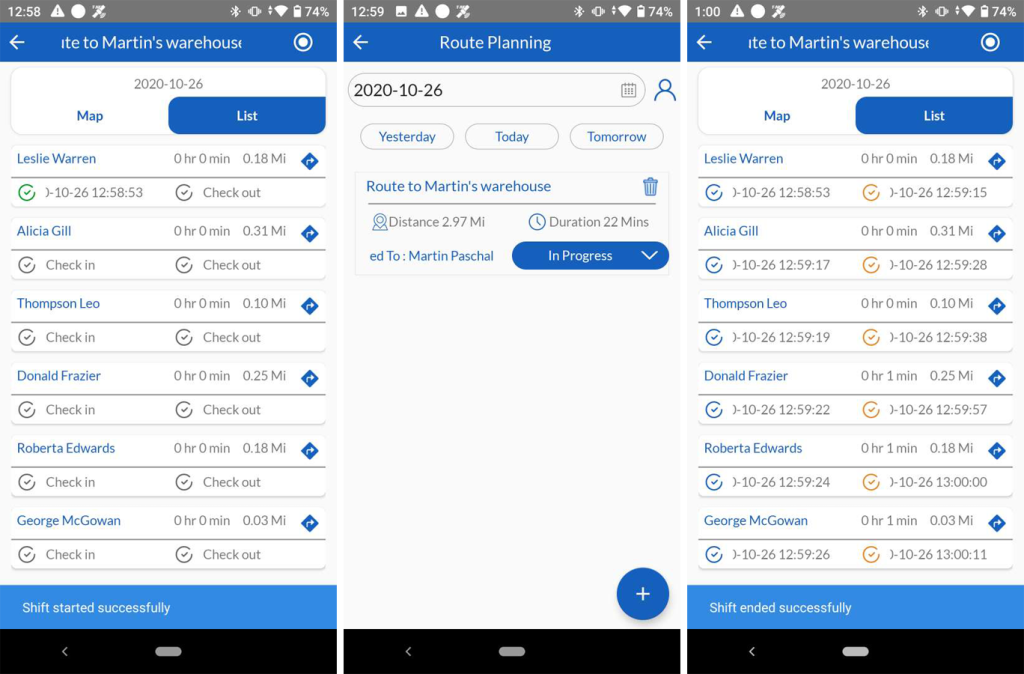
- Check-in – Check-out
- With each route, when a salesperson checks-in to start the shift.
- As starts with the route, the status of the task is required to be updated from Select Status that is In Progress.
- On completion of visit/service, to end the shift , the salesperson clicks on the check-out.
- Update the status to Completed at the end of shift.
- Total working hours will be counted automatically.
- The process is repeated for each route to be followed by the salesperson.
Time Tracker
To keep track of spending time on each route or task by the salesperson, users can add a time tracker for multiple tasks, which users and admins will be able to track from particular tasks along with start-end time and total spend duration.
- Admin
- Admin Users are given rights to add modules for which records against the time tracker can be set. Admins can add or remove modules from the list.
- Timer Tracker Module Configuration settings are accessible using the following path:
- Go To Other Settings > General Settings > SalesHiker Mobile Apps – Feature management
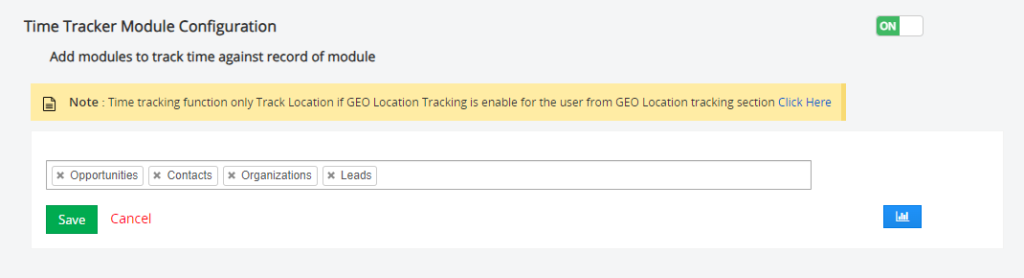
- Refer to Time Tracker Module Configuration.
- Add Modules form against the timer tracker.
- To allow users to access the Time tracker option, Turn ON/OFF Time Tracker Module Configuration.
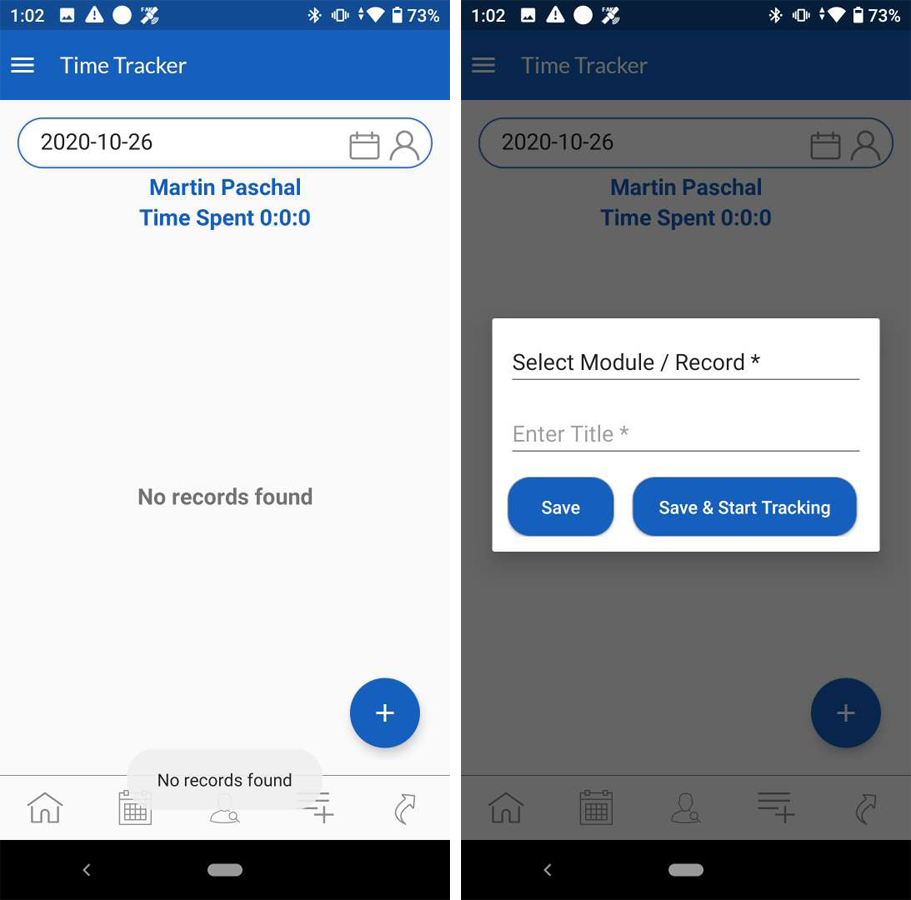
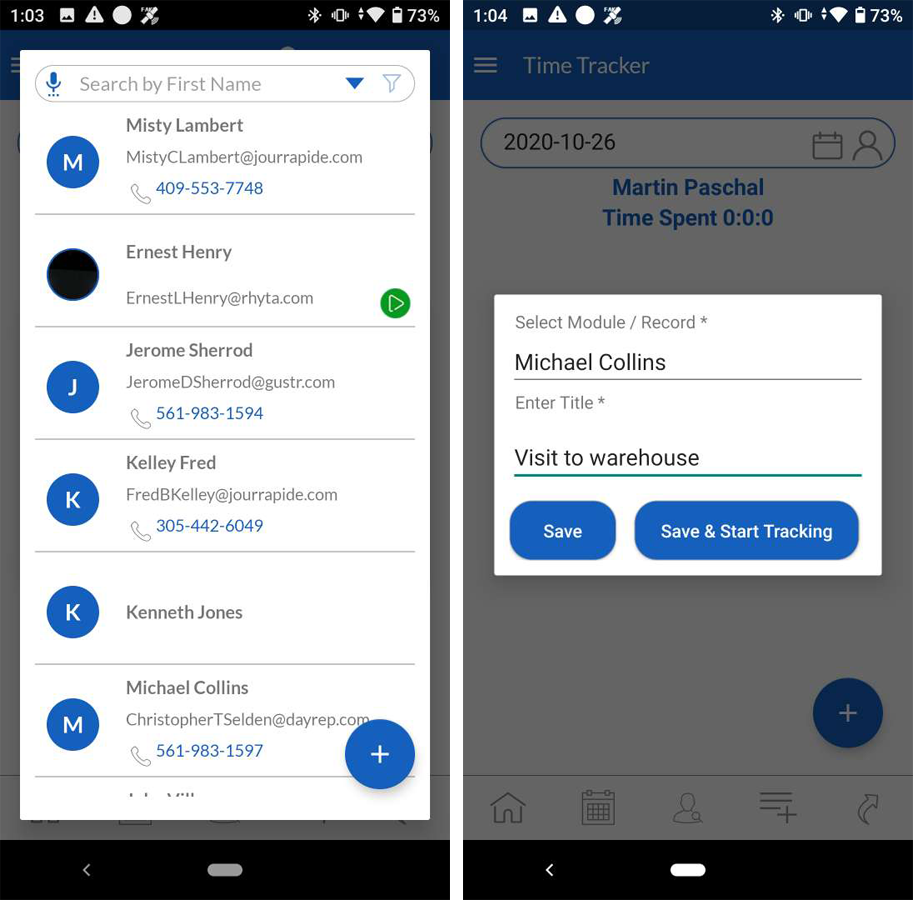
- Click on Add Time Tracker.
- Select module/record from the drop-down for which users want to add a tracker.
- Add a title to the tracker.
- The user can create and save a tracker for future use
- Save and start tracking.
- Once the tracker is created, users can click on the start timer to begin time tracking.
- Users can add notes here if required.
- To end tracking, click on the end timer.
- Go To Other Settings > General Settings > SalesHiker Mobile Apps – Feature management
My List
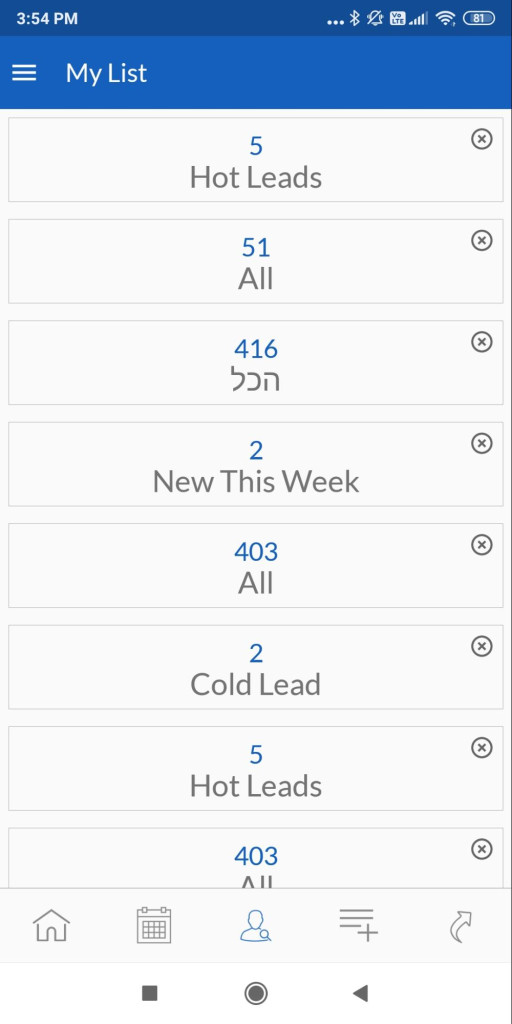
- Personalize your quick view, such as hot leads, open tickets, cold leads, etc., using My List.
- To view detailed information, click on the respective module.
Mobile Apps – Settings
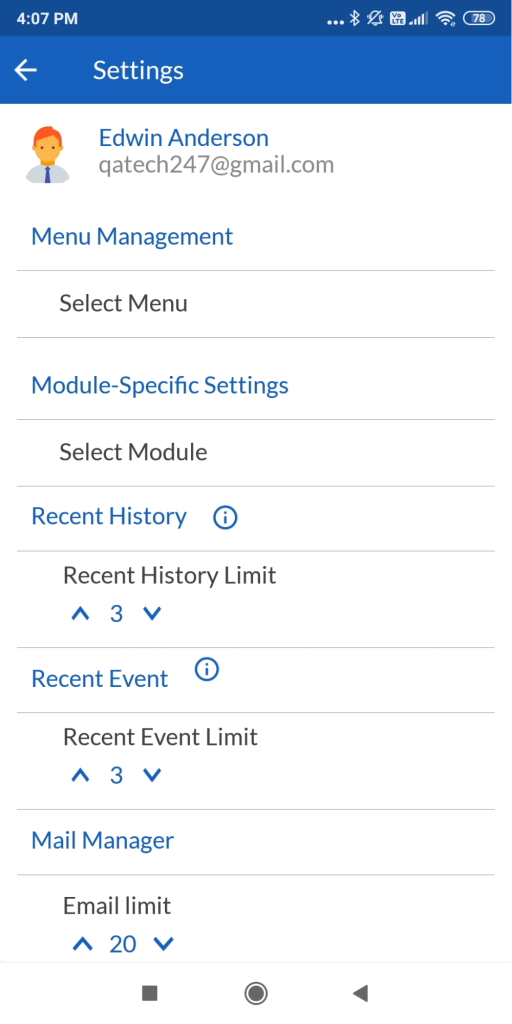
- Customize your screen listing view using the Module Specific Setting feature for the respective modules
- For example, in contacts, users want to modify the display order of details to First Name, E-mail, and Phone Number. Modifications can be made with the help of module-specific settings.
Menu Management
- This option allows users to manage the appearance of the main menu as per its usability. Users can hide or unhide the required main menu module or submodules.
- The menu management settings are accessible using the following path inside the mobile app.
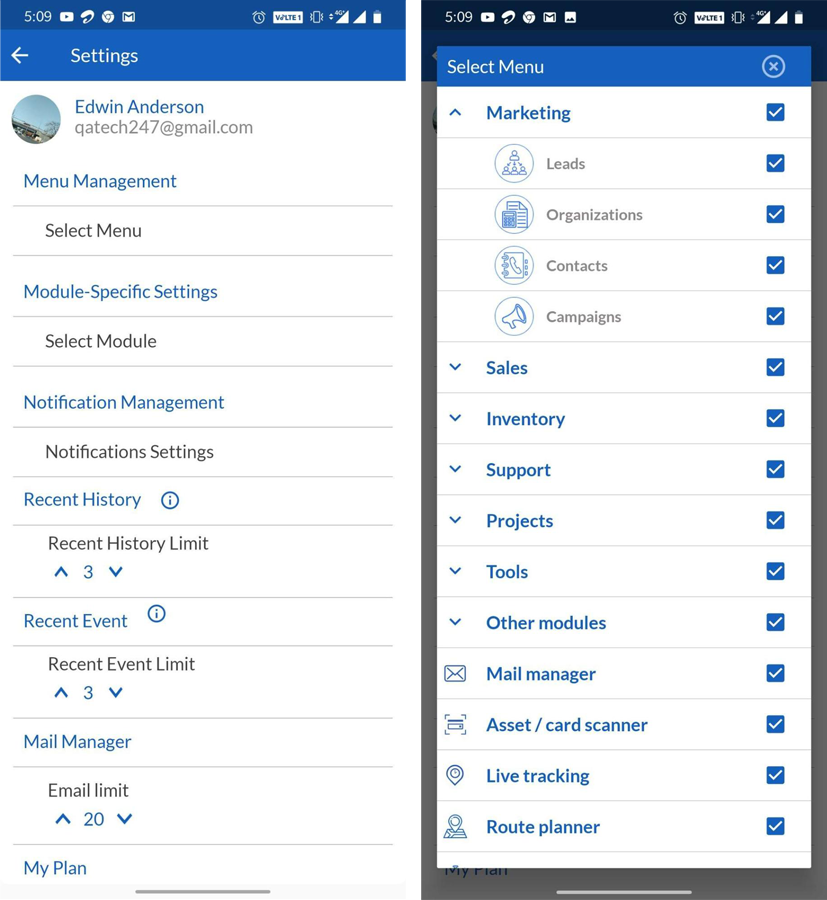
- The following are the step to access the menu management :
- Go to Main Menu > Settings > Menu Management.
- Refer Select menu, which will open up the default menu setup.
- Users can hide or unhide the main menu module or sub-module by marking the check.
Shortcut
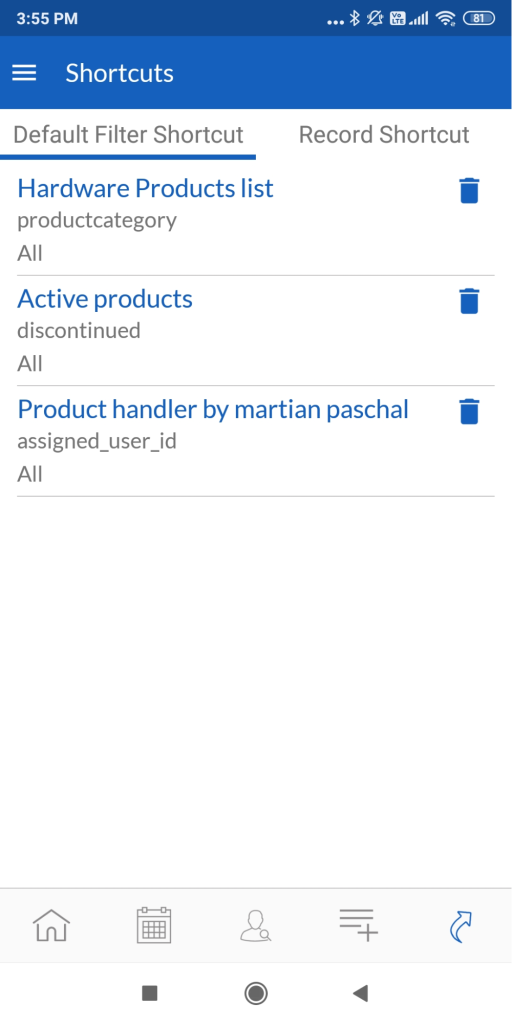
- Add shortcuts to your home screen for quick access to records.
- Types of Shortcut
- Record Shortcut: From any record screen, users can use the shortcut option to add the respective record’s shortcut at home.
- Default Filter Shortcut: From any record screen, users can apply any filter and add a shortcut to search result records at home as a default filter shortcut.
Voice Search
- Speed up search in the record list using voice search.
Comment & Mention Users
- This feature allows users or team heads to mention users in comments in record modules.
- Users can attach voice notes, attach documents, or send a text comment.
- @ mentioned users will receive a notification upon commenting by other users.
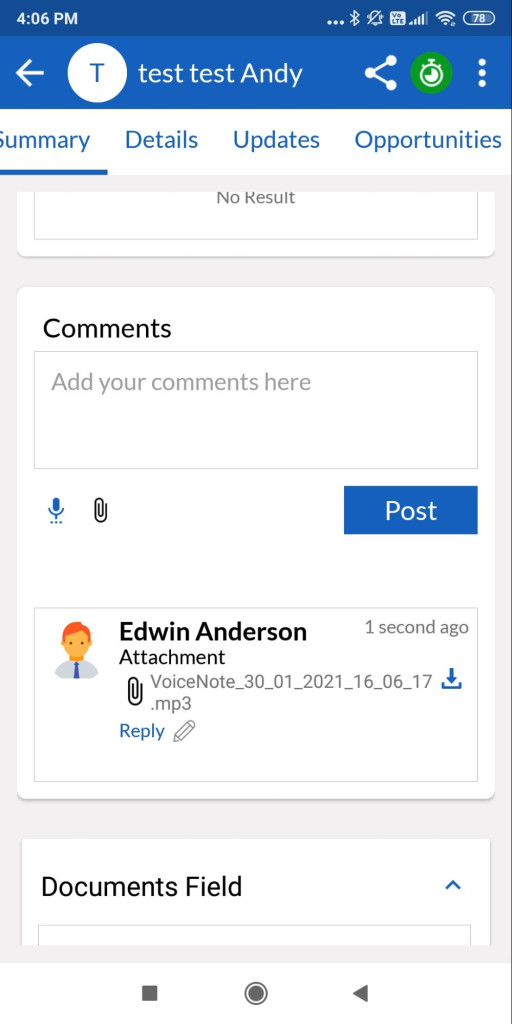
- The comment feature is accessible inside the individual record summary.
- Users can comment using ‘@user_name’.
Call Logging & Recording
- Call logging and recording allow users to log calls when calling prospects or customers from mobile apps by clicking on the phone number.
- This feature is not allowed or available for some mobile devices, like all iOS devices and some Android devices. The SalesHiker team created a list of the mobile devices that allow call logging and recording mentioned in the section “Device Support Call Logging and Recording.”
- Call logging configuration settings are accessible using the following path ;
- Go To Other Settings > SalesHiker Mobile App Settings > SalesHiker Mobile Apps – Feature management .
- Refer Call Logging Configuration to add users in the list.
- Admin users can prefer auto logging by check marking Auto create activities on the finish of call with Date & Time of call.
- This allows users to record calls, calculate call duration, call date & time and save the audio file in the device storage.
Users
- App users can set up the call logging storage path to save audio whenever they complete the call.
- Setting up storage path
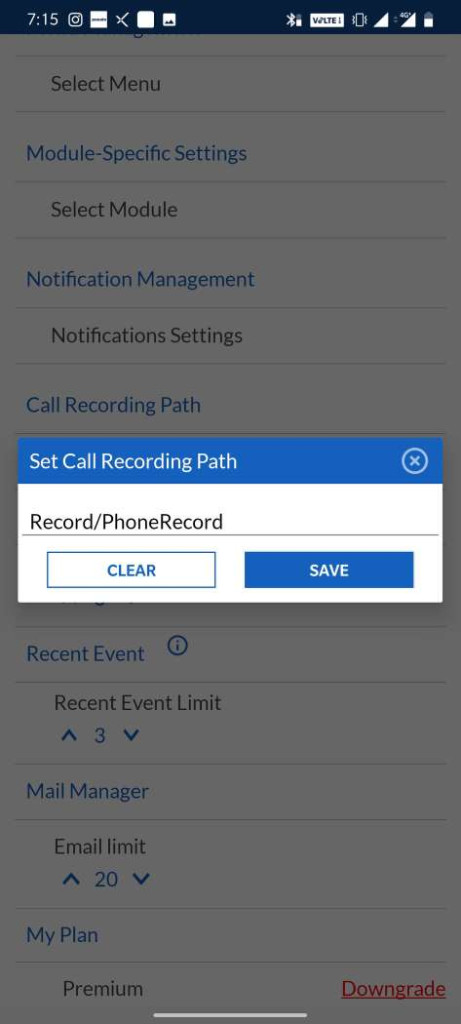
- This setting allows users to pre-define the storage path for logging in the call recordings.– The call logging setting can be accessible using the following steps :1. Go To Main menu > Settings 2. Refer to the Call Recording Path setting.3. Enter the storage folder path in the user device and save .This path will help users to navigate all call recording at one location. Call Recording & Storage This feature allows users to call any record directly using the device call feature, record the call and save the recording using the device storage.
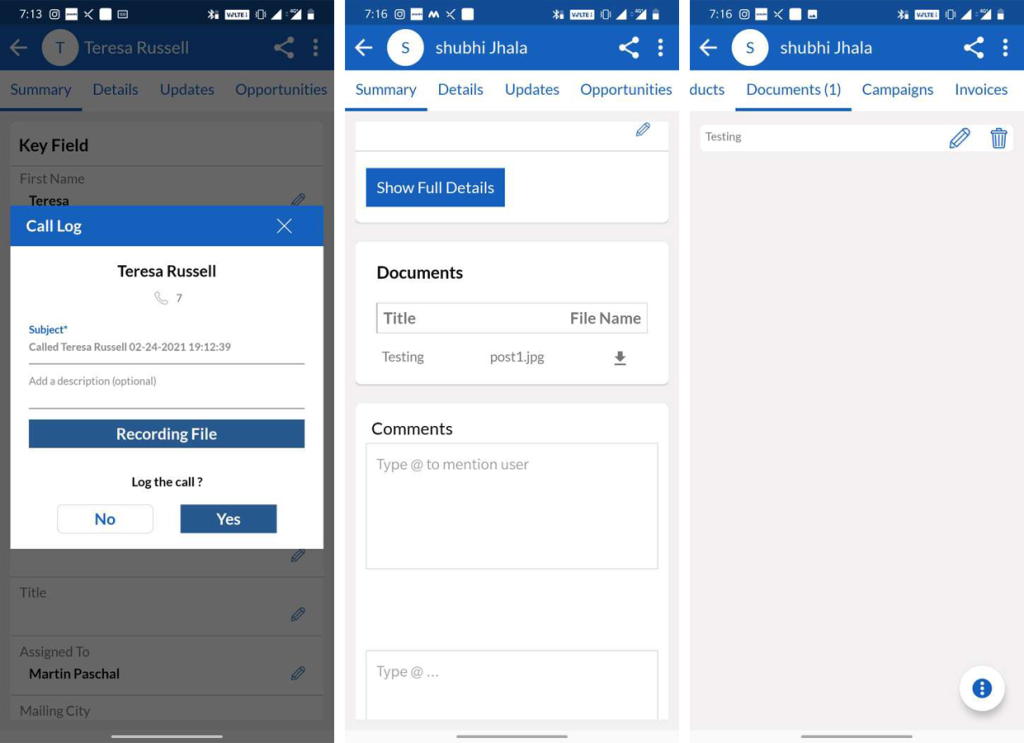
- Call logging feature can be used with the following steps :– Go to any record, call an individual record, start the device phone recorder if available in the user device.– Upon completion of the call, SalesHiker mobile app will lead back inside the app, where a pop-up will be displayed.– A pop-up will fetch the storage path of a user device if already saved, else the user can upload the clip later.– It gives the option to add notes for an individual call if required.– The uploaded recording will be saved in Record details > Documents. Device Support Call Logging/Recording
No Company Name Model Number OS Version Recording Path 1 Samsung Galaxy A50 Android v9.0 (Pie) internalStorage/Call 2 Samsung Galaxy A30 Android v9.0 (Pie) – upgradable to Android 10 internalStorage/Call 3 Samsung Galaxy A20 Android v9.0 (Pie) internalStorage/Call 4 Samsung Galaxy A10 Android 9.0 (Pie), upgradable to Android 10 internalStorage/Call 5 Xiaomi Mi A2 Android 8.1 (Oreo), upgradable to Android 9.0 (Pie) internalStorage/MIUI/sound_recorder/call_rec 6 Xiaomi Mi Note 4 Android 6.0 (Marshmallow), upgradable to 7.0 (Nougat), MIUI 11 internalStorage/MIUI/sound_recorder/call_rec 7 Xiaomi Mi Xiaomi Mi A3 Android 9.0 (Pie), upgradable to Android 11, Android One internalStorage/MIUI/sound_recorder/call_rec 8 realme x2 Android 9.0 (Pie), upgradable to Android 10, realme UI internalStorage/phoneStorage/Music/Recordings/Call Recordings 9 realme 2 Android 8.1 (Oreo), upgradable to Android 9.0 (Pie), ColorOS 6 PhoneStorage/Recordlings/callrecordings 10 Mi Note K20 pro,Note K20 Android 9.0 (Pie), upgradable to Android 10, MIUI 12 internalStorage/MIUI/sound_recorder/call_rec 11 Mi 5 Android 6.0 (Marshmallow), upgradable to Android 8.0 (Oreo), MIUI 10 internalStorage/MIUI/sound_recorder/call_rec 12 Mi 5s Android 6.0 (Marshmallow), upgradable to 7.0 (Nougat), MIUI 10 internalStorage/MIUI/sound_recorder/call_rec 13 Mi 5s Plus Android 6.0 (Marshmallow), upgradable to 7.0 (Nougat), MIUI 10 internalStorage/MIUI/sound_recorder/call_rec 14 Mi 6 Android 7.1.1 (Nougat), upgradable to Android 9.0 (Pie), MIUI 8 internalStorage/MIUI/sound_recorder/call_rec 16 Mi 8 SE Android 8.1 (Oreo), MIUI 9.5 internalStorage/MIUI/sound_recorder/call_rec 17 Mi 8 Lite Android 8.1 (Oreo), upgradable to Android 10, MIUI 11 internalStorage/MIUI/sound_recorder/call_rec 18 Mi 9 Lite Android 9.0 (Pie), upgradable to Android 10, MIUI 11 internalStorage/MIUI/sound_recorder/call_rec 19 Mi Mi 9 Pro,Mi 10 youth,Mi 10 Lite Zoom Android 10, MIUI 11 internalStorage/MIUI/sound_recorder/call_rec 20 Mi Mi Note 10 Lite Android 10.0 + MIUI 11 internalStorage/MIUI/sound_recorder/call_rec 21 Mi Mi Note 10 Pro Android 9.0 (Pie), upgradable to Android 10, MIUI 12 22 Mi Mi Max 2 Android 7.1.1 (Nougat), MIUI 11 internalStorage/MIUI/sound_recorder/call_rec 23 Mi Mi Max 3 Android 8.1 (Oreo), upgradable to Android 10, MIUI 11 internalStorage/MIUI/sound_recorder/call_rec 24 Mi Mi MIX Android 6.0 (Marshmallow), upgradable to 7.0 (Nougat), MIUI 10 internalStorage/MIUI/sound_recorder/call_rec 35 Mi Mi MIX 2 Android 7.1.1 (Nougat), MIUI 11 internalStorage/MIUI/sound_recorder/call_rec 26 Mi Mi MIX 3, Pocophone F1 Android 8.1 (Oreo), upgradable to Android 10, MIUI 12 27 Mi Redmi 5,Redmi 5A, Redmi 5 Plus Android 7.1.2 (Nougat), MIUI 11 internalStorage/MIUI/sound_recorder/call_rec 28 Mi Redmi 10X, Redmi 10X Pro, Redmi Note 9 Pro, Redmi K20 Pro Premium, Redmi K30i, Redmi K30i 5G, Redmi K30 Pro , Redmi K30 5G Android 10, MIUI 11 internalStorage/MIUI/sound_recorder/call_rec
- *There may be other device support Call Logging/recording, above list is just for informational purpose.
Mail Manager
- Admin
- Users are required to configure mail before integrating multiple mail accounts in the mail manager.
- Mail manager settings are accessible using the following steps:
- Go to Other Settings > Mail Manager
- Click on Configure Mailbox.
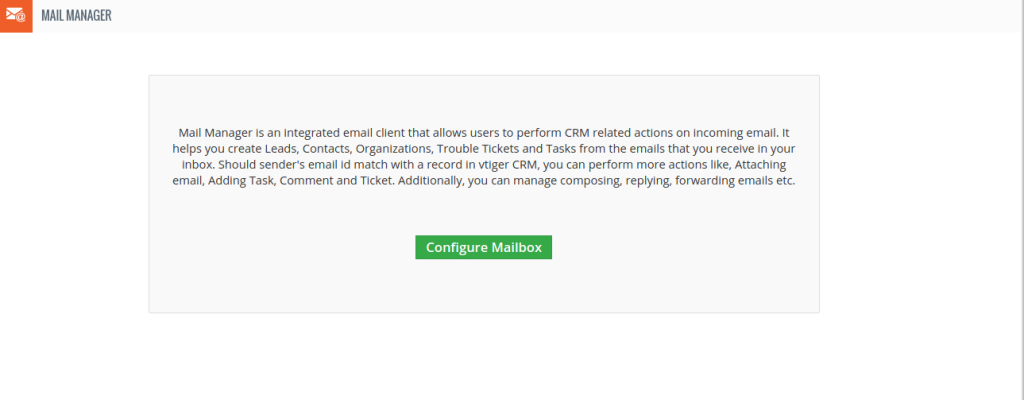
- Enter the required details of the mail server and save.
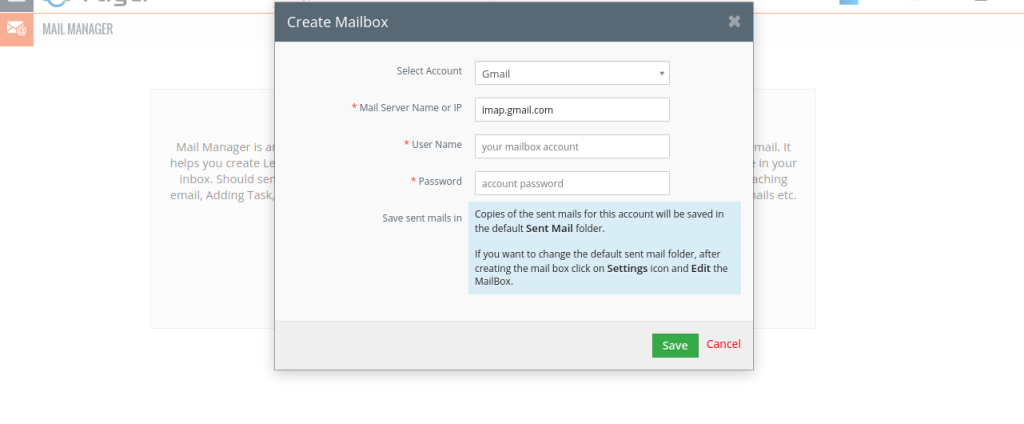
- Users
- Configure multiple mail accounts on a single platform for easy access to user emails.
- Mail manager allows users to narrow down searches by applying search criteria, and categorizing emails in separate folders.
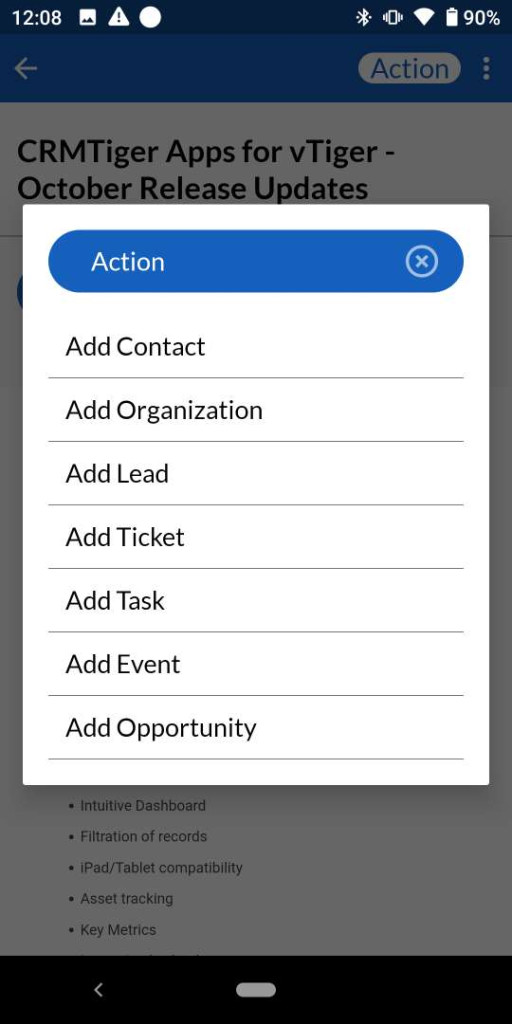
- Users can build contacts, Add organizations, lead / Attach Documents, tickets, or opportunities.

 by
by