



InApp Notification Settings
Setup Important(Default) Notification
Notification Settings : This option allows users to customise notification for the actions performed on the records.
Events
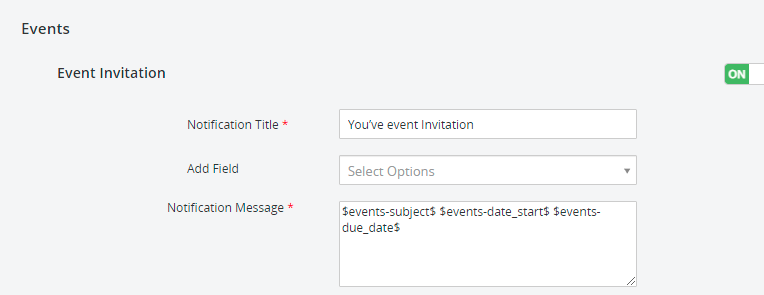
Event Invitation : This option allows admin users to set up the customised event invitation to notify the users assigned to.
Example
Notification Title – You’ve event Invitation
Add Field – Event:subject
Notification Message – $events-subject$ $events-date_start$ $events-due_date$
Event Reminder
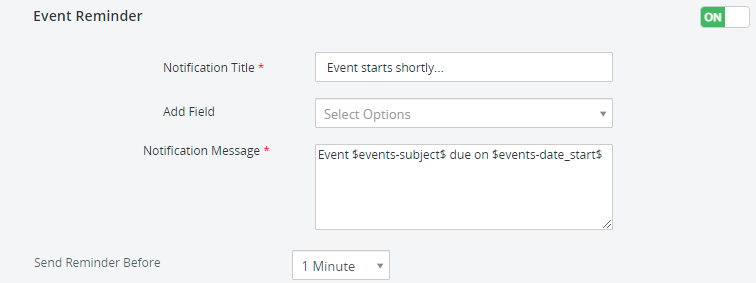
This option allows admin users to set up the reminder before the event to the assigned records.
Example
Notification Title – Event starts shortly.
Add Field – Event:subject
Notification Message – Event $events-subject$ due on $events-date_start$
Set Reminder Before – 1 minute
Conversions
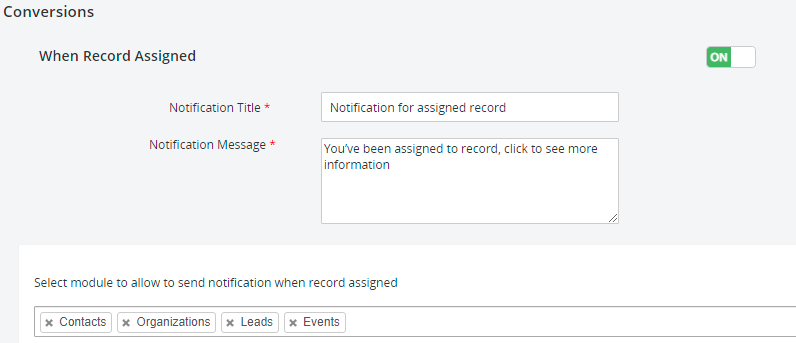
When Record Assigned : This option allows admin users to set up the custom notification when records have been assigned to the users for the added modules.
Example
Notification Title – Notification for assigned record
Notification Message – You’ve been assigned to record, click to see more information
Select module to allow you to send notification when record assigned – Contacts, Organizations, Leads, Events…
You were mentioned in comments
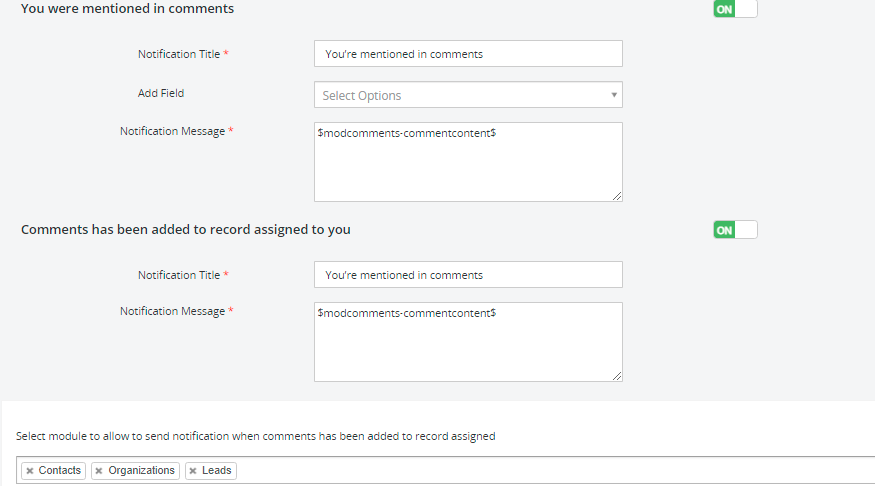
This option allows admin users to set up the custom notification when any user has been mentioned in the comment.
Example
Notification Title – You’ve event Invitation You’re mentioned in comments
Add Field – Comments:Assigned To
Notification Message – $modcomments-commentcontent$
Comments have been added to the record assigned to you : This option allows admin users to set up the custom notification when any record assigned to the users has been mentioned in the comments.
Example
Notification Title – You’ve event Invitation You’re mentioned in comments
Notification Message – $modcomments-commentcontent$
Select module to allow you to send notification when comments have been added to record assigned – Contacts, Organizations, Leads, Events…
Task
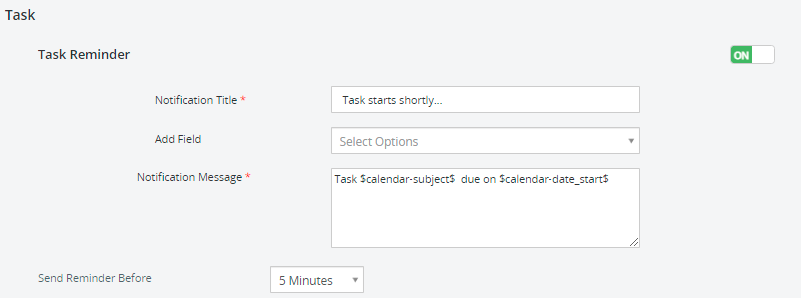
Task Reminder : This option allows admin users to set up custom reminder for the assigned tasks to the users.
Notification Title – Task starts shortly…
Add Field – Calendar:Assigned To
Notification Message – $calendar-date_start$$calendar-smownerid$$calendar-subject$Task $calendar-subject$ due on $calendar-date_start$
Set Reminder Before – 1 minute
Follow Record
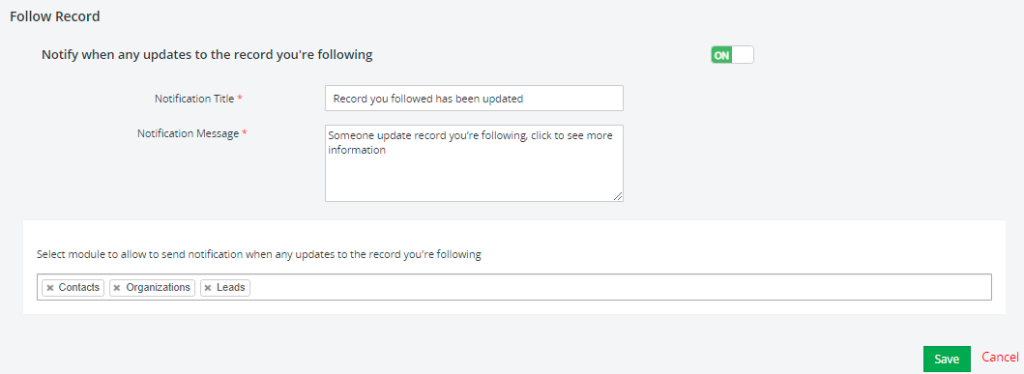
Notify when any updates to the record you’re following : This option allows admin users to set up custom notification when any updates noticed to the records users are following.
Notification Title – Record you followed has been updated
Notification Message – Someone update record you’re following, click to see more information
Select module to allow you to send notification when comments have been added to record assigned – Contacts, Organizations, Leads, Events…
Push notification
Section of SalesHiker Mobile Apps allows you to Broadcast Push notification to all users or send push notification on workflow events.
- Setup Push notification from Workflow
- This notification has been set up from the workflow of the CRM. When you Install SalesHiker Mobile Apps extension It will add “SalesHiker Push Notification” Action in Workflow.
- There are two types of Push notification when setup Push notification from workflow
- Link message : This type of message will send push notification to users accessing SalesHiker Mobile Apps, so clicking on that will redirect the browser to the option page specified in Link message settings.
- Send Push notification to Users
- This notification allows admin or manager(User having access to manage other users) users to send Push notification to all active users using SalesHiker Mobile Apps.
- There are two types of Push notification when setup Push notification
- Normal message : This type of message will send push notification to users accessing SalesHiker Mobile Apps, so clicking on that push notification in mobile apps will open a specific record in mobile Apps.
- Link message : This type of message will send push notification to users accessing SalesHiker Mobile Apps, so clicking on that will redirect the browser to the option page specified in Link message settings.

 by
by