



- Clicking on this will stop automatic conversation from the Bot to the selected customer number.
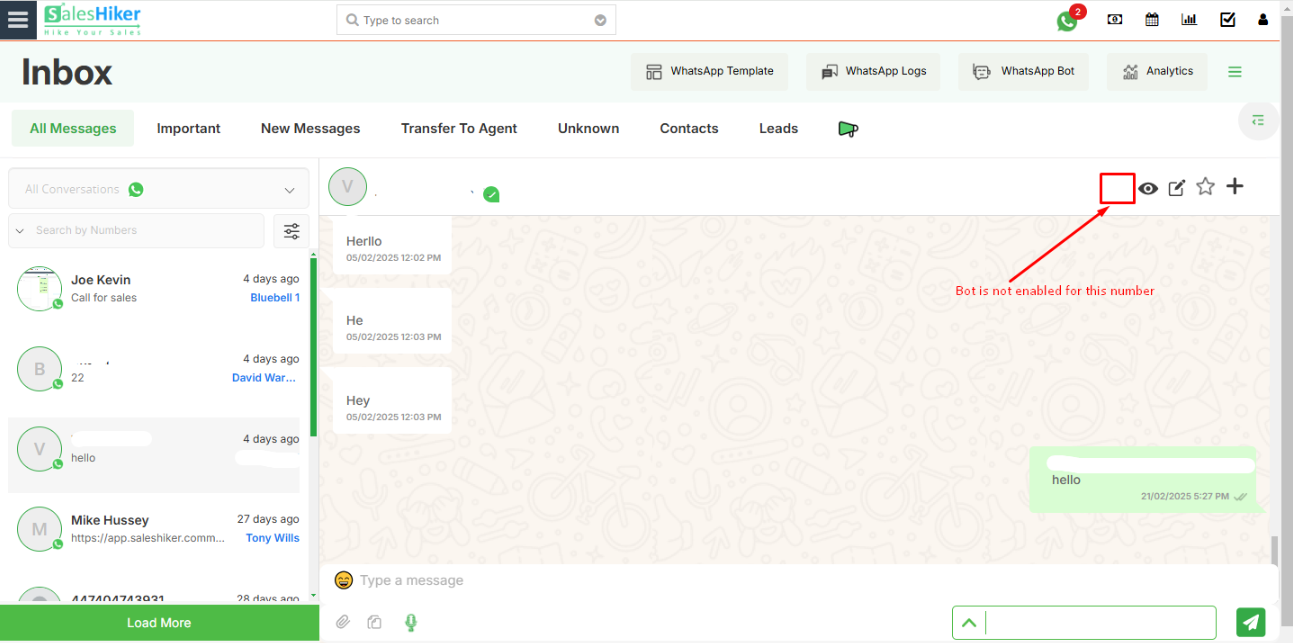
- If Chat is initiated for any number, then only the Chatbot icon will be displayed on the Chat timeline screen. Otherwise, the Chatbot icon will not be displayed.
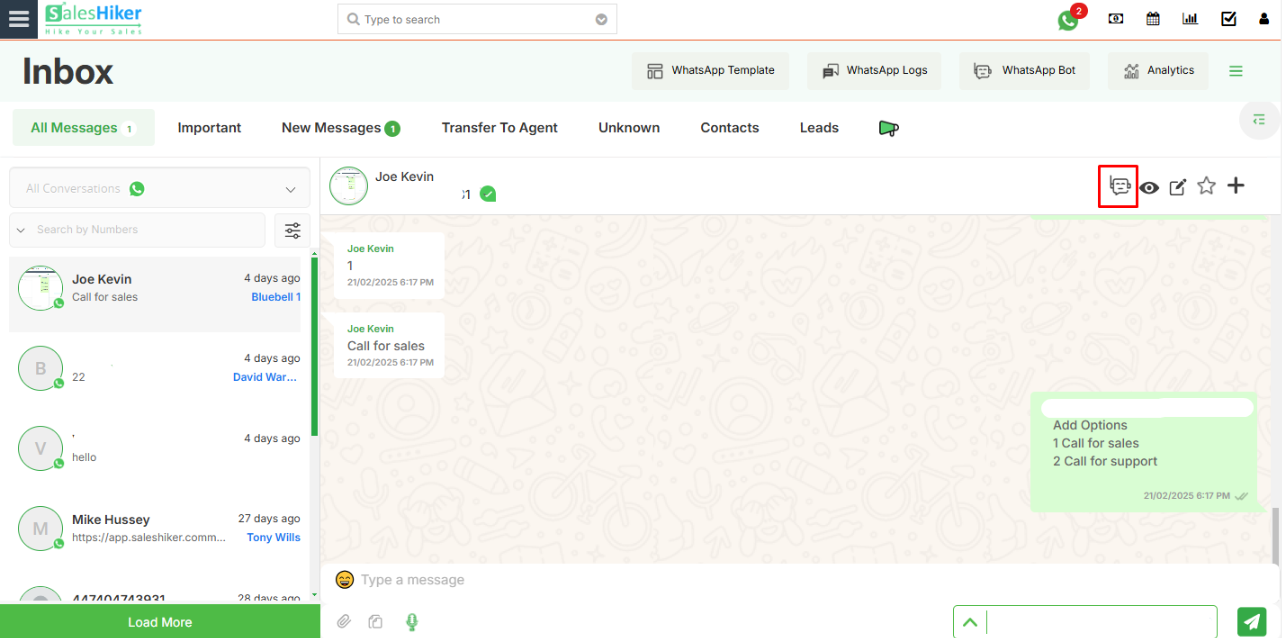
- If the initiated Chatbot flow ends with the conversation for the number, then the Chatbot icon will disappear for that number from the Chat timeline screen. And again if the user starts a conversation via Chatbot flow then the Chatbot icon will appear again for that number.
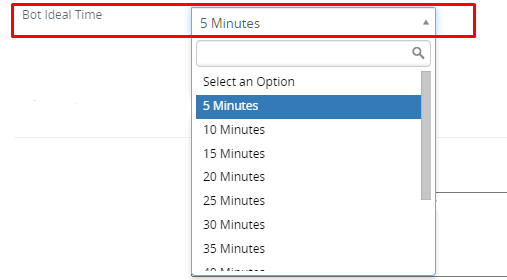
Bot Ideal Time
- This option will work if the user selects 5 minutes as Bot Ideal Time and Conversation mode is in Manual mode and if the user is not sending any new message within 5 minutes from last sent message then Conversation mode will change to Robotic mode automatically.
- User can set Bot ideal time from Set Up WhatsApp > Gear Icon
 in WhatsApp configuration go to general settings .Look for Bot ideal Time.
 - Note: It will automatically enable Robotic mode if the difference b/w Send Message from CRM and receive message is more than Bot Ideal Time.

 by
by