
How Calling Works in Your CRM Chat
The calling feature inside the CRM WhatsApp chat window allows you to connect with your customers through voice calls directly, without leaving the conversation screen. This makes communication faster, more personal, and much more efficient–especially when resolving queries that are difficult to handle over text.
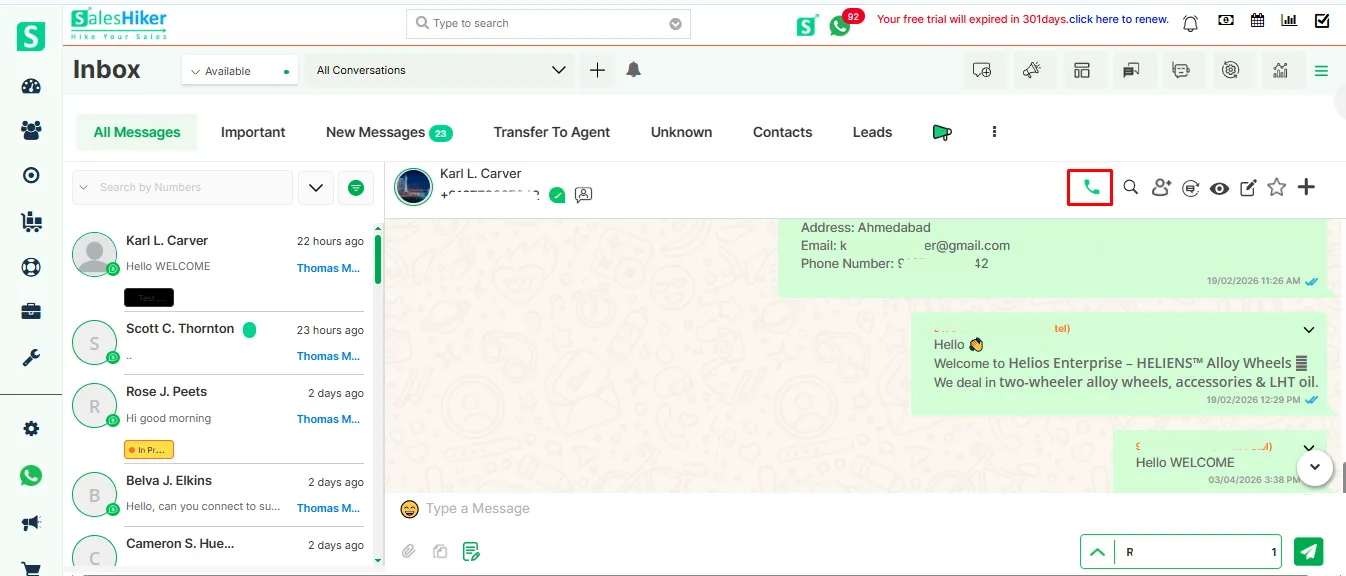
You will notice a calling icon within the chat interface. This indicates that calling functionality is available for that conversation.
Accessing the Calling Option
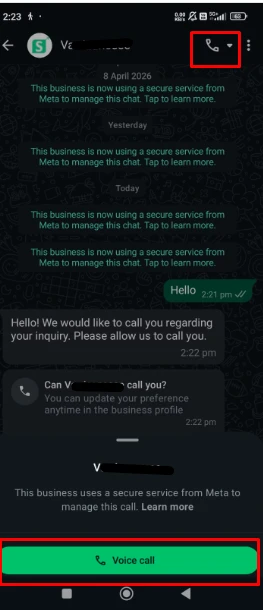
Open any WhatsApp conversation inside your CRM. In the chat window, you will see a calling icon (usually placed near the top or alongside other chat actions).
Clicking on this icon initiates the calling process.
Sending Call Permission Request
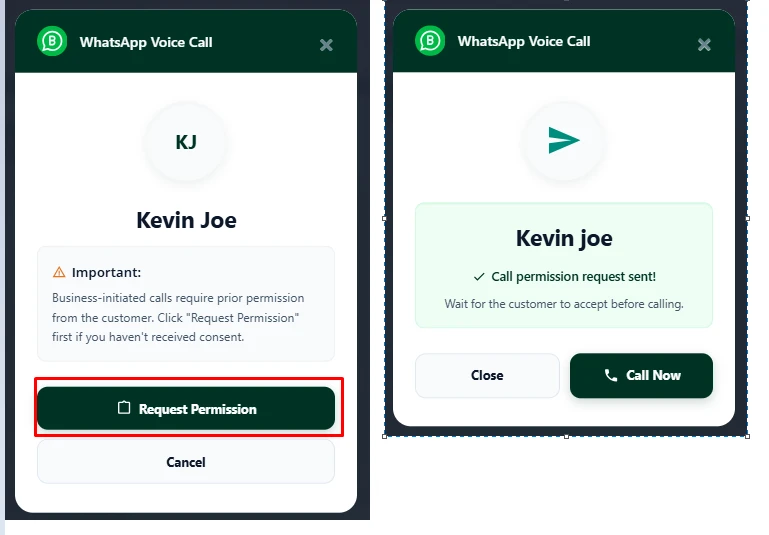
Once you click the calling icon, a permission request is triggered and sent to the end user. This step ensures that calls are only initiated with the user’s consent.
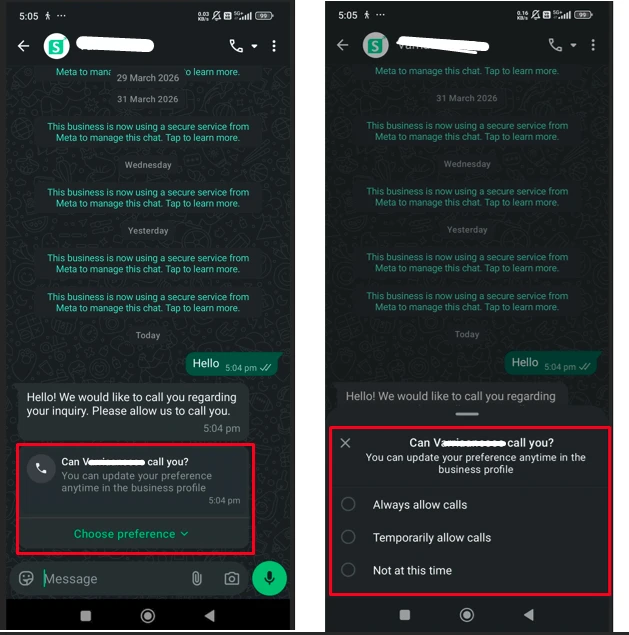
At the user’s end, a pop-up appears asking whether they would like to accept or decline the call request. This creates a controlled and user-friendly experience rather than forcing an incoming call.
User Permission Options
The end user is presented with multiple options when they receive the permission request:
- They can allow the call for that instance
- They can choose to always allow calls from your business
- They can choose to never allow calls
This flexibility gives users full control over how they want to be contacted.
Call Connection
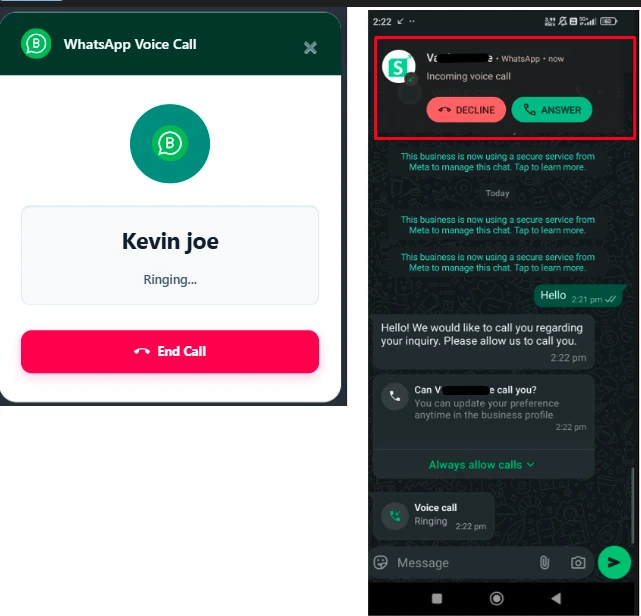
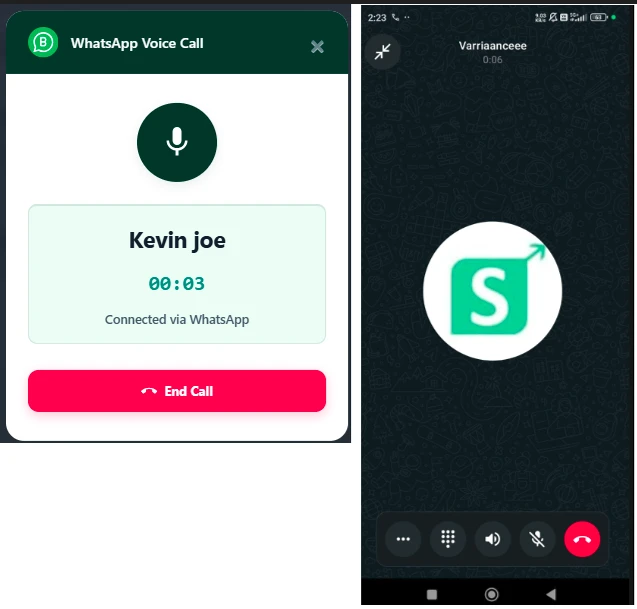
If the user accepts the permission, the call is immediately initiated. The call connects seamlessly, and both parties can continue the conversation over voice.
The CRM user will see the call connected status, and the interaction continues just like a regular phone call, but within the CRM environment.
Two-Way Calling Capability
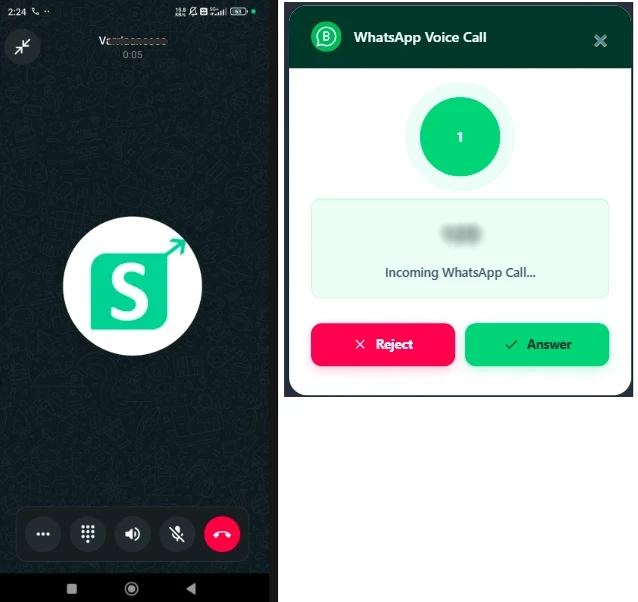
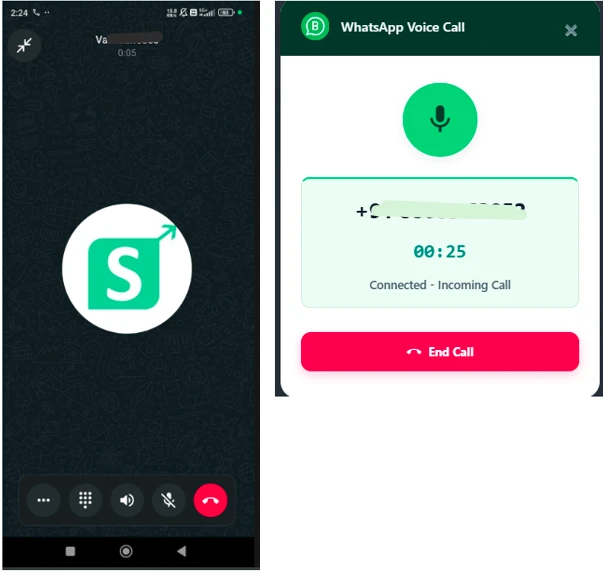
This feature is not limited to outgoing calls. Once permission is granted, the end user can also initiate a call from their side.
When the end user calls, the CRM user receives the incoming call notification within the system, allowing them to answer and continue the conversation in real time.
Important Behavior to Note
Once a user selects a permission preference (such as “Always allow” or “Never allow”), the system respects that choice for future interactions. This means you may not need to request permission every time, depending on what the user has selected earlier.
This calling feature enhances communication by bridging the gap between chat and voice. Instead of switching platforms or asking users to dial numbers manually, everything happens within a single, seamless interface. It improves response time, builds better customer relationships, and simplifies the overall support experience.

 by
by